


If you’ve ever sat down at your computer and thought, “Why is this thing so slow?” — you’re not alone. It’s one of the most common questions we hear at our repair shop, and honestly, there’s never just one answer.
Over the years, we’ve seen computers slow down for all kinds of reasons: a nearly full hard drive, hidden malware, overheating components, aging hardware, and more. The good news? A lot of these issues are fixable — and some you can even tackle yourself.
Below, I’ll walk you through the five most common reasons a computer slows down, based on real machines we’ve worked on. I’ll also share honest advice on what you can do about each one, whether that means a quick DIY fix or knowing when it’s time to bring it in.
1. Your Hard Drive Is Almost Full
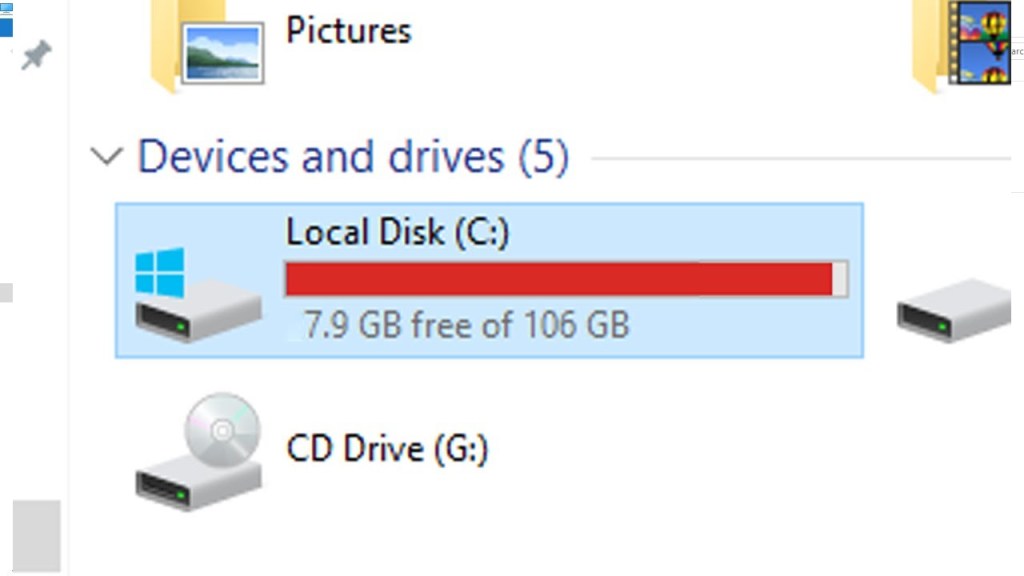
This one surprises a lot of people. A computer can look perfectly clean — no weird programs, nothing obviously wrong — and still run like it’s dragging through mud.
When we pop open File Explorer, the culprit is right there: the C: drive is packed.
Why a full drive slows down your computer
Your operating system constantly needs free space to create temporary files, manage virtual memory, and run basic functions. As a general rule, we tell our customers to keep at least 20% of their primary drive free. Once you dip below that threshold, your PC starts struggling — and you’ll feel it.
How to free up space
- Uninstall programs and apps you no longer use
- Delete old downloads, duplicate files, and temporary files (use Disk Cleanup on Windows)
- Move large files — photos, videos, backups — to an external drive or cloud storage
If storage is consistently a problem, it might also be worth upgrading to a larger drive.
2. Malware or Unwanted Programs Running in the Background
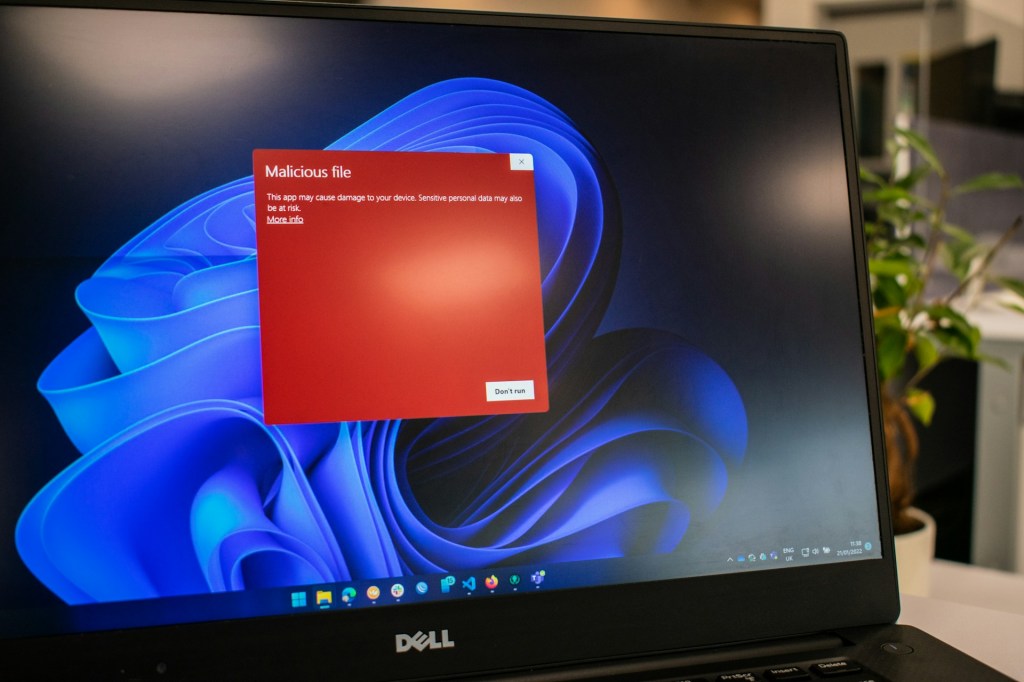
Ask most people why their computer is slow, and they’ll say “probably a virus” — and they’re often right.
What malware and adware can do to your PC
Some malware quietly runs in the background, eating up your CPU and RAM. Others bombard you with pop-ups, hijack your browser, or install additional programs without your knowledge. Either way, the result is a computer that feels sluggish and unreliable.
Beyond performance, some of these programs pose real security risks — logging keystrokes, stealing passwords, or sending your data somewhere it shouldn’t go.
What we recommend
There’s no magic one-click fix for serious malware. Antivirus software can catch a lot of it, but for stubborn infections, the most reliable solution is a clean reinstall of the operating system — after backing up your important data first.
If you’re not comfortable doing this yourself, bring it in. We’ll make sure your files are safe before we wipe anything.
3. You Have an Old Hard Drive (or a Failing SSD)
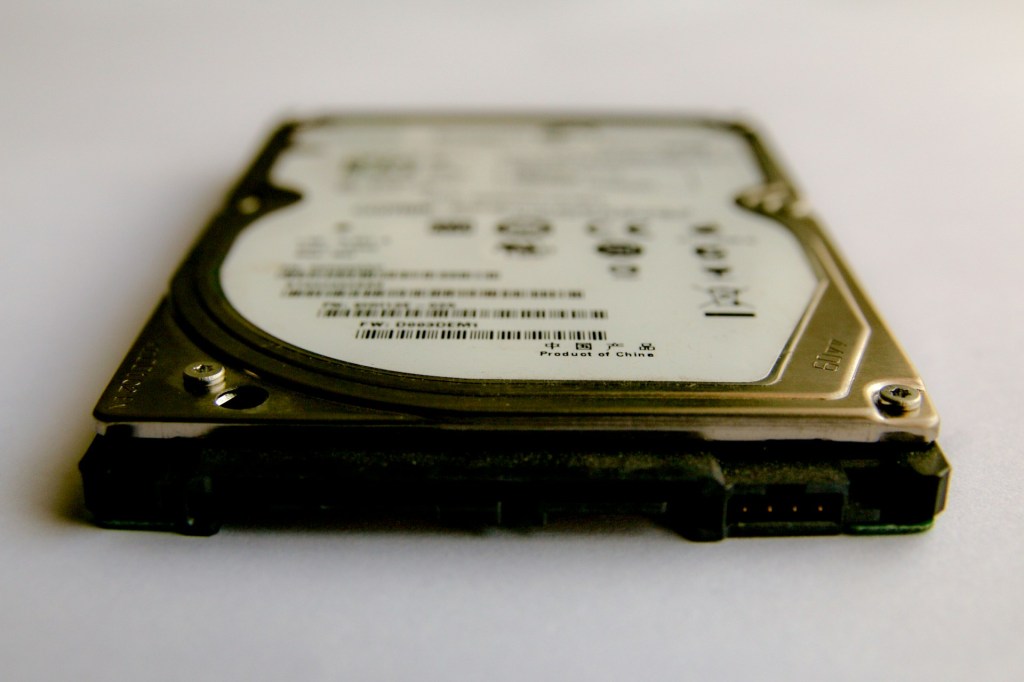
If your computer is more than a few years old and still running on a traditional spinning hard drive (HDD), that’s likely a big part of why it feels slow.
HDDs vs. SSDs — what’s the difference?
Traditional hard drives use spinning magnetic disks and a mechanical read/write arm. They work fine, but they’re slow by modern standards — especially when compared to SSDs (solid-state drives), which have no moving parts and can access data almost instantly.
Upgrading from an HDD to an SSD is one of the single best things you can do to breathe new life into an older computer. Boot times go from minutes to seconds. Programs open faster. Everything just feels snappier.
What if you already have an SSD?
SSDs can fail too — usually after several years of heavy use. If your SSD is aging and your computer is still sluggish, the drive itself might be the problem. We can run diagnostics to check its health and let you know if a replacement is the right move.
4. Overheating Is Slowing It Down (Thermal Throttling)
Here’s one that a lot of people don’t think about: your computer might be intentionally slowing itself down to protect itself from heat damage.
How thermal throttling works
Your CPU generates heat as it works. When it gets too hot, it kicks in a built-in safety feature called thermal throttling — it deliberately runs slower to reduce heat output and prevent permanent damage. It’s smart design, but if it’s happening regularly, it’s a sign something needs attention.
Signs your computer might be overheating
- The fans are running louder than usual
- The bottom of a laptop or the case of a desktop gets very hot to the touch
- The computer shuts down suddenly, especially during demanding tasks
What to do about it
The most common fix is cleaning out dust. Dust builds up in fans, vents, and heat sinks over time, blocking airflow and trapping heat. A good cleaning can make a big difference.
If it’s been several years, we may also recommend reapplying thermal paste — a heat-conducting compound between the CPU and its cooler that dries out and becomes less effective over time.
5. The Hardware Is Simply Too Old for Modern Software
Sometimes, slow performance isn’t caused by a specific fault—it’s simply the result Sometimes the honest answer is: the computer has aged out.
Why older hardware struggles today
Software keeps evolving — operating systems, browsers, apps, and games all demand more RAM, faster processors, and better graphics than they did five or ten years ago. Even Chrome uses significantly more memory than it did a few years back. If your machine was built for an older era, it’s going to struggle keeping up with today’s software.
Before you replace it, consider upgrading
Depending on your machine, there may be cost-effective upgrades worth trying:
- Add more RAM — this is often the single most impactful upgrade for a sluggish system
- Upgrade to an SSD if you haven’t already
- Install a lightweight version of Linux if Windows has become too heavy for the hardware
That said, if the machine is very old or the upgrades don’t move the needle, it may make more financial sense to invest in a new system. We’re always upfront about that conversation — we’d rather help you make the right decision than sell you a repair that isn’t worth it.
Final Thoughts: Don’t Just Live With a Slow Computer
A slow computer is frustrating, but it’s usually fixable. The key is understanding what’s actually causing the problem rather than just hoping it goes away.
Whether it’s a full drive, malware, an aging hard drive, overheating, or hardware that’s hit its limit — there’s a path forward for most situations. Sometimes that means a quick fix you can do at home. Other times, it means bringing it in for a closer look.
If you’re not sure what’s going on with your machine, feel free to stop by the shop located in Downtown, Los Angeles or give us a call. We’re happy to take a look and give you an honest assessment — no pressure, no upsells.
 ITBrother