

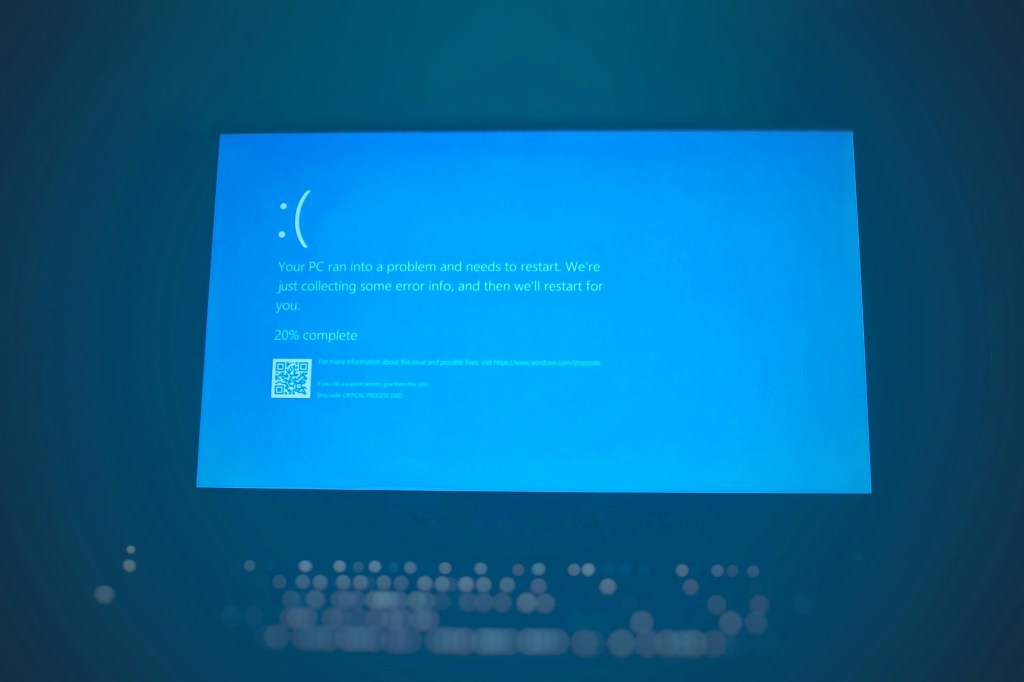
The most common issue people experience with Windows machines is the infamous Blue Screen of Death—also known as the BSOD. Unfortunately, due to the nature of this error and the wide range of reasons it can occur, there is no one-size-fits-all solution. Sometimes it can be caused by software incompatibility, poor system performance, or in the worst-case scenario, full Windows system corruption.
Depending on the cause, the fix could be as simple as reinstalling a program or driver—or as drastic as performing a full system reinstall. However, not all hope is lost. Even when the operating system becomes nonfunctional, there are still conventional ways to recover and back up your important data.
Here are some common reasons why blue screens can occur:
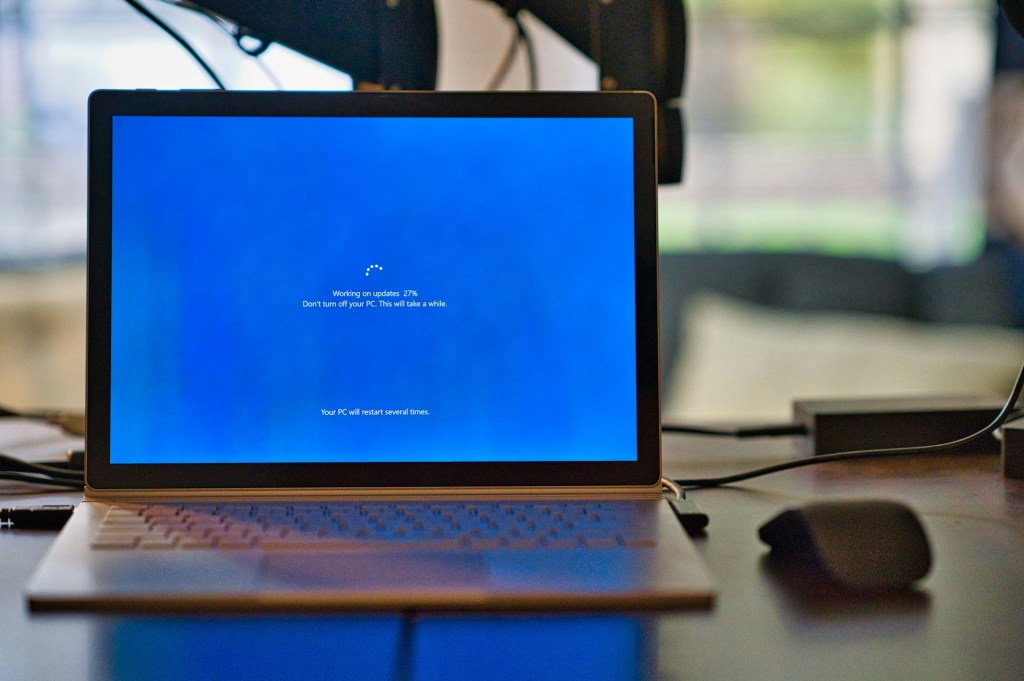
1. Windows Update
Every month, Microsoft rolls out security patches and system updates aimed at fixing bugs and vulnerabilities. While these are designed to improve performance and protect users, it’s not uncommon for updates to cause unexpected issues—including blue screens.
From my experience, it’s often difficult to pinpoint the exact cause. Some clients report shutting down their systems mid-update (often unknowingly), which can lead to corruption. Others experience blue screens even after letting the update complete. While interrupting the update process seems like the more obvious cause, the issue is often multi-faceted and not always user-driven.
Fix:
The solution depends entirely on what the update was doing and how it failed. In some cases, the system will automatically revert the update and boot normally. In more severe cases, the computer enters a restart loop and repeatedly shows the blue screen, making it essentially unusable. Depending on where you fall on this spectrum, you may be able to back up your data and continue using the PC—or you might need to reinstall Windows entirely.
2. Drivers
Though less common than Windows updates, outdated or faulty drivers can cause blue screens due to poor communication between hardware and the operating system.
In case you’re unfamiliar, a driver is a piece of software that allows your hardware (like a graphics card or network adapter) to communicate properly with the OS. Think of it like the human body: just as our organs need clear instructions to function in sync, a computer’s components need drivers to work together smoothly.
Driver-related blue screens are often caused by outdated or corrupted drivers—especially graphics and CPU drivers, which get updated more frequently than others like Wi-Fi or audio drivers.
Fix:
In many cases, a blue screen caused by driver issues will result in a one-time crash, after which the system restarts and behaves normally. Updating or reinstalling the problematic driver usually resolves the issue.
3. Program Incompatibility or Instability
This issue tends to show up more frequently in systems running resource-intensive software—such as video editing programs, CAD tools, or other creative or industrial applications. Over time, as these programs receive updates, they can become more taxing on your system—either due to added features or poor optimization.
Eventually, your system may not be able to allocate enough resources to keep the program running properly. This overload can trigger a blue screen and force a system restart.
Fix:
In these cases, the system typically restarts and behaves normally afterward. However, it’s a good idea to check for software updates, review system requirements, and monitor memory and CPU usage to avoid repeat issues.
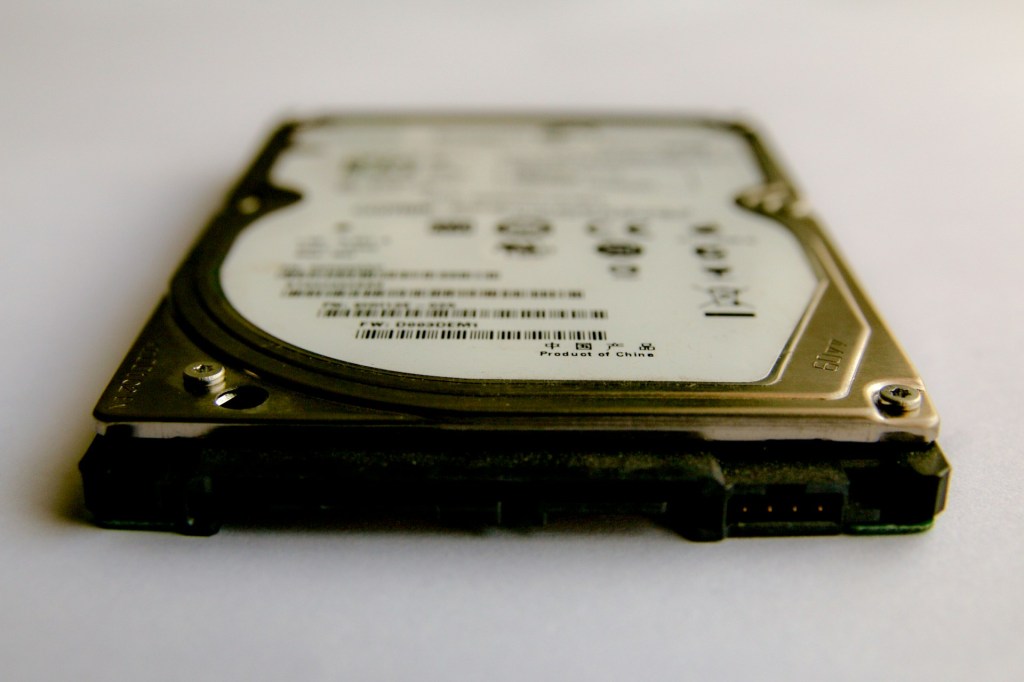
4. Hardware Faults
Hardware-related blue screens are a bit rarer. Typically, if a hardware component is failing, it will either cause other noticeable symptoms or fail outright. However, one piece of hardware that can directly trigger a blue screen is your storage drive.
If specific sectors on your hard drive or solid-state drive are corrupted—and your operating system is installed in those sectors—then blue screens can appear because Windows can’t access vital system files.
Fix:
When a drive begins to fail, replacement is often the only long-term solution. Cloning the drive may be possible, but it carries the risk of copying corrupted data, which can lead to the same BSOD issue. In these cases, backing up data to a new drive and performing a clean install is typically the safest route.
Final Thoughts
Blue screens can feel sudden and random, but they usually stem from something going wrong beneath the surface—whether it’s software acting up, a failing update, or hardware on its last legs. It’s not always clear-cut, and sometimes things just don’t work the way they’re supposed to. But that’s the nature of working with computers—there’s a lot going on in the background, and when something breaks, it doesn’t always give you a clear reason why.
Most of the time, it’s fixable. Sometimes it’s a quick reboot, other times it might mean starting fresh. Either way, it’s just part of the reality of using technology day to day.
Need Help with Your Computer?
Don’t let computer problems slow you down. If you’re in Los Angeles, call us or drop by our shop for professional PC repair and support. We’ll make sure your system is running smoothly again.
 ITBrother
Leave a comment