

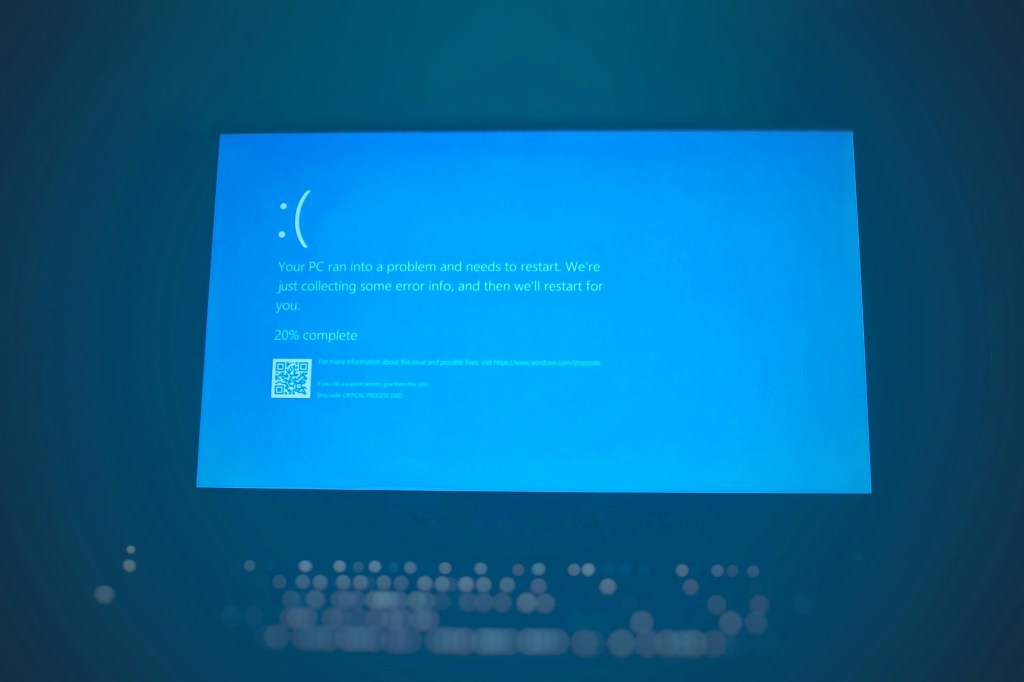
If you own a Windows machine, you’ve probably encountered a blue screen crash at least once. As alarming as it is, it’s more common than you might think.
Blue Screen of Death (BSOD) is one of the most common issues we see at our shop, and it’s also one of the most misunderstood. Unfortunately, there’s no single cause—it can stem from a failed Windows update, a buggy driver, a struggling application, a failing hard drive, etc…
The fix can range from a simple restart to a full Windows reinstall. The good news? Even in the worst-case scenario, your data usually isn’t gone for good. In this post, we’re breaking down the four most common reasons blue screens happen—and what you can realistically do about each one.
1. Windows Update Gone Wrong
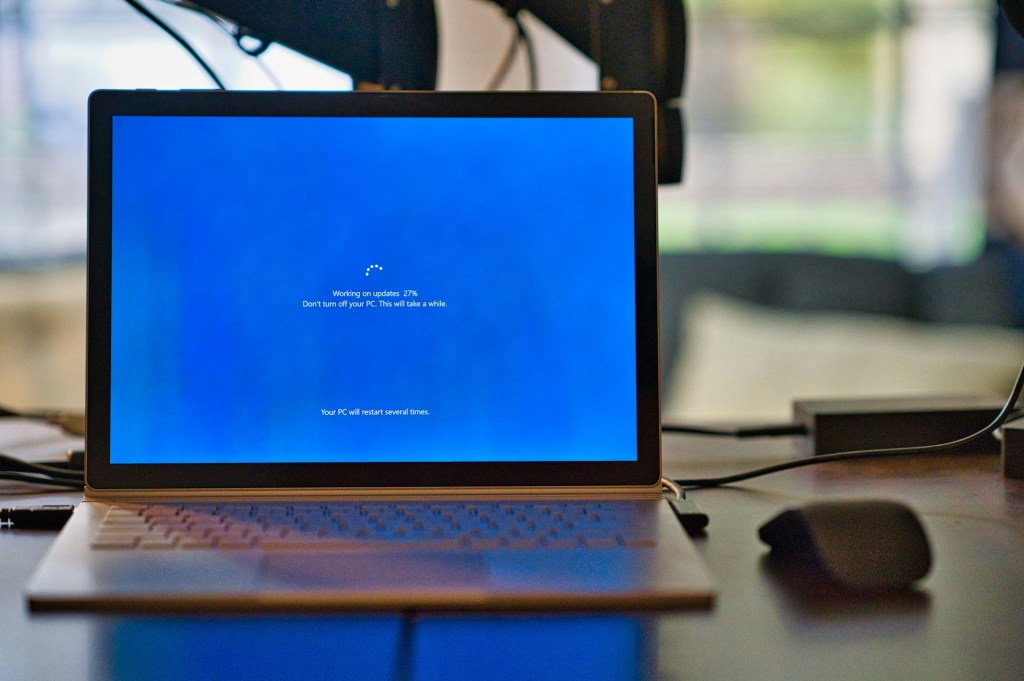
Every month, Microsoft releases security patches and system updates designed to fix bugs and improve stability. Most of the time, these updates install without any issues. But occasionally, they trigger a blue screen—either during the update itself or shortly after.
From what we’ve seen in the shop, there are two common scenarios: a customer shut down their computer mid-update (sometimes without realizing an update was running), or the update completed but still caused problems on that specific system. Either way, it’s rarely a simple fix—and it’s almost never the user’s fault.
What can you do?
Windows will sometimes recover on its own and revert the update automatically. If your computer is stuck in a blue screen loop and won’t boot normally, the situation is more serious. Depending on how far the damage goes, the options range from recovering your data and rolling back the update, all the way to a clean Windows reinstall.
Quick tip: Never shut down your computer when you see “Do not turn off your computer” during an update. Let it finish, even if it takes a while.
2. Drivers Issues
Drivers are the software that lets your hardware—graphics cards, network adapters, printers—communicate with Windows. When a driver is outdated, corrupted, or incompatible with a recent update, it can throw the whole system off and cause a blue screen.
Think of it like this: if one organ in your body stops sending the right signals, things start breaking down. Same idea. Graphics and CPU drivers are updated most frequently and are the most common culprits, but any driver can be the source of the problem.
What can you do?
The good news here is that driver-related blue screens are often a one-time event. After the crash, Windows restarts and runs fine. If it keeps happening, updating or reinstalling the problematic driver usually resolves it. If you’re not sure which driver is causing the issue, a technician can pull the error log and identify it pretty quickly.
3. Program Incompatibility or Instability
This issue tends to show up more frequently in systems running resource-This one shows up most often in computers running heavy software—video editing tools, CAD programs, 3D rendering applications, and similar resource-intensive programs. As these applications receive updates over time, they can become more demanding on your system. If your hardware can’t keep up, Windows may crash under the load.
It’s not always about outdated hardware either. Sometimes it’s a poorly optimized update from the software developer that pushes your system past its limits.
What can you do?
After the crash, your system will usually restart normally. To avoid repeat episodes, check for software updates, review the program’s current system requirements, and keep an eye on memory and CPU usage while the program is running. If usage is consistently maxed out, it might be time to consider a hardware upgrade.
4. Hardware Faults (Especially Storage Drives)
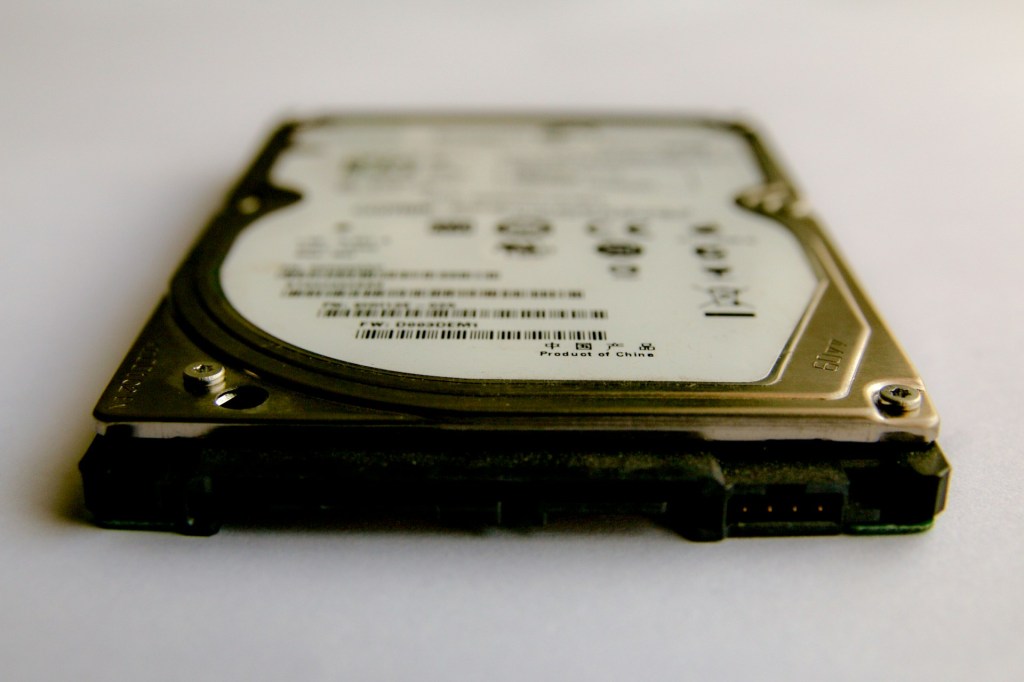
Hardware failures are less common as a direct cause of blue screens, but they do happen—and when they do, it’s usually the storage drive. If certain sectors of your hard drive or SSD become corrupted and your operating system files are stored in those sectors, Windows won’t be able to read them—and it crashes.
This is different from most other BSOD causes because it typically doesn’t go away on its own. A drive that’s starting to fail will usually get worse over time, not better.
What can you do?
If the drive is failing, replacement is usually the safest long-term solution. Cloning the old drive to a new one is sometimes possible, but it carries the risk of carrying over corrupted data and reproducing the same problem. The cleanest path is typically backing up your data to a new drive and doing a fresh Windows install. Not the most fun option, but the most reliable one.
When Should You Bring It In?
Not every blue screen needs a trip to a repair shop. If it was a one-time crash and everything seems fine now, it’s worth keeping an eye on it but not necessarily cause for alarm. Here’s when we’d recommend getting it checked out:
- You’re getting blue screens repeatedly (more than once in a short period)
- Your computer is stuck in a restart loop and won’t boot
- You’re seeing error messages you don’t recognize on the blue screen
- You’re worried about your data and want to make sure it’s safe
- The computer is making unusual noises (clicking or grinding from a hard drive is a red flag)
We’re always happy to take a look and give you an honest assessment. Sometimes the fix is quick, sometimes it’s more involved—but we’ll always tell you what’s going on before we do anything.
Final Thoughts
Blue screens almost always have a cause—even when it feels random. Whether it’s a bad update, a driver conflict, an overloaded application, or a drive on its way out, there’s usually a path forward. Most of the time, it’s fixable. And even when it’s not, your data doesn’t have to go down with the ship.
If you’re dealing with a blue screen and aren’t sure where to start, feel free to stop by the shop located in Downtown, Los Angeles or give us a call. We can quickly check what is causing the blue screen crashes for you.
 ITBrother