

**Update** As of 2026, PC components and electronics in general have increased in price due to AI and AI Servers manufacturing. Due to these unprecedented times, replacing a computer might not be the best option in general and should be considered a last resort. And upgrading components should only be considered only when it is deemed necessary. Until prices and markets equalize, consider maintaining your current system till then.
One of the most common questions we hear at our shop is: “Can this system be upgraded, or is it time to get a new one?”
It’s a fair question — and the honest answer is: it depends on the upgrade. Some improvements can genuinely breathe years of new life into an aging machine. Others sound great on paper but barely move the needle for most users.
In this guide, we’re breaking down the most common PC upgrade paths we see in our shop every week — what actually works, what’s situational, and when the smarter move is to put that money toward a replacement instead.
Start With the Upgrades That Matter Most
In most cases, upgrading a PC isn’t about making it “cutting edge.” It’s about removing the biggest performance bottlenecks. And for the majority of users, two components will make the largest difference.
1. SSD Upgrade: The Single Best Thing You Can Do for an Older PC
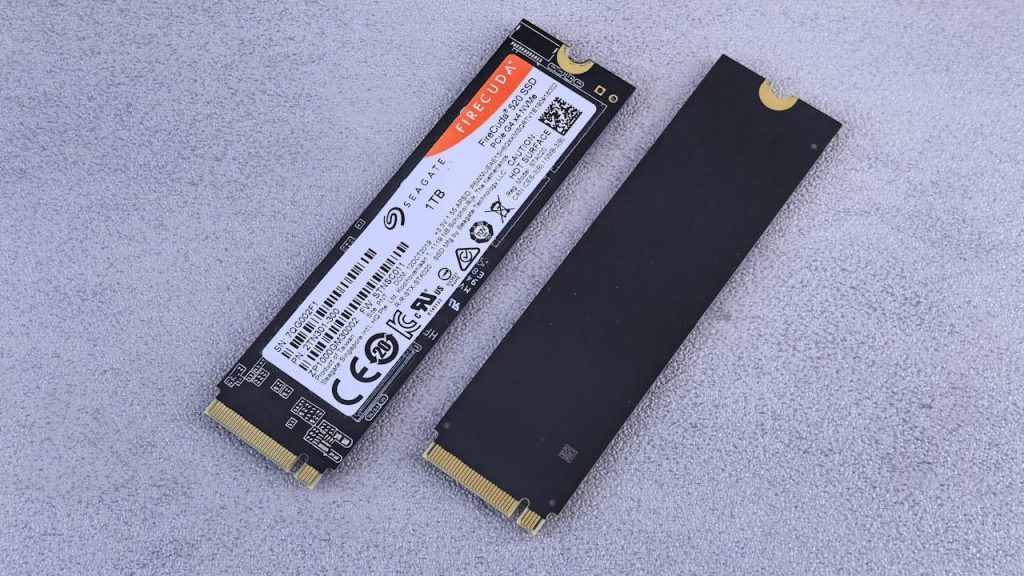
If your computer is still running on a traditional hard disk drive (HDD), upgrading to a solid-state drive (SSD) is almost always the first thing we recommend. It’s not even close.
Why an SSD Makes Such a Big Difference
Old hard drives use spinning platters and mechanical read heads to access data. SSDs have no moving parts — they’re essentially very fast flash memory. The result is a night-and-day difference in everyday use:
- Boot times drop from minutes to seconds
- Programs open almost instantly
- Your system stops freezing when switching between tasks
- File transfers and saves are dramatically faster
We’ve seen computers that customers were ready to throw away feel brand new after an SSD swap. It’s that impactful.
Does Your Computer Support an SSD Upgrade?
Most desktops and many laptops can be upgraded. Compatibility depends on your machine’s age and design, but in the majority of cases we see, it’s doable. If your computer has a slow startup, freezing, or long load times, this is the upgrade to start with.
2. Adding More RAM: Improving Multitasking and Stability
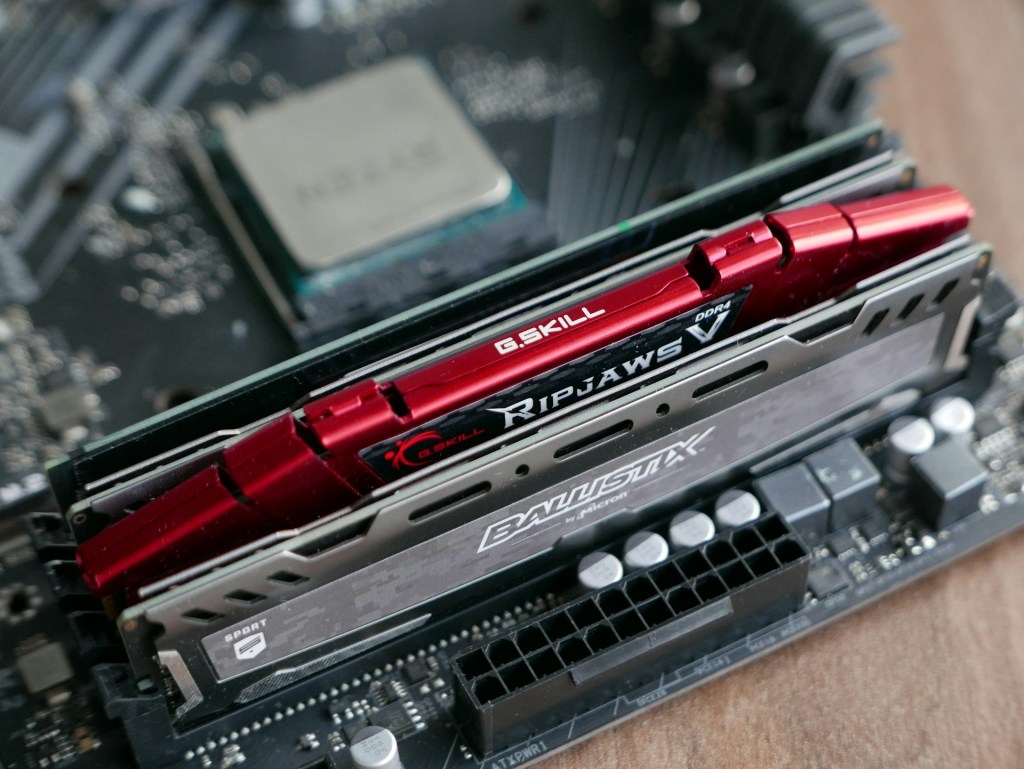
RAM (Random Access Memory) determines how many tasks your computer can handle at once. When a system runs out of RAM, it relies on slower storage-based memory, which causes unresponsiveness, freezing, or slow performance.
Signs You Might Need More RAM
- Your computer has 4GB or less
- It slows way down when you have multiple browser tabs open
- You notice freezing or lag when switching between programs
- You’re running Windows 11 on entry-level hardware
A RAM upgrade won’t give you the dramatic speed jump of an SSD, but it makes a real difference in stability and responsiveness — especially on older machines that were shipped with the bare minimum.
3. Laptop vs. Desktop: Why Your Device Type Changes Everything
Before we talk GPUs and CPUs, there’s something important to understand: laptops and desktops are not in the same upgrade conversation.
Laptop Upgrade Options Are Limited
On most laptops, the practical upgrade options are:
- SSD replacement
- RAM (only if it’s not soldered to the motherboard — many modern laptops have soldered RAM that can’t be changed)
CPUs and GPUs in laptops are almost always integrated directly into the board. There’s no swapping them out. This isn’t a flaw — it’s just how laptops are designed to stay thin and efficient. So for laptops, upgrades are about extending usability, not transforming performance.
Desktops Have More Room to Grow
Desktops use modular, swappable components with better cooling and more upgrade headroom. That said, more options doesn’t always mean more value — which brings us to the next two upgrade types.
4. GPU Upgrades: Only Worth It for Specific Workloads
Graphics card upgrades come up a lot, and they’re powerful — but only if your work actually demands them.
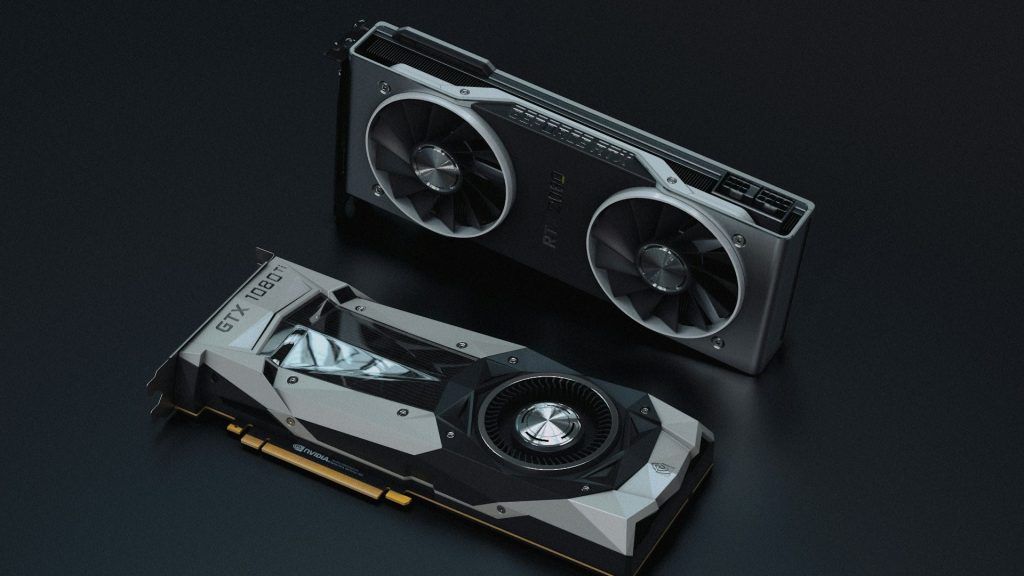
A GPU Upgrade Makes Sense If You’re Doing:
- PC gaming (especially at higher resolutions or framerates)
- Video editing and rendering
- 3D modeling or animation
- AI and machine learning tasks
- Heavy graphic design work
A GPU Upgrade Won’t Help Much If You’re Doing:
General web browsing, office work, video streaming, email — for everyday tasks, your integrated graphics handles everything just fine. A new GPU won’t make Google Docs load faster.
There’s also a cost reality check: modern graphics cards are expensive, require a power supply that can handle the load, and can be bottlenecked by an older CPU. We always make sure customers understand the full picture before recommending this path.
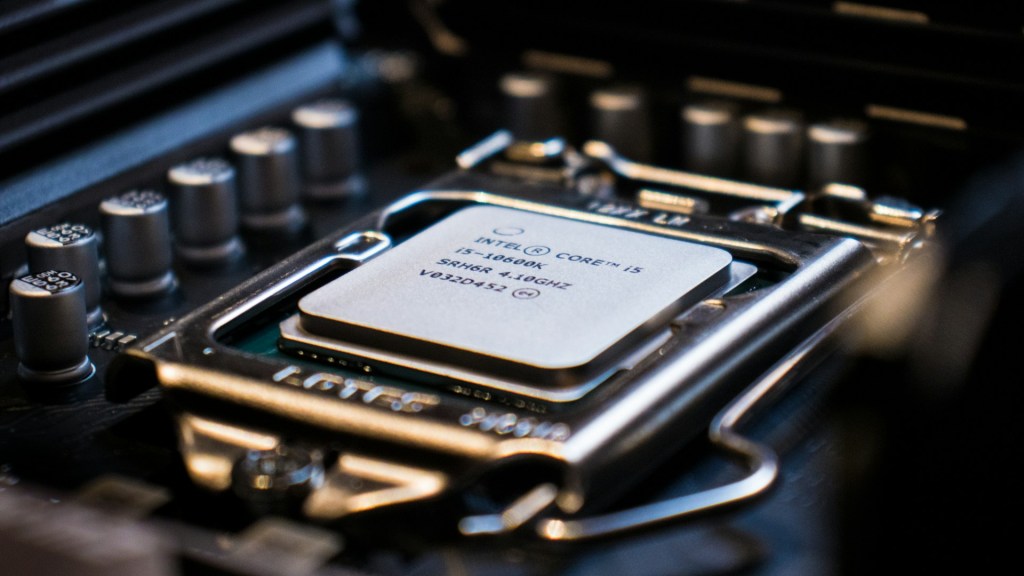
5. CPU Upgrades: More Complicated Than Most People Expect
CPU upgrades sound appealing — who doesn’t want a faster processor? But in practice, they’re one of the more complex and often least cost-effective upgrade paths we see.
Why CPU Upgrades Are Tricky
Even when a CPU upgrade is technically possible, it usually requires:
- A compatible motherboard socket
- A BIOS update that supports the new chip
- RAM that matches the new processor’s generation
- Potentially a better cooling solution
Once you add up those supporting costs, you’re often approaching the price of just replacing the system — especially if you’re jumping multiple CPU generations.
When a CPU Upgrade Actually Makes Sense
If you have a system that was specifically designed for expansion — a mid-range or higher desktop workstation, for example — and you have a clear performance bottleneck in processor-heavy tasks (video rendering, compiling code, scientific computing), then a CPU upgrade can be worth it. For general everyday use, it rarely is.
6. Upgrade or Replace? How to Know When You’ve Hit the Limit
Here’s the honest framework we use when customers bring in machines:
- SSD + RAM upgrades: Almost always worth it. High value, reasonable cost, immediate impact.
- GPU upgrades: Worth it only if your workload demands it and the rest of your system can support it.
- CPU upgrades: Approach with caution. Run the numbers on supporting costs first.
- Multiple high-cost upgrades: If you’re stacking several expensive components into an old system, replacement is usually the smarter investment.
A good rule of thumb: if the total upgrade cost exceeds 50% of what a comparable new or refurbished system would cost, it’s worth having a serious conversation about replacement instead.
Our Shop’s Practical Upgrade Process
When a customer comes in asking about upgrades, here’s how we actually approach it:
- Diagnose the real bottleneck — what’s actually causing the slowness?
- Start with storage — if you’re on an HDD, that’s almost always step one.
- Address memory — if you’re running low on RAM, that’s usually step two.
- Re-evaluate — after those two upgrades, reassess whether the system meets your needs.
- Discuss further options only if they’re clearly justified by your workload and budget.
This keeps costs down and makes sure you’re not spending money on upgrades that won’t actually solve your problem.
Bottom Line: Smart Upgrades vs. Chasing Specs
Upgrading your computer doesn’t have to be complicated or expensive. In most cases, two well-chosen upgrades — storage and memory — will make the biggest real-world difference and buy you several more years out of a machine you already know and trust.
That said, not all upgrades are created equal, and we’d rather be upfront with you about what’s worth it than sell you something that won’t move the needle.
Not sure what your computer actually needs? Stop by our shop in Downtown, Los Angeles with your system and we’ll take a look. We’ll give you a straight answer about what’s holding it back and what the most cost-effective path forward looks like — whether that’s an upgrade or something else entirely.
Frequently Asked Questions
Is it worth upgrading an old PC?
It depends on the upgrade. An SSD and RAM upgrade can absolutely be worth it on older machines, often extending the useful life by 3–5 years. More expensive upgrades like CPUs and GPUs need to be evaluated case-by-case based on your workload and the age of the rest of your system.
What is the most impactful PC upgrade?
In our experience, switching from a hard disk drive (HDD) to a solid-state drive (SSD) is the single most impactful upgrade for the majority of users. The improvement in boot time, load times, and everyday responsiveness is immediately noticeable.
Can you upgrade a laptop’s CPU or GPU?
In most cases, no. Laptop CPUs and GPUs are typically soldered or integrated directly onto the motherboard and cannot be replaced. Laptop upgrade options are generally limited to SSD replacement and RAM (if the RAM is not soldered).
How much should I spend on PC upgrades before just buying a new computer?
A general guideline: if your total upgrade cost approaches 50% or more of what a comparable new or refurbished system would cost, replacement often makes more financial sense. We’re always happy to help you run those numbers.
 ITBrother