

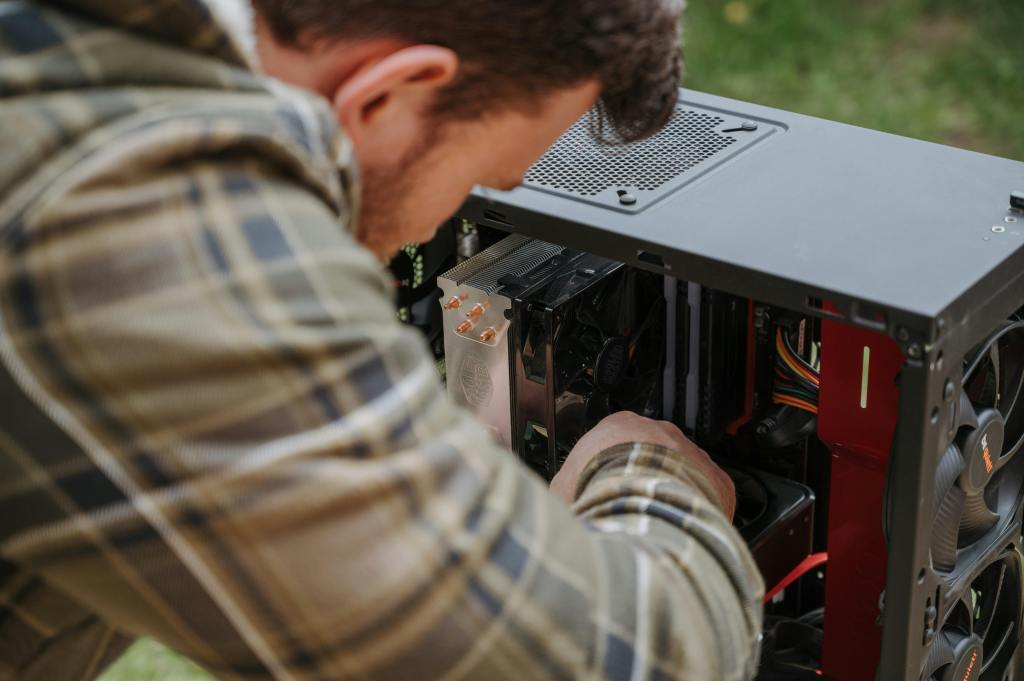
How to Safely Clean Your Computer — Inside and Out
Cleaning a computer might seem like a daunting task to many. Understandably so—computers are electronics, and the idea of mixing electronics with liquid usually sounds like a disaster waiting to happen. For most people, the logic is simple: water and electronics don’t mix. But the truth is, there are safe ways to clean your computer using liquids like isopropyl alcohol and glass cleaner—as long as you know what to clean and how to clean it properly.
In this guide, I’ll go over safe cleaning methods for both desktops and laptops, since each has a different approach. The tools and supplies mentioned here will generally work for both, unless otherwise noted.
Tools and Supplies You’ll Need
- Compressed air cans / portable or electric air blowers
- Isopropyl alcohol (70% or higher)
- Glass cleaner (without ammonia or harsh chemicals)
- Microfiber cloths
- Anti-static brush
- Small vacuum (optional)
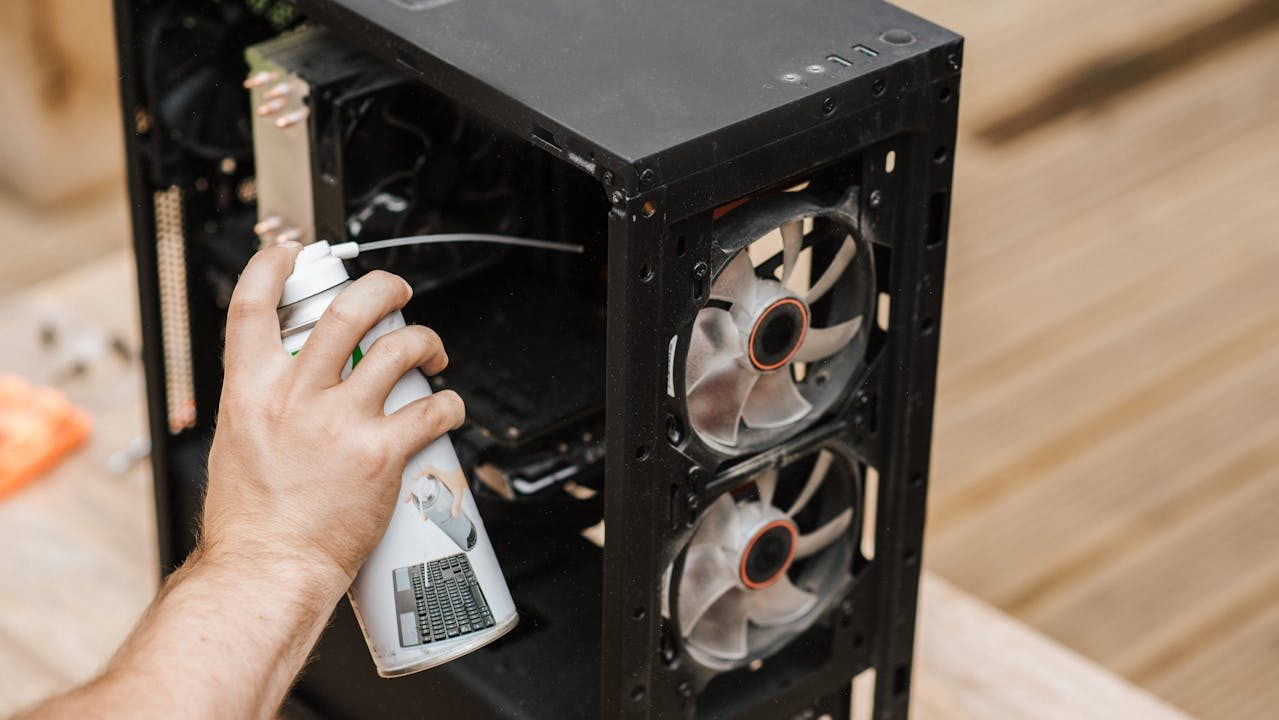
Compressed Air or Air Blowers
Desktop Computers
If you have compressed air cans or an air blower, use them to remove dust buildup—especially around fans, vents, and heatsinks. These are high-traffic areas for airflow and tend to collect dust quickly, which can block ventilation and cause overheating.
Important Tips:
- Always hold compressed air cans upright while spraying. Tilting them can cause liquid propellant to come out, which looks like white frost and can damage components.
- Blow air in short bursts, and avoid spinning the fans freely—this can damage the fan bearings.
Laptops
Cleaning laptops is more delicate. If you’re not comfortable opening the back panel, it’s best to stick to external cleaning. However, if you do open it up, the focus should be on fans and intake vents.
Key Advice:
- When blowing air into the fans, hold the fan blades still to prevent them from spinning rapidly. This protects the bearings inside.
- As with desktops, use compressed air cans upright and avoid spraying at angles.
Isopropyl Alcohol (IPA)
Desktop Computers
Isopropyl alcohol is a staple in repair shops. It’s fast-evaporating, non-conductive, and safe to use on most surfaces. Ideally, use a 90% or higher solution, but 70% is usually fine for cleaning.
Use it to:
- Wipe down the outer casing to remove grime, oil, and dirt.
- Clean internal parts only if the device has been exposed to water or liquid.
Avoid using IPA on screens or glossy surfaces—it can cause streaking or damage coatings over time.
Laptops
The same rules apply: use alcohol only on the exterior casing to remove oil and grime. Never use isopropyl alcohol on the screen, as repeated use can degrade the protective coating and cause discoloration over time.
Glass Cleaner
Desktop Computers
Glass cleaner is only useful if your desktop has a tempered glass panel, like in many custom or gaming PC cases. Spray the cleaner onto a microfiber cloth—never directly onto the case—and wipe down the glass to remove fingerprints, dust, or smudges.
Laptops
Glass cleaner is safe to use on most laptop screens, as long as it doesn’t contain ammonia or harsh solvents. As with desktops, spray it on a cloth first, not directly on the screen.
Pro Tip: Always check your laptop manufacturer’s recommendations. Some screens have anti-reflective coatings that can be sensitive to chemicals.
Honorable Mentions: Small Vacuums and Anti-Static Brushes
Desktop Computers
While most people will tell you to avoid vacuums near electronics (and they’re not wrong), using a small vacuum safely can help clean the bottom of the case—just don’t go near sensitive components.
Pairing a vacuum with an anti-static brush is even more effective:
- Gently loosen up stuck dust with the brush.
- Vacuum it out from the base of the case—not near the motherboard or fans.
Laptops
A vacuum shouldn’t touch internal components. Instead, you can use it to clean up any dust that falls out during brushing. The anti-static brush is particularly useful for removing fine dust from vents and fan blades after using compressed air.
Final Thoughts
Keeping your computer clean not only helps it look better but can also improve performance and extend its lifespan. Whether it’s clearing out dust to prevent overheating or wiping down surfaces to keep things hygienic, regular maintenance is always worth it.
You don’t need expensive gear to do it right—just the right tools, a little patience, and an understanding of what not to do.
Need Help with Your Computer?
Looking for computer repair or IT support in Los Angeles? Whether your laptop is overheating, your PC won’t start, or you just have tech questions, call us or walk into our shop today for reliable service.
 ITBrother
Leave a comment