

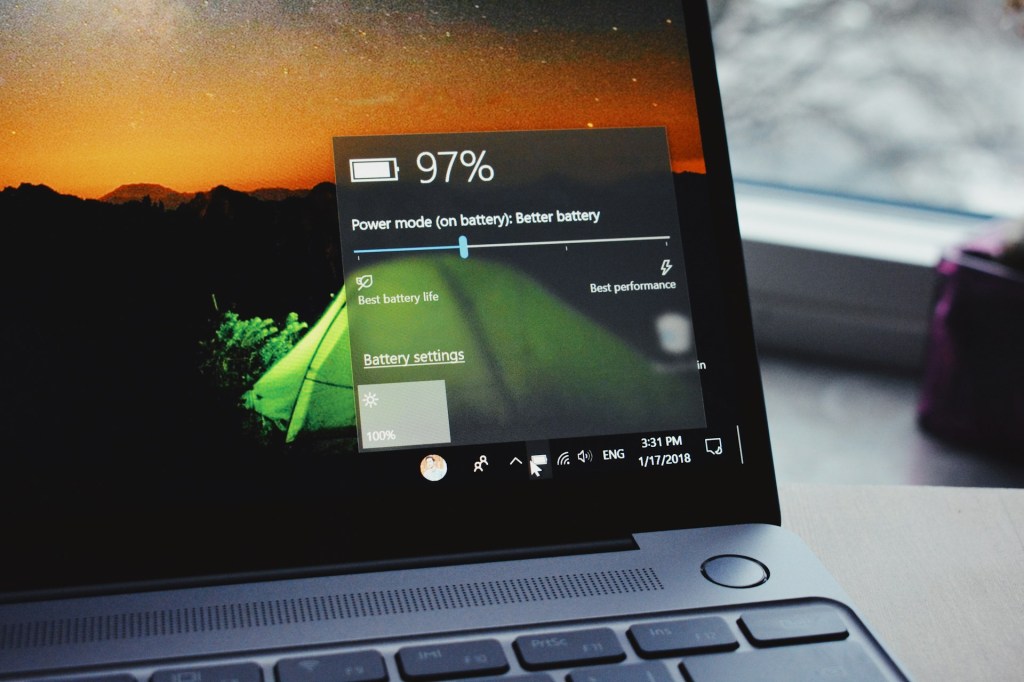
If your laptop never seems to make it through the day on a single charge, you’re not alone. Battery life is one of the top complaints we hear from customers. The good news: most laptops have plenty of untapped battery life just waiting to be unlocked—no new hardware required.
In this guide, we’ll break down exactly how to get more juice out of your laptop, organized by how much time and effort each fix takes. Whether you have 30 seconds or 30 minutes, there’s something here for you.
What This Guide Covers
- Quick adjustments — changes you can make right now (under 2 minutes)
- Intermediate tips — a bit more involved but worth it
- Long-term battery health — how to keep your battery strong for years
- When to see a professional
1. Quick Wins: Get More Battery Life Right Now
These three changes take less than two minutes combined and can add an hour or more to your battery life immediately.
Switch to Power Saver Mode
Most laptops default to Balanced Mode, which lets Windows freely use battery power as needed. Switching to Power Saver mode tells your system to prioritize efficiency over speed—perfect for when you’re doing light tasks like browsing, writing, or watching videos.
How to do it:
1. Click the battery icon in your taskbar (bottom right)
2. Drag the slider to Power Saver or Energy Saver
3. That’s it—you’re done
Heads up: Performance will be slightly reduced, so if you’re doing something CPU-heavy like video editing, switch back to Balanced.
Lower Your Screen Brightness
Your screen is one of the biggest battery drains on any laptop. Running it at full brightness is like leaving every light in your house on. Dropping to around 50% brightness can noticeably extend your battery life—and in most environments, you won’t even notice the difference.
Use Airplane Mode When You Don’t Need the Internet
Wi-Fi and Bluetooth constantly search for signals in the background, even when you’re not actively using them. If you’re working offline—say, writing a document or using a local app—enabling Airplane Mode cuts all of that, saving a meaningful chunk of power. Just remember it also cuts your internet access, so this one works best for focused offline sessions.
2. Intermediate Tips: Dig a Little Deeper
These tips take a few more minutes but can make a real difference, especially on older laptops or machines that feel sluggish.
Close Background Apps and Startup Programs
Many apps keep running in the background even after you’ve closed them—messaging tools, launchers, antivirus utilities, and more. Each one eats into your battery. Here’s how to check:
- Press Ctrl + Shift + Esc to open Task Manager
- Click the Startup tab and disable programs you don’t need running at boot
- On the Processes tab, look for anything using high CPU or memory that you don’t recognize
Not sure if something is safe to disable? Bring it in—we’re happy to take a look.
Switch to Integrated Graphics (Gaming Laptops)
If you have a gaming or high-performance laptop, it likely has two graphics cards: an integrated one (built into the CPU) and a discrete one (like an NVIDIA or AMD GPU). The discrete GPU is powerful but power-hungry. For everyday tasks like browsing or watching videos, forcing your laptop to use integrated graphics can significantly extend battery life. Look for this setting in your NVIDIA Control Panel, AMD Radeon Settings, or your laptop manufacturer’s software.
Consider Removing Bloatware (Advanced Users)
Windows 11 ships with a number of pre-installed apps and background services that many users simply don’t need. Removing these—a process called “debloating”—can improve battery life and general performance.
⚠️ A word of caution: Debloating tools vary in quality and safety. Only use well-known, community-trusted tools, and make sure to create a restore point first. If you’re not comfortable doing this yourself, it’s the kind of thing we handle regularly—just bring your laptop in.
3. Long-Term Battery Health: Make It Last for Years
Battery life isn’t just about today’s charge—it’s about how long your battery stays healthy over time. A lot of people unknowingly wear out their batteries faster than necessary.
Don’t Leave Your Laptop Plugged In 24/7
Modern laptops won’t overcharge—they’re designed to stop drawing power at 100%. But constantly running at full charge while plugged in creates heat, and heat is the biggest enemy of lithium-ion batteries. Over months and years, this chips away at your battery’s capacity.
A better approach:
- Try to keep your battery between 20–80% when possible
- If you use your laptop at a desk most of the day, look for a “Battery Conservation Mode” in your manufacturer’s software (Lenovo, Dell, ASUS, and others offer this)
- This limits charging to around 60–80%, which can significantly extend the long-term life of your battery
Keep Your Laptop Cool
Heat degrades batteries faster than almost anything else. Avoid using your laptop on soft surfaces like blankets or pillows that block the vents. Make sure the fan vents are clear. If your laptop runs hot regularly, that’s often a sign the cooling system needs cleaning—something we can do in-shop in about an hour.
4. When to See a Professional
If you’ve tried the steps above and your battery still isn’t lasting more than an hour or two, the battery itself may be degraded. Laptop batteries are consumable parts—they’re designed to be replaced.
Signs your battery needs replacing:
- Battery percentage jumps around erratically
- Laptop shuts off before hitting 0%
- Battery doesn’t charge past a certain percentage
- The battery appears swollen or the laptop bottom is bulging (bring this in immediately)
- Windows reports “Consider replacing your battery”
Battery replacements are usually quick and affordable compared to buying a new laptop. If you’re not sure, bring it in and we’ll run a battery health check—no charge for the diagnostic.
Final Thoughts
Getting more battery life out of your laptop is usually a combination of small adjustments that add up. The software tips above are things anyone can do—no tech background needed. And when the battery itself is the problem, a replacement is often all it takes to make an older laptop feel new again.
Have questions about your specific laptop? Drop by the shop located in Downtown, Los Angeles or give us a call—we’re always happy to take a look.
 ITBrother