

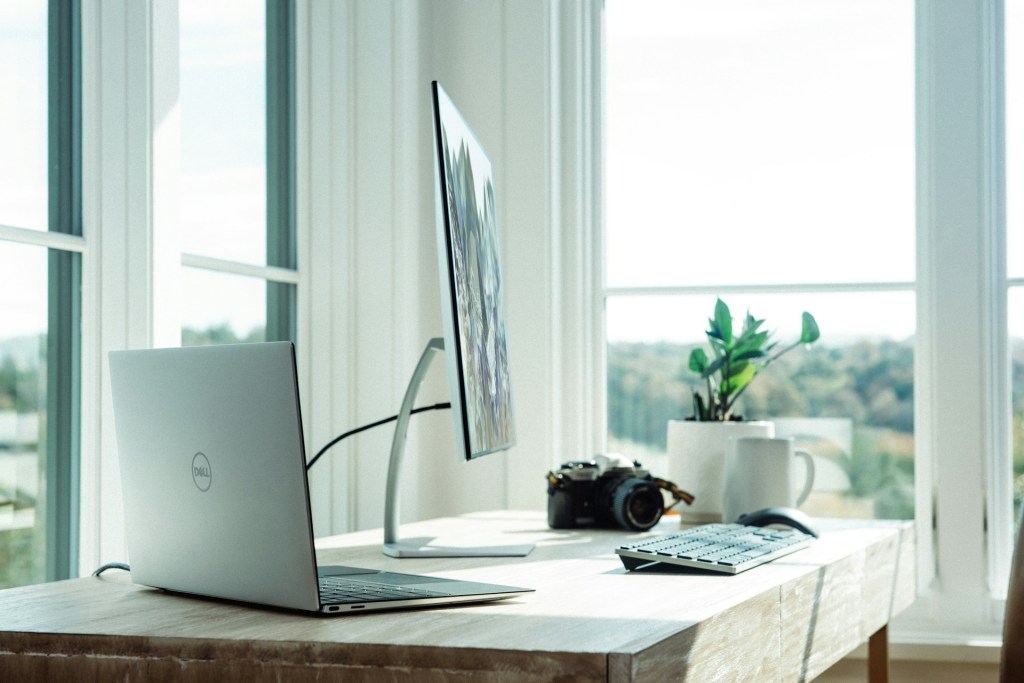
Choosing the right computer for school or work can feel overwhelming. With so many brands, models, specifications, and price ranges, it’s easy to get lost in the noise. Years ago, computer shopping was much simpler—there were clear distinctions between machines meant for basic tasks like web browsing and those designed for heavy gaming or professional workloads. Today, however, most modern systems can handle everyday tasks like browsing, streaming, and writing without breaking a sweat.
Because of this overlap, the question is no longer “Can this computer handle my work?” but rather “Which computer best fits my specific needs and budget?” In this guide, we’ll break down what to look for depending on whether you’re a student or a professional, along with tips to make the buying process easier.
Factors to Consider Before Buying a Computer
Before diving into specific recommendations, it’s important to consider a few universal factors:
- Portability vs. Power
Do you need something lightweight to carry between classes or the office, or is raw power more important? Laptops are the go-to for portability, while desktops generally offer more performance for the price. - Budget
Setting a budget upfront prevents overspending. For most school and office needs, you don’t need the most expensive system. Instead, focus on what features you’ll actually use. - Operating System
Windows, macOS, and ChromeOS each have strengths. Windows is versatile, macOS shines for creative professionals, and ChromeOS is affordable and secure for students who primarily use the web. - Future-proofing
Buying slightly above your current needs can save money in the long run. A system that lasts 5+ years is a better investment than one that struggles after 2 years.
Best Computers for Students
Students have unique challenges when choosing a computer. They need something affordable yet reliable, powerful enough to handle schoolwork but flexible enough for entertainment. Let’s break it down by education level.
Elementary & Middle School Students

For younger students, a Chromebook is often the best option. Chromebooks are inexpensive (many models under $300), lightweight, and designed primarily for web browsing, online assignments, and video calls.
- Pros: Affordable, secure, easy to manage, long battery life
- Cons: Limited offline functionality, not ideal for gaming or heavy software
- Why it works: At this age, students don’t need advanced software, and Chromebooks minimize risks of malware and distractions.
High School Students

By high school, students often need more versatile systems. They may be using Microsoft Office, Google Workspace, or even creative applications for media projects. On top of that, many high schoolers want a system that doubles as a gaming PC.
- Budget range: $700–$900 is a solid sweet spot.
- Recommendation: A Windows laptop with at least an Intel i5/Ryzen 5 processor, 8–16GB of RAM, and SSD storage.
- Laptop vs. Desktop: Laptops are preferable since they can transition with the student into college.
Tip: If your teen is into gaming, consider laptops with entry-level graphics cards like the NVIDIA GTX/RTX 3050 or higher. This way, the laptop handles both school projects and after-school entertainment.
University Students

University students have the widest variety of needs. Some majors only require light computing for essays and research, while others—such as engineering, architecture, or design—demand powerful machines.
- General Recommendation: A laptop in the $1,000–$1,500 range offers an excellent balance between power and portability.
- Specs to Look For:
- Intel i7 or Ryzen 7 processor
- 16GB RAM (or upgradeable to 32GB)
- SSD (512GB or higher)
- Dedicated GPU if required for creative or technical work
- Intel i7 or Ryzen 7 processor
- Convertible Options: 2-in-1 laptops like the Lenovo Yoga or Microsoft Surface are great for students who want the ability to draw, annotate, or take notes directly on the screen.
💡 Personal note: When I was in university, I upgraded to a Lenovo Yoga 730 for around $1,200. It offered touchscreen functionality and decent performance, and I still use it today. This shows how a good investment during school can last well beyond graduation.
Best Computers for Work and Office
Compared to students, choosing a work computer is often more straightforward. Your choice depends almost entirely on your profession.
Standard Office Work
If your daily tasks revolve around email, word processing, spreadsheets, and video calls, you don’t need cutting-edge hardware. Many businesses buy cost-effective laptops or desktops in the $500–$700 range that handle productivity tasks with ease.
- Recommended Specs:
- Intel i3/i5 or Ryzen 3/5
- 8GB RAM
- 256GB SSD
- Intel i3/i5 or Ryzen 3/5
- Form Factor: Laptops for mobility, desktops for fixed office setups
Creative Professionals
If you work in graphic design, video editing, 3D modeling, or software development, your needs are very different. In these cases, investing in a high-performance machine is essential.
- Specs to Prioritize:
- High-core-count CPU (Intel i7/i9, Ryzen 7/9)
- At least 16GB–32GB of RAM
- Dedicated GPU (NVIDIA RTX series or AMD equivalent)
- Large SSD (1TB or more) for project files
- High-core-count CPU (Intel i7/i9, Ryzen 7/9)
- Price Range: $1,500–$3,000 depending on your workload
- Tip: External monitors, ergonomic keyboards, and docking stations can drastically improve workflow efficiency.
Remote and Hybrid Workers
For remote workers, portability and connectivity matter. Look for laptops with:
- Long battery life (8+ hours)
- Lightweight design (under 4 lbs)
- High-quality webcam and microphone for meetings
- Strong Wi-Fi 6 support
Hybrid setups often benefit from docking stations, allowing you to quickly switch between working at home and the office.
Desktop vs. Laptop: Which Should You Choose?
- Laptops: Great for students, professionals on the move, and hybrid workers. More expensive per performance dollar, but extremely convenient.
- Desktops: Ideal for those who prioritize raw performance and upgradability. Best for creative professionals or home offices where portability isn’t needed.
Final Tips for Choosing the Right Computer
- Don’t overpay for features you won’t use. A student writing essays doesn’t need a $2,000 gaming laptop.
- Plan for at least 4–5 years of use. Spending a little more upfront often saves money in the long run.
- Check for student or business discounts. Many manufacturers (Dell, Apple, Lenovo, HP) offer special pricing.
- Think about accessories. A good mouse, keyboard, or external monitor can improve your experience just as much as better hardware.
- Always read reviews. Real-world feedback helps avoid poor builds or overheating issues.
Conclusion
Choosing the right computer for school or work comes down to understanding your specific needs, setting a realistic budget, and planning for the future. For students, Chromebooks work well for younger grades, mid-range laptops fit high schoolers, and versatile performance machines are best for university. For professionals, the choice depends largely on whether you need a lightweight laptop for office work or a powerful workstation for creative projects.
By weighing portability, performance, and budget, you’ll find a system that not only gets the job done today but continues to serve you for years to come.
Need Help With Your Computer?
Having trouble with your PC or laptop? If you’re in Los Angeles, stop by our computer repair shop or give us a call. We provide dependable IT support, upgrades, and repair services to keep your devices working right.
 ITBrother
Leave a comment