

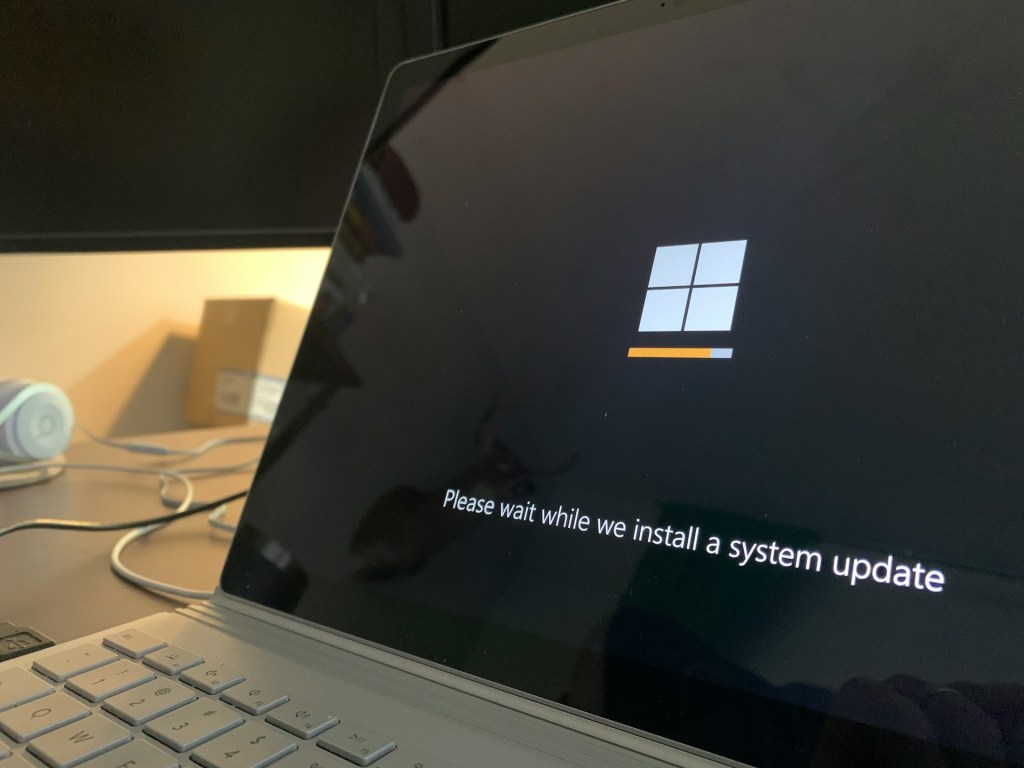
Have you ever been in the middle of something important, only for your PC to suddenly restart for a Windows update? You’re not alone. Windows updates have long frustrated users, but behind those sudden restarts are legitimate reasons tied to security, performance, and compatibility.
Let’s break down why Windows updates exist, why they seem so frequent, and how to better control when they happen.
Why Windows Updates Happen (and Why They Seem Constant)
Windows updates are Microsoft’s way of keeping your computer secure, stable, and compatible with the latest hardware and software. Because Windows supports such a wide range of devices and configurations, it needs frequent updates to patch bugs, improve compatibility, and close security holes.
These updates usually fall into a few categories:
- Security patches – Defend against malware, ransomware, and hackers
- Bug fixes – Address performance issues or hardware/software conflicts
- Feature updates – Add new tools, visual changes, or user experience enhancements
The frequency can feel overwhelming, especially since Microsoft follows a regular monthly update schedule. Most updates are released during what’s called Patch Tuesday—the second Tuesday of each month. However, urgent updates can be pushed outside of that cycle when critical vulnerabilities are discovered.
While it may feel excessive, frequent updates are necessary to stay ahead of fast-moving cybersecurity threats.
Why Windows Restarts After Updates (and How to Minimize Interruptions)
One of the most frustrating aspects of Windows updates is the automatic restart. In earlier versions of Windows, your system might reboot without much warning, even in the middle of active work. Fortunately, newer versions of Windows are smarter—they observe your usage patterns and try to schedule reboots during your off-hours.
Still, certain updates—especially those that patch core system components—require a full restart to complete installation. That’s why Windows may still restart when you least expect it.
To reduce interruptions:
- Set your active hours under: Settings → Windows Update → Change active hours
- Use the restart options to schedule a convenient time
- Keep your device plugged in and connected during updates to avoid delays or failed installs
Can You Pause Windows Updates? Yes—But With Caution
Windows does allow you to pause updates for up to five weeks. This can be useful if you’re in the middle of a project and don’t want to risk a reboot or a problematic patch. However, pausing comes with trade-offs.
If you delay updates too long, Windows doesn’t just skip them—it stacks them. When updates resume, your system may have to install multiple cumulative updates at once. This can slow things down and, in rare cases, lead to compatibility issues or installation failures.
It’s better to let updates install regularly rather than pushing them off for too long. Think of it like brushing your teeth—you could skip a day or two, but ignore it for weeks and you’re asking for trouble.
Managing Updates Without Breaking Your System
Here are a few practical tips to stay in control of Windows updates:
- Set active hours so Windows doesn’t restart when you’re working
- Use the pause feature sparingly
- Keep regular backups of important files, just in case an update causes issues
- Don’t ignore updates for too long—install them regularly to avoid complications
- Restart your PC manually from time to time if you’ve delayed updates
Windows has come a long way in improving how it delivers updates, but it still relies on users taking a proactive role in managing them.
Final Thoughts
Windows updates can feel like a nuisance, especially when they interrupt your work or take forever to install. But behind the inconvenience is a system designed to protect your computer from emerging threats and keep everything running smoothly.
Instead of avoiding them, the best strategy is to understand how updates work and take advantage of the tools Windows gives you to manage them on your terms. With a few tweaks to your settings, you can minimize interruptions and keep your system secure at the same time.
Having trouble with your PC or laptop? If you’re in Los Angeles, stop by our computer repair shop or give us a call. We provide dependable IT support, upgrades, and repair services to keep your devices working right.
 ITBrother
Leave a comment