

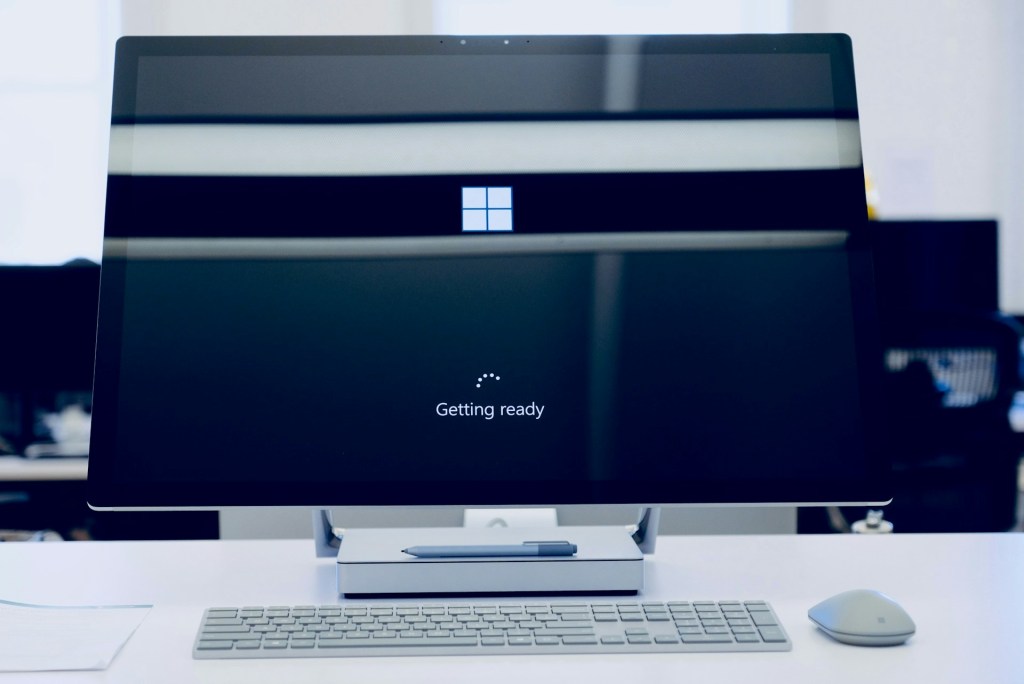
Microsoft has officially announced that Windows 10 will reach its end of support on October 14, 2025. After that date, the operating system will no longer receive security patches, bug fixes, or feature updates. Microsoft strongly recommends that all users transition to Windows 11 before support ends.
With that deadline approaching, it’s important for users — especially small business owners and everyday PC users — to understand what this means, what the risks are, and what options they have moving forward.
What Happens When Windows 10 Loses Support?
When Microsoft ends support for a version of Windows, it means the system will no longer receive security updates or technical assistance. While your PC will continue to function normally after October 2025, the main issue is security.
Over time, new vulnerabilities are discovered by hackers and cybersecurity researchers. Normally, Microsoft releases monthly updates to patch those vulnerabilities. However, once support ends, no more patches will be released — meaning that any newly discovered security flaws will remain open indefinitely.
That means anyone still using Windows 10 will be increasingly exposed to malware, ransomware, and data theft over time. Even if you’re careful about what you click or download, simply connecting to the internet can become risky as exploits evolve.
Initially, things may feel fine — you might go weeks or even months without noticing any difference. But as time passes, software and browsers will stop supporting Windows 10, drivers won’t be updated, and online services may block access due to outdated security protocols.
In other words, continuing to use Windows 10 after 2025 is like driving a car that no longer has access to repairs or replacement parts — it still runs, but every mile becomes riskier.
Windows 11 System Requirements Explained
Windows 11 introduced stricter system requirements compared to Windows 10, mainly for security reasons. One of the biggest changes is the requirement for TPM 2.0 (Trusted Platform Module) — a small security chip built into most modern computers. TPM helps with features like BitLocker encryption, Windows Hello login, and secure boot.
However, this doesn’t mean older systems can’t run Windows 11. In fact, many PCs built before 2020 can still handle it perfectly fine with some adjustments. Microsoft’s installer may block unsupported hardware, but there are workarounds that allow a clean installation of Windows 11 on older systems. The operating system will still receive updates even on these systems — Microsoft just doesn’t officially “support” them.
The key takeaway is that TPM and Secure Boot enhance security, but they are not strictly required to use Windows 11 safely.
Should You Stay on Windows 10?
From an IT professional’s perspective, no — it’s not recommended to stay on Windows 10 long-term after support ends.
Here’s why:
- No Security Updates – Any new vulnerabilities discovered after October 2025 will remain unpatched.
- Software Compatibility – Apps, browsers, and even antivirus software will gradually stop supporting Windows 10.
- Increased Exploitation – Older systems without updates become easy targets for attackers scanning the internet for outdated operating systems.
If you must use Windows 10 for specific legacy software, the safest route is to disconnect it from the internet or use it in a virtual machine on a newer operating system.
How We Handle Windows 10 to 11 Upgrades
When clients come to me looking to upgrade from Windows 10, the first step is always evaluation. I check whether the system meets Microsoft’s official Windows 11 requirements and whether a direct upgrade is practical.
For most systems built after 2020, upgrading through Windows Update is straightforward and keeps all files intact. However, I generally don’t recommend the direct upgrade path because:
- Old registry entries and drivers can cause compatibility issues.
- Some programs may not transfer properly.
- The system may inherit leftover clutter or corruption from Windows 10.
Instead, I recommend and perform a clean installation of Windows 11. This involves backing up all user data, formatting the drive, and installing Windows 11 fresh. From my experience, this method results in a faster, cleaner, and more reliable system — especially for clients who’ve been using the same install of Windows 10 for years.
For older systems that don’t meet official requirements, I use installation methods that bypass hardware checks. These systems run Windows 11 just fine, though there may be slight performance differences depending on the hardware.
Performance Tips and Hardware Upgrades
Windows 11 is more modern and visually refined, but it also uses more background processes and memory than Windows 10. To ensure smooth performance, especially on older machines, I often recommend:
- Upgrading to an SSD (if not already installed) – This is the single biggest speed improvement any older system can get.
- Adding More RAM – Windows 11 runs best with at least 8GB of memory. Systems with only 4GB may feel noticeably sluggish.
- Updating Drivers and BIOS – After installation, updating chipset, network, and graphics drivers ensures compatibility and stability.
These small upgrades can extend the lifespan of your computer and make Windows 11 feel as fast as a brand-new system.
How We Can Help
If you’re still running Windows 10 and unsure what to do next, we can take care of everything for you — from start to finish.
Here’s what our Windows Upgrade Service includes:
- Data Backup and Protection – We’ll securely back up all your important files, photos, and documents before any upgrade or reinstall.
- System Evaluation – We’ll check if your current PC can run Windows 11 and whether upgrades like more RAM or an SSD are recommended.
- Clean Installation of Windows 11 – We’ll perform a fresh install for maximum performance and stability, even if your system doesn’t meet Microsoft’s official requirements.
- Driver and Update Configuration – Once installed, we’ll make sure all drivers and essential updates are applied.
- Post-Installation Setup – We can reinstall your apps, restore your data, and adjust settings to match your previous setup.
- Optional Hardware Upgrades – If needed, we can replace or add components to improve performance, such as RAM or storage drives.
Whether you’re using your PC for home, office, or small business, we can make sure your system is secure, up-to-date, and running at its best before Windows 10 support officially ends.
Don’t wait until the last day — upgrading now ensures your data stays protected and your system continues receiving critical updates.
 ITBrother
Leave a comment