

One of the most common frustrations computer users face is that their once-fast system suddenly begins to feel sluggish. Programs take longer to open, the operating system drags during startup, and sometimes even the mouse cursor lags. If you’ve ever wondered, “Why is my computer so slow?” the answer may not be what you expect.
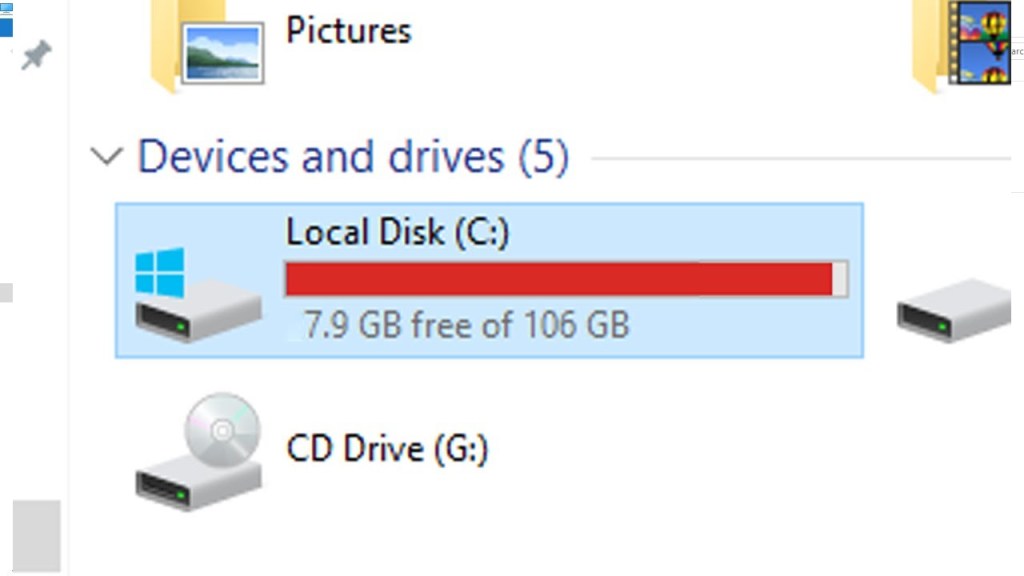
While viruses, overheating, and failing hardware can certainly cause performance issues, there’s another factor that is often overlooked: low storage space. Both Windows and macOS rely heavily on free disk space to perform essential functions, and when your drive starts filling up, your computer’s performance will suffer.
In this article, we’ll explore why low disk space slows down your PC or Mac, what symptoms to look out for, how much space you should keep free, and the best solutions to fix the problem permanently.
Why Low Storage Space Causes Slowness
At a glance, you might think storage space only matters when you’re saving files. But in reality, your operating system uses that free space for far more than documents, photos, and applications.
Here’s what’s happening behind the scenes:
- Virtual Memory (Swap or Page Files)
- When your computer runs out of physical RAM, it uses part of your storage drive as “virtual memory.”
- Windows calls this the page file, while macOS calls it swap space.
- If there isn’t enough free space, your system struggles to manage memory, causing apps to hang or crash.
- When your computer runs out of physical RAM, it uses part of your storage drive as “virtual memory.”
- Temporary Files and Caches
- Opening a browser, launching an app, or even updating your system generates temporary files.
- Windows leaves behind update remnants, system logs, and installer files.
- macOS cleans some automatically (especially on restart), but app caches—like Safari history, Xcode builds, or Photos previews—can balloon in size.
- Opening a browser, launching an app, or even updating your system generates temporary files.
- System Updates
- Both Windows and macOS need several gigabytes of free space to download and install updates.
- If your drive is nearly full, updates may fail, leaving your system outdated and vulnerable.
- Both Windows and macOS need several gigabytes of free space to download and install updates.
- File System Indexing
- Windows uses Search Indexing and macOS uses Spotlight to quickly find files.
- If there isn’t enough space for indexing databases to update, search performance slows dramatically.
- Windows uses Search Indexing and macOS uses Spotlight to quickly find files.
When free space is limited, all these tasks start colliding with one another. The result? A system that feels sluggish, unstable, and frustrating to use.
Symptoms of Low Storage Space
How do you know if low disk space is the culprit behind your slow computer? Look out for these common signs:
- Slow boot times – Windows or macOS takes much longer to load after you press the power button.
- Laggy application launches – Programs take several seconds (or minutes) to open.
- Unresponsive multitasking – Switching between apps causes freezing or spinning beach balls (on macOS).
- System crashes or “Not Responding” messages – The OS can’t handle background tasks without breathing room.
- Failed updates – You get errors when trying to update Windows or macOS because there’s not enough storage.
- Constant alerts – macOS shows “Your startup disk is almost full,” while Windows may display low disk warnings.
If you’re experiencing any combination of these, checking your storage should be one of your first troubleshooting steps.
How Much Free Space Should You Keep?
The million-dollar question: How much space do you actually need to leave free?
Most experts recommend keeping 15–20% of your total drive capacity free at all times. In some cases, you can get away with as little as 10%, but it depends on the size of your drive.
Let’s break it down with real-world examples:
- 256GB SSD → 10% free = 25GB. That’s barely enough for swap space, updates, and temp files. This system will slow down quickly if pushed to the limit.
- 512GB SSD → 10% free = 51GB. This is usually safe, but performance may still degrade if you’re a heavy user.
- 1TB SSD → 10% free = 100GB. Plenty of room for updates, caches, and virtual memory without noticeable slowdowns.
This is why smaller-capacity drives (128GB or 256GB) often hit performance issues sooner than larger ones.
How Windows and macOS Handle Low Storage
It’s worth noting that Windows and macOS manage storage differently, but both are affected by low space.
- Windows tends to accumulate junk more quickly—update leftovers, old driver packages, and log files. Without manual cleanup or tools like Storage Sense, these build up and choke performance.
- macOS automatically clears some temporary files, but it relies on swap files and caches just as heavily as Windows. If the startup disk fills up, macOS will throw warnings and begin to crawl.
In both cases, low storage means low performance. The only difference is how quickly each operating system hits the wall.
How to Fix Low Storage Space Issues
If your system is suffering from low storage, here’s a practical approach to solving it:
1. Clear Out Old Files and Programs
- Delete movies, music, or documents you no longer need.
- Uninstall unused applications.
- Move large files to an external hard drive or cloud storage (Google Drive, iCloud, OneDrive).
2. Remove Temporary Files and Caches
- Windows: Use Storage Sense (Settings → System → Storage) or Disk Cleanup.
- macOS: Use Storage Management (About This Mac → Storage → Manage).
- Third-party tools: CCleaner for Windows, CleanMyMac for macOS.
3. Check for Large Hidden Files
Sometimes backups, crash reports, or old system files take up gigabytes without you realizing. Tools like WinDirStat (Windows) or DaisyDisk (macOS) visualize your drive and show what’s using space.
4. Reinstall the Operating System
If cleaning doesn’t solve the problem, reinstalling the OS after a full backup gives you a completely fresh system free of hidden junk.
5. Upgrade Your Storage Drive
For the best long-term solution, consider upgrading to a larger SSD. Moving from a 256GB drive to a 512GB or 1TB drive gives your system plenty of breathing room and extends its usable life.
How We Can Help You With Low Storage Problems
Running out of storage can be frustrating, and trying to fix it yourself isn’t always simple. That’s why we offer professional support to get your computer back in shape quickly and safely.
Here’s what we can do for you:
- Secure Data Backup – We’ll make sure your important files, photos, and documents are safely backed up before any work is done.
- Deep System Cleaning – Using trusted tools, we’ll remove unnecessary files, caches, and leftover update data that slow your system down.
- Operating System Reinstallation – If your computer needs a full reset, we can reinstall Windows or macOS and give you a clean, like-new system.
- Storage Drive Upgrades – Need more space? We can upgrade your computer to a larger, faster SSD, giving you both speed and storage capacity.
- Simple Maintenance Tips – After the service, we’ll show you easy ways to keep your system healthy so the same problem doesn’t happen again.
If your PC or Mac is running slow due to low storage space, don’t wait until it becomes unusable. Contact us today to schedule a cleanup, reinstall, or drive upgrade—and let us help bring your computer back to peak performance.
Final Thoughts
Low storage space is one of the most underrated causes of computer slowdowns. Both PCs and Macs rely on free disk space to handle everything from temporary files to system updates and virtual memory. Without that breathing room, performance suffers.
If your computer feels sluggish and you’ve already ruled out viruses or hardware problems, check your storage. Chances are, clearing space—or upgrading to a larger SSD—will restore the speed you’ve been missing.
By staying proactive and managing your storage, you’ll not only keep your system running smoothly but also extend its lifespan. And the best part? Most of these fixes are free or inexpensive, making it one of the easiest performance boosts you can give your PC or Mac.
Don’t let laptop or PC problems slow you down. Visit our Los Angeles computer repair shop or contact us today for expert IT support, troubleshooting, and reliable repairs.
 ITBrother
Leave a comment