

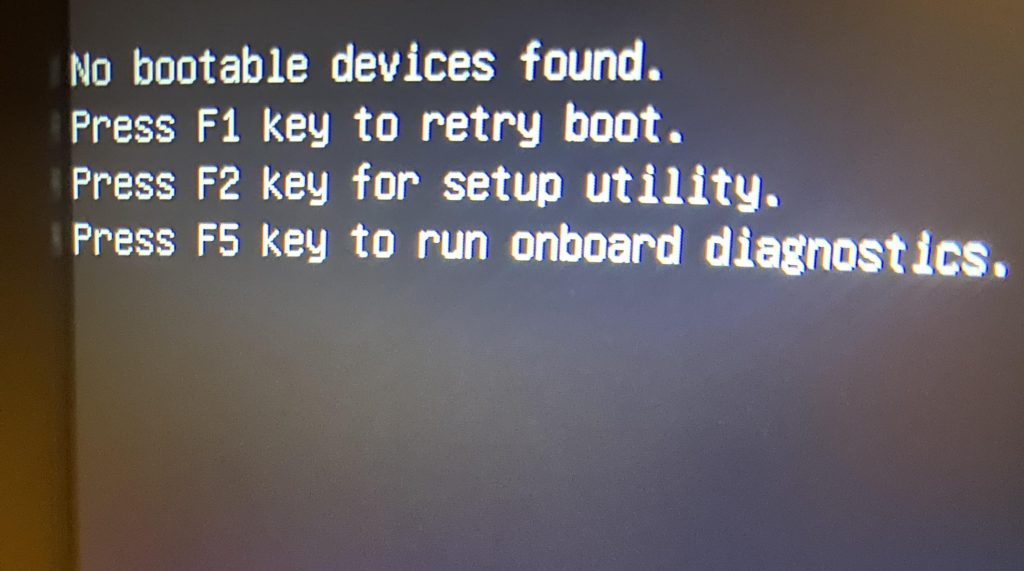
Picture this: you shut down your computer after a normal day’s use, and the next morning, you power it on only to be greeted with a black screen that says “No boot device was found.”
It’s a message that can appear suddenly, even if your system seemed perfectly fine the day before. For many users, it’s both confusing and alarming — but understanding what it means can help you determine whether it’s a minor issue or a sign of serious hardware failure.
Let’s break down what this message means, why it happens, and what you can do about it.
What “No Boot Device Found” Actually Means
When your computer starts up, it looks for a bootable drive — usually your internal SSD or hard drive — that contains the operating system (Windows, macOS, or Linux).
If your system can’t find this drive or can’t read the boot files on it, it shows the message:
“No Boot Device Found”
“No Bootable Device”
“Operating System Not Found”
All of these errors mean essentially the same thing: your computer can’t locate or load the operating system needed to start.
The Most Common Cause: Drive Failure
From my experience as an IT technician, the number one reason this message appears is drive failure.
When a drive fails, the system can no longer detect it — meaning it can’t access any of your data or the operating system. This happens most frequently with older mechanical hard drives (HDDs), though it can also occur with solid-state drives (SSDs), albeit less often.
If the drive has completely failed (sometimes called a catastrophic failure), your computer will act as if no drive is installed at all. In this situation, data recovery is often difficult without professional tools.
The only fix at that point is to replace the drive entirely and reinstall the operating system from scratch.
Signs of impending drive failure before this message appears often include:
- Slow boot times or freezing during startup
- Clicking or grinding noises (for HDDs)
- Random file corruption or disappearing files
- Frequent blue screen errors
If you’ve noticed any of these symptoms before seeing the “no boot device” error, it’s likely the drive has failed.
Other Possible Causes (and How to Check Them)
While drive failure is the most common culprit, there are other reasons your computer might not detect a boot device.
1. Loose or Faulty Connection
For systems using SATA drives, a loose or damaged cable can cause the drive to disconnect temporarily. If your system uses an older 2.5″ SSD or HDD, it’s worth checking whether the data or power cable has come loose.
This doesn’t usually apply to NVMe SSDs, since they connect directly to the motherboard — but it’s still a possibility if the drive wasn’t seated properly.
If this is the issue, simply reseating the cables or replacing them can fix the problem.
2. Incorrect BIOS or UEFI Settings
Another common reason is incorrect BIOS configuration. The BIOS (or UEFI, in newer systems) determines which drive to boot from and in what order.
If these settings have been accidentally changed — for example, after a BIOS update or manual tweak — the system might be looking for an operating system on the wrong drive.
Here’s how this typically happens:
- The boot order was changed to prioritize a USB or external drive.
- The SATA mode (AHCI vs RAID) was switched.
- Secure Boot or Legacy Boot was toggled incorrectly.
Fortunately, this issue can usually be fixed by resetting the BIOS to default settings or manually selecting the correct boot device.
This type of error is less common for casual users since most people don’t access the BIOS, but it does happen occasionally.
3. Corrupted Boot Files or Partition
Sometimes, the drive itself is healthy — but the boot files that tell your computer how to start Windows have become corrupted.
This can happen after:
- A failed system update
- Improper shutdowns or power loss
- Malware infections
- Manual partition changes or cloning errors
When this happens, your drive is still visible to the system, but it can’t load the necessary startup files.
In these cases, your data is often still recoverable. A technician can usually back up your files, repair the boot records, or reinstall the operating system without wiping the drive completely.
What To Do If You See “No Boot Device Found”
Here’s a quick checklist of what you should (and shouldn’t) do if this happens:
✅ Check your BIOS – Make sure your drive is still detected. If it isn’t, the drive might have failed.
✅ Listen for noises – Clicking or grinding usually means mechanical failure.
✅ Try another drive or USB installer – If the installer boots fine, your original drive is likely the issue.
❌ Don’t reinstall Windows immediately – Doing this without checking for drive health could overwrite recoverable data.
❌ Don’t keep powering on and off repeatedly – This can make a failing drive worse.
If you’re not sure, it’s best to have your system examined by a professional technician who can determine whether it’s a drive issue, configuration issue, or something else entirely.
How We Can Help When “No Boot Device Found” Appears
If your computer is showing a “no boot device” or “no operating system” message, don’t panic — we deal with this issue regularly.
Here’s what we typically do to diagnose and fix the problem:
- Drive Testing & Diagnostics – We check whether the drive is physically failing or just disconnected.
- Data Backup & Recovery – If the drive is still accessible, we immediately back up your important files before doing any repairs.
- BIOS Configuration & Boot Repair – We inspect your BIOS settings to ensure the system is booting from the correct drive and repair corrupted boot partitions if necessary.
- Operating System Reinstallation – If the system files are beyond repair, we reinstall a fresh copy of Windows or macOS, ensuring a clean and stable setup.
- Drive Replacement & Upgrade Options – If your drive has failed, we replace it with a new SSD for better performance and reliability, then restore your data (if recoverable).
Whether your issue stems from a dead hard drive, misconfigured BIOS, or corrupted system files, we’ll diagnose it quickly and walk you through the best solution.
Final Thoughts
The “No Boot Device Found” message can look intimidating, but it’s a fairly common issue with a handful of root causes — most of which can be fixed with the right tools and knowledge.
In most cases, it’s the result of a failing or failed drive, but other times, it’s just a matter of adjusting BIOS settings or repairing corrupted system files.
If you’re in Los Angeles and facing this issue, don’t hesitate to reach out. We specialize in diagnosing and fixing boot errors, data recovery, and drive replacements. We’ll make sure your computer gets back up and running — and your data stays safe.
Contact us today to schedule a diagnostic or repair appointment and get your system working again.
 ITBrother
Leave a comment