

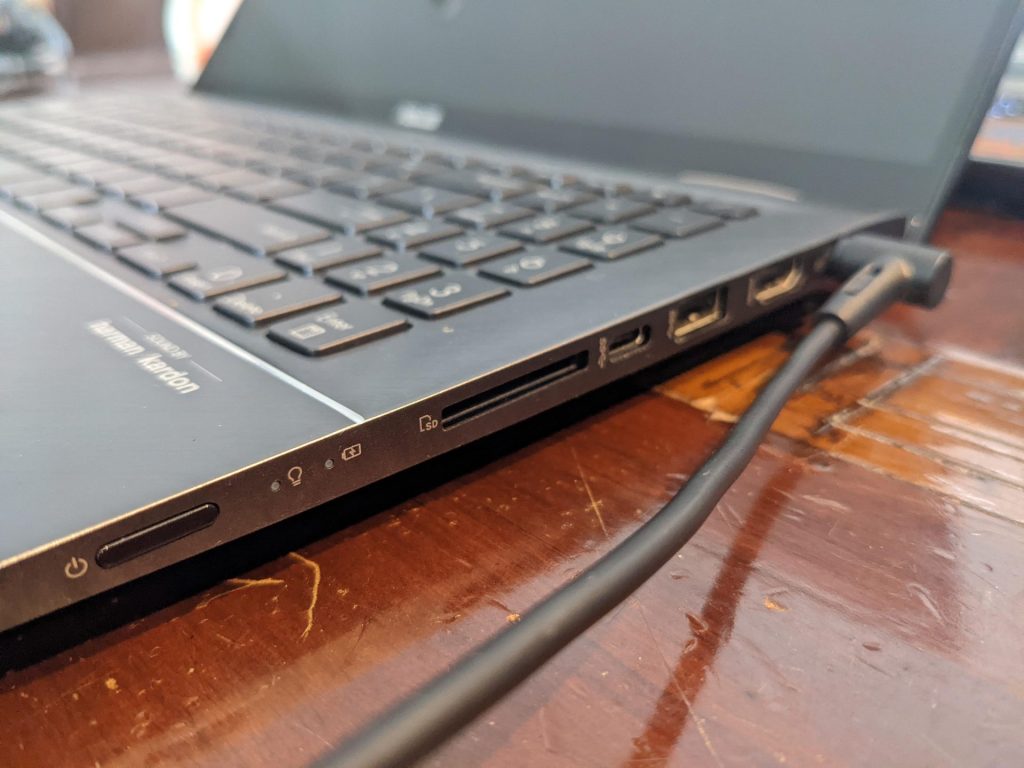
Few things are as worrying as when your laptop suddenly refuses to charge or power on. You plug in the charger, press the power button, and… nothing. No lights, no fan noise, no display — just silence.
For most people, this is one of the worst-case scenarios because the laptop feels completely dead. Unlike a cracked screen or a slow system, a dead laptop gives no signs of life, making it hard to tell whether it’s a small issue or total hardware failure.
In the repair world, this type of case is both challenging and unpredictable. Some “dead” laptops come back to life after a simple power reset or charging-port replacement, while others require deep motherboard work or turn out to be beyond repair. Let’s explore what might cause this, what can be done, and when it might be time to call it quits.
Why a Laptop Might Not Turn On or Charge
When a laptop won’t turn on and doesn’t charge, the problem is almost always related to the power system — the network of circuits that manages electricity from your charger and battery.
There are three major areas where things can go wrong:
- The charger or charging cable
- The charging port or power input board
- The internal power circuitry (motherboard components)
Understanding how these parts work together helps explain why the issue can range from minor to catastrophic.
1. The Charger or Power Adapter
This is the easiest thing to test. A laptop charger converts wall power into a specific voltage and current required by your device. If the charger stops working — due to a broken cable, internal failure, or even a poor-quality third-party replacement — your laptop won’t receive any power at all.
Every laptop brand has its own power specifications. For instance, a Dell charger might output 19.5 volts, while a Lenovo or HP might require 20 volts or 65 to 135 watts depending on the model. Using a charger that doesn’t meet these exact requirements can result in undervoltage, overheating, or even damage to the charging circuit.
That’s why it’s always recommended to use the original charger or a verified replacement from the manufacturer. Universal chargers can work in a pinch, but if they’re not properly specced, they can easily cause long-term harm to the power delivery components.
2. The Charging Port or Power Jack
If your charger works but the laptop still won’t charge, the issue might be with the charging port. This is the connector that takes power from the charger and sends it into the system.
Over time, these ports can loosen, corrode, or break entirely — especially if the charger is frequently plugged in and out or the cable is yanked at an angle. In some laptops, the charging port is a separate, replaceable board; in others, it’s soldered directly to the motherboard.
Symptoms of a bad port include:
- The charging light flickers or cuts in and out
- The charger tip feels loose when inserted
- The laptop only charges when the cable is held at a specific angle
Replacing or repairing a charging port is usually one of the more affordable fixes — much cheaper than motherboard work — so it’s always the first thing a technician will check.
3. The Motherboard and Power Components
When neither the charger nor the port is the issue, things point toward the motherboard — specifically, the power management circuitry.
Inside the motherboard are dozens of tiny components: capacitors, resistors, MOSFETs, and voltage regulators. These parts handle power distribution across the system, converting and controlling electricity for the CPU, GPU, and battery.
If one of these components fails, it can disrupt the entire flow of power. Depending on where the failure occurs, the laptop might:
- Not charge the battery
- Not turn on even when plugged in
- Light up briefly, then immediately shut down
Sometimes a single failed chip (like a charging IC or power MOSFET) can be replaced and the laptop restored. But if the failure reaches the main processor or other critical areas, the motherboard may be beyond repair.
Unfortunately, these problems are often invisible from the outside — no burnt smell, no visible damage. That’s why proper diagnostics with electrical testing tools are necessary.
Why Does This Happen?
When a laptop completely dies, people often ask, “Why now? It was working perfectly yesterday!”
The truth is that these problems can build up slowly over time, often without obvious warning signs.
Here are some of the most common reasons:
1. Heat
Heat is one of the biggest killers of internal electronics. Laptops, especially thin or high-performance models, generate a lot of heat inside small enclosures.
Over years of use, this constant thermal stress weakens solder joints and damages tiny components on the motherboard. Gaming laptops are especially prone to this because they operate at higher temperatures more frequently.
2. Charger Issues
Using a low-quality or mismatched charger is another major cause. A charger that outputs incorrect voltage or fluctuates in power can stress internal circuits every time it’s plugged in.
Even reputable third-party chargers can cause problems if the wattage doesn’t meet what your laptop expects. It’s similar to giving your car the wrong type of fuel — it might run for a while, but long term, it causes damage.
3. Wear and Tear
Like any electronic device, laptop components age. Power management chips, capacitors, and inductors don’t last forever. After years of use, they degrade due to heat, electrical stress, and simple time. Eventually, one of them fails, cutting off power to the system.
4. Accidental Damage or Spills
Sometimes the problem begins with something as small as a drop of water or a sudden shock from being dropped. Even if the laptop continues working right after an accident, corrosion or micro-cracks can appear later and eventually cause power failure.
Is It Repairable or E-Waste?
That’s the big question — can it be saved?
In most cases, if there’s any sign of life (a light turning on, a fan spinning, or the charging indicator blinking), there’s a good chance of repair. But when the laptop is completely dead, repair becomes much more complex and uncertain.
The process usually starts with component-level diagnostics, testing power flow at various points on the board to identify where the voltage stops. If it’s a minor failure — like a bad power chip or burnt capacitor — it’s repairable.
However, if the processor or main logic circuits are damaged, the repair cost can exceed the value of the laptop. At that point, it’s considered e-waste, though parts such as the screen, RAM, or SSD may still be reusable or recoverable.
How I Handle These Cases (My Repair Process)
At ITBrother, I handle dead-laptop cases carefully and transparently. These repairs can vary widely, so my goal is always to give you a clear diagnosis before you decide whether to proceed.
Here’s what I typically do when a laptop won’t charge or turn on:
- Basic Power Testing – I check the charger, cable, and port for faults and confirm whether the system is getting any voltage at all.
- Battery and Input Inspection – For laptops with removable batteries, I test both direct-power and battery-only operation.
- Motherboard Diagnostics – If no signs of life are present, I perform detailed voltage checks on key power rails and power-management circuits to identify the fault.
- Component-Level Repair (if possible) – In some cases, I can replace failed components such as charging ICs or power MOSFETs to restore operation.
- Data Backup or Recovery – Even if the laptop isn’t repairable, I can often recover data from the internal drive.
- Honest Recommendation – If the motherboard is too far gone or the repair cost outweighs the laptop’s value, I’ll always let you know so you can make an informed decision.
Sometimes a fix can be as simple as replacing a faulty charger. Other times, it might require advanced board-level repair — or, in unfortunate cases, replacement altogether.
Final Thoughts
A laptop that won’t charge or turn on can be one of the hardest problems to diagnose, but it doesn’t always mean the end. Many cases are repairable — sometimes even with relatively simple fixes. The key is getting a proper diagnosis instead of guessing or repeatedly trying to power it on, which can make things worse.
If you’re dealing with a dead laptop, don’t panic and don’t toss it right away. It may not be e-waste yet. Let a professional take a look — with the right tools and experience, there’s a good chance it can be revived or, at the very least, your data can be saved.
 ITBrother
Leave a comment