

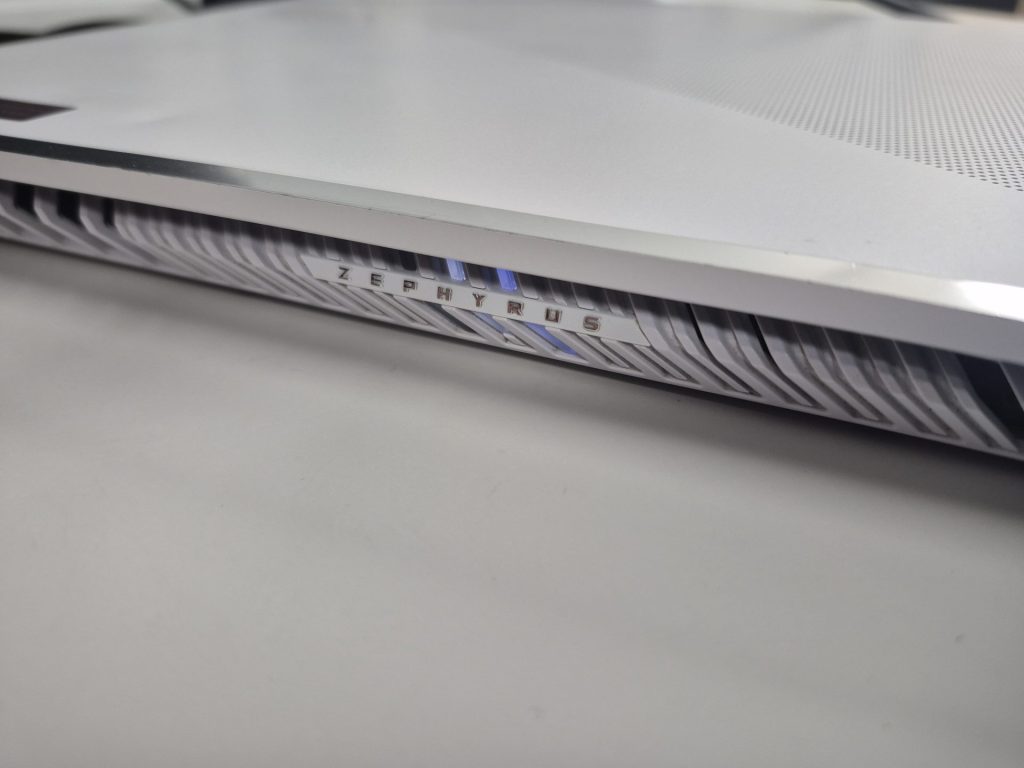
Hearing your computer suddenly start beeping or seeing flashing lights when you try to turn it on can be nerve-racking. For most people, it’s the kind of sound that immediately makes your heart sink — something must be terribly wrong. But here’s the thing: those beeps and lights are not random. They’re actually your computer’s way of talking to you.
When a laptop or desktop encounters a problem before it can load the operating system, it can’t display an error message on screen. Instead, it uses beep codes or LED blink codes to communicate what’s wrong. Think of it as the computer’s built-in language for self-diagnosis.
These diagnostic signals can tell you exactly what component might be failing — from RAM to the graphics card to the motherboard. For technicians, these codes are extremely helpful because they narrow down the cause of the issue. For everyday users, though, they can sound terrifying.
Let’s break down what those noises and lights actually mean, why they happen, and what you can do about them.
Why Computers Beep and Flash Lights
Every computer goes through a process called POST, which stands for Power-On Self Test. This is a quick system check that happens every time you power on your PC. During POST, your computer tests key components — memory, CPU, storage, and video output — to make sure everything’s working before loading the operating system.
If something fails during POST, the system stops and signals the problem using beeps or blinking lights. These are known as POST error codes or diagnostic codes.
For example:
- No RAM detected – the system might beep three times in a repeating pattern.
- Video card not working – you might hear one long beep followed by two short ones.
- CPU or motherboard failure – continuous beeping or no sound at all.
Different manufacturers (Dell, HP, Lenovo, Asus, etc.) have their own versions of beep and light codes, but the idea is the same: each pattern represents a specific problem.
Common Beep Code Causes
Here are a few of the most common reasons you might hear beeping when your computer turns on:
1. Memory (RAM) Issues
RAM problems are one of the most frequent causes of beep codes. If your RAM stick becomes loose or fails entirely, your computer can’t complete its startup checks.
Typical symptoms include:
- Continuous or repeating beeps
- No display on the screen
- Fans spinning, but nothing else happening
In many cases, reseating the RAM (removing it and reinserting it properly) can fix the issue. However, if the RAM itself is bad, it may need to be replaced.
2. Graphics Card (GPU) Problems
If you hear a beep pattern and your monitor stays black, your graphics card might be the culprit. This happens often with gaming desktops that use dedicated GPUs.
Dust buildup, loose connections, or hardware failure can all cause a POST error related to graphics.
3. Motherboard or CPU Faults
If there are no beeps at all and your system doesn’t power on, the problem could be with the motherboard or CPU. These are among the hardest failures to diagnose without proper tools since they can prevent power from even reaching other components.
4. BIOS or Firmware Changes
Sometimes, after a BIOS update or reset, you might hear unusual beep codes or see blinking lights. These indicate that the system is reinitializing its firmware settings.
It doesn’t always mean something is broken — sometimes it just needs to re-detect hardware. But if the problem continues, it could suggest corrupted BIOS firmware or a hardware conflict.
5. Hardware Movement or Installation
Believe it or not, one of the most common triggers for beep or light codes is simply moving your computer.
When a desktop tower or laptop gets jostled — say, during transport or cleaning — internal components like RAM or cables can loosen slightly. This minor disconnection can easily trigger POST errors that sound much worse than they are.
Light Codes: The Silent Version of Beep Codes
While desktops often use beeps, laptops tend to rely on LED blink patterns to indicate problems.
You might see:
- The power light blinking in a pattern (e.g., two short blinks, one long)
- The caps lock or battery light flashing repeatedly
These light codes mean the same thing as beep codes — they’re just a quieter version designed for compact systems where beeping isn’t practical.
Again, the exact meaning depends on the brand. HP, for instance, uses caps lock flashes for RAM or motherboard issues, while Dell uses power and battery lights to indicate error types.
Why This Happens (and When to Worry)
Hearing beeps or seeing light flashes doesn’t always mean your computer is doomed. In many cases, it’s a preventive signal, letting you know something isn’t right before permanent damage occurs.
Some of the most common and harmless causes include:
- A loose RAM or GPU module
- A disconnected cable
- A BIOS setting that needs resetting
- Static buildup after a power outage or component swap
However, persistent or continuous beeping — especially after trying simple fixes like reseating RAM — can indicate a deeper issue, such as motherboard failure, short circuits, or component-level damage.
If the pattern repeats every time you turn the computer on, it’s time to get a professional diagnosis.
How I Handle Beep and Light Code Diagnostics
At ITBrother, we see a wide range of “beeping” or “flashing light” computers come through the door. While it may seem like a random malfunction, it’s often the computer’s way of giving us an exact starting point for repair.
Here’s how I typically handle these cases:
- Visual and Power Check – I inspect the system for any obvious physical issues, such as disconnected RAM, loose cables, or signs of electrical damage.
- Beep and Light Code Interpretation – Using manufacturer documentation, I identify the exact pattern to determine which hardware is affected.
- Hardware Testing – I run individual hardware tests for RAM, GPU, and storage devices to confirm the cause of failure.
- BIOS and Firmware Recovery – If the error points to BIOS corruption, I perform a BIOS reset or re-flash to restore functionality.
- Component Repair or Replacement – Depending on what’s found, I repair or replace the faulty component — often a RAM module, GPU, or power circuit.
- Final System Test – Once repaired, I verify that the computer completes its POST process and boots normally without any codes.
In short, I translate what your computer is “saying” and act accordingly — saving time, data, and unnecessary part replacements.
When It Might Be Time to Let Go
While many beep and light code issues are fixable, there are times when the underlying problem (like a failed CPU or motherboard) makes repair uneconomical — especially for older systems.
In those cases, I always give clients an honest assessment. Sometimes the smarter investment is upgrading to a newer system, and I can still help by recovering important data or recycling the old computer responsibly.
Final Thoughts
Computer beeps and lights can be alarming, but they’re not random — they’re diagnostic tools built right into your machine. These signals help technicians quickly identify and repair issues that otherwise would be invisible.
For everyday users, the best thing you can do when this happens is to take note of the beep or light pattern and avoid turning the system on repeatedly. Then, bring it in for a professional diagnosis before more damage occurs.
At ITBrother, we specialize in figuring out these problems — whether it’s a simple hardware reseat or a deeper motherboard issue — and helping you get your system back to normal quickly and safely.
So if your computer starts talking in beeps or blinks, don’t panic. It’s not the end — it’s just trying to tell you what’s wrong.
 ITBrother
Leave a comment