

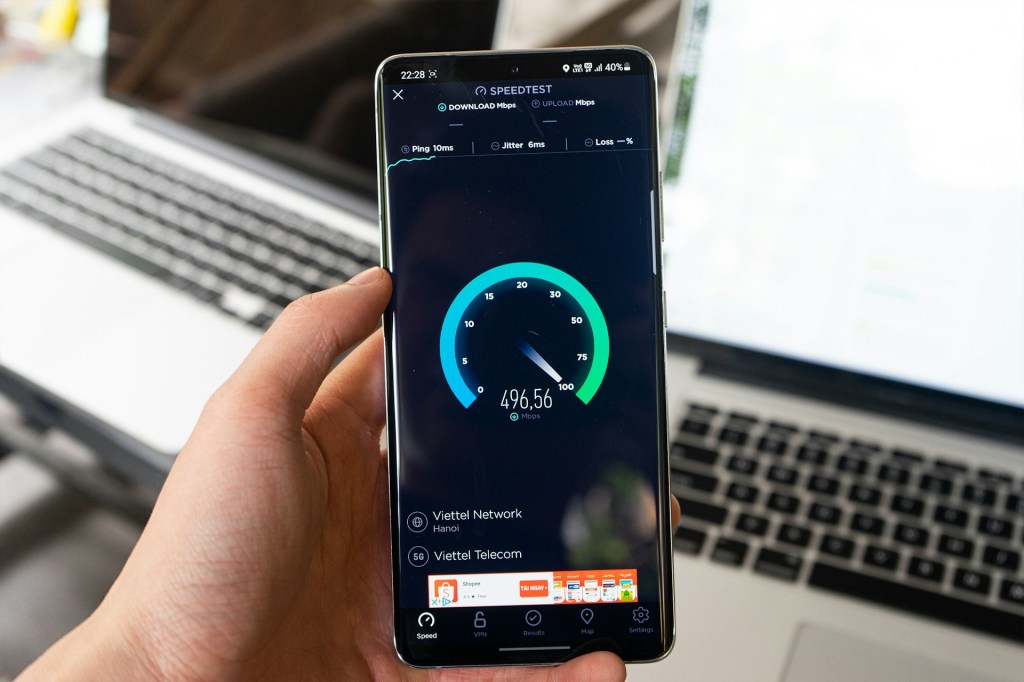
Few things are more frustrating than when your internet keeps disconnecting—whether you’re working, gaming, or streaming your favorite show. The good news is that in many cases, the fix is quick and simple: restart your router and/or modem.
But if your Wi-Fi keeps dropping out even after a restart, finding the cause can take a little more investigation. Here’s a step-by-step guide to troubleshoot the problem and get your connection stable again.
1. Restart Your Router and Modem
The very first step in fixing internet dropouts is to restart your networking equipment. This simple action can:
- Clear temporary glitches
- Refresh your IP address
- Reconnect cleanly to your ISP
How to restart your router properly:
- Turn off both your router and modem (or your combined gateway device).
- Unplug them from power for at least 30 seconds.
- Plug them back in and wait until the lights indicate a stable connection.
2. Check Other Devices on the Network
When your internet connection keeps dropping, it’s important to determine whether the problem is isolated to one device or affects the entire network:
- If only one device is disconnecting, the issue may be with that device’s Wi-Fi adapter, settings, or drivers.
- If multiple devices are disconnecting, the problem is likely with your router, modem, or ISP.
Pro Tip: Try connecting the problem device directly to the router with an Ethernet cable. If the wired connection is stable, the issue is likely Wi-Fi interference or a weak signal.
3. Contact Your Internet Service Provider (ISP)
If restarting your equipment didn’t help and multiple devices are affected, it’s time to contact your internet service provider.
ISPs often have outage alerts, but unexpected disruptions can still occur. When you reach out:
- Explain that you’ve already restarted your router/modem
- Tell them if the problem affects multiple devices
- Ask if there’s an outage or maintenance in your area
Your ISP may:
- Perform a remote line test
- Reset your connection on their end
- Send a technician if a physical line issue is detected
Bonus Tips for Preventing Frequent Internet Dropouts
If you often deal with unstable internet connections, try these long-term fixes:
- Update your router firmware to the latest version
- Relocate your router to a central spot in your home for better coverage
- Reduce Wi-Fi interference from microwaves, cordless phones, or nearby networks
- Upgrade your router or modem if it’s more than 4–5 years old
Final Thoughts
When your internet keeps disconnecting:
- Restart your router and modem.
- Test other devices to see if it’s a device-specific or network-wide issue.
- Contact your ISP if the problem persists across multiple devices.
By following these Wi-Fi troubleshooting steps, you can quickly determine whether the problem is on your end or your provider’s—saving time, frustration, and possibly a service call.
Need help fixing your network?
I offer local networking and Wi-Fi troubleshooting services to get your internet stable again—without unnecessary upsells or long wait times.
 ITBrother
Leave a comment