

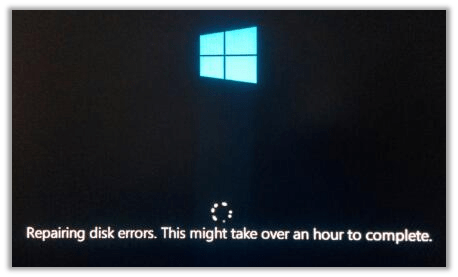
If you have an older laptop or desktop computer, you may have seen a message during startup that says “Repairing disk” or “Checking disk.” The first time this message appears, most people don’t think much of it. They cancel the process, the computer boots into Windows normally, and everything seems fine.
However, this message is often an early warning sign. While it may not cause immediate problems, it usually indicates that something more serious is developing behind the scenes. If ignored for too long—and without proper preparation—it can lead to data loss, system instability, and a very stressful situation.
So why does this message appear, what causes it, and what should you do when you see it?
Why This Message Mostly Appears on Older Systems
On most modern laptops and desktops, this issue is far less common. That’s because newer systems typically use NVMe or SATA solid-state drives (SSDs) as their primary storage. SSDs have no moving parts and handle errors very differently than traditional drives.
This issue is far more common on older computers that still use mechanical hard disk drives (HDDs). Mechanical drives rely on spinning platters and physical read/write heads. Over time, and especially after years of use, these components wear down. That wear can lead to intermittent errors—both physical and logical—that Windows eventually detects.
Without proper maintenance, heavy usage, or simply due to age, mechanical hard drives are much more prone to developing these problems.
What Actually Triggers the “Repairing Disk” Message
The most common reason this message appears is that Windows is having difficulty reading or accessing certain areas—called sectors—on the drive.
These issues generally fall into two categories:
- Physical issues, where a sector on the disk is physically damaged or degrading
- Logical issues, where data in a sector is corrupted or unreadable even though the hardware itself may still function
When Windows detects these errors, it automatically attempts to fix them during startup by launching its disk repair process.
Unfortunately, this process is often misunderstood.
What Windows “Disk Repair” Really Does
Despite the wording, Windows does not actually fix damaged sectors. Instead, the repair process identifies problematic sectors and marks them as unusable so the operating system avoids them in the future.
In simple terms:
- Bad sectors are flagged and excluded
- Windows reorganizes how data is stored to avoid those areas
- No damaged hardware is repaired
Think of it less as a true repair and more as damage control. It’s essentially Windows saying, “This part of the drive is unreliable, so I won’t use it anymore.”
While this can temporarily stabilize the system, it does not stop the drive from continuing to degrade. Over time, more sectors can fail, and the repair process will repeat—often more frequently.
Why the Problem Always Gets Worse Over Time
Once a mechanical hard drive begins developing bad sectors, it’s usually only a matter of time before more appear. As usable space shrinks and errors increase, the drive becomes slower, less reliable, and more prone to failure.
Eventually, bad sectors can form in areas where important data or system files are stored. When that happens:
- Files may become corrupted
- Windows may fail to boot
- Data may become permanently inaccessible
This is why repeated “Repairing disk” messages should never be ignored.
What You Should Do Immediately
The most important step is to back up your data as soon as possible.
As soon as you see this message—even for the first time—you should treat it as a ticking time bomb. The drive may continue working for weeks or even months, but there is no way to predict when it will fail completely.
At minimum, you should:
- Back up important files to an external drive or cloud storage
- Avoid storing new, irreplaceable data on the affected drive
- Plan for a drive replacement
Replacing the failing hard drive with a new one—preferably an SSD—is the safest and most reliable solution. SSDs are faster, more durable, and far less prone to these types of failures.
You can continue using the system in this state, but only if you are extremely diligent about frequent backups. Even then, it’s a temporary solution at best.
What If Your Data Is Already Affected?
If important data was stored in one of the failing sectors, it may already be corrupted or inaccessible. In these cases, standard repair shops may have limited options.
Most computer repair shops can perform basic data recovery, such as retrieving files from drives with minor logical issues. However, when a drive has physical damage or severe sector failure, a data recovery specialist is usually required.
These specialists operate in controlled environments and use specialized tools to recover data from failing mechanical drives. While this service can be expensive, it may be the only option if the data is critical.
Final Thoughts
Repeated “Repairing disk” or “Checking disk” messages are not random or harmless. They are a clear indicator that a mechanical hard drive is beginning to fail.
While Windows may allow the system to continue running for a while, it is only delaying the inevitable. The safest approach is to back up your data immediately and replace the drive before the situation turns into a full system failure or data loss emergency.
Catching the problem early can mean the difference between a simple drive replacement and an expensive data recovery process.
 ITBrother
Leave a comment