

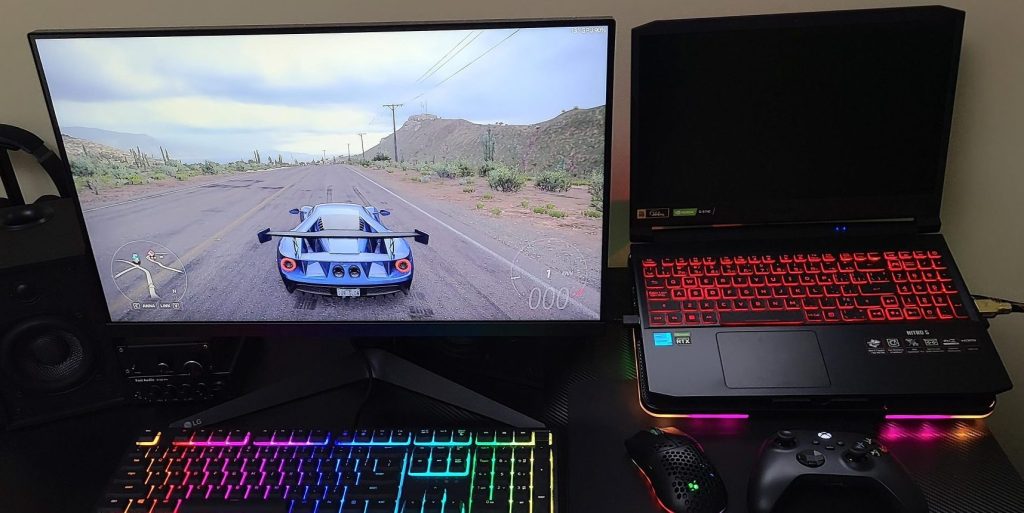
For anyone who uses a laptop as their primary computer, connecting to an external monitor is a common and useful setup. Many people—including myself—run an external display as their main screen while using the laptop display as a secondary monitor. But what happens when the laptop’s internal screen suddenly stops working, while an external monitor displays everything perfectly fine?
This is a surprisingly common issue seen in repair shops. A laptop appears “dead” at first glance, yet once connected to an external monitor, the desktop loads normally. While this can be alarming, the good news is that this behavior immediately narrows down the possible causes and, in many cases, points to a fixable problem.
What It Means When an External Monitor Works
If your laptop displays normally on an external monitor, this tells us several important things right away:
- The system is powering on and booting correctly
- The graphics processor (GPU) is functioning
- The operating system is loading properly
In other words, this is not a total system failure. The issue is almost always isolated to the internal display system rather than the computer as a whole.
A quick initial check is to look at the operating system’s display settings. If the internal display is detected but shows no image, the problem may be related to the backlight or power delivery to the screen. However, if the internal display is not detected at all, the issue is more likely hardware-related.
The Most Common Cause: Physical Screen Damage
The most frequent reason an internal laptop display stops working is physical damage to the screen itself. This can happen from accidental drops, pressure on the lid, or impacts that may not even leave visible marks.
In many cases, cracked screens still register as detected displays, even if the image is distorted or completely black. However, there are instances where an impact loosens internal connections. I’ve seen laptops come in with no visible screen damage, only to discover that the display cable had come loose from the panel or motherboard. Once reconnected, the display turns on—revealing the damage that was previously hidden.
This makes screen damage one of the first things to rule out, even when the display looks intact.
Display Cable Issues: More Common Than People Realize
If the screen itself isn’t damaged, the next most likely culprit is the display cable. The display cable connects the screen to the motherboard and typically runs through the hinge area, which makes it vulnerable to wear and tear.
Common scenarios that lead to display cable problems include:
- Dropping the laptop
- Broken or stiff hinges
- Exposed cables due to cracked bezels or casing
- Repeated opening and closing over time
In laptops with hinge damage, the display cable can be pinched, stretched, or partially severed. Over time, this can cause intermittent or total display failure.
MacBooks are a notable example, as some models use extremely thin flex cables that stretch slightly every time the lid is opened. After years of use, this repeated stress can cause the cable to loosen or fail internally, resulting in a blank internal screen while external displays continue to work normally.
In many cases, reseating or replacing the display cable resolves the issue entirely.
When the Issue Goes Beyond the Screen and Cable
If the screen and display cable have both been ruled out, the problem typically points to the motherboard. At this stage, the issue becomes more complex and model-specific.
Motherboard-related causes can include:
- A faulty display connector
- Damaged solder joints near the connector
- Inadequate voltage reaching the display
When the internal display does not receive the correct power or signaling, it simply will not turn on—even though the rest of the system appears to function normally. That is because, laptops screens need enough voltage to turn on the internal LEDs and backlight. While these failures are less common than screen or cable issues, they do occur and often require board-level diagnostics and repair.
Why This Problem Is Usually Repairable
Despite how serious it may feel, this issue is often repairable. In the majority of cases, the cause is one of the following:
- A damaged internal display
- A loose or failed display cable
Motherboard failures are far less common and are typically considered only after the more straightforward causes have been eliminated. This step-by-step diagnostic approach helps prevent unnecessary repairs and keeps costs reasonable for the user.
Final Thoughts
When a laptop’s internal display stops working but an external monitor functions normally, it can feel like a major failure—but in reality, it’s often a manageable problem. This symptom points toward a limited set of causes, most of which are hardware-related and repairable.
From physical screen damage to worn display cables and, in rarer cases, motherboard issues, identifying the correct cause is key. Addressing the problem early can prevent further damage, especially if hinge wear or cable stress is involved.
For users experiencing this issue, the most important takeaway is this: the computer itself is likely still healthy. With proper diagnosis and realistic expectations, restoring the internal display is often well within reach.
 ITBrother
Leave a comment