

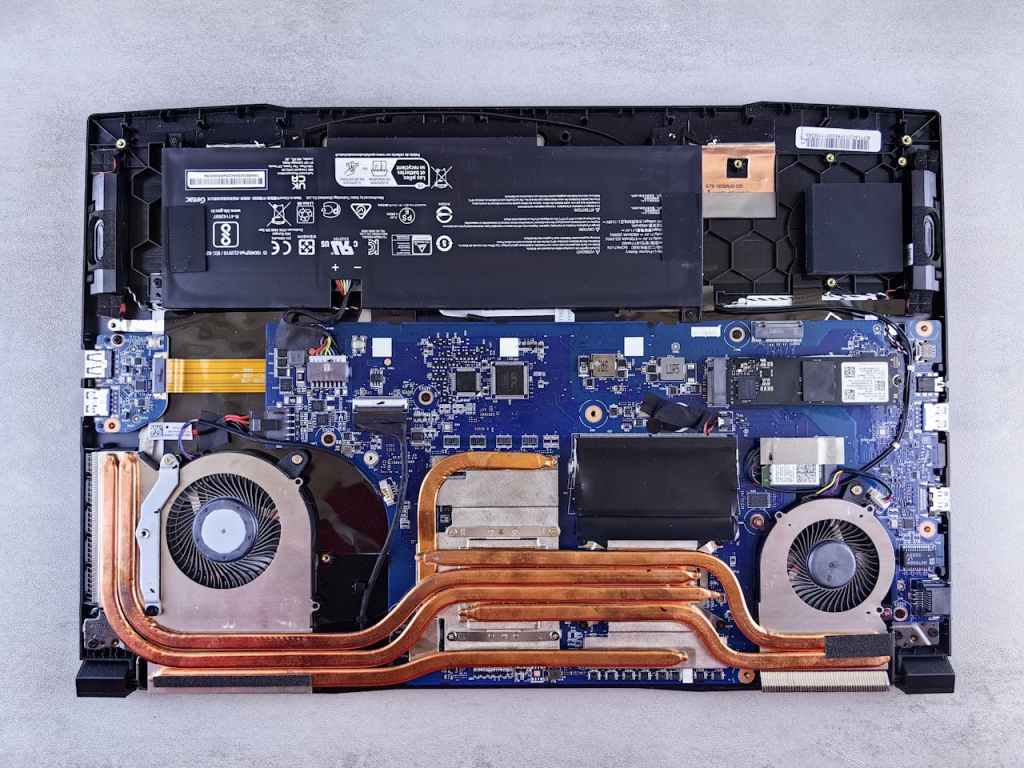
Hearing fans spin loudly in a computer is not always a bad thing. Cooling fans are a critical part of any system, and they are designed to ramp up when internal temperatures rise. This is especially true for gaming laptops and gaming desktops, which contain more powerful components that naturally generate more heat.
Laptops, in particular, tend to be louder than their desktop counterpart as their compact designs, thinner chassis, and smaller fans require higher fan speeds to move enough air through the system. So, when you’re gaming, editing videos, or running other demanding applications, loud fans are completely normal.
But what if the computer is just sitting idle—and the fans are still running loudly?
This is a very common issue I see when clients bring in their laptops or desktops. They often say something like, “I’m not doing anything, but the fans sound like it’s about to take off.” Fortunately, in most cases, this problem is relatively easy to diagnose and fix.
Why Are the Fans Loud When the Computer Is Doing Nothing?
When a system is idle but the fans are still running loudly, there are usually only two possible causes:
- The system is overheating
- The fan control or fan curve settings are forcing the fans to run aggressively
Out of these two, overheating is by far the most common cause.
If internal temperatures are higher than they should be—even at idle—the system will automatically increase fan speed to protect the hardware. This safety behavior is built into modern CPUs and GPUs, and it does not depend on what the user is actively doing.
The Most Common Cause: Overheating at Idle
When a computer overheats while doing very little, the issue is almost never software-related. Instead, it usually comes down to cooling efficiency, and there are two main factors that affect this:
- Dried or degraded thermal paste
- Dust buildup inside the cooling system
While both can contribute to overheating, in my experience, degraded thermal paste is the primary culprit in most cases.
How Thermal Paste Affects Fan Noise
Thermal paste plays a crucial role in cooling. Its purpose is to help transfer heat from the processor (CPU or GPU) to the heatsink. Since air is a very poor conductor of heat, thermal paste fills microscopic gaps between the processor and the heatsink, allowing heat to move efficiently.
Over time, however, thermal paste begins to dry out and harden due to constant exposure to heat. When this happens, heat transfer becomes less efficient. As a result, temperatures rise—even when the system is idle—and the fans are forced to spin faster to compensate.
This is why I typically recommend replacing thermal paste every two to three years. The exact interval depends on how the system is used. Heavy workloads like gaming or creative work will accelerate thermal paste degradation, while lighter usage may allow it to last longer.
Replacing old thermal paste alone resolves the vast majority of “loud fan at idle” complaints I see.
Dust Buildup Makes the Problem Worse
In addition to thermal paste degradation, dust buildup can significantly reduce cooling performance.
Dust tends to collect inside:
- Heatsink fins
- Cooling fans
- Air intake and exhaust vents
When airflow is restricted, heat cannot escape efficiently. This causes internal temperatures to rise, which again forces the fans to run at higher speeds—even when the computer is idle.
A proper internal cleaning combined with fresh thermal paste can dramatically reduce fan noise and restore normal operating temperatures.
Less Common Cause: Fan Curve or Power Profile Settings
While overheating accounts for most cases, there is one other cause worth mentioning—fan curve or power management software.
This issue is more common in gaming laptops, but it can also appear in prebuilt gaming desktops. Many systems from manufacturers like Dell, ASUS, Lenovo, and others include proprietary software that controls power limits, performance modes, and fan behavior.
These utilities often include presets such as:
- Performance mode
- Balanced mode
- Quiet or silent mode
In rare cases, the software may be configured to run fans at a high speed even when the system is idle. This can happen if the system is locked into a performance-focused profile or if the software behaves incorrectly after an update.
That said, this scenario is far less common than overheating. If the system is genuinely running cool at idle but the fans are still loud, checking these settings is worthwhile. However, if temperatures are high, the issue almost always circles back to thermal paste and dust buildup.
Final Thoughts
If your computer’s fans are spinning loudly even when you’re not doing anything, the problem is usually straightforward:
- The system is overheating due to dried thermal paste
- Dust buildup is restricting airflow
- In rare cases, aggressive fan or power settings are enabled
In most situations, replacing the thermal paste and cleaning out internal dust resolves the issue almost immediately. Not only does this quiet the fans, but it also helps protect the hardware and extend the lifespan of the system.
Loud fans at idle aren’t something you should ignore—but the fix is often simpler than expected.
 ITBrother
Leave a comment