

One of the more confusing performance issues laptop users experience is when their system feels perfectly fine while plugged in, but suddenly becomes slow or laggy as soon as it’s unplugged. For many people, this raises concerns about the battery, internal components, or even long-term hardware damage.
The reality is that in many cases, this behavior is completely normal. Laptops are designed to behave differently depending on whether they are running on battery power or connected to a charger. However, there are also situations where the slowdown goes beyond normal power-saving behavior and points to a software-related issue that needs attention.
Understanding the difference between expected performance reduction and an actual problem is key.
Why Laptops Slow Down When Running on Battery
Laptops are built with one primary limitation in mind: battery capacity. Unlike desktop computers, laptops must balance performance with power efficiency to maximize battery life.
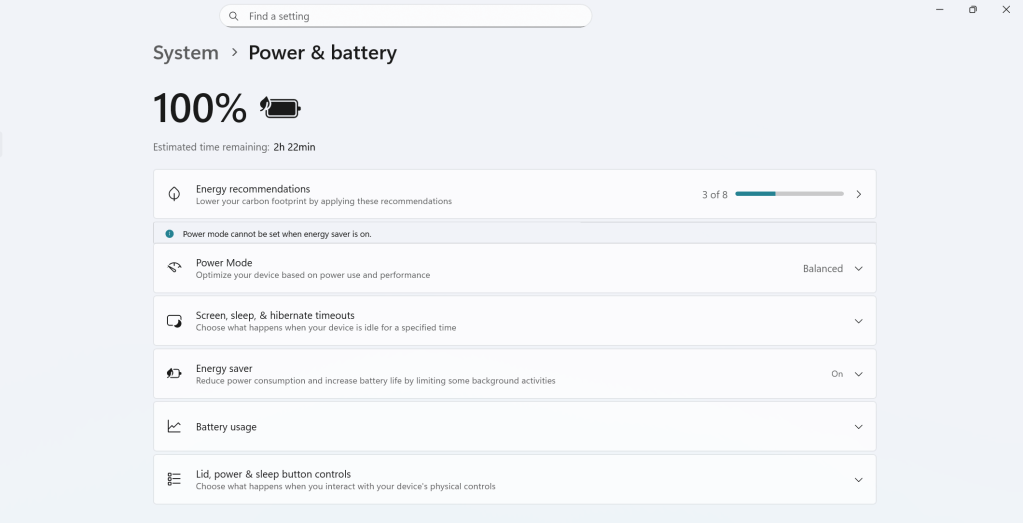
When a laptop is unplugged, it automatically shifts into a power-saving mode. This affects how much power is delivered to the most energy-hungry components in the system—namely the CPU and GPU. These components are capable of consuming large amounts of power when running at full speed, which would drain a battery extremely quickly.
To prevent this, laptops intentionally reduce performance when on battery. This can include:
- Lower CPU clock speeds
- Reduced GPU power limits
- More aggressive power-saving policies
- Slower background processing
This behavior is especially noticeable in gaming laptops, which contain high-performance CPUs and dedicated GPUs. These systems are designed to deliver maximum performance only when plugged in. When running on battery alone, performance is intentionally restricted to prevent rapid battery drain and overheating.
Even standard office or productivity laptops follow the same principle, although the performance reduction is usually much less aggressive.
How Noticeable Is the Performance Difference?
How much of a slowdown you notice depends largely on what you are doing on the laptop.
Light Tasks: Minimal Difference
For everyday activities such as:
- Browsing the web
- Watching videos
- Checking email
- Writing documents
Most users will barely notice a difference between being plugged in and running on battery. Page loads might be slightly faster when plugged in, but the difference is usually small enough to go unnoticed.
Heavy Tasks: Significant Difference
Where the difference becomes obvious is during high-performance workloads, such as:
- Gaming
- Video editing
- Photo editing
- 3D rendering
- Large software builds or simulations
Anyone who owns a gaming laptop has likely already experienced this. Games run smoother, with higher frame rates and fewer stutters, when the laptop is plugged in. This is because the charger supplies more power than the battery alone can safely deliver, allowing the CPU and GPU to operate at higher performance levels.
The same applies to creative professionals. Video editing and rendering tasks can take significantly longer on battery because the system is limiting performance to conserve power.
This behavior is by design, not a flaw.
When Normal Behavior Turns Into a Problem
While performance reduction on battery is expected, there is a point where it crosses into abnormal behavior.
If a laptop becomes:
- Extremely slow
- Unresponsive
- Laggy even while idle
- Delayed when opening basic applications
then the issue may no longer be normal power-saving behavior.
At that point, it’s important to determine whether the slowdown is being caused by software misconfiguration rather than intentional performance limits.
Manufacturer Power Management Software Issues
One of the biggest challenges with diagnosing this issue is that every laptop manufacturer uses its own proprietary power management software.
Brands like Dell, HP, Lenovo, ASUS, and others include custom utilities that control:
- Performance modes
- Power limits
- Battery optimization
- CPU and GPU behavior
These utilities override or integrate with the operating system’s built-in power management. While this allows manufacturers to fine-tune performance, it also introduces complexity.
In real-world scenarios, these tools are prone to:
- Bugs after system updates
- Incorrect power profiles being applied
- Conflicts with Windows power settings
- Overly aggressive battery-saving modes
Because manufacturers typically design a single power profile to work across many models, it’s possible for certain laptops to behave oddly under specific conditions. This is why checking manufacturer power settings is often the first troubleshooting step when a laptop becomes unusually slow on battery.
In many cases, resetting the power profile or switching from an aggressive battery-saving mode to a balanced one resolves the issue immediately.
Operating System Power Settings Can Also Interfere
If the manufacturer’s software appears to be functioning normally, the next layer to consider is the operating system itself.
This issue is more common on Windows laptops than on macOS systems. Windows has its own built-in power management framework, which controls CPU states, background processes, and performance behavior.
Although manufacturer utilities usually have priority over Windows settings, conflicts can still occur. Windows updates, corrupted power plans, or misconfigured settings can lead to abnormal behavior—such as extreme throttling even when the system is idle.
In situations where power settings appear broken or inconsistent, reinstalling the operating system can be an effective solution. A clean OS installation clears:
- Corrupted power profiles
- Conflicting permissions
- Hidden software bugs
After reinstalling Windows and allowing the manufacturer’s utilities to reinstall properly, many unexplained power-related performance issues are resolved.
Is This Ever a Hardware Problem?
While it’s technically possible for hardware issues to cause performance problems on battery, it is very unlikely in this specific scenario.
Hardware-related battery problems tend to show more obvious symptoms first, such as:
- The battery not holding a charge
- Rapid battery drain
- Sudden shutdowns when unplugged
- Battery health warnings
If the battery were failing badly enough to cause extreme lag, users would almost always notice these other symptoms beforehand.
Similarly, other hardware failures that could affect performance typically cause crashes, instability, or complete power loss—not selective slowdowns only when unplugged.
For this reason, the vast majority of cases where a laptop is laggy only on battery are caused by software or power management behavior, not failing hardware.
Final Thoughts
A laptop slowing down when unplugged is, in most cases, normal behavior designed to conserve battery life. This is especially true for gaming laptops and systems used for heavy workloads.
However, if the slowdown is severe—affecting even idle performance—it may indicate:
- Misconfigured manufacturer power settings
- Software bugs after an update
- Conflicts between operating system and vendor utilities
Before assuming a hardware failure, it’s always worth checking power profiles and, if necessary, performing a clean operating system installation.
Understanding how laptops manage power helps prevent unnecessary repairs and ensures performance expectations are realistic—both on battery and while plugged in.
 ITBrother
Leave a comment