

This is one of those computer issues that instantly confuses users—and understandably so. The keyboard works perfectly fine in the BIOS, but the moment the operating system loads, it completely stops responding. No typing, no shortcuts, nothing.
What makes this issue even more frustrating is how rare it is. In all my years working in IT and computer repair, I’ve only encountered this scenario a handful of times. Because of that rarity, most users (and even some technicians) initially look in the wrong place for the cause.
So why does a keyboard work in BIOS but not in Windows? And more importantly, what can actually be done about it?
Why People Assume It’s a Hardware Problem
When this issue first appears, the natural assumption is that something physical is wrong.
Most users go through the same troubleshooting steps:
- Unplug the keyboard and try a different USB port
- Swap the keyboard with another one
- Try a different USB cable if available
In nearly every case I’ve seen, the keyboard was working perfectly fine before the problem started. Swapping USB ports doesn’t help, and even using a completely different keyboard produces the same result.
At this point, users who are more comfortable with computers usually enter the BIOS or UEFI settings—and that’s where things get strange.
Inside the BIOS, the keyboard works flawlessly.
This is the key clue that tells us the problem is not hardware-related.
What BIOS vs Operating System Tells Us
The BIOS (or UEFI) operates independently of the operating system. It uses very basic, low-level input handling that does not rely on Windows drivers or system files.
If the keyboard works in BIOS, that confirms:
- The keyboard itself is functional
- The USB ports are working
- The motherboard is correctly detecting input
Once Windows loads, however, the system hands control of input devices over to the operating system and its drivers. If the keyboard stops working at that point, the issue almost always lies within the operating system itself.
This is why this problem is so confusing: the computer appears healthy at the hardware level, yet becomes unusable once Windows starts.
Why the Mouse Often Still Works
One of the more interesting aspects of this issue is that, in most cases, the mouse continues to work normally.
This detail is important.
If both the keyboard and mouse failed at the same time, the diagnosis would be much simpler: a broader USB or system driver failure. However, when only the keyboard stops responding, it points to a very specific kind of driver or configuration problem.
Windows treats keyboards and mice as separate Human Interface Devices (HID). Even though they fall under the same category, they use different driver instances and system hooks. This means one can fail while the other continues to function.
The fact that the mouse still works is what allows further investigation inside Windows.
The Most Common Root Cause: Driver Corruption
In every confirmed case I’ve seen where a keyboard works in BIOS but not in Windows, the root cause was operating system–level driver corruption.
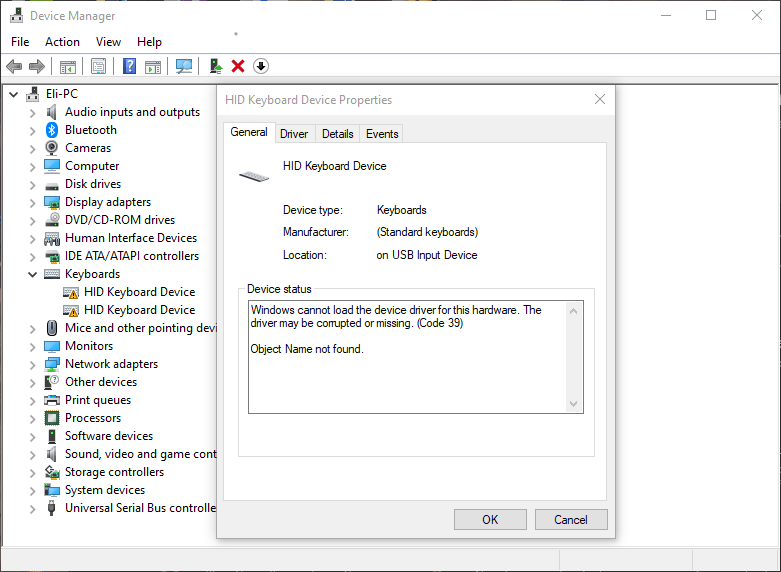
Most commonly, this manifests as Error Code 39 in Windows Device Manager.
Error Code 39 typically indicates:
- A corrupted driver file
- A missing system component
- Registry corruption related to device drivers
The problem here is that Windows uses a universal HID keyboard driver. This driver is designed to work with nearly all standard USB keyboards—roughly 99% of them.
When that universal driver becomes corrupted, Windows no longer knows how to communicate with the keyboard, even though the hardware itself is fine.
Unfortunately, Windows does not provide a simple way to manually reinstall or repair this specific driver in isolation.
What Users Can Try Before a Reinstall
If the mouse is still working, there are a few things users can try before considering a full operating system reinstall.
1. Check for Windows Updates
The first step should always be checking for system updates. Occasionally, Microsoft releases patches that include driver fixes or system file repairs.
While this doesn’t always resolve the issue, it’s the safest and simplest step for non-technical users to attempt.
2. Check Device Manager for Errors
Using the mouse, users can open Device Manager and look under “Keyboards” or “Human Interface Devices.”
If Windows detects a problem, it will usually show a warning icon next to the keyboard device. Double-clicking the device may reveal an error code—most commonly Code 39.
At this point, it’s best not to experiment too aggressively. Randomly uninstalling drivers or modifying registry entries without experience can make the problem worse.
For most users, this step is diagnostic rather than a fix.
Why Advanced Fixes Usually Don’t Work
Some guides online suggest registry edits, manual driver replacement, or disabling certain services. In theory, these can work—but in practice, they are unreliable and risky.
Because the HID keyboard driver is deeply integrated into Windows, partial fixes often:
- Don’t persist after a reboot
- Break other input devices
- Cause additional system instability
This is why, despite the frustration, there is no consistently reliable workaround for this problem once the universal keyboard driver is corrupted.
The Guaranteed Fix: Reinstalling the Operating System
As inconvenient as it sounds, reinstalling the operating system is the only guaranteed solution I’ve found for this issue.
A clean OS reinstall:
- Replaces corrupted system files
- Restores default drivers
- Resets damaged registry entries
- Eliminates hidden conflicts
Once Windows is reinstalled, the keyboard begins working immediately—without any additional configuration.
Because the keyboard still works in BIOS, users can boot from a USB installer without any issues. Data can usually be backed up beforehand using the mouse, provided the system is still accessible.
While reinstalling Windows is not an ideal solution, it is the most reliable and time-efficient fix for this rare problem.
Final Thoughts
When a keyboard works in BIOS but not in Windows, the issue is almost never hardware-related. Instead, it’s a sign of deep operating system–level driver corruption, most commonly affecting the universal HID keyboard driver.
Although a few basic checks can be performed, there are no consistently safe or effective manual repairs once this problem occurs. In real-world repair scenarios, a clean operating system reinstall remains the only dependable solution.
It’s a rare issue—but when it happens, understanding the cause can save hours of unnecessary troubleshooting and frustration.
 ITBrother
Leave a comment