

Older Retina MacBooks still make their way into my shop, and recently I worked on a MacBook Pro A1502 (EMC 2835) that needed both a screen replacement and new internal speakers. Despite being over ten years old, this model is still very serviceable — provided the repair makes financial sense.
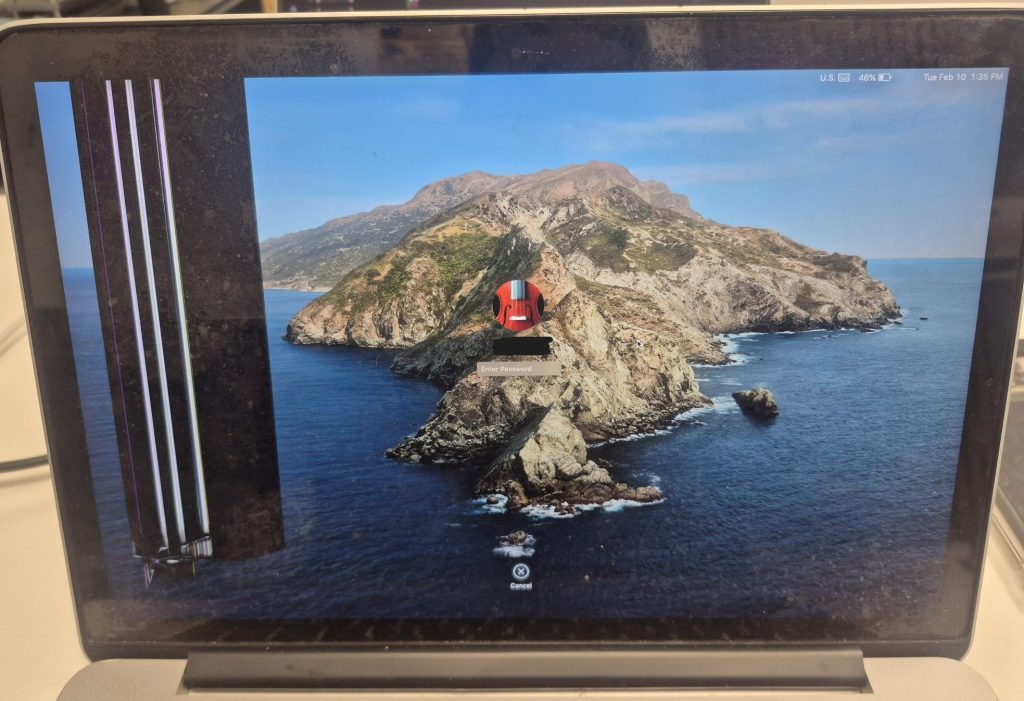
The client brought it in with two clear problems. The bottom-left portion of the Retina display was cracked or punctured, obscuring roughly one fourth of the screen. On top of that, the speakers produced noticeable crackling whenever the volume was turned up past mid-level. Given the age of the MacBook, neither issue is unusual.
Diagnosing the Cracked Retina Display
A fracture in the bottom-left corner area had spread far enough to interfere with normal use. On the MacBook Pro A1502, the screen is a full Retina display assembly. That means the glass, LCD, and aluminum housing are replaced as a single unit.
One thing many people don’t realize is that new OEM screens for this model are no longer manufactured. Most replacements available today are salvaged assemblies graded by cosmetic condition. In this case, the client opted for a Grade A pre-owned Retina display, which cost approximately $150.
For a laptop released in 2013–2015, that price surprises people. However, Retina panels have remained relatively valuable because of their resolution and build quality. Fortunately, the replacement arrived in excellent shape with minimal cosmetic wear.
Why the Speakers Were Crackling
Speaker distortion is extremely common on aging MacBooks. Over time, the internal speaker cones weaken, adhesives degrade, and vibrations begin to cause tearing in the membrane. When the volume is pushed higher, crackling becomes obvious — especially in lower frequencies.
Unlike the display assembly, replacement speakers for the A1502 are still widely available and inexpensive. In this case, brand-new speakers were installed rather than used ones.
Why Disconnecting the Battery Is Critical
Before starting any internal MacBook repair, disconnecting the battery is essential. MacBooks are known to power on automatically when the lid is opened, and working on a live logic board increases the risk of accidental damage.
Failing to disconnect the battery can result in:
- Shorted connectors
- Burned components
- Damaged flex cables
Taking a few extra seconds to disconnect the battery eliminates those risks entirely.
Replacing the MacBook Pro A1502 Speakers
Speaker replacement on this model is relatively straightforward, but it requires careful handling. To access the left speaker connector, the small bridge cable connecting the USB daughter board must first be removed. Without doing this, there isn’t enough clearance to safely detach the speaker cable.
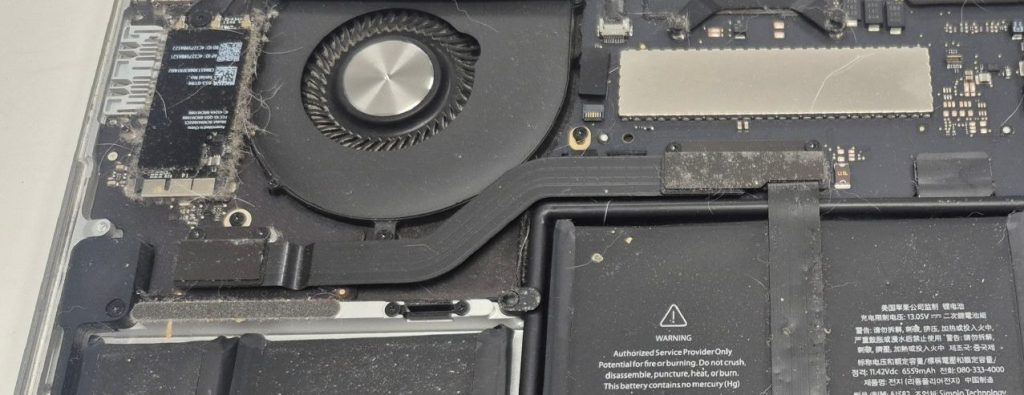
These MacBook connectors are very fragile. I always use a plastic pry tool and lift gently from the edge rather than pulling from the cable itself. Once disconnected, the speakers are secured by a few screws and can be swapped without complication.
After installation, the new speakers produced clean audio with no distortion even at higher volume levels.
MacBook Pro A1502 Screen Replacement Process
The display replacement is more involved than the speaker swap. Several components must be carefully disconnected from the logic board before removing the hinge assembly. These include the display data cable, Wi-Fi antennas, webcam cable, and backlight connector.
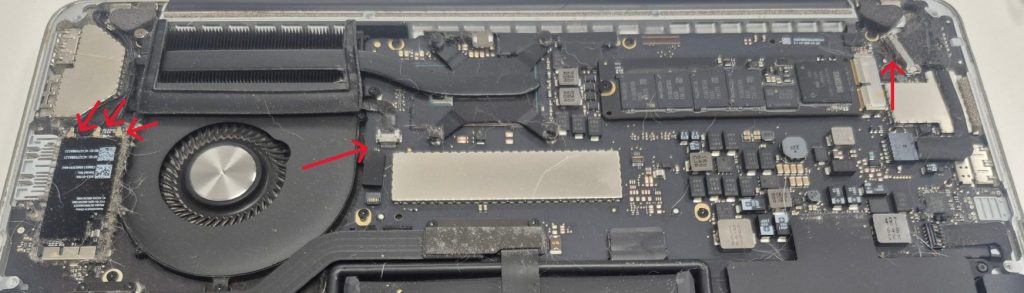
The webcam cable deserves particular attention. It tears easily if pulled incorrectly, so slow and careful removal is necessary. Once all connectors are detached, the hinge screws and small hinge support bracket can be removed, allowing the cracked display assembly to lift free.
Installing the replacement screen is essentially the reverse process, but proper alignment is important. Donor display assemblies can sometimes vary slightly in fit or cosmetic condition, so double-checking seating and screw placement prevents future hinge issues.
The replacement screen on this unit fit cleanly and aligned perfectly.
Preventative Maintenance While the MacBook Was Open
Any time a MacBook is already disassembled, it makes sense to address preventative maintenance. Since the client had already invested in the repair, I took the opportunity to clean internal dust buildup and replace the aging thermal paste on the CPU.
Thermal paste dries out over time, reducing heat transfer between the processor and heatsink. When this happens, temperatures rise and fan noise increases. Applying fresh thermal paste improves cooling efficiency and can extend the lifespan of the machine.
It’s a small detail, but it adds value to the overall repair.
Testing and Final Results
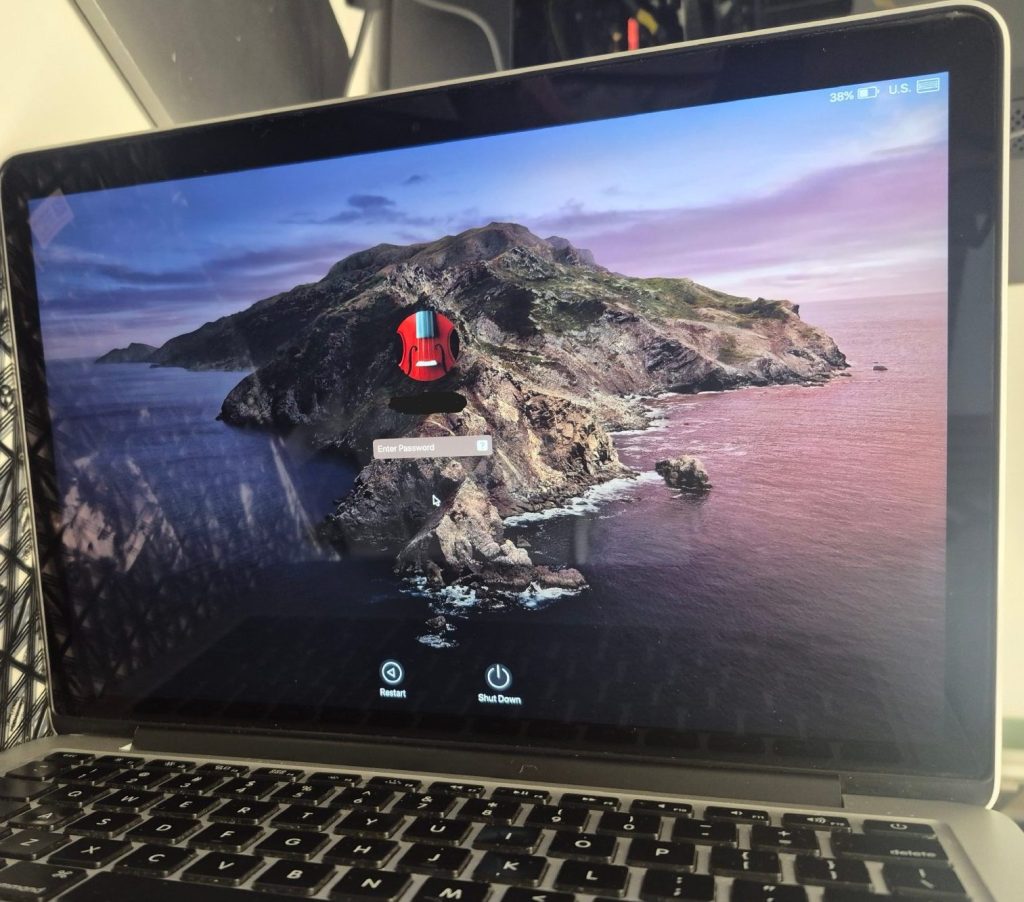
After reassembly, the battery was reconnected and the system powered on for testing. The new Retina display showed no dead pixels, no backlight bleed, and no image artifacts. The speakers sounded crisp and distortion-free across all volume levels.
With fresh thermal paste and cleaned airflow, the system also ran cooler than before.
What started as a cracked screen and failing speakers ended with a fully functional MacBook Pro A1502 that feels restored rather than outdated.
Is Repairing an Older MacBook Pro Worth It?
Whether a repair makes sense depends on several factors. For the A1502 specifically, the design still allows relatively accessible repairs compared to newer Apple laptops. There’s no T2 chip complication, the display is modular, and the internal layout is familiar to most technicians.
However, parts availability is becoming increasingly dependent on donor machines. As these devices age further, replacement components may become harder to source.
In this case, the repair was justified. The laptop remained otherwise functional, and replacing the screen and speakers cost significantly less than purchasing a new MacBook.
Final Thoughts
The MacBook Pro A1502 (EMC 2835) remains one of the more serviceable Retina MacBook models Apple produced. While the repair itself is methodical — remove and replace — attention to detail makes the difference between a smooth job and a costly mistake.
This unit now has:
- A fully functional Retina display
- New internal speakers
- Cleaned cooling system
- Fresh thermal paste
Instead of being discarded, it’s back in active use. And for older Apple hardware, that’s often the best outcome.
 ITBrother