

When a PC turns on but shows no display and no beep codes, it creates immediate confusion. The fans spin, power lights turn on, yet the screen remains black. Without beep codes or obvious error messages, many users don’t know where to start.
The key to diagnosing this issue correctly is understanding one critical distinction: troubleshooting is very different for desktops versus laptops. While both devices can exhibit the same symptom, their internal design determines how repairable they are.
Why “No Display” Doesn’t Mean the Same Thing on Every PC
A computer that powers on but produces no image is not necessarily “dead.” In many cases, the system fails during POST (Power-On Self-Test), which prevents video output. Traditionally, desktops would emit beep codes during POST failure. However, many modern systems no longer include internal speakers, which explains why you may hear nothing at all.
Instead of beep codes, systems now rely on diagnostic indicators such as:
- Flashing LED sequences
- Power button blink patterns
- Caps Lock or Num Lock blinking (common in laptops)
- Onboard debug LEDs (higher-end desktop motherboards)
If your PC turns on but has no display, the first diagnostic step should always be checking for blinking lights or motherboard indicators.
Desktop PC Turns On but No Display
Desktop systems are significantly easier to troubleshoot because their components are modular and replaceable. Nearly every internal part can be removed, tested, and replaced independently.
The Most Common Causes on Desktops
When a desktop powers on without video output, the most frequent culprit that I’ve seen is:
- Improperly seated or faulty RAM
However there can be other causes for this issue such as:
- Graphics card failure
- Corrupted BIOS settings
- Power supply instability
These issues can prevent the system from completing POST, which prevents the system from booting and thus leaves the display with no picture.
Why Desktops Are Easier to Diagnose
The advantage of desktops lies in their modularity. Unlike laptops, desktop components are not permanently soldered in place and allows us to individually test components.
For example:
- RAM sticks can be removed and tested individually
- Graphics cards can be reseated or replaced
- Power supplies can be swapped for testing
- CMOS batteries can be removed to reset BIOS
Because of this flexibility, the success rate for repairing a desktop with no display is significantly higher compared to laptops.
RAM: The Most Overlooked Cause
RAM failure is one of the most common and easiest-to-fix causes of a desktop with no display. It is usually the first thing to check when dealing with a no display issue.
Common symptoms that appear due to a RAM related issue are:
- System powers on but monitor remains black
- No keyboard response
- No motherboard splash screen
Reseating RAM or testing one stick at a time often resolves the issue. Even a slightly misaligned module can prevent display output.
GPU and Power Supply Considerations
If RAM is not the issue, then the graphics card is the next thing to look at.
Albeit very uncommon, but a failing GPU can cause:
- Black screen with spinning fans
- No signal detected on monitor
- System powers on but never reaches BIOS
Testing integrated graphics (if available) can quickly confirm whether the dedicated GPU is faulty.
Power supply issues can also mimic display failure. A PSU may provide enough power to spin fans but fail to supply stable voltage to the CPU or GPU. Inconsistent power delivery can disrupt POST but in many cases, a PSU issue is more obvious and a more blaring issue will emerge rather than halting POST.
Laptop Turns On but No Display and No Beep Codes
Laptops present a completely different challenge. Unlike desktops, most laptop components are either tightly integrated or soldered directly onto the motherboard.
Things like the:
- CPU (almost always soldered)
- GPU (in most modern laptops)
- Sometimes RAM
- Power regulation circuitry
Because of this design, troubleshooting options are very limited.
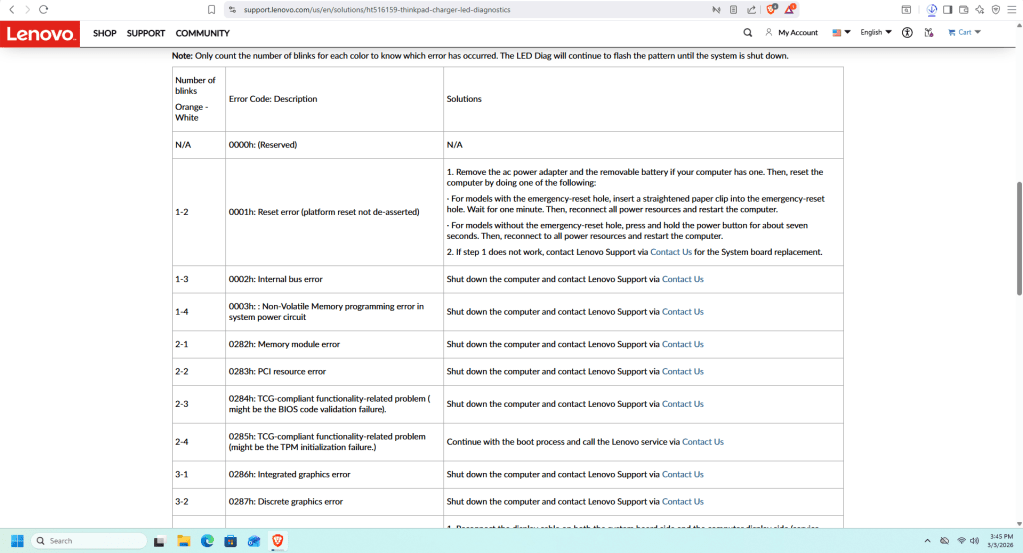
LED Blink Codes Are Critical on Laptops
Without internal speakers, laptops rely heavily on LED diagnostics. Manufacturers often use blinking patterns to indicate specific hardware failures.
Typically, laptop manufacturers will use:
- Caps Lock light
- Num Lock light
- Charging light
to indicate a potential problem with a laptop, so if the laptop is turning on but there is no display, check these areas.
Do keep in mind that each manufacturer uses a unique error sequence, and interpreting the code correctly requires checking the support documentation for that specific model or brand.
RAM Is Often the Only User-Fixable Issue
If a laptop has removable RAM, it represents one of the few components users can test themselves.
Similar to desktops, a RAM-related LED codes may indicate:
- Improperly seated module
- Defective memory stick
- Memory slot failure
Reseating or replacing RAM can sometimes restore full functionality. However, if the RAM is soldered, repair becomes significantly more complex and usually requires board-level service and in most cases is not worth pursuing.
External Monitor Testing Matters
With laptops, there can be real scenarios where the display was the main reason why the laptop was not displaying anything. Connecting a laptop to an external display can quickly eliminate this possibility.
If the external monitor works, this may involve a:
- Failed display panel
- Damaged display cable
- Backlight failure
However, if there is still no output externally, then the problem is most likely motherboard-related.
Why Laptop Repairs Are Less Predictable
Usually when a laptop turns on but has no display and no beep codes, the causes are often rooted in a hardware fault.
For example this may be things like:
- CPU malfunction
- GPU failure
- Embedded controller issues
- Power rail faults
- BIOS/Firmware corruption
Many hardware faults can trigger this LED error and unlike desktops, these components cannot simply be swapped out. Repair in many cases, may require advanced board-level repair or full motherboard replacement.
This is why manufacturers frequently advise users to send laptops in for service rather than attempt DIY troubleshooting.
Desktop vs Laptop: Repair Probability
When comparing repair odds:
- Desktops have higher success rates due to replaceable parts
- Laptops are limited unless the issue involves removable RAM or display components
The same symptom — power but no display — leads to completely different repair paths and outcomes depending on what device is brought in.
Final Thoughts
A PC that turns on but shows no display and no beep codes is not automatically considered beyond repair. For desktops, their modular design allows systematic isolation and testing of components while laptops rely on LED error codes and the integrated hardware makes troubleshooting more restrictive.
Understanding the structural difference between these two systems is what prevents unnecessary part replacement and wasted time.
If your system powers on but stays black, focus first on diagnostic indicators, then approach troubleshooting based on whether you are working with a desktop or laptop platform.
 ITBrother
Leave a comment