

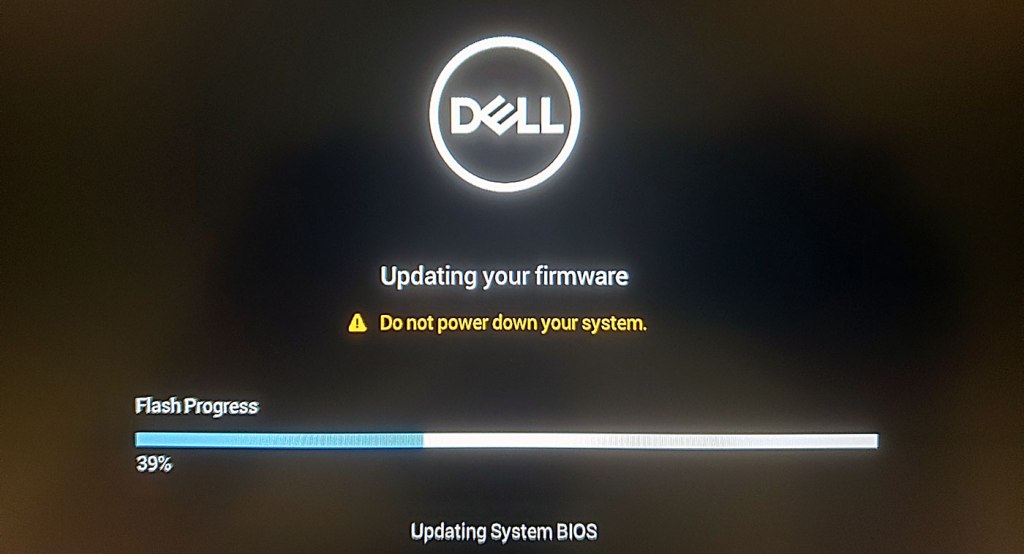
Whenever you attempt a BIOS update, there are several things to consider before proceeding. In many cases, BIOS updates should be treated as a last resort when troubleshooting a computer issue. If your system is running perfectly fine, there is usually no urgent reason to update the BIOS on your motherboard. And while the process of updating a BIOS is often straightforward, recovering from a failed BIOS update is where serious problems can occur.
If a BIOS update fails midway through the installation process—whether due to power loss, system crash, or user interruption—the motherboard can become unusable. This happens because the BIOS is responsible for performing the essential startup tasks that allow the computer to function. Without a valid BIOS installed, the motherboard cannot initialize hardware components or begin the normal boot process.
Understanding how BIOS updates work, why they sometimes fail, and what recovery options exist can help users avoid turning a working computer into a non-bootable system.
What the BIOS Actually Does
The BIOS (Basic Input/Output System) is firmware stored on a small chip on the motherboard. Its main purpose is to initialize and test hardware components when the computer first powers on. This process is commonly referred to as the Power-On Self Test (POST).
During this stage, the BIOS checks critical components like the:
- CPU
- Memory (RAM)
- Storage devices
- Graphics hardware
- System peripherals
Once these components pass the POST checks, the BIOS then hands control over to the operating system by loading the bootloader from the storage device.
The BIOS also contains configurable settings that control how the hardware operates. For example, users can change the boot order, enable virtualization features, adjust memory settings, or configure security options. These settings are stored in firmware and read every time the system starts.
Because the BIOS is responsible for the earliest stage of system initialization, a corrupted or incomplete BIOS update can prevent the computer from starting at all.
Why BIOS Updates Exist
BIOS updates are released by motherboard manufacturers or system integrators primarily to fix specific issues or add compatibility with new hardware.
Common reasons for BIOS updates are:
- Fixing system instability or boot problems
- Adding support for newer CPUs or memory modules
- Improving hardware compatibility
- Addressing security vulnerabilities
- Resolving firmware bugs discovered after release
For example, a motherboard manufacturer may release a BIOS update that adds compatibility for a newer generation CPU. Without that update, the motherboard will not recognize the new processor at all.
However, BIOS update notes are often very specific. If the update addresses a problem that your system does not have, installing it provides little practical benefit while still carrying some risk. This is why many technicians recommend updating the BIOS only when necessary.
How BIOS Updates Are Installed
The update process can differ depending on whether you are using a laptop, prebuilt desktop, or custom-built PC.
For laptops and prebuilt systems from companies like Dell, HP, or Lenovo, BIOS updates are typically handled through manufacturer-provided update utilities. These tools automatically detect the system model and determine whether a BIOS update is available.
When the update begins, the system will usually restart and display a dedicated BIOS update screen. During this stage, the firmware is erased and rewritten with the new version. Users are explicitly warned not to power off the system during this process, as interrupting the update can corrupt the firmware.
For custom-built PCs, the process is usually more manual. Users must download the correct BIOS file from the motherboard manufacturer’s support page and install it using built-in BIOS flashing methods like:
- USB-based flashing utilities
- BIOS update tools inside the firmware interface
- Dedicated motherboard update buttons
While modern motherboards have made BIOS updates safer than they used to be, the process will always carry some level of risk.
What Happens When a BIOS Update Fails
If a BIOS update fails or is interrupted, the motherboard essentially becomes useless or “bricked.” In this state, the system will power on, but it will not display anything on the screen or boot into the operating system.
Laptops and desktops will have different symptoms but some examples are:
- Computer powers on but no display appears
- Fans spin but system never reaches the boot screen
- No keyboard response
- System repeatedly restarts without posting
Because the BIOS firmware is incomplete or corrupted, the motherboard cannot initialize the hardware required to continue the startup process. And unfortunately, there is usually no simple keyboard shortcut or software fix once this happens.
Desktop vs Laptop Recovery Differences
There is an important distinction between desktop motherboards and laptop motherboards when it comes to recovering from a failed BIOS update.
Desktop motherboards are typically separate components. If the motherboard becomes unusable, it can be replaced without replacing the rest of the system.
Laptop motherboards, on the other hand, often integrate many components directly onto the board, like the:
- CPU
- GPU
- RAM (in some models)
Because these parts are soldered to the motherboard, replacing the board can be extremely expensive. In high-end or gaming laptops, the motherboard alone can represent a large portion of the device’s total value. This is one reason why a failed BIOS update on a laptop can sometimes make the repair economically impractical.
Professional BIOS Chip Reprogramming
The second method for repairing a system with a failed BIOS update involves directly reprogramming the BIOS chip.
Specialized repair shops sometimes use hardware programmers to read and rewrite the firmware stored on the BIOS chip. This process usually involves:
- Locating the BIOS chip on the motherboard
- Removing the chip from the board or attaching a programming clip
- Connecting it to a BIOS programmer device
- Writing a fresh BIOS firmware image to the chip
- Reinstalling the chip onto the motherboard
This procedure requires specialized equipment, firmware files, and experience working with delicate electronics. It can also be time-consuming, as the chip may need to be read and written multiple times to ensure a successful recovery.
Although this type of repair is typically cheaper than replacing an entire motherboard, it is still considered a specialized service and may not always succeed depending on the extent of the damage.
Preventing BIOS Update Failures
While there are ways to get a system back up and running from a BIOS failure, prevention is always the best strategy.
Before updating your BIOS, consider the following precautions:
- Only update if the update fixes a specific problem you are experiencing
- Ensure the computer is connected to reliable power
- Avoid updating during storms or unstable electrical conditions
- Carefully verify that the BIOS file matches your exact motherboard model
For laptops, keeping the battery installed and the charger connected during the update can also provide additional protection if power briefly drops.
Final Thoughts
A BIOS update can solve certain hardware compatibility or stability issues, but it is not something that should be performed casually. If the update fails, the computer may no longer boot, leaving users with limited and potentially expensive repair options.
Understanding the risks involved—and only updating the BIOS when necessary—can help prevent turning a perfectly working computer into a non-bootable system. In situations where a BIOS update does fail, professional repair services may still be able to recover the motherboard through specialized firmware reprogramming techniques.
 ITBrother
Leave a comment