

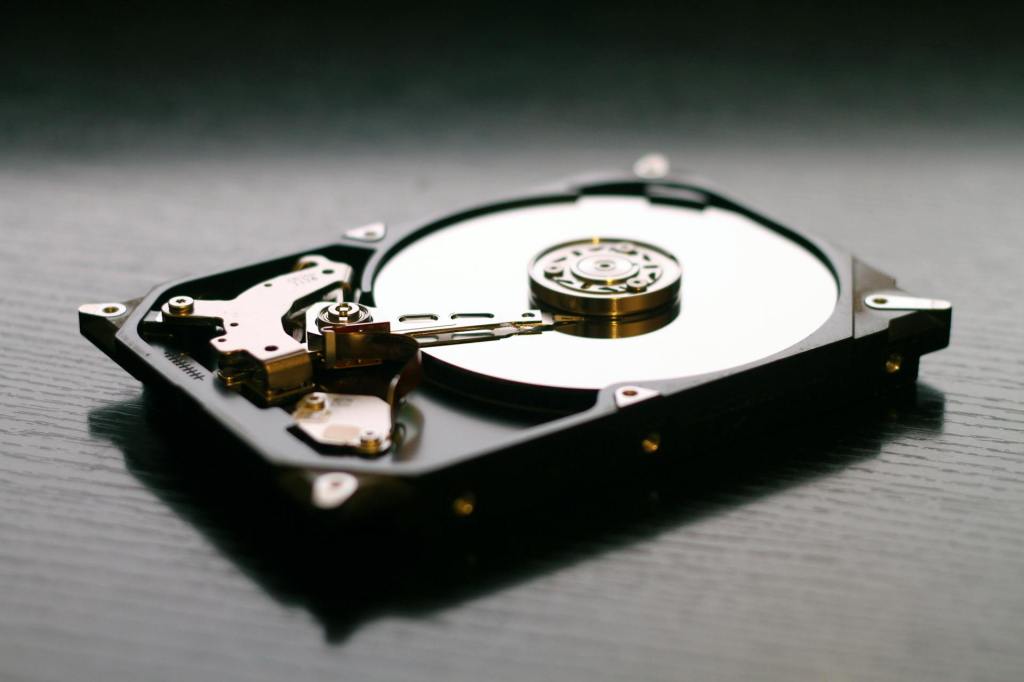
A clicking noise coming from a hard drive is one of the most alarming sounds a computer user can hear. Whether it’s a desktop computer, laptop, or external storage device, a repetitive clicking sound often signals that something inside the drive is not functioning properly. In some cases, the drive may continue working temporarily, but the presence of clicking noises can indicate that your data may already be at risk.
Understanding what these sounds mean can help you decide when to act quickly to protect your files. In this post, I’ll explain why hard drives click, what causes the noise, and when the problem becomes a serious threat to your data.
Why Hard Drives Make Clicking Sounds
Traditional hard drives, also known as mechanical hard disk drives (HDDs), store data on spinning magnetic platters. Inside the drive, a component called the actuator arm moves a tiny read/write head across the surface of these platters to access data.
Under normal conditions, this movement is extremely precise and nearly silent. However, if the actuator arm cannot properly locate or read data, it may repeatedly attempt to reposition itself. This repeated movement often produces the characteristic clicking sound.
Because HDDs rely on delicate mechanical components operating at extremely tight tolerances, even small internal problems can lead to audible symptoms.
Common Causes of Hard Drive Clicking
Clicking noises can occur for several different reasons. Some causes are relatively minor, while others indicate serious hardware failure.
1. Read/Write Head Failure
One of the most common causes of clicking is a problem with the read/write heads. If the heads cannot properly read data from the platter, the drive will repeatedly attempt to recalibrate.
This repeated recalibration produces the well-known “click of death.” Over time, head failure may worsen and eventually make the drive completely unreadable.
2. Firmware or Service Area Problems
Hard drives contain internal firmware that manages how data is accessed and organized. Some critical firmware information is stored on special areas of the platter known as the service area.
If the drive cannot read this information, it may continuously reset the actuator arm while trying to initialize. This can produce regular clicking sounds during startup.
Firmware issues can sometimes be recoverable, but they often require specialized tools and expertise.
3. Bad Sectors or Surface Damage
Physical damage or deterioration of the platter surface can create bad sectors, which are areas that the drive cannot read reliably.
When the drive repeatedly attempts to read data from a damaged area, it may move the actuator arm back and forth, producing clicking sounds.
Bad sectors may initially affect only a small portion of the drive but can expand over time.
4. Insufficient Power
In some cases, clicking noises may occur if a drive is not receiving enough power to operate correctly. This is particularly common with external hard drives connected through USB hubs or low-power ports.
When the drive spins up but cannot fully initialize, it may repeatedly attempt to start, producing a rhythmic clicking sound.
Testing the drive with a different power source or USB cable can sometimes rule out this possibility.
5. Mechanical Failure
More severe clicking noises may indicate physical damage to internal components such as:
- Actuator arm damage
- Motor failure
- Head crashes
- Internal alignment issues
Mechanical failures typically worsen quickly and often require professional data recovery services.
When Clicking Means Your Data Is at Risk
Not every clicking noise results in immediate data loss, but the presence of repeated clicking is a strong warning sign that the drive may fail soon.
Your data is at high risk if you notice the following:
- The drive clicks continuously during startup
- The computer struggles to detect the drive
- The drive disappears intermittently
- File transfers fail or freeze
- The system becomes extremely slow when accessing the drive
If clicking occurs alongside any of these symptoms, it is important to act quickly to protect your data.
What You Should Do If Your Hard Drive Is Clicking
When a hard drive starts making clicking sounds, taking the right steps early can sometimes prevent complete data loss.
1. Stop Using the Drive Immediately
Continuing to use a failing drive may worsen internal damage. Each read attempt forces the actuator to move repeatedly, which can accelerate wear or cause additional damage to the platters.
If possible, stop using the device until you decide on a recovery plan.
2. Back Up Your Data If the Drive Is Still Accessible
If the drive still appears in your system and allows access to files, prioritize backing up your most important data first.
Focus on copying critical documents, photos, and business files rather than attempting to clone the entire drive immediately.
However, if the drive becomes unstable during the backup process, stop to avoid further damage.
3. Check Power and Cable Connections
For external drives, it’s worth verifying whether the clicking is related to power issues. Try:
- A different USB cable
- A different USB port
- A direct connection instead of a hub
- An alternate power adapter if available
If the clicking disappears after changing power sources, the drive itself may not be failing.
4. Avoid DIY Internal Repairs
Opening a hard drive outside of a professional cleanroom environment can permanently damage the platters. Even tiny dust particles can cause severe scratching when the platters spin at thousands of revolutions per minute.
Because of this, internal repairs should only be attempted by specialized data recovery professionals.
When Professional Data Recovery Is Necessary
If a drive continues clicking and becomes unreadable, professional data recovery may be the only way to retrieve the data.
Data recovery specialists use specialized tools and cleanroom facilities to repair or temporarily stabilize damaged drives. This may involve replacing failed heads, repairing firmware issues, or imaging the drive using specialized hardware.
Although recovery costs can vary widely, attempting DIY repairs often makes recovery significantly more difficult or impossible.
Preventing Hard Drive Failures
While not all hard drive failures can be prevented, several best practices can reduce the risk of data loss:
- Maintain regular backups of important data
- Avoid dropping or physically impacting storage devices
- Use surge protection for desktop systems
- Monitor drive health using SMART diagnostics
- Replace aging drives before failure occurs
Many hard drives begin showing signs of failure after several years of continuous use, so proactive replacement can be an effective strategy.
Final Thoughts
A clicking hard drive should never be ignored. While the noise does not always mean immediate failure, it is often an early warning that something inside the drive is malfunctioning.
If you hear repeated clicking sounds, stop using the drive whenever possible and secure your important data as quickly as possible. Acting early can make the difference between a simple backup and a costly data recovery process.
Hard drives remain reliable storage devices when used properly, but recognizing the warning signs of failure is essential to protecting your data.
 ITBrother
Leave a comment