

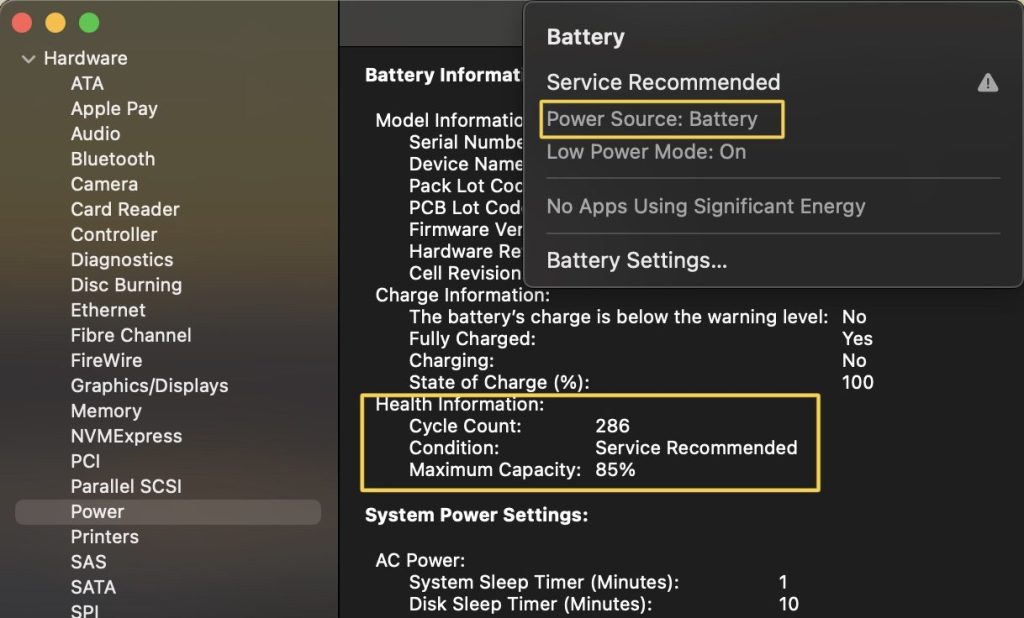
If you’ve ever clicked on your MacBook’s battery icon and noticed the message “Service Recommended,” it can be concerning—especially if your device still seems to work fine. While it’s not an immediate emergency, this warning is Apple’s way of telling you that your battery is no longer performing at its best and may need attention soon.
In this guide, we’ll break down exactly what the “Service Recommended” battery message means, what causes it, how serious it is, and what your repair or replacement options look like.
What Does “Service Recommended” Mean on a MacBook?
The “Service Recommended” message appears when your MacBook’s battery health has significantly degraded. Apple’s battery management system continuously monitors factors like:
- Charge cycles
- Maximum capacity
- Voltage behavior
- Temperature performance
When the system determines that the battery can no longer hold a reliable charge or operate within safe performance thresholds, it triggers this warning.
This doesn’t necessarily mean your MacBook will stop working immediately. In many cases, the device will still function normally—but with reduced battery life and potential performance limitations.
How to Check Your MacBook Battery Health
You can manually confirm your battery status in just a few steps:
- Click the Apple menu () in the top-left corner
- Select System Settings (or System Preferences)
- Go to Battery → Battery Health
Here, you’ll see one of several statuses:
- Normal – Battery is functioning properly
- Service Recommended – Battery is degraded and should be serviced
You may also see the Maximum Capacity percentage, which indicates how much charge your battery can hold compared to when it was new.
What Causes the “Service Recommended” Message?
Several factors contribute to battery wear over time. The most common causes include:
1. Natural Battery Aging
All lithium-ion batteries degrade over time. Most MacBook batteries are designed to last around 1,000 charge cycles, after which their capacity drops below 80%.
2. High Charge Cycle Count
If you frequently drain and recharge your battery, the cycle count increases faster. Once it gets close to or exceeds its design limit, the system may flag it.
3. Heat Exposure
Excessive heat is one of the biggest enemies of battery health. Using your MacBook on soft surfaces (like beds or couches) or in hot environments can accelerate degradation.
4. Charging Habits
Constantly keeping your MacBook plugged in at 100% or frequently letting it drop to 0% can both contribute to long-term wear.
5. Battery Cell Imbalance or Internal Damage
In some cases, the issue isn’t just wear—it could be internal battery cell imbalance, swelling, or early failure.
Is It Safe to Keep Using Your MacBook?
In most cases, yes—you can continue using your MacBook with a “Service Recommended” battery. However, there are some important caveats:
- Shorter battery life – You may notice faster drain
- Unexpected shutdowns – Especially under heavy load
- Performance throttling – macOS may limit performance to prevent power instability
- Charging inconsistencies – Battery percentage may fluctuate
If you notice battery swelling, overheating, or the trackpad lifting, stop using the device immediately and seek repair. These are signs of a potentially hazardous battery.
When Should You Replace the Battery?
You should seriously consider battery replacement if:
- The battery drains unusually fast
- Your MacBook shuts down randomly
- The maximum capacity is below 80%
- You rely on portability and need reliable battery life
Even if your MacBook is still usable, replacing the battery can significantly improve your overall experience.
Repair and Replacement Options
1. Apple Battery Service
Apple offers official battery replacement services. Depending on your MacBook model and warranty status:
- Covered under AppleCare+ (if applicable)
- Out-of-warranty replacements typically cost more
Apple repairs ensure original parts and proper calibration, but they are often more expensive.
2. Third-Party Repair Shops
Independent repair shops can offer more affordable battery replacements. Many use high-quality aftermarket batteries that perform similarly to original ones.
This is often the preferred option for older MacBooks that are no longer under warranty.
3. DIY Replacement (Advanced Users Only)
Some older MacBook models allow battery replacement with the right tools and experience. However:
- Newer models have glued-in batteries
- Risk of damage is high without proper tools
- Not recommended unless you have repair experience
Can You Ignore the Warning?
Technically, yes—but it’s not ideal long-term.
Ignoring the “Service Recommended” message can lead to:
- Gradual worsening of battery performance
- Increased risk of sudden shutdowns
- Potential safety concerns if the battery deteriorates further
If you mainly use your MacBook plugged in (like a desktop), you might delay replacement—but it’s still something to plan for.
Tips to Extend Your New Battery’s Lifespan
If you replace your battery, adopting better habits can help extend its life:
- Keep charge between 20% and 80% when possible
- Avoid extreme heat
- Use optimized battery charging (built into macOS)
- Don’t leave it plugged in 24/7 without occasional discharge
- Use original or high-quality chargers
Final Thoughts
The “Service Recommended” battery message on a MacBook is not something to panic about—but it is a clear sign that your battery is no longer in optimal condition.
While your device may continue to function for a while, degraded battery health can lead to shorter usage times, performance limitations, and potential reliability issues. Whether you choose Apple service or a trusted third-party repair, replacing the battery is often a straightforward way to extend the life of your MacBook.
If you’re unsure whether your battery needs immediate attention, monitoring performance and checking the battery health details can help you decide the right time to take action.
 ITBrother
Leave a comment