

Is your computer taking forever to boot up in the morning? Do you sit there staring at the screen, coffee in hand, waiting… and waiting… just to open a browser? You’re not alone — and the good news is, the fix is usually simpler than you think.
One of the most common reasons computers slow down over time isn’t a virus, bad hardware, or even age. It’s startup programs — apps and processes that automatically launch every single time you turn on your computer, quietly consuming your memory and processing power before you’ve even had a chance to click anything.
In this guide, we’ll walk you through exactly what startup programs are, why they slow your computer down, how to find them, and what to do about it. No jargon, no tech degree required.
What Are Startup Programs?
Startup programs (sometimes called “startup apps” or “startup items”) are software applications configured to launch automatically when your computer boots up. Some of these are essential — your antivirus software, for example, needs to start early to protect your system. But many others are unnecessary, running silently in the background without you ever using them.
Common culprits include:
- Music and media apps like Spotify or iTunes
- Cloud storage clients like Dropbox or OneDrive
- Chat and messaging apps like Slack, Teams, or Discord
- Manufacturer software preloaded on new PCs (also called “bloatware”)
- Game launchers like Steam or Epic Games
Each one of these, on its own, might only use a small slice of your computer’s memory (RAM) and CPU. But when five, ten, or fifteen of them launch at once during boot? That’s when things start to drag.
Why Do Startup Programs Slow Down Your Computer?
When your computer starts up, it has a finite amount of resources — RAM, CPU processing power, and disk read/write speed — to go around. Every startup program that kicks on is competing for a share of those resources.
Think of it like trying to merge onto a highway at rush hour. One car merging is no problem. Ten cars all trying to merge at the same moment? Traffic comes to a crawl.
Once your system has fully loaded, many of these programs continue to run in the background, using memory that could otherwise be available for the tasks you actually care about — like your browser, spreadsheets, or design tools. Over time, as you install more software, more and more items sneak their way into your startup list, and the slowdown compounds.
How to Find Startup Programs on Windows
Windows 10 and Windows 11
Microsoft made it relatively easy to view and manage startup programs in modern versions of Windows.
Method 1: Task Manager
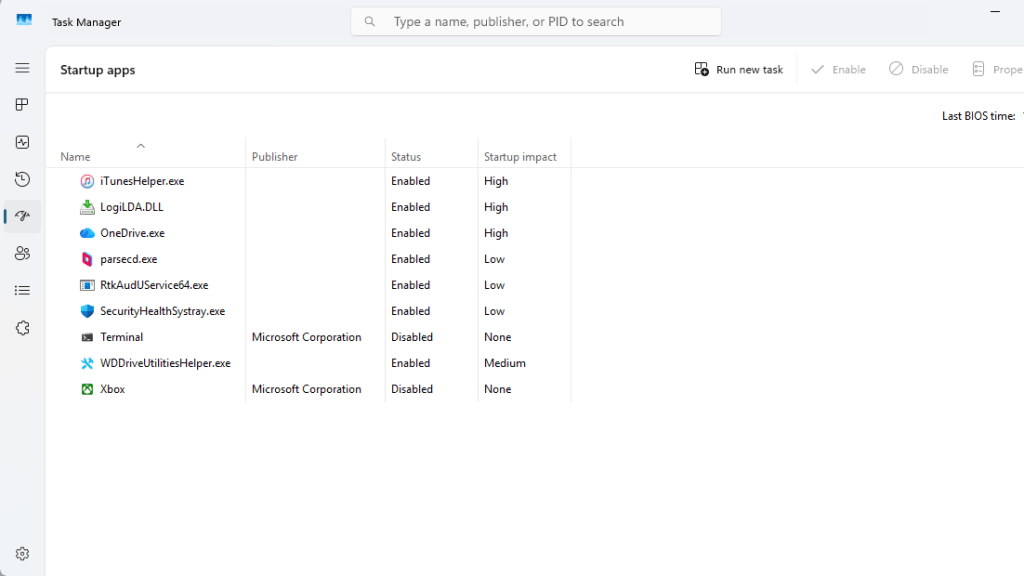
- Press Ctrl + Shift + Esc to open Task Manager
- Click on the “Startup” tab (in Windows 11, it may be labeled “Startup apps”)
- You’ll see a list of programs with a “Startup impact” rating — High, Medium, or Low
- Right-click any program and select “Disable” to stop it from launching at startup
The “Startup impact” column is your best friend here. Anything rated High that you don’t actively use every day is a prime candidate for disabling.
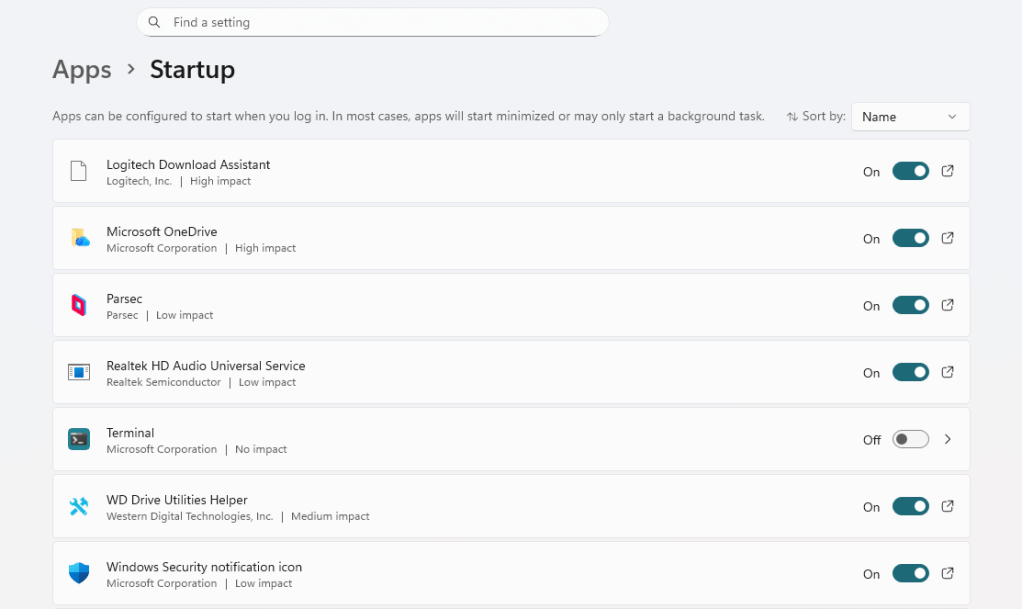
Method 2: Settings App
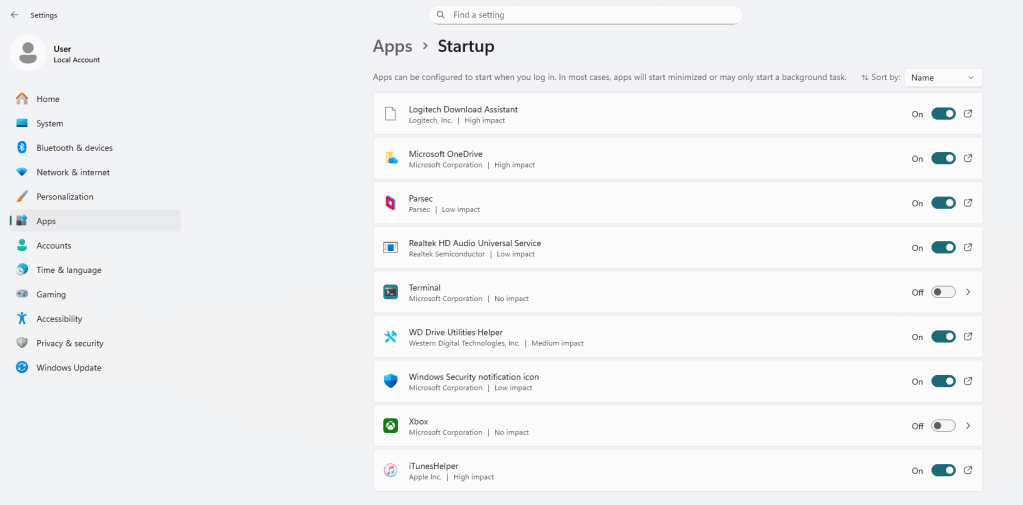
- Open Settings (Windows key + I)
- Go to Apps > Startup
- Toggle off any apps you don’t need running at startup
Both methods give you the same result — it comes down to personal preference.
Older Versions of Windows (Windows 7/8)
On older systems, startup programs were managed through a tool called msconfig:
- Press Windows key + R, type msconfig, and hit Enter
- Click the “Startup” tab
- Uncheck any programs you don’t need
How to Find Startup Programs on Mac
Apple also provides straightforward tools for managing startup items on macOS.
macOS Ventura and Later (macOS 13+)
- Click the Apple menu in the top left corner
- Select System Settings
- Go to General > Login Items
- Under “Open at Login,” you’ll see a list of apps that start automatically
- Select any app you want to remove and click the minus (–) button
macOS Monterey and Earlier
- Click the Apple menu and open System Preferences
- Click Users & Groups
- Select your username and click the “Login Items” tab
- Highlight any program you want to remove and click the minus (–) button
Background Items: On newer versions of macOS, you may also see a section called “Allow in Background.” These are system-level processes that run silently. Be more cautious here — some are necessary for proper system function. Only disable something in this section if you know what it does.
What’s Safe to Disable?
This is the question we hear most often from customers, and it’s a fair one. Here’s a general rule of thumb:
Generally safe to disable:
- Music and video streaming apps (Spotify, Apple Music)
- Cloud sync clients (if you don’t need real-time syncing)
- Game launchers (Steam, Epic, GOG)
- Chat apps (Slack, Discord, Teams — you can open these when you need them)
- Software updaters for non-critical apps
Leave these enabled:
- Your antivirus or security software
- Drivers for essential hardware (audio, display adapters, etc.)
- System utilities from Windows or Apple — if it doesn’t have a recognizable name and you didn’t install it, research it before disabling it
When in doubt, Google it. Searching the name of any unfamiliar startup item will usually tell you exactly what it is and whether it’s safe to disable.
How Much of a Difference Does This Make?
Honestly? For most people, quite a bit. We’ve had customers come in with computers that were taking 3–5 minutes to fully boot up, and after clearing out their startup programs, they were up and running in half the time. It won’t make an old computer feel brand new, but it’s one of the fastest, safest, and most impactful free fixes you can make.
If you’ve gone through your startup programs and your computer is still crawling, there may be other factors at play — not enough RAM, a failing hard drive, malware, or simply an aging machine that needs an upgrade. That’s where we come in.
When to Call a Professional
Startup programs are something most people can manage on their own with a little guidance. But if you’re unsure what you’re looking at, disable something and things start behaving oddly, or you suspect there might be a deeper issue, don’t hesitate to bring your computer in.
We take a straightforward, no-pressure approach to diagnostics. We’ll tell you honestly what’s slowing your machine down, what the fix costs, and whether it’s worth it for your situation. No upselling, no unnecessary repairs.
Quick Recap
- Startup programs launch automatically at boot and compete for your computer’s limited resources
- Too many of them cause slow boot times and sluggish performance throughout the day
- On Windows, use Task Manager (Ctrl + Shift + Esc) → Startup tab
- On Mac, go to System Settings → General → Login Items
- Disable apps you don’t need running in the background — especially anything rated High impact
- When in doubt about an unfamiliar item, look it up before disabling it
A few minutes of cleanup can make a noticeable difference in how your computer feels every single day. Give it a try — and if you need a hand, you know where to find us.
 ITBrother
Leave a comment