

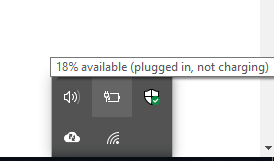
Why “Plugged In, Not Charging” Is More Than a Battery Problem
When your laptop shows the charging icon but the battery percentage stays flat — or worse, keeps dropping — it signals that power is making it partway through your system but failing somewhere along the line. That “somewhere” could be any number of components, and diagnosing it correctly is what separates a simple fix from an expensive misdiagnosis.
Let’s break down each culprit, one by one.
1. The Charging Cable or AC Adapter Is Failing
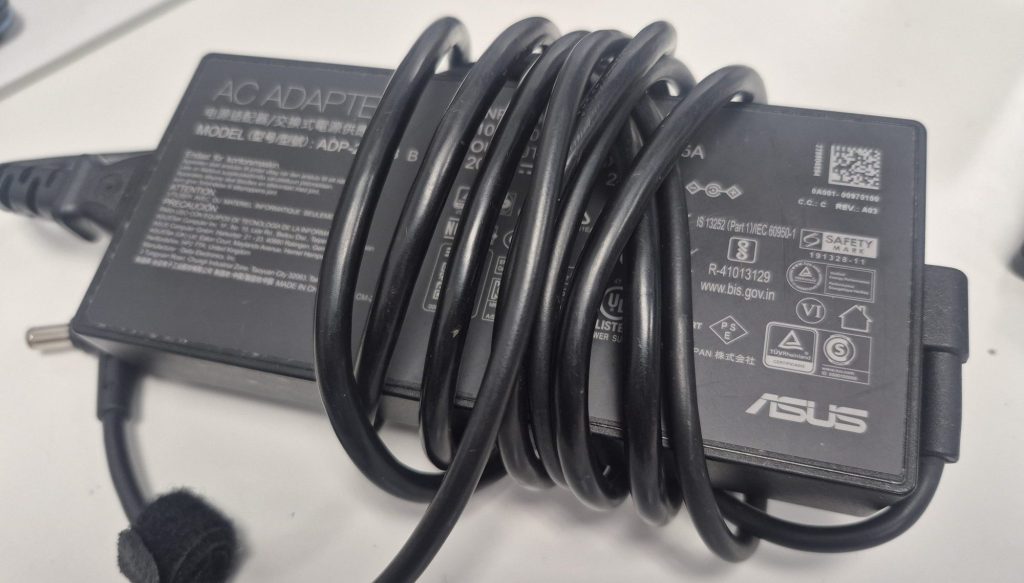
This is the most common cause we see — and the most overlooked. Charging cables endure a surprising amount of daily stress. They get bent, twisted, pinched under furniture, coiled tightly, and yanked from ports at every angle. Over time, the internal wiring frays even when the exterior looks perfectly fine.
Signs your charger is the problem:
- The charging light flickers or only works when you hold the cable at a specific angle
- The laptop charges intermittently — sometimes it works, sometimes it doesn’t
- The brick (the box part of your charger) feels unusually hot or doesn’t get warm at all
What you can do: Borrow a compatible charger from a friend or colleague and test it. If your laptop charges normally with a different adapter, you’ve found your culprit. When buying a replacement, always opt for the manufacturer’s official charger or a well-reviewed third-party option with the correct voltage and amperage — using an underpowered charger is a recipe for exactly this problem.
2. The Charging Port on the Laptop Is Damaged
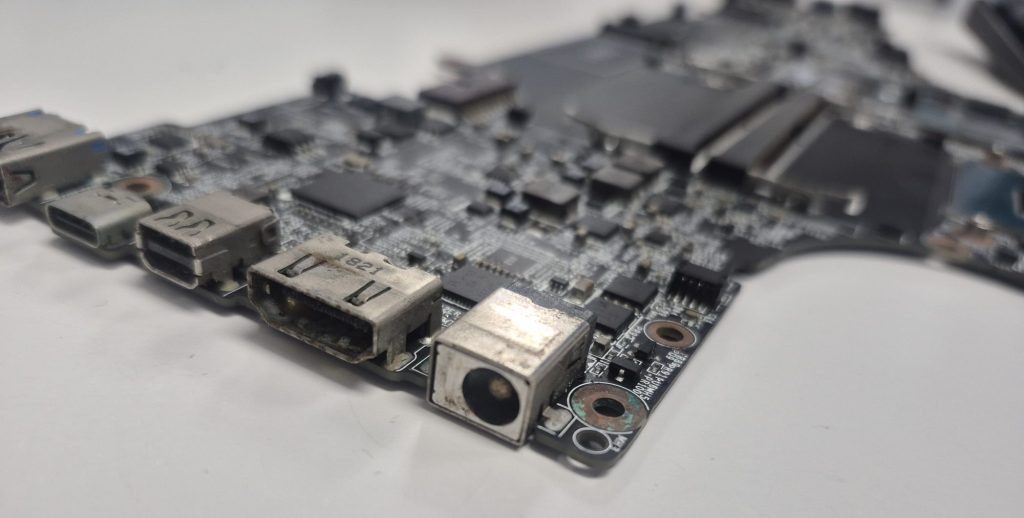
The DC charging port (the socket on your laptop where the charger plugs in) takes a beating every single day. Every plug-in and unplug puts mechanical stress on it. If your laptop gets bumped while charging, that force transfers directly to the port and the solder joints holding it to the motherboard.
Over time — or after one bad fall — the port can become loose, bent internally, or partially disconnected from the board. When this happens, power delivery becomes inconsistent or stops entirely.
Signs your charging port is the issue:
- You have to wiggle the charger to get it to register
- The connection feels loose or wobbly when plugged in
- There’s visible damage, debris, or discoloration inside the port
- The laptop only charges when positioned a certain way
What to do: This is one of the repairs we see most frequently, and in many cases it’s very fixable. Depending on the laptop model, a charging port replacement is relatively straightforward. Don’t ignore it — continued use with a damaged port can cause further damage to the motherboard.
3. A Faulty or Incompatible Power Adapter (Wattage Mismatch)
Not all chargers are created equal. Every laptop requires a specific voltage and wattage to charge correctly. If you’re using a charger that delivers less power than your laptop demands — whether it’s a third-party adapter, a universal charger set to the wrong output, or a charger from a different laptop model — your computer may run on AC power just fine while completely ignoring the battery.
This is especially common with USB-C charging. Many modern laptops charge via USB-C, but not every USB-C cable or charger delivers enough wattage. A phone charger plugged into a USB-C laptop port, for example, might keep the laptop from dying but will never actually charge the battery under load.
Quick check: Look at the wattage printed on your current charger’s brick, then look up your laptop model’s charging requirements. If the wattage is lower than required, you’ve found your problem.
4. Software, Drivers, or BIOS Settings
Here’s one that surprises almost everyone: your laptop’s charging behavior is partially controlled by software. Manufacturers build battery management features into the BIOS (the firmware that runs before your operating system loads) and through driver software. When these get corrupted, misconfigured, or simply outdated, they can cause charging to stop working even when the hardware is perfectly fine.
Some laptops also have battery conservation modes — settings designed to keep the battery at 80% to extend its long-term health. If this mode is enabled, your laptop will appear to stop charging at a certain percentage. This is a feature, not a fault, but it catches a lot of people off guard.
Steps worth trying:
- Open Device Manager (Windows) → expand “Batteries” → right-click “Microsoft ACPI-Compliant Control Method Battery” and select “Uninstall device” → restart your laptop. Windows will reinstall the driver automatically.
- Check your manufacturer’s companion app (Lenovo Vantage, HP Command Center, ASUS Battery Health Charging, etc.) for any battery limit settings.
- Try a BIOS update from your manufacturer’s support page — this fixes firmware-level charging bugs more often than people expect.
5. The Power Jack or Internal Power Board
On some laptops — particularly older models and certain gaming laptops — there’s a dedicated internal power board or power jack assembly that sits between the charging port and the motherboard. This component converts and regulates the incoming power before it reaches the rest of the system. If this board develops a fault, your laptop may power on fine from the wall but never send charging current to the battery.
This is harder to diagnose without opening the machine, which is why many customers come to us after ruling out the obvious stuff. It’s a repair that requires some disassembly, but it’s far less expensive than a full motherboard replacement.
6. Motherboard-Level Charging Circuit Issues
At the deepest level, your laptop’s motherboard contains dedicated circuitry — often centered around a power management IC (integrated circuit) — responsible for regulating battery charging. If this circuit is damaged (from a power surge, liquid contact, or general component failure), the laptop may run on external power while being completely unable to charge the battery.
This is the scenario we’re most careful to rule everything else out before concluding. Motherboard-level repairs are more involved, but they’re not always a death sentence for your laptop. Component-level repair, when available, can be significantly more cost-effective than a full board replacement.
When to Come See Us (And When You Can DIY)
Here’s our honest take:
| Situation | What We Recommend |
| Charger is the issue | DIY — buy a replacement with correct specs |
| Battery conservation mode enabled | DIY — check your manufacturer’s software |
| Driver or BIOS issue | DIY — update or reinstall following manufacturer’s guide |
| Charging port is loose or damaged | Come see us — requires soldering in most cases |
| Power board or internal component | Come see us — requires disassembly and diagnosis |
| Motherboard-level fault | Come see us — needs component-level inspection |
Before You Assume the Worst
A “plugged in, not charging” message is frustrating, but it’s rarely a terminal diagnosis. In our experience, the majority of these cases come down to the charger, the port, or a software setting — all of which are very fixable. Even when the issue goes deeper, a proper diagnosis saves you from spending money on the wrong repair.
If you’ve worked through the basics and still can’t get your laptop to charge, bring it in. We’ll take a look, give you a straight answer about what’s going on, and let you know your options before any work begins. No pressure, no surprises.
Have questions about your specific laptop model? Give us a call or stop by our shop. We’re always happy to help you figure out what’s going on before you spend a dime.
 ITBrother