


You’ve seen the screen: “Working on updates. Don’t turn off your computer.” And then… it just stops. No progress. No error. No idea if it’s still working or frozen solid.
If you’ve ever sat there staring at that spinning circle wondering whether your photos, documents, or business files are about to vanish, you’re not overreacting. A Windows update that fails partway through can put your data at risk — but not always in the way people assume. Let’s walk through exactly what’s happening behind the scenes, what’s actually at risk, and what you should (and shouldn’t) do if it happens to you.
Why Windows Updates Fail Mid-Install in the First Place
Before we talk about your data, it helps to understand why updates stall or fail at all. The most common culprits we see in the shop are:
- A sudden power loss — a laptop battery dying or a desktop losing power during the update
- Corrupted update files — the download itself was incomplete or damaged
- Insufficient storage space — Windows needs a decent chunk of free space to stage an update before it commits to installing it (this is the most common we see)
- Failing or aging hard drives/SSDs — a drive with bad sectors can choke mid-write
- Driver or hardware conflicts — especially on older machines running new updates
- Interrupted internet connection — if the update pulls files during the process, not just before it
Any one of these can cause the installer to stop responding, throw an error code, or leave your PC stuck in an update loop.
What Actually Happens to Your Data During This Process
Here’s the part most people don’t realize: a Windows update isn’t just installing new files on top of old ones. It’s modifying core system files, drivers, and configuration data — often while your operating system is only half-loaded. When that process gets interrupted, a few different things can happen:
1. The Update Rolls Back Automatically
Modern versions of Windows are actually built to handle this. If an update fails, Windows will usually detect the failure and automatically roll back to the last known working state. Your personal files — documents, photos, downloads — are typically untouched in this scenario, because Windows is reverting system files, not your user data.
This is the outcome in the vast majority of failed updates. Annoying? Yes. Data-destroying? Usually not.
2. The System Gets Stuck in a Boot Loop (Most Likely)
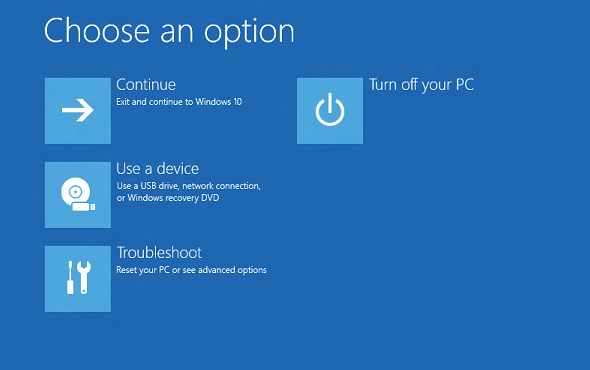
Sometimes the rollback itself fails, or the system can’t decide whether to finish the update or revert it. This is where you get the dreaded restart cycle — Windows tries to boot, fails, tries to repair itself, restarts, and repeats. Your data is still sitting on the drive in this case, but you can’t access it until the boot issue is resolved.
3. File System Corruption Occurs
This is the scenario people are actually worried about. If the update is interrupted at the exact moment it’s writing to disk — especially due to a sudden power loss or a failing drive — you can end up with file system corruption. This doesn’t necessarily mean your files are gone; it means the “index” Windows uses to find those files can become damaged. Think of it like a library where the shelves are fine, but the card catalog got shuffled. The books (your files) are usually still there, but Windows might not know how to locate them anymore.
4. Physical Drive Damage (Rare, But Real)
If a drive is already failing — bad sectors, worn-out SSD cells, a dying hard drive — an interrupted update can be the final event that pushes it over the edge. In these cases, the update itself didn’t cause the damage; it just happened to be running when the drive gave out. This is the one scenario where data recovery may require actual hardware intervention, not just a software fix.
So… Is Your Data Actually Gone?
In most failed-update situations, your personal files are still intact if not recoverable, even if the system itself won’t boot properly. The update process is designed with safeguards specifically because Microsoft knows this scenario happens constantly, across millions of devices.
The real risk isn’t usually the update itself — it’s what people do after it fails. We see far more permanent data loss caused by:
- Repeatedly force-restarting the computer during the rollback process
- Attempting a fresh Windows install without checking if files can be recovered first
- Panicking and pulling the battery or unplugging power mid-repair
If you stop touching the machine and get it properly diagnosed, your odds of a full recovery are usually good.
What to Do If Your Update Fails Mid-Install
If you’re in this situation right now, here’s the order of operations we’d recommend:
- Stop restarting it repeatedly. Every forced restart during an active update or rollback increases the risk of file system damage.
- Let it sit for a while. Rollbacks can take longer than people expect — sometimes 30-60+ minutes on older hardware. A black screen doesn’t always mean it’s frozen.
- Note any error codes. If you do reach a blue screen or recovery menu, write down whatever code or message appears. It tells a technician a lot about what actually happened.
- Bring it in before you reinstall Windows from scratch or factory reset. A fresh install or a factory reset can overwrite the very data you’re trying to save. If there’s anything on that drive you care about, get it looked at first
How We Handle This in the Shop
When a customer brings in a machine stuck from a failed update, our first move is to check the drive’s health, attempt to boot into a recovery environment, and — if needed — pull data off the drive directly before touching the operating system at all. Data is the priority. The OS can always be reinstalled; family photos or business records can’t.
If your PC is stuck, throwing errors, or endlessly rolling back after an update, don’t gamble on a DIY fix that might make it worse. Bring it in to our shop in Downtown, Los Angeles or give us a call. We’ll take a look first, let you know what’s going on and inform you of your options.
FAQ
Will a failed Windows update delete my files?
Most cases no. Windows is designed to roll back system changes without touching personal files. Data loss is more often caused by repeated forced restarts or improper recovery attempts after the failure.
How long should I wait before assuming it’s frozen?
Give it at least 45-60 minutes, especially on older hardware or mechanical hard drives. If there’s disk activity (a light blinking or a faint hum), it’s likely still working.
Should I just reinstall Windows if the update won’t finish?
Not right away. A reinstall can overwrite recoverable data. Get the drive checked first, especially if there are files you haven’t backed up elsewhere.
Can a repair shop recover data even if the computer won’t boot?
In most cases, yes. Data can often be pulled directly from the drive using specialized tools, even when Windows itself won’t start.

