

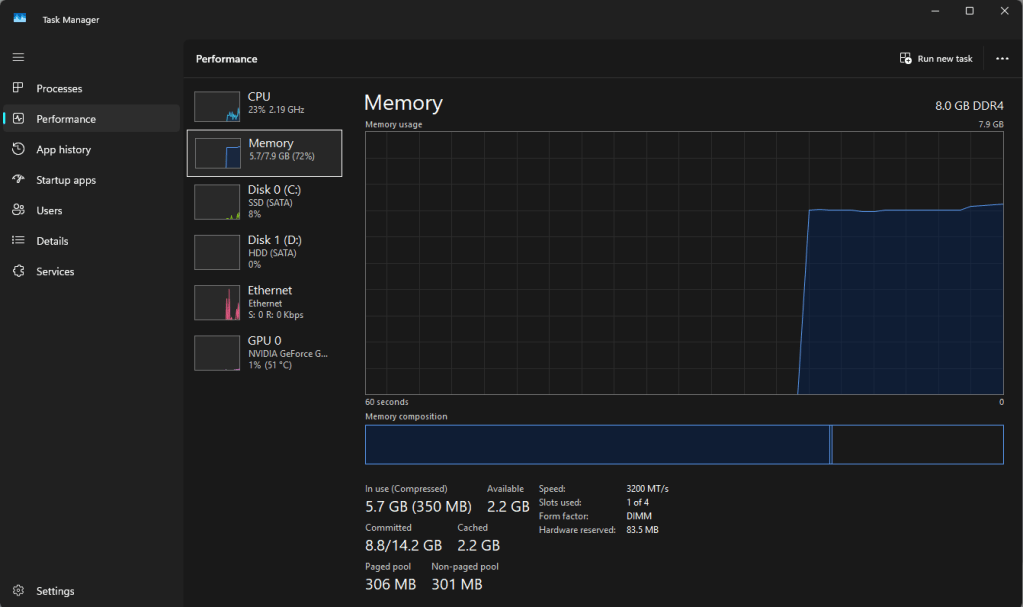
If you’ve checked Task Manager or Activity Monitor lately and been alarmed by how much RAM your system is using, you’re not imagining things — and you’re also not alone. We get this question constantly at the shop.
What’s changed is the calculus around fixing it. For years, the answer to “my RAM usage is too high” was simple: buy more RAM. That’s a much tougher call to make in 2026. A global memory shortage — driven largely by AI data centers buying up manufacturing capacity — has pushed DRAM prices up drastically over the past year, and industry analysts don’t expect real relief until 2027 or later. Simply put, RAM upgrades that used to be an easy $50-$100 fix can now cost several times that, if the memory is even in stock.
That means it’s worth understanding why your RAM usage is high before you assume a hardware upgrade is the answer. In most cases we see come through the shop, high RAM utilization is a software problem with a free or low-cost fix — not a sign you need to buy anything. In this post, we’ll walk through the most common causes, how to fix each one, and — just as important — how to tell when it’s genuinely a hardware issue that needs a professional look.
Why This Matters More Than It Used To
A quick bit of context before we get into fixes: DRAM contract prices have risen well over 100% year-over-year in 2026, and some capacities have gone up 300% or more compared to their 2024-2025 lows. Major PC manufacturers have publicly warned customers to expect higher prices on new systems as a result. So while “just add more RAM” is still valid advice for genuinely underpowered systems, it’s no longer the default cheap fix it used to be — which makes squeezing more performance out of your existing memory worth the effort.
Common Software Causes of High RAM Usage
1. Background and Startup Applications
The moment Windows or macOS boots up, a long list of programs quietly start running in the background — often before you’ve opened anything yourself. Antivirus software is a good example: it starts immediately so it can check for updates and begin scanning, since security software wants to be active from the moment your system is exposed to a network. Multiply that by every other program that’s been set to launch at startup, and you can end up with a dozen or more processes competing for memory before you’ve done anything at all.
The fix: Trim your startup list.
- Windows: Open Task Manager (Ctrl+Shift+Esc) → Startup apps tab → disable anything you don’t need running immediately.
- macOS: Go to System Settings → General → Login Items & Extensions and remove anything unnecessary.
2. Web Browsers
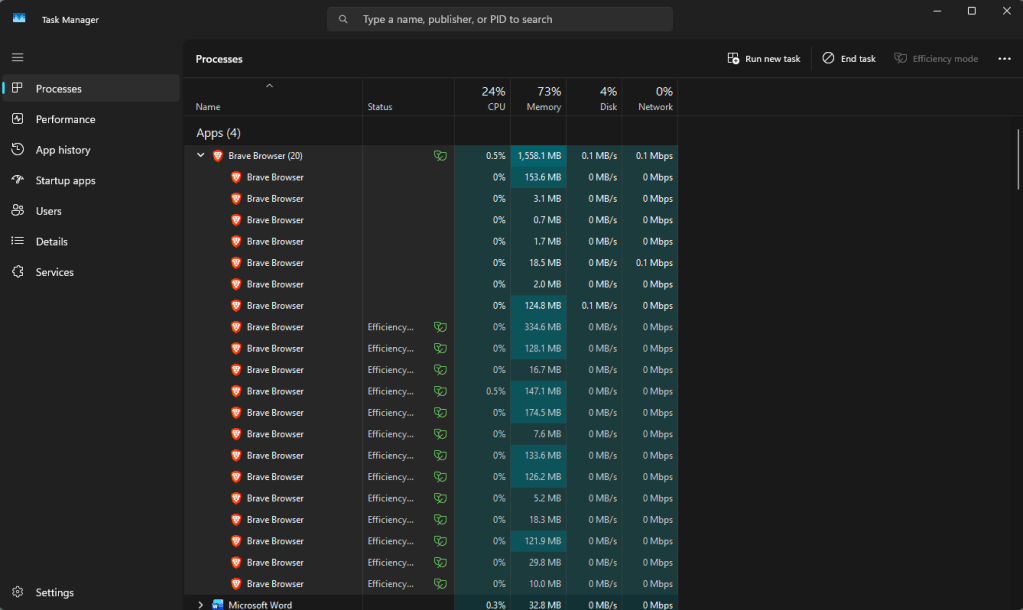
Modern browsers are memory-hungry by design, not by accident. Chrome, Edge, and other Chromium-based browsers give each tab its own isolated process for security and stability — a deliberate trade-off Chrome adopted after the Spectre vulnerability. That isolation is why per-tab usage typically runs somewhere in the 60-100MB range for a simple page, more for anything media-heavy or app-like (think Gmail, Google Sheets, or YouTube) — and why the browser itself carries 2-3GB of baseline overhead before you’ve even opened your first tab.
Browsers have gotten measurably better at managing this in the past couple of years — Chrome’s Memory Saver and Edge’s Sleeping Tabs both automatically suspend inactive tabs — but heavy multi-tab, multi-extension use will still eat RAM quickly.
The fix:
- Close tabs you’re not actively using rather than leaving dozens open “just in case.”
- Turn on your browser’s built-in memory-saving feature (Chrome: chrome://settings/performance, Edge: Settings → System and performance).
- Audit your extensions periodically — each one runs its own background process, even when you’re not using it.
3. Windows 10/11 Background Bloat
In our experience at the shop, macOS tends to manage its own background processes more efficiently than Windows does. With each Windows release, background services, telemetry, and pre-installed features have added up — and older systems that were never spec’d for Windows 10 or 11 in the first place tend to feel this the most. Users upgrading an aging machine often notice a sudden drop in responsiveness that has nothing to do with anything they installed themselves.
Some of this bloat can be safely disabled through Settings or Task Manager. But we’d flag one important caution here: many Windows background processes are load-bearing for normal system function, and disabling or modifying the wrong one can cause instability or crashes. If you’re not sure whether a process is safe to touch, that’s a good moment to ask a professional rather than guess.
4. Memory Leaks
Sometimes high RAM usage isn’t about how many programs are open — it’s a specific program failing to release memory it’s done using. This is called a memory leak, and it’s common in browser extensions, poorly optimized apps, and software that’s been left running for days without a restart. The telltale sign is a single process’s memory usage climbing steadily over time even though you’re not actively doing more with it.
The fix: Restart the offending application (or your computer, if you can’t isolate it). If a specific app consistently leaks memory, check for an update — this is one of the most common bugs software vendors patch.
When High RAM Usage Actually Means a Hardware Problem
Everything above covers the vast majority of high-RAM-usage cases we see — and almost all of them are fixable without spending anything. But there are signs that point to an actual hardware issue rather than a software one:
- The system is unstable even with almost nothing open. If RAM usage or system instability shows up right after a fresh boot with minimal programs running, software isn’t the likely culprit.
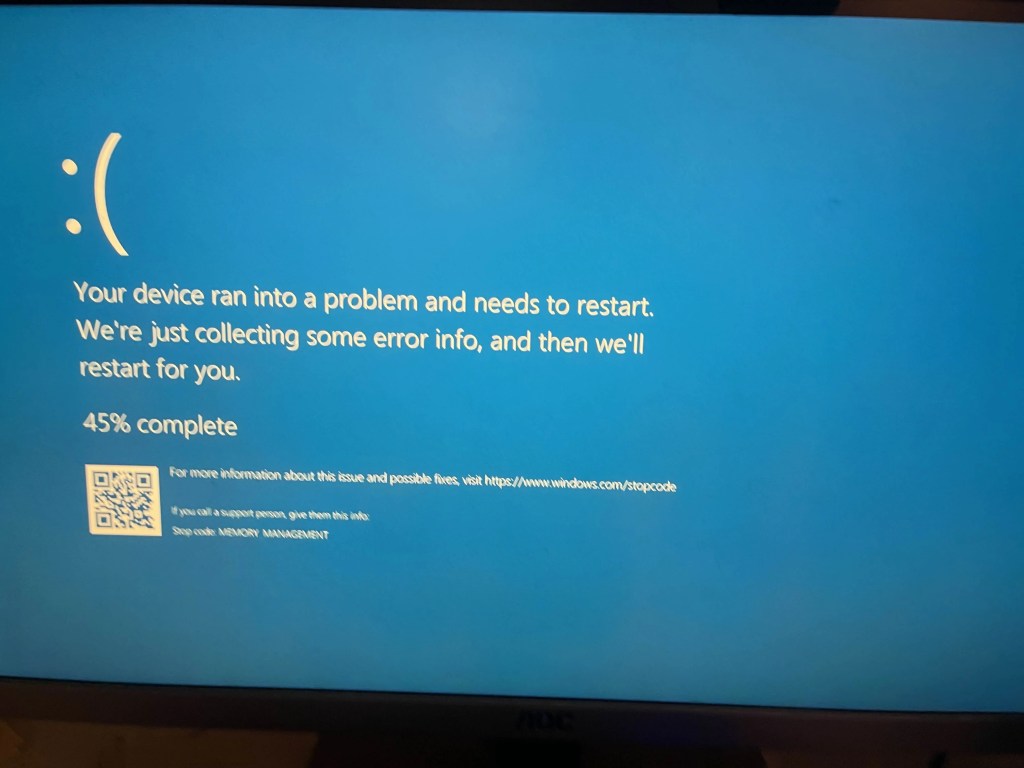
- Random crashes, freezes, or blue/black screens referencing memory management. Errors like MEMORY_MANAGEMENT or IRQL_NOT_LESS_OR_EQUAL on Windows can point to a failing memory module.
- The system reports less RAM than what’s physically installed. This can indicate a failed or failing stick, or a slot on the motherboard not making proper contact.
- Problems persist across a clean OS reinstall. If a fresh install of Windows or macOS still shows the same instability, that rules out software as the cause.
If you’re seeing any of these, if you’re very familiar with computer you can try running a memory diagnostic (Windows Memory Diagnostic or MemTest86 are common tools) if you know how to setup the environment. But diagnosing whether it’s the RAM itself, the motherboard slot, or something else entirely is exactly the kind of thing worth having a professional look at — a bad stick left in place can sometimes cause damage beyond itself, and we’d rather rule things out properly than have you replace parts by trial and error.
The Bottom Line
High RAM usage is usually a software habit, not a hardware failure — and in a year where memory prices have made upgrades genuinely expensive, that’s good news. Trim your startup programs, manage your browser tabs, and know which Windows processes are safe to touch. But if you’re seeing instability that shows up regardless of what’s running, or crashes that specifically reference memory, that’s worth bringing in rather than guessing.
If you’ve tried the fixes above and your computer is still running hot, slow, or unstable, don’t guess — and don’t buy a RAM upgrade you might not need. Bring it by our shop located in Downtown, Los Angeles or give us a call for a free diagnostic We’ll tell you what’s going on, whether that’s a five-minute software fix or something that actually needs new parts.
Frequently Asked Questions
Why is my RAM usage always high even with nothing open?
Background and startup applications are the most common cause. Check your Task Manager (Windows) or Login Items (macOS) startup list — programs you don’t remember installing are often quietly running in the background from boot.
Should I just buy more RAM?
Maybe — but check software causes first. With DRAM prices up significantly in 2026 due to the ongoing memory shortage, it’s worth ruling out free fixes before spending on an upgrade that may cost far more than it would have a year or two ago.
How do I know if my RAM is actually failing?
Look for instability that happens even on a fresh boot with nothing extra running, blue/black screens referencing memory errors, or the system reporting less RAM than what’s physically installed. These point to hardware rather than software, and are worth a professional diagnostic.

