

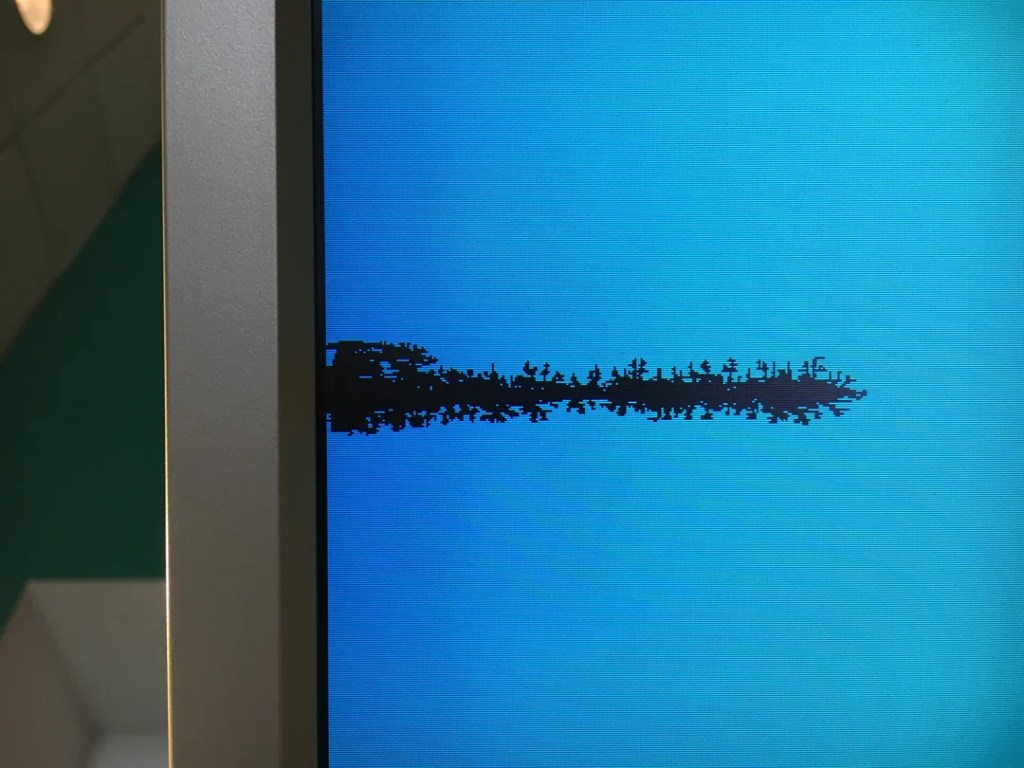
If you’ve spotted a weird dot or multiple on your phone, laptop, or TV screen, it’s easy to assume the worst: a damaged panel or a dying display. But most of the time, that little dot falls into one of three categories — a dead pixel, a stuck pixel, or in some cases burn-in — and each one has a very different cause, fix, and price tag.
Here’s how to tell them apart, and what you can do about each one.
What Is a Dead Pixel?

A dead pixel is a pixel that has completely lost power and shows up as a small black (or sometimes white) dot on your screen, no matter what’s on display. It stays the same color whether you’re looking at a photo, a black screen, or a bright white document.
What causes it: Dead pixels usually happen during manufacturing, when a transistor controlling that pixel fails and can no longer receive power. They can also appear later from physical damage, pressure on the screen, or age-related wear.
Can it be fixed? Unfortunately, no. Since a dead pixel has no power getting to it at all, there’s no software trick or technique that will bring it back. If it’s a single pixel, most people simply live with it. If dead pixels are spreading or clustered, that’s usually a sign of a bigger panel problem, and replacement is the only real fix.
What Is a Stuck Pixel?

A stuck pixel looks similar to a dead pixel at first glance — a small dot that doesn’t match the rest of the screen. The difference is that a stuck pixel is still receiving power, it’s just stuck displaying one color (often red, green, or blue) instead of cycling through colors normally.
What causes it: A stuck pixel happens when the transistor is working, but a subpixel gets locked “on” or “off” in a way it shouldn’t. This is often temporary and can resolve on its own.
Can it be fixed? Often, yes. Because the pixel still has power, there are a few things worth trying before assuming it’s permanent:
- Pixel-fixing software or videos: These rapidly flash different colors to try to “unstick” the pixel by cycling it through its full range quickly.
- Gentle pressure massage: Powering off the screen and very lightly massaging the area with a soft microfiber cloth (never with force, and never on OLED screens) can sometimes free a stuck subpixel.
- Restart or let it rest: Sometimes a stuck pixel resolves itself after the device has been off for a while.
If none of these work after a few attempts, the pixel may have actually gone fully dead, at which point it falls into the “dead pixel” category above.
What Is Burn-In?

Burn-in looks different from the other two. Instead of a single dot, it shows up as a faint, ghost-like image — like a status bar, a logo, or a paused video frame — permanently outlined on the screen, visible even when you switch to different content.
What causes it: Burn-in happens when the same static image is displayed for extended periods, causing uneven wear on the pixels (or the phosphors, on older screens). It’s most common on OLED and plasma displays, since each pixel in those panels ages individually based on how much it’s used. LCD screens can experience a milder, temporary version sometimes called “image retention,” which usually fades on its own.
Can it be fixed? True burn-in is largely permanent, but there are ways to reduce its visibility or slow it down:
- Run pixel-refresher tools: Many OLED TVs and phones have a built-in pixel-refresh or screen-shift feature that can even out wear over time.
- Display white or shifting content: Playing a solid white screen or a moving pattern for a while can sometimes help even out minor image retention (this works better for retention than true burn-in).
- Lower brightness and enable screen savers going forward: This won’t undo existing burn-in, but it will slow down future wear significantly.
- Panel replacement: For severe burn-in on a device you rely on daily, replacing the screen is usually the most reliable fix.
Dead Pixel vs. Stuck Pixel vs. Burn-In: Quick Comparison
| Dead Pixel | Stuck Pixel | Burn-In | |
|---|---|---|---|
| Appearance | Small black/white dot | Small colored dot (red/green/blue) | Ghost-like image or shape |
| Has power? | No | Yes | Yes |
| Fixable at home? | No | Sometimes | Rarely, but can be reduced |
| Common cause | Manufacturing defect, damage | Software glitch, minor damage | Static images shown too long |
| Most common on | Any screen type | Any screen type | OLED, plasma, some LCDs |
How to Test Your Screen
Not sure which one you’re dealing with? Try this before panicking:
- Display a solid black screen. Any bright dots are either stuck or dead pixels.
- Display a solid white screen. Any dark dots are either stuck or dead pixels.
- Cycle through solid red, green, and blue screens. If the dot disappears on one of these colors, it’s likely a stuck pixel, not dead.
- If you see a faint image outline across multiple types of content, that’s burn-in, not a pixel issue.
When to Bring It In
A single stuck or dead pixel usually isn’t worth a repair on its own — most manufacturers even consider a few dead pixels within normal tolerance. But it’s worth having a professional take a look if:
- You’re seeing multiple dead or stuck pixels, especially if they’re spreading
- Burn-in is affecting how you use the device day to day
- The dots appeared suddenly after a drop, spill, or pressure on the screen
- You’ve tried the fixes above and nothing’s changed
In those cases, it’s worth getting the panel properly diagnosed. Sometimes what looks like a pixel issue is actually a sign of a failing display driver or connector, which is a different (and sometimes cheaper) fix than a full screen replacement.
Not sure what you’re dealing with? Stop by our shop located in Downtown, Los Angeles or give us a call. We’ll take a look and let you know what you’re dealing with and your options.
FAQ
Can dead pixels spread?
A true dead pixel itself won’t spread, but if the underlying cause is physical damage or a failing panel, additional pixels can fail over time.
Is burn-in covered under warranty?
Some manufacturers cover burn-in within a certain time frame or usage level, especially on newer OLED devices. Check your specific device’s warranty terms.
Do stuck pixels always go away?
No — some stuck pixels resolve within minutes, others take days of intermittent fixing attempts, and some never resolve and are effectively dead.
