

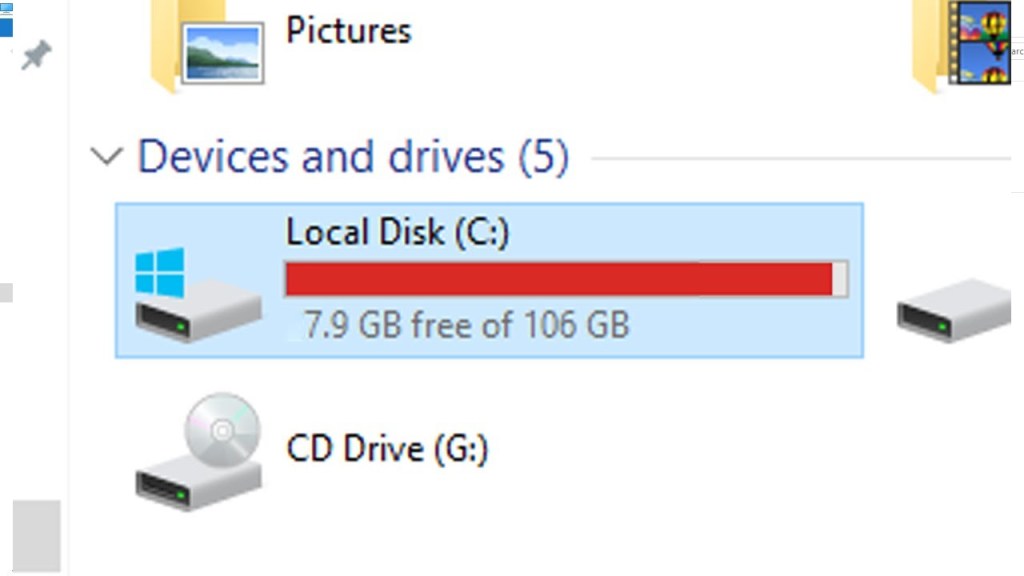
If your computer has been feeling sluggish lately, one of the first things we check when a customer brings it in isn’t the processor or the RAM. It’s the hard drive or SSD storage. Specifically, how full it is.
It’s one of the most common — and most overlooked — reasons a computer starts to lag, freeze, or take forever to open a simple file. And the good news is, it’s usually a very simple fix.
Here’s the breakdown of how much storage you should keep free based on our experiences, why it matters, and what to do if you’re already over the line.
The Short Answer
There are two big factors that affects this answer but as a general rule:
- Under 70% full: Your computer should run normally.
- 70–90% full: You may start noticing slowdowns or performance drops. If you’re on the lower end, then minor slowdowns may be noticed. On the higher end, performance drops will be more noticeable, slower boot times, laggy multitasking, longer file searches, slow file transfer speeds, etc…
- 95%+ full: Your system is in the danger zone. Some operating systems will refuse to function properly, and you may risk data loss.
So if you’re asking “how full is too full?” — the honest answer is anything over 85% is worth looking into, and anything over 95% needs attention now, not later.
Two Big Factors to Consider
Here’s an important nuance we always explain to customers: the percentages above are a general guideline, not a hard rule that applies the same way to every computer. Two big factors change how much that percentage actually matters — your drive’s total capacity, and the overall specs of your machine.
Bigger Drives Have More “Real” Room at the Same Percentage
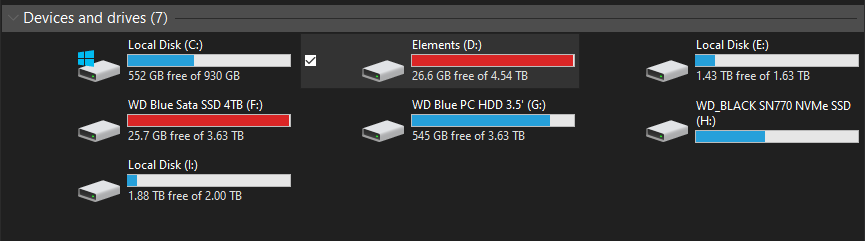
Percentages can be misleading because they don’t account for actual gigabytes left over.
Think about it this way:
- A 1TB drive at 80% full still has roughly 200GB free
- A 256GB drive at 80% full only has about 51GB free
Both are technically “80% full,” but the 1TB drive has four times more breathing room for your operating system to manage virtual memory, background tasks, and updates. That’s a massive difference in practical terms. The smaller drive is going to hit the “not enough free space” wall much sooner, even though the percentage looks identical.
This is why we tell customers not to panic purely based on a percentage number. A 1TB or 2TB drive sitting at 80-85% might still feel perfectly fine, while a 256GB drive at that same percentage could already be showing signs of slowdown. If your drive is on the smaller side, it’s worth being more proactive about cleanup, since you have a lot less margin to work with before hitting that danger zone.
Higher-End Hardware Hides the Symptoms Longer
The second piece of the puzzle is the rest of your computer’s specs. A full or nearly full drive affects a high-end machine very differently than it affects a budget or older one.
Computers with faster processors, more RAM, and modern high-speed SSDs (like NVMe drives) can absorb the performance hit from low storage much more gracefully. They have more resources to fall back on, so the slowdown is often subtle or barely noticeable until the drive is genuinely almost full.
On the other hand, a lower-end system, especially one with a traditional hard drive, limited RAM, or an older processor, has far less cushion. It’s already working closer to its limits during normal use, so when you add tight storage into the mix, the slowdown becomes obvious much faster and much more severe.
In short: the same “85% full” warning applies less strictly to a well-specced, newer machine, and more strictly to an entry-level or aging one. If your computer is on the lower end of the spec range, treat these storage thresholds as more conservative red lines rather than general suggestions.
Why Does This Even Happen? The Technical Reason (Explained Simply)
This part trips a lot of people up because it seems counterintuitive. Shouldn’t a computer just use whatever space is available and be fine until it’s completely full?
Not quite. Here’s what’s actually going on.
1. Your Operating System Needs “Breathing Room”
Windows, macOS, and most operating systems constantly write and rewrite temporary files in the background. Things like:
- System updates and patches
- Virtual memory (also called a “swap file” or “page file”)
- Cache files for apps and browsers
- Temporary files created during normal use
When your drive is nearly full, your operating system has almost no room to do this efficiently. It’s like trying to reorganize a closet that’s already packed to the ceiling — every small task takes longer because there’s nowhere to temporarily set things down.
2. Virtual Memory Gets Squeezed
When your computer runs out of RAM (memory) for active tasks, it borrows space from your storage drive to compensate. This is called virtual memory or a swap file. If your drive is nearly full, your computer can’t allocate enough space for this, and everything from opening apps to switching between browser tabs starts to feel delayed.
3. SSDs Specifically Slow Down When Full
This one surprises people. If you have a solid-state drive (SSD), which most computers have used for years now, it actually needs free space to perform a background process called “garbage collection” and “wear leveling.” Without going too deep into the technical weeds, this process keeps your SSD fast by organizing data efficiently across memory cells. When an SSD gets too full, this process becomes far less efficient, and read/write speeds noticeably drop. Some SSDs can lose a significant chunk of their top speed once they cross the 85–90% full mark.
Traditional hard drives (HDDs) have a similar but slightly different issue: less free space means more fragmentation, which means the drive’s read/write head has to work harder to piece files back together.
4. Fragmentation (Mostly an HDD Issue)
On older hard drives, when storage gets tight, files get broken up and stored in scattered locations because there isn’t enough contiguous space to store them neatly. This is called fragmentation, and it forces your drive to work overtime just to open a single file. SSDs are far less affected by this, but it’s still a factor worth knowing about if your computer has a traditional hard drive.
Symptoms You’re Running Low on Storage
If you’re not sure whether storage is your problem, here are the tell-tale signs we hear most often from customers:
- Programs take noticeably longer to open
- Your computer takes a long time to boot up
- Files won’t save, or you get “disk full” errors
- Windows or macOS updates fail repeatedly
- Your computer freezes during simple tasks like browsing or word processing
- Downloads or file transfers crawl to a stop
- The spinning wheel or loading icon shows up constantly
If two or more of these sound familiar, there’s a good chance your storage is part of the issue.
How to Check Your Storage Percentage
Before assuming this is your problem, it only takes a minute to check.
On Windows:
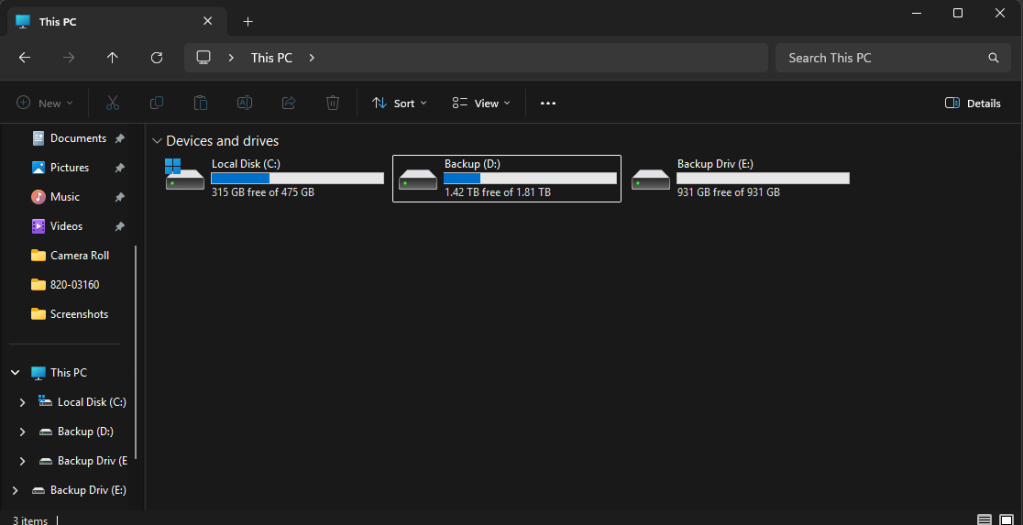
- Open File Explorer
- Click “This PC”
- Look under your main drive (usually C:) — it will show a bar and how much space is used versus free
On Mac:
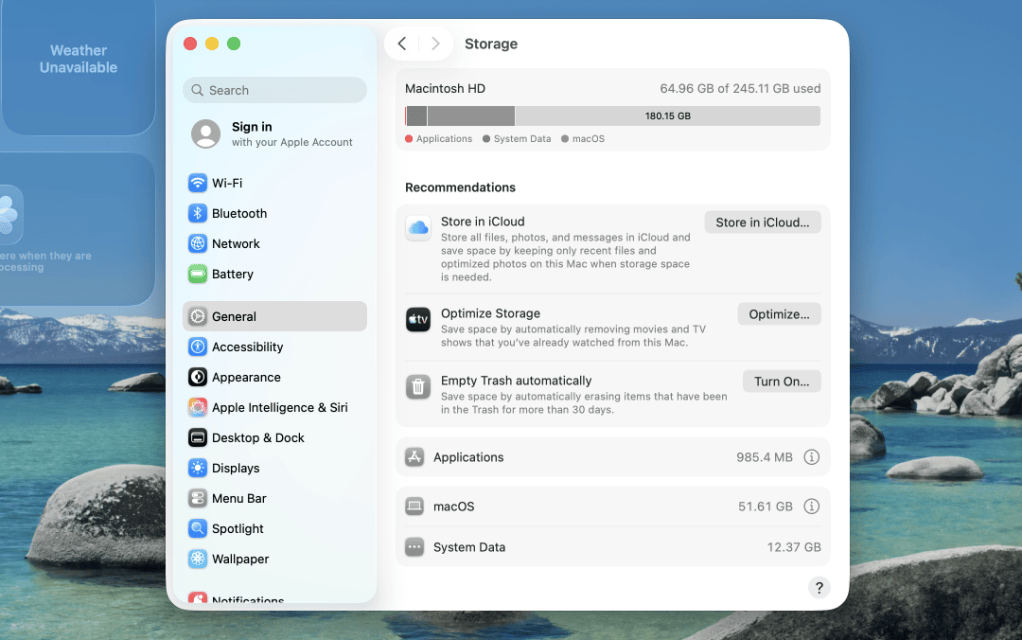
- Click the Apple menu
- Go to “About This Mac”
- Click “Storage”
- You’ll see a visual breakdown of what’s taking up space
If that bar is more than 85% full, it’s time to do some cleanup.
What to Do If You’re Over the Limit
The good news: this is one of the easier problems to fix, and often doesn’t cost anything.
1. Uninstall programs you don’t use. Old software, trial programs, or apps you installed once and forgot about can quietly eat up gigabytes of space.
2. Clear out downloads and temporary files. Most people never touch their Downloads folder, and it becomes a graveyard of installers, PDFs, and duplicate files over time.
3. Move photos and videos to external or cloud storage. Media files are usually the biggest space hogs. Moving them to an external drive or a cloud service frees up significant room without deleting anything important.
4. Empty your recycle bin or trash. Deleted files aren’t actually gone until this step happens.
5. Use built-in cleanup tools. Windows has a “Disk Cleanup” tool and macOS has a “Manage Storage” feature that both identify large or unnecessary files for you.
6. Consider a storage upgrade. If you’re constantly bumping up against your limit even after cleaning up, it might genuinely be time for a bigger drive. This is especially common for people working with large media files, gaming libraries, or business software.
When It’s More Than Just Storage
We’ll be transparent with you: sometimes a full drive is only part of the story. If you’ve cleaned up your storage and your computer is still slow, it could point to something else going on, like a failing drive, malware, insufficient RAM, or a system that’s simply due for a deeper tune-up. This is where bringing your computer in for a real diagnostic helps, because guessing at the problem can end up costing more time and money than just having it looked at.
The Bottom Line
Your computer doesn’t need to be completely full to start struggling. Once you cross roughly 85% storage usage, performance starts to slip, and by 90-95%, you’re in real risk territory for both slowdowns and data issues.
But remember, that percentage isn’t the whole picture. A 1TB drive at 85% still has real room to breathe, while a 256GB drive at that same mark is running out of runway fast. And a newer, higher-end machine can mask the symptoms of tight storage much longer than an older or budget system will. So treat these thresholds as a general guide, not a one-size-fits-all rule, and factor in your drive size and hardware when deciding how urgently to act.
The fix is often simple: clean up unused files, move large media elsewhere, and keep a healthy buffer of free space relative to your drive’s total size. But if you’ve done all that and your computer is still dragging, that’s usually a sign it’s time for a professional look under the hood.
If you’re not sure where your storage stands, how your specs factor in, or want a free diagnostic, stop by the shop in Downtown, Los Angeles or give us a call.
