

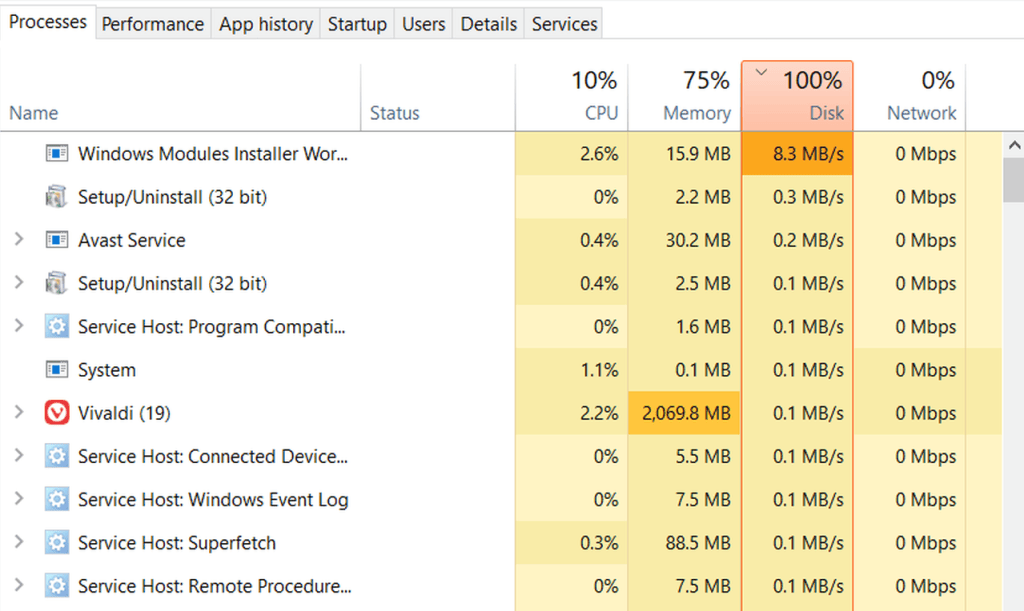
Your computer is crawling. You click on something and wait. And wait. You open Task Manager to see what’s going on, and there it is, in bright red: Disk 100%.
If that sounds familiar, you’re not alone. It’s one of the most common reasons people bring a computer into our shop. In this post, we’ll explain what that number actually means, what usually causes it, what you can safely try at home, and when it’s time to stop troubleshooting and get it looked at.
What Does 100% Disk Usage Actually Mean?
Here’s the part most people get wrong: 100% disk usage does not mean your drive is full.
That number shows how busy your drive is, not how much space you have left. At 100%, your drive is working non-stop and can’t keep up with everything your computer is asking of it.
Think of a single cashier with a long line of customers. The cashier isn’t out of room. They’re just overwhelmed. Everyone in line has to wait, and that’s exactly how your computer feels when the drive is maxed out.
Your drive stores Windows, your programs, and your files, and almost everything your computer does involves reading from it or saving to it. When the drive is overwhelmed, everything slows down, even if the rest of your computer is barely working.
How to Check What’s Using Your Disk
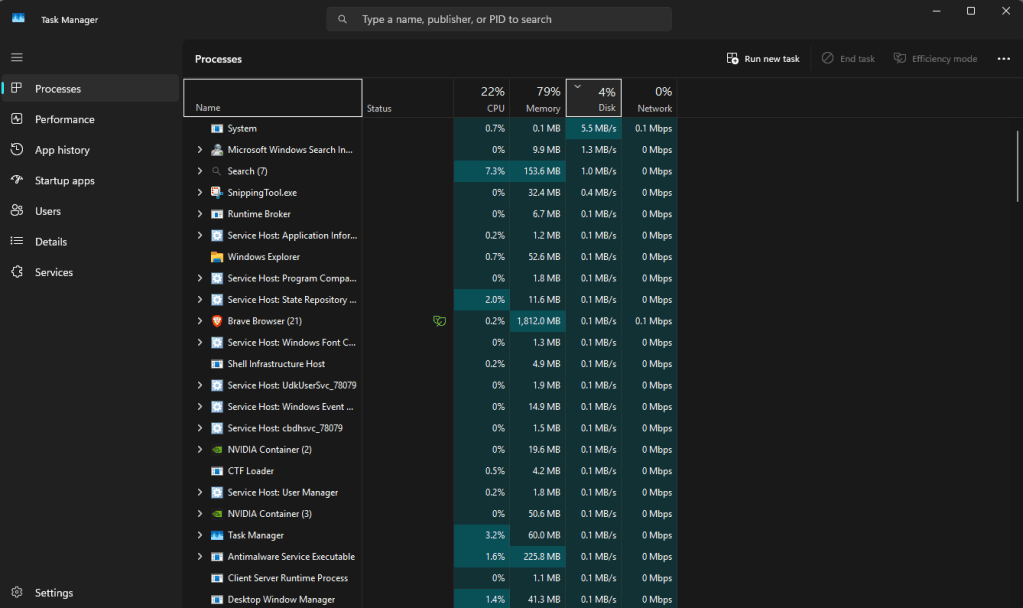
- Press Ctrl + Shift + Esc on your keyboard to open Task Manager.
- Click the Processes tab.
- Click the Disk column to sort the list from highest to lowest.
The program at the top is your first suspect. Sometimes it’s something obvious, like Windows Update or your antivirus. Other times it’s not clear at all, and that’s okay. The causes below cover most cases.
The Most Common Causes of 100% Disk Usage
1. Your computer has an older hard drive (HDD)
This is the number one cause we see. Older computers use a traditional hard drive, which has spinning parts inside and is much slower than newer solid-state drives (SSDs). Windows 10 and 11 do a lot of work in the background, and a slow hard drive can get buried by it, especially right after you turn the computer on.
If your computer is several years old and hits 100% disk usage every time you start it, this is very likely the reason.
2. Windows is updating in the background
Windows regularly downloads and installs updates without you noticing. While that’s happening, your drive can be very busy. This is normal, and it usually settles down once the updates finish.
3. An antivirus scan is running
A full virus scan is a big job for any drive. If your computer slows down at the same time every day or week, a scheduled scan is probably the reason. Having two antivirus programs installed makes this much worse, so only run one.
4. Too many programs starting up
Some programs launch automatically when you turn your computer on, and they all compete for the drive at the same time. The more of them there are, the longer your computer stays bogged down after startup.
5. Too many things open at once
When your computer runs low on memory, it starts leaning on the drive to make up the difference. If you’ve got dozens of browser tabs open on an older computer, the drive ends up doing work your memory should be handling.
Simple Fixes You Can Try at Home
Start with the easy ones. These are safe, and they fix a lot of cases.
Restart your computer. A true restart (not just closing the lid or putting it to sleep) clears out stuck programs and finishes any pending updates.
Give it some time. If disk usage is high for 10 to 20 minutes after you turn the computer on and then calms down, that’s usually just Windows doing its startup work.
Install pending Windows updates. Go to Settings > Windows Update, install anything waiting, and restart. Some slowdowns are caused by bugs that updates have already fixed.
Run a virus scan. Open Windows Security (it’s built in), choose Virus & threat protection, and run a full scan. Malware can keep your drive working overtime without you knowing.
Turn off startup programs you don’t need. In Task Manager, click the Startup apps tab. Right-click anything you don’t need launching at startup (music apps, chat programs, and update helpers are common ones) and choose Disable. You’re not deleting anything, just stopping it from launching automatically.
Free up space. A full drive isn’t the same thing as 100% usage, but a nearly full drive does run slower. Go to Settings > System > Storage and clear out temporary files and things you no longer need. Try to keep at least 10 to 15% of your drive free.
A quick word of caution: you may come across guides online that tell you to edit the registry or download “disk speed booster” programs. We recommend skipping those. They can cause bigger problems, and the simple steps above solve most cases without any risk.
The Fix That Works Best: Upgrade to an SSD
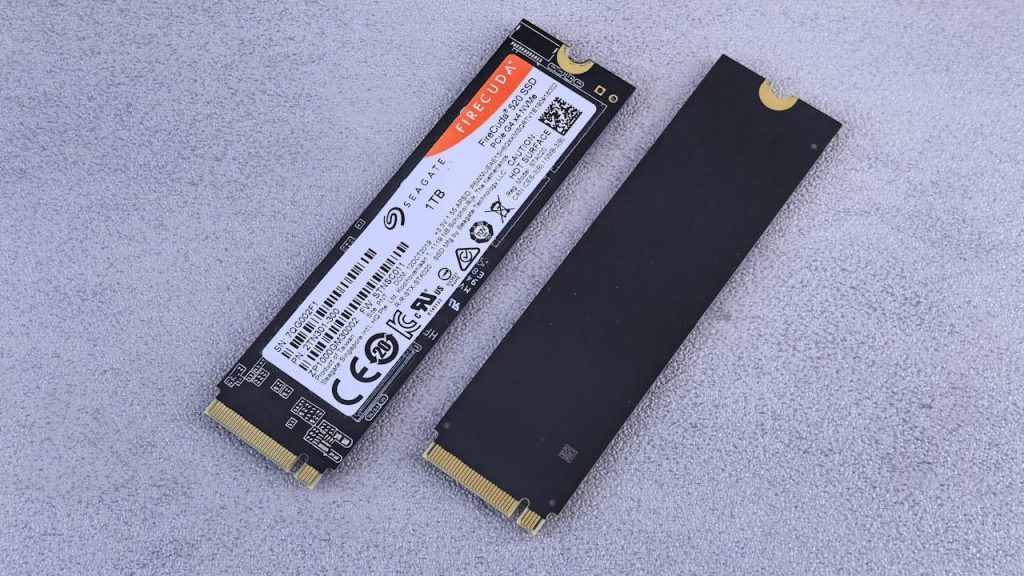
If your computer has an older hard drive, the tips above are usually a temporary bandage. The real fix is replacing the hard drive with a solid-state drive (SSD).
An SSD has no moving parts and handles Windows’ background work far more easily. In our experience, it’s the single biggest speed boost you can give an older computer. Startup goes from minutes to seconds, programs open quickly, and the 100% disk problem often disappears completely.
The upgrade usually involves copying your current Windows setup and files to the new drive, so you don’t lose anything or have to start over. It costs much less than buying a new computer, and it can give your current one years of extra life.
When to Stop Troubleshooting and Get It Checked
Bring your computer in if:
- Disk usage stays at 100% even after trying the steps above.
- You hear clicking, grinding, or repeated whirring coming from the computer.
- Files take forever to open, or you get errors when saving them.
- Your computer freezes or crashes often.
- You see a warning about your disk failing.
These can be signs of a failing drive. If you have photos, documents, or anything else you can’t afford to lose, back them up as soon as possible, before the drive gets worse.
Frequently Asked Questions
Is 100% disk usage bad?
Not always. A short spike after startup or during an update is normal. It becomes a problem when it stays at 100% for a long time and your computer feels slow.
Can 100% disk usage damage my computer?
The high usage itself won’t damage anything, but it can be a sign of a drive that’s struggling or failing. If it’s constant, it’s worth getting checked.
Why is my disk at 100% when I’m not doing anything?
Windows runs updates, scans, and other tasks in the background even when you’re not using the computer. On an older hard drive, that’s often enough to max it out.
Will adding more storage fix it?
Usually not. The problem is how busy the drive is, not how much space it has. Upgrading to an SSD is far more effective than adding space.
Final Thoughts
Not every slow computer needs a repair, and not every 100% disk reading means something is broken. Often it’s a temporary spike that resolves on its own. But if it’s constant, your computer is telling you something: either Windows needs a little cleanup, or the hardware is struggling to keep up.
Is your computer stuck at 100% disk usage?
Call us or stop by our shop located in Downtown, Los Angeles. We’ll tell you exactly what’s going on, whether it’s a quick fix or time for an upgrade, and you’ll know your options and prices before we touch anything.
