

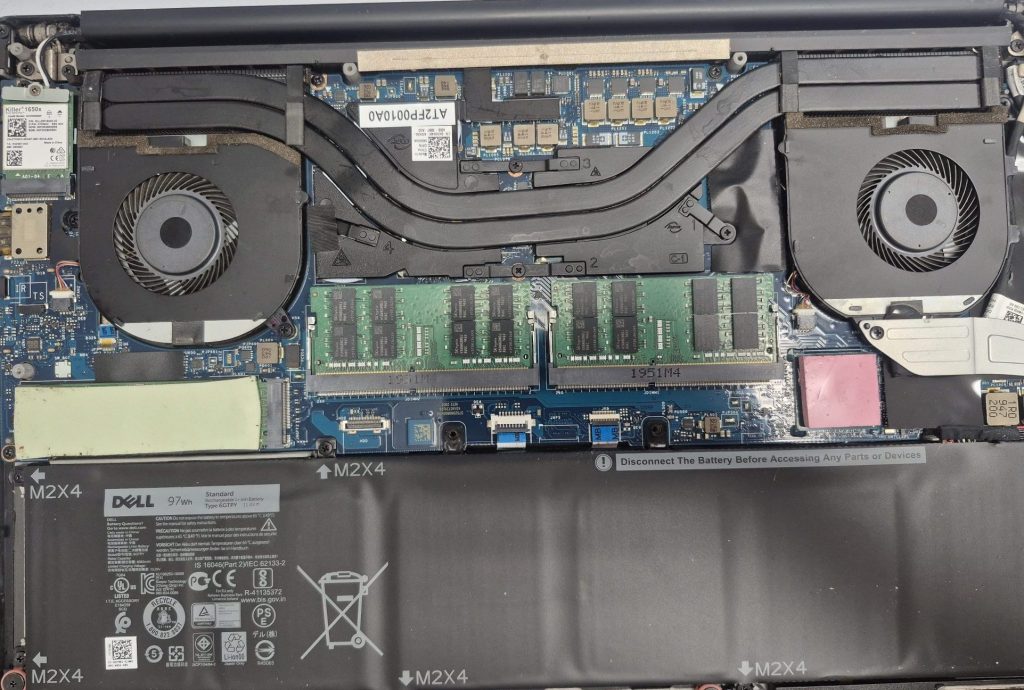
Got a Dell XPS in the shop recently with the good ol’ overheating issue. The customer said that after using it for a while, the palm rest would get really hot and the fans would get loud. Then, cherry on top, the laptop would shut off on its own.
If you’ve seen any of these, you’ve probably got an overheating laptop on your hands:
- A palm rest or keyboard that gets really hot
- Fans that run loud, often for long stretches
- The laptop shutting off by itself after prolonged use
The good news is it’s a very common issue, and a very simple fix at that.
Where This Laptop Lived: Pets, a Dusty Office, and a Hand-Me-Down
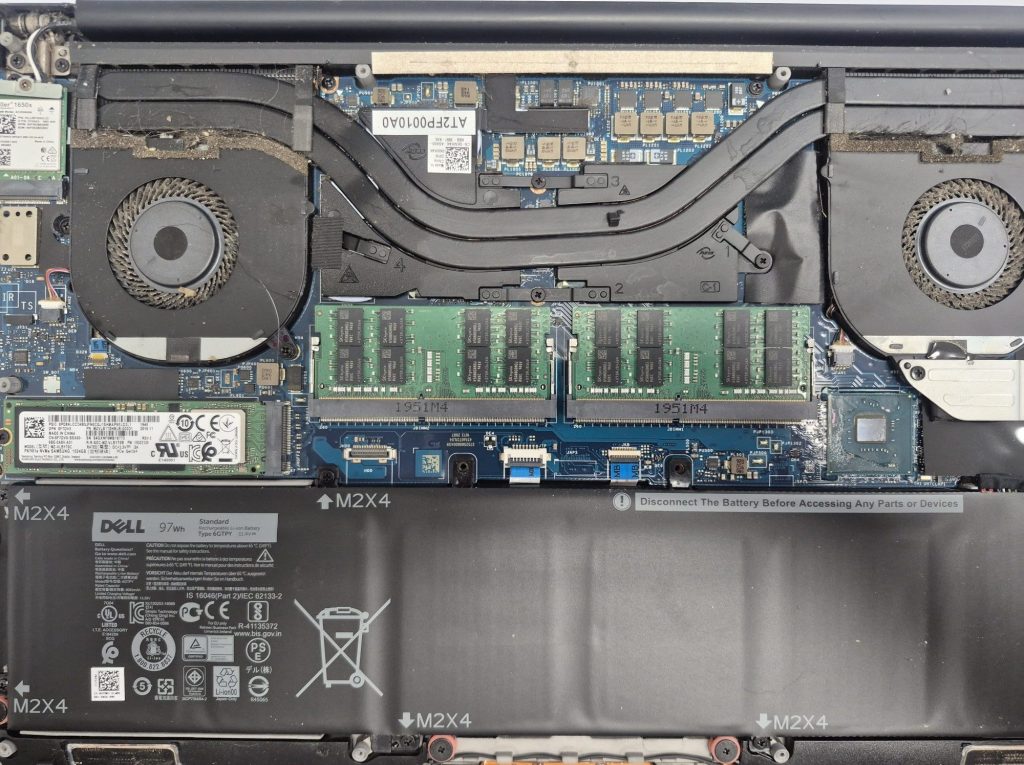
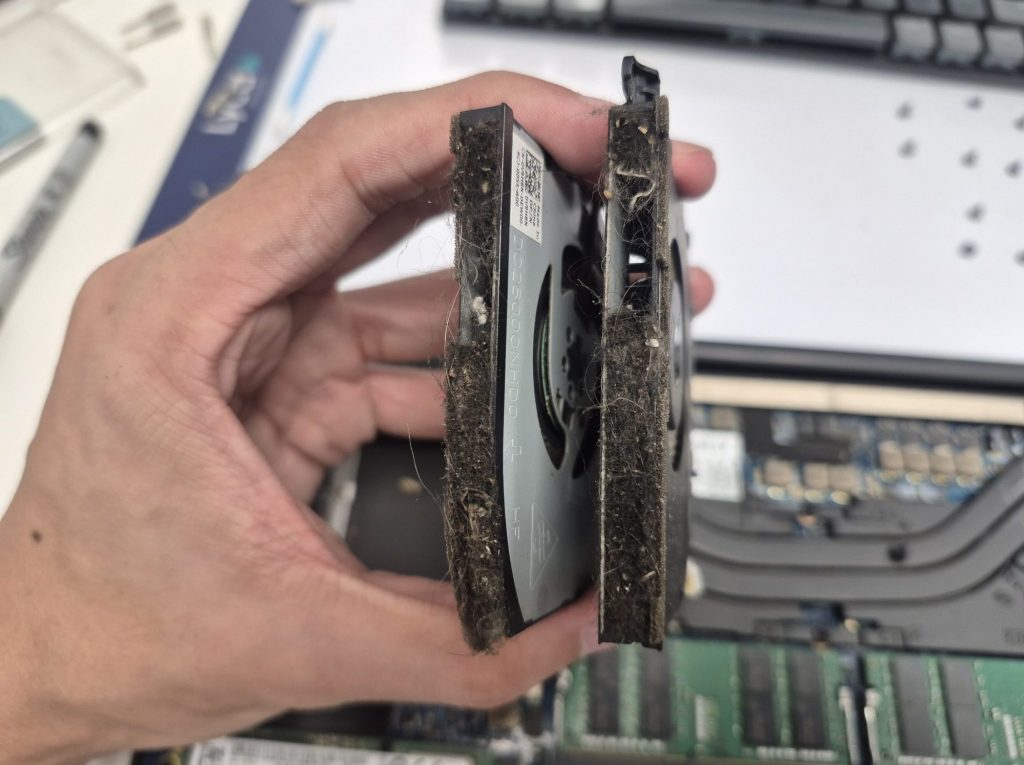
This laptop was a hand-me-down from the customer’s daughter, who used it in college, and it’s now being used for their business. It splits its time between a home with pets and an office the customer said is prone to dust. So what I saw when I opened it up wasn’t a surprise. The fans were covered in dust, debris, and pet hair, and the heatsink (the part the fan blows air through) was packed with buildup that was blocking the airflow.
I’ve written plenty of posts about what overheating and dust can do to a system, and this is a prime example of what happens when maintenance gets skipped for too long. I always like seeing the customer’s reaction on this kind of repair, too, because now they know exactly what to do if overheating shows up again.
Why a Clogged Heatsink Is the Real Problem
A dusty fan on its own usually isn’t a big concern. It just reduces how much air the fan can pull in and push out through the heatsink. The real problem starts when the heatsink itself is blocked and air can’t get through.
That airflow is what carries heat away from the heatsink and keeps the CPU cool. When the airway is blocked, the CPU temperature keeps climbing, and the overall temperature inside the laptop rises with it, which compounds the problem. It’s also why the palm rest gets hot: the heat has nowhere to go, so it concentrates inside the laptop.
Why Did the Laptop Shut Off on Its Own?
That random shutdown can feel like the laptop is dying on you, but it’s actually doing its job. When the internal temperature gets too high, the system shuts itself down on purpose to protect the CPU and other components from heat damage. It’s annoying, especially when it happens in the middle of work, but it’s a warning sign. Repeated overheating can wear on a laptop over time, so it’s worth getting it looked at as soon as you notice the signs.
What I Found Inside the Dell XPS
The fans were caked with dust, and the airway was completely clogged with pet hair and dust. That was most likely the main cause of the overheating. The heatsink was clogged too, but not as badly as the fan’s air duct.
I also removed the heatsink from the CPU to check the thermal paste, and sure enough, it was dried out and crusted over. So the job came down to two things: clean out the dust and replace the thermal paste. A very simple job, it just takes some time to do right.
Why Old Thermal Paste Matters
Thermal paste sits between the CPU and the heatsink and helps pass heat from one to the other. Over time and a lot of heat cycles, it dries out and gets crusty, like it did here, and it stops transferring heat nearly as well. That means even with clean fans, old paste can keep the CPU running hotter than it should. That’s why cleaning and repasting go hand in hand on a job like this.
How I Cleaned It and Replaced the Thermal Paste
- Clean the fans. I blew out the big dust clumps, then took apart the fan’s frame to reach the inner fan. Some models don’t allow the fan to be taken apart. For those, I use a brush and an air gun to clear out as much dust as possible.
- Clean the heatsink. I blew out all the dust stuck in the grills of the heatsink.
- Replace the thermal paste. I cleaned off the dried paste with isopropyl alcohol and a cotton swab or cotton ball, then applied fresh thermal paste.
- Blow out the whole laptop. Just for good measure.
The Numbers After the Repair
Everything I saw pointed to three problems stacking on top of each other: very dusty fans, a clogged air duct, and old thermal paste. In my experience, that combo is behind the large majority of overheating repairs.
After the repair, I ran some simple tests to check idle temps and what a “normal” use load looks like. Idle was hovering around 45 to 48°C, and normal load was around 60 to 70°C. That’s a little higher than I’d like, but based on the customer’s cooling profile, the fans were barely spinning, which could be why the temps ran higher than normal.
How to Keep Your Laptop From Getting This Bad
At the end of the day, this is what happens when a laptop doesn’t get maintained. Overheating is super common on older laptops or ones that have been in use for a while, and in situations like this it’s usually an easy fix, even if it takes some time. There are a few things you can do to keep dust from building up this badly:
- Use compressed air from the outside. It helps cut down on dust buildup, but keep in mind it only slows things down.
- Pull the fans and blow them out directly. If you’re comfortable opening up your laptop, this is the best way to clear out built-up dust.
- Clean more often if you have pets or a dusty workspace. Dust builds up a lot faster in those environments, like it did for this customer.
One note: opening up a laptop isn’t for everyone. Taking apart a fan frame or removing a heatsink means working around small, delicate parts, and every model comes apart a little differently, like how some fans can’t be taken apart at all. If you’re not comfortable with it, there’s no shame in handing it off.
Laptop Running Hot or Shutting Off?
If your laptop is running hot, running loud, or shutting off on its own, bring it in to our shop located in Downtown, Los Angeles and we’ll take a look. Not comfortable opening it up yourself? That’s what we’re here for. Catching an overheating problem early usually means a simpler repair and less stress on your laptop.
