


With how invaluable our data has become, it’s more important than ever to have a backup system—regardless of who you are. From the average home user to large businesses and corporations, maintaining a consistent backup strategy can save you from devastating data loss. Accidents happen, and it’s always better to be prepared rather than reactive.
In this post, I’ll go over how you should back up your data, what types of files to prioritize, how often to back up, and the different tools and services available.
The 3-2-1 Backup Rule
If you’ve ever looked up best practices for data backup, you may have come across the 3-2-1 rule. It’s a widely recommended method that provides a strong foundation for any backup strategy:
- 3 copies of your data
- 2 copies stored on different storage media (e.g., external hard drives or cloud storage)
- 1 copy stored offsite or in the cloud
This method ensures redundancy and minimizes the chances of total data loss. While the full 3-2-1 rule might be overkill for some people, having at least two copies on separate devices (like an external SSD and a cloud service) is usually sufficient for most users. But if the data is critical—like legal documents or irreplaceable photos—more redundancy is always better.
How to Determine What’s Worth Backing Up
Deciding what’s important to back up depends entirely on the user. For some, family photos are priceless. For others, documents, spreadsheets, or project files hold more weight. Think about what would be most difficult or impossible to recover if your device were lost, stolen, or damaged.
Many people use USB drives for quick and easy backups. While convenient, they’re not built to last forever. USB sticks—especially cheaper ones—can become corrupted or physically break over time. That’s why multiple backup sources, as recommended by the 3-2-1 rule, are so important.
Pro Tip: Avoid relying on a single backup method. Devices fail, and no single solution is immune to data loss.
How Often Should You Back Up?
The frequency of backups comes down to your personal or professional needs. However, a good general rule is:
- Back up any new important data as soon as possible.
- Set a regular schedule—weekly, bi-weekly, or monthly—to ensure nothing is missed.
- For businesses or professionals who work with critical files daily, automated daily backups are highly recommended.
The key is consistency. Backups don’t help if they’re outdated when disaster strikes.
Backup Device Options & Services
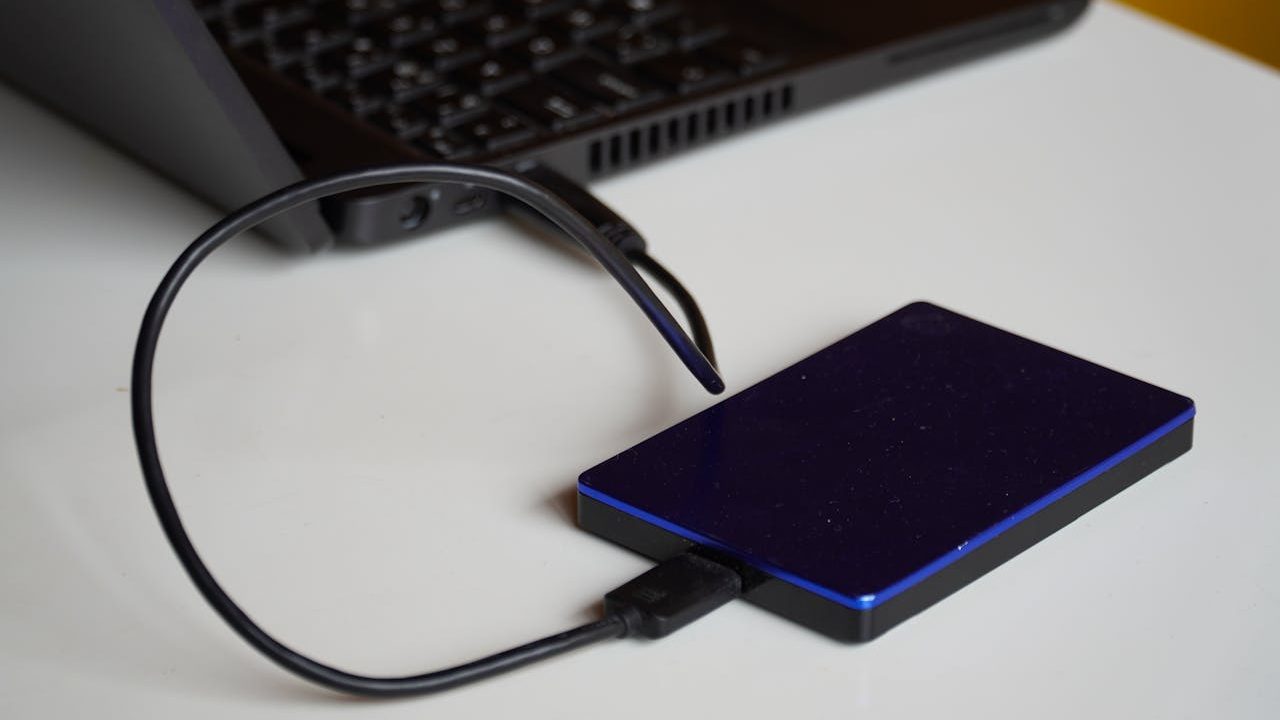
Hardware Options
- USB Flash Drives
Cheap and portable, but they’re also fragile and not ideal for long-term storage. - External SSDs or HDDs
More reliable and much faster, SSDs in particular offer durability and speed. They’re great for larger backups, and with proper care, can last a long time. - NAS (Network Attached Storage)
A more advanced option for those who want centralized storage accessible across multiple devices. Ideal for families or small businesses, though it comes with a steeper price and setup process.
Recommendation: Use a combination of portable USBs for convenience and external SSDs or NAS devices for durability and capacity.
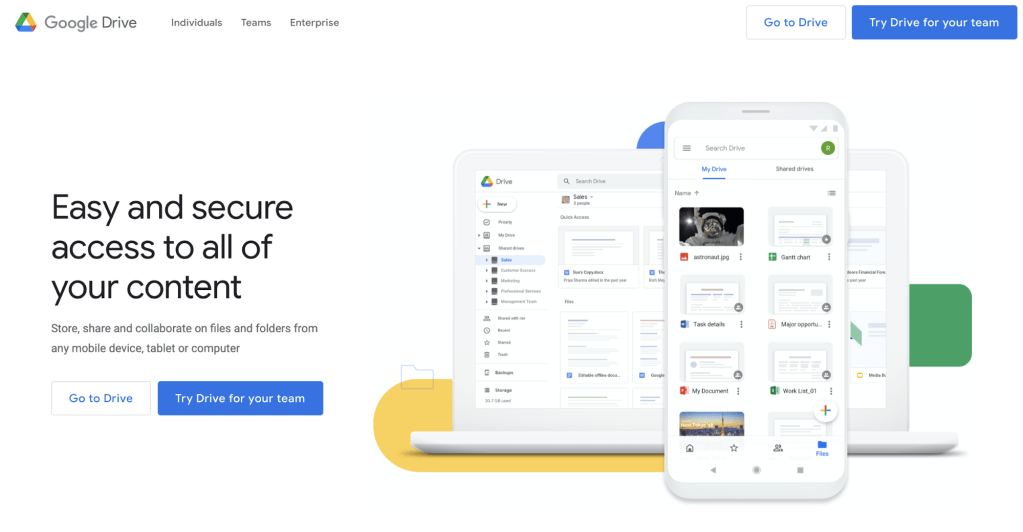
Cloud Backup Services
Cloud storage is one of the easiest and most secure ways to store your files offsite. Some popular cloud services include:
- Apple iCloud
Great for those fully in the Apple ecosystem. Offers seamless integration with iPhones, iPads, and Macs. - Microsoft OneDrive
Works well with Windows and Microsoft Office products. Offers good value, especially if bundled with Microsoft 365. - Google Drive
A reliable option that integrates well with Android devices and Google Workspace tools.
Each platform has different storage limits, pricing plans, and privacy policies. Choose the one that best fits your usage habits and preferred ecosystem.
Tip: Even if you use a cloud service, keep a local backup as well. This way, you’re covered even if your internet goes down or the cloud provider has an outage.
Final Thoughts
Over time, the way we manage and store data has evolved drastically. Back in the Windows 7 era, things were simpler—manual backups were more common, and users had more control over their systems. But as operating systems have become more complex and connected (and arguably more bloated), the risk of system crashes, software corruption, or ransomware attacks has increased.
That’s why setting up a reliable backup system today isn’t optional—it’s a necessity.
Whether you’re a student, a working professional, or running a small business, having even a basic backup plan in place can save you time, money, and stress.
Need Help with Your Computer?
Need fast laptop repair or professional IT support in Los Angeles? Our shop is open for walk-ins, and we’re just a phone call away. From virus removal to hardware fixes, we’ll get your computer running smoothly again.
 ITBrother