

Quick Computer Fixes to Try Before Going to a Repair Shop
If your computer or device is acting up, there are a few quick troubleshooting steps you can try before heading to a tech repair shop. These basic fixes could save you time, money, and unnecessary stress. In fact, many common issues—like a slow computer, bad Wi-Fi connection, or an unrecognized USB device—can often be solved with a few simple actions at home.
Plus, if the issue persists after you’ve gone through these steps, the information you gather can help your technician get to the root of the problem faster.
1. Restart Your Computer or Device
Quick computer fix #1: Restart your system.
It might sound cliché, but restarting your computer is one of the easiest and most effective ways to fix unexpected behavior. A restart clears temporary glitches, resets system processes, and gives your device a fresh start.
This can resolve:
- Sudden slowdowns
- Frozen programs
- System errors
- Weird bugs that came out of nowhere
If the issue goes away after a reboot and doesn’t return, it was likely a temporary hiccup. If it keeps happening, it may be a sign of a deeper problem.
2. Fix Slow Internet by Restarting Your Router
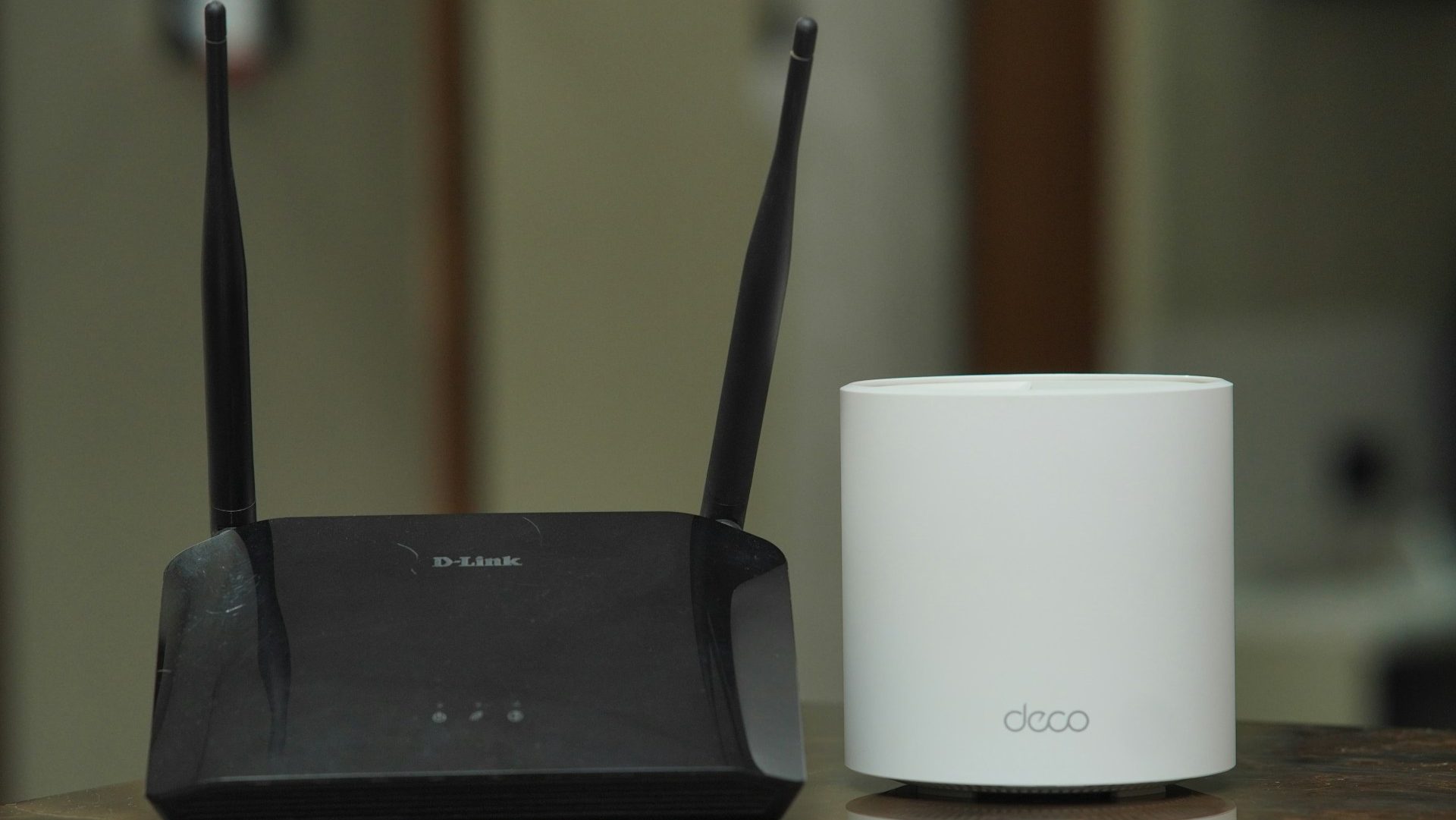
If you’re dealing with slow internet, dropped Wi-Fi, or connection issues, try restarting your router and modem.
Here’s how:
- Unplug both the router and modem.
- Wait about 30 seconds.
- Plug them back in and wait a couple of minutes for them to fully reboot.
Why this helps:
It resets your network connection and clears up communication issues between your internet service provider (ISP) and your devices.
Bonus tip:
If you have multiple devices at home, like a phone and a laptop, check both after the reboot. If one works fine and the other doesn’t, then the issue is likely with the device, not your internet connection.
3. USB Port Not Working? Try Swapping Ports
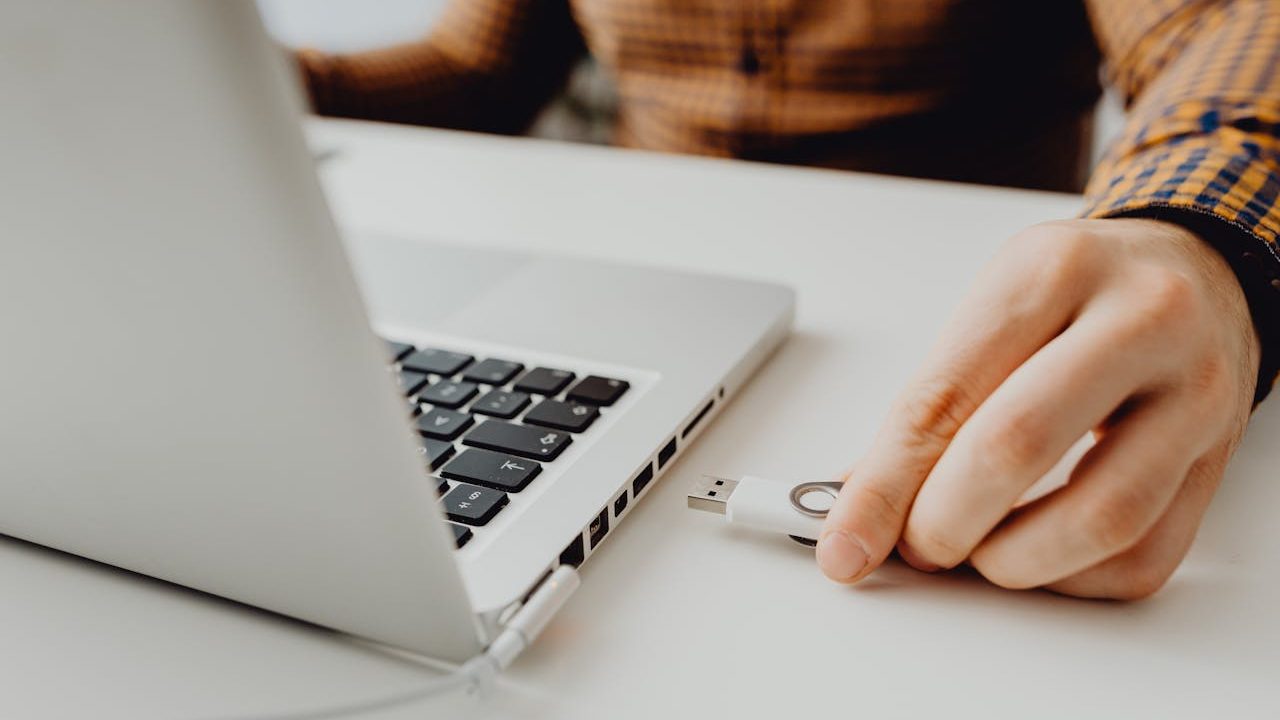
Sometimes, a USB device—like a flash drive, mouse, or keyboard—suddenly stops working. This can be caused by:
- A faulty USB port
- Dust or debris inside the port
- A temporary system glitch
Quick fix:
Unplug the device and try it in another USB port. If that doesn’t work, restart your computer and try again. You can also gently clean out the port with compressed air.
If it still doesn’t work:
- Try a different USB device in the same port to see if it’s the port or the device that’s failing.
- Check for damage on the USB connector.
4. Beginner Computer Troubleshooting Tip: Check the Obvious
If you’re not sure where to start, always begin by checking the basics. Some of the most common issues are caused by things we overlook, especially when we’re in a hurry.
Here’s a quick checklist:
- Is the power cable securely connected?
- Is the monitor turned on?
- Is the volume muted or brightness turned all the way down?
- Is the printer out of paper or ink?
- Is the device battery dead or not charging?
- Did a cable come loose?
It might sound too simple, but you’d be surprised how often a “broken” device just needs to be plugged in properly.
Final Thoughts: When to Call for Tech Support
These beginner-friendly troubleshooting tips won’t fix every problem, but they’re a great starting point for diagnosing common computer issues at home. If you’ve tried these and you’re still experiencing problems, that’s the time to bring it in.
When you do bring your system to a repair shop, let your technician know what you tried. It gives us a better starting point and helps us solve the issue more efficiently.
Need Help with Your Computer?
If you’re in Los Angeles and have any questions, PC problems, or need computer repair, feel free to give us a call or stop by our shop. We’re here to help with everything from slow PCs to hardware repairs and upgrades.
 ITBrother
Leave a comment