


Not every device issue needs a trip to the repair shop — at least not right away. Before you come see us, it’s worth trying a few simple fixes at home first. A lot of the most common things we see — slow computers, dropped Wi-Fi, unresponsive USB devices — can actually be resolved in just a few minutes without leaving the house.
We put this guide together to help you troubleshoot the easy stuff first. And if the problem does turn out to need a professional, letting us know what you already tried — and what you noticed along the way — helps us get to the root of it a lot faster.
Here’s a quick rundown of the fixes worth trying before making the trip.
Fix #1: Restart Your Device (Yes, Really)
Best for: Sudden slowdowns, frozen programs, random errors, or anything that “just started happening”
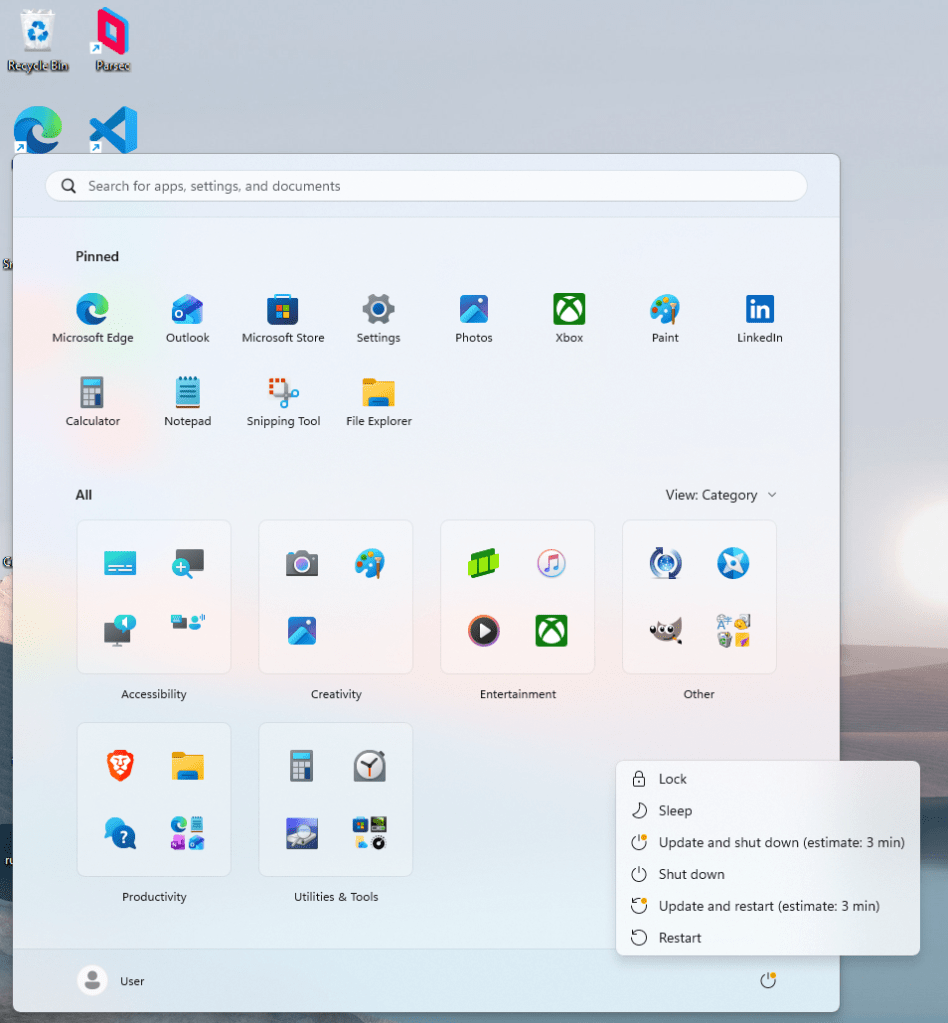
We know, we know — you’ve heard this before. But there’s a reason it’s the first thing every technician asks: it works a surprising amount of the time.
When your computer runs for extended periods without a restart, temporary files pile up, background processes stall, and memory doesn’t get cleared properly. A full restart (not just closing the lid) gives your system a clean slate.
How to do it properly:
- Close all open programs first
- Click Start > Shut Down (not Restart if things are severely frozen — hold the power button for a full shutdown instead)
- Wait 30 seconds before turning it back on
- After it boots, check if the issue is still there
What to note and tell us: Did the issue go away after restarting? Did it come back? How quickly? Does it happen right at startup, or only after the computer has been running for a while? These details help us narrow down whether it’s a software glitch, a driver issue, or something hardware-related.
Fix #2: Slow or Dropped Wi-Fi? Restart Your Router and Modem
Best for: Slow internet, pages that won’t load, dropped connections, or “No Internet” errors
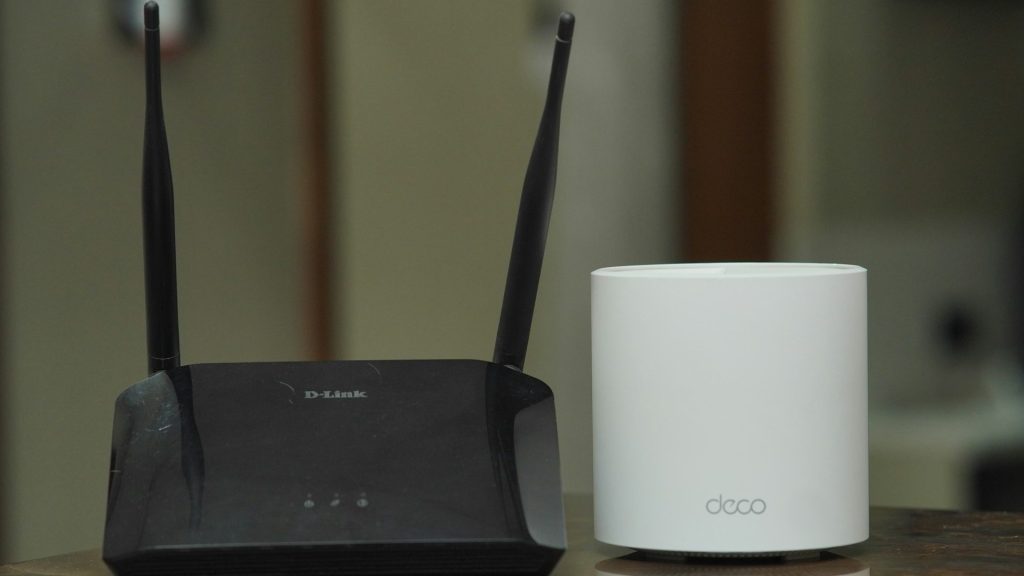
Nine times out of ten, internet problems at home are coming from the router or modem — not the device. Before you assume your laptop’s Wi-Fi card is broken, try this first.
Step-by-step:
- Unplug both your router and modem from the wall (or power strip)
- Wait a full 30 seconds — don’t rush this part
- Plug the modem back in first and wait for it to fully connect (usually about 60 seconds)
- Then plug the router back in and wait another 60 seconds
- Try connecting again on your device
Bonus diagnostic step: Test your internet on a second device (phone, tablet, another laptop). If the second device works fine and yours doesn’t, the issue is with your specific device — not your internet. If neither works, the issue is likely your router, modem, or your ISP.
What to note and tell us: Which devices are affected? Does it happen on all Wi-Fi networks or just yours at home? Does it also happen when you plug in an ethernet cable directly? This helps us determine whether we’re looking at a Wi-Fi adapter problem, a driver issue, or something else entirely.
Fix #3: USB Device Not Recognized? Try These Steps
Best for: Flash drives, external hard drives, mice, keyboards, or any USB device that isn’t being detected
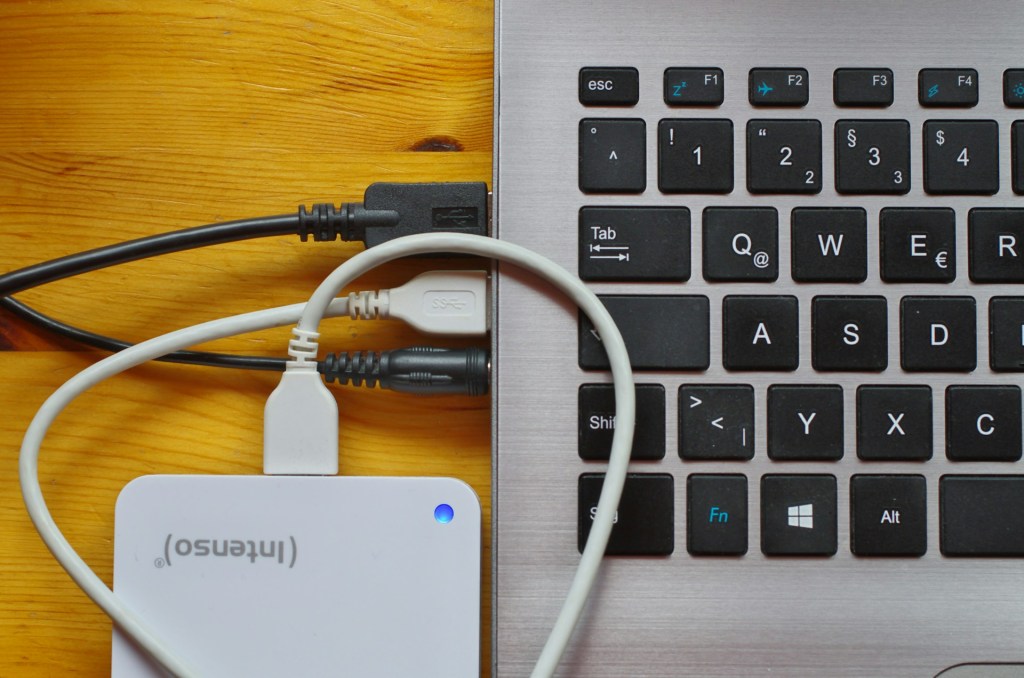
USB problems are almost always either a port issue, a driver hiccup, or a cable/connector problem. Here’s how to figure out which one it is.
Try this in order:
- Unplug the USB device and plug it into a different port on your computer
- Restart your computer with the USB device already plugged in
- Try the USB device on a completely different computer to see if it’s recognized there
- If it’s a cable-based device, swap the cable if you have a spare
- Gently clean the USB port with a can of compressed air — dust and debris are a surprisingly common culprit
What to note and tell us: Does the device work on another computer? Does it show any sound or light when plugged in? Does it appear (even briefly) in Device Manager before disappearing? Does it fail on all ports or just specific ones? All of this helps us pinpoint whether the issue is the port, the device, or a driver/system problem.
Fix #4: Check the Obvious Stuff First
Best for: Any situation where you’re not sure where to start
We don’t say this to be condescending — we say it because even experienced technicians start here. It’s called “checking the basics” for a reason, and you’d be genuinely surprised how often a “broken” device just needs to be plugged in or unmuted.
Run through this checklist:
- Is the power cable securely connected at both ends?
- Is the device actually getting power (check indicator lights)?
- Is the monitor turned on and set to the right input (HDMI, DisplayPort, etc.)?
- Is the volume muted or the brightness turned all the way down?
- Is the battery dead or not charging even when plugged in?
- Did any cables come loose in the back of the tower or monitor?
- Is the printer out of paper, ink, or showing an error light?
- Did a Windows or macOS update run recently and might have changed a setting?
Take two minutes with this list before anything else. If you find the problem here, great! If not, at least you’ve ruled these out — and that information is still useful to us.
Bonus Fix #5: Free Up Storage Space if Your Computer Is Sluggish
Best for: Computers that are running slowly, taking forever to boot, or freezing during everyday tasks
If your hard drive or SSD is nearly full, your computer will slow down dramatically — sometimes to the point where it feels broken. Windows and macOS both need free space to run smoothly.
Quick things to try:
- Empty the Recycle Bin / Trash
- Delete files in your Downloads folder you no longer need
- On Windows: run Disk Cleanup (search for it in the Start menu)
- On Mac: Go to Apple Menu > About This Mac > Storage > Manage
- Uninstall programs or apps you haven’t used in months
Aim to keep at least 15–20% of your drive free. If you’re sitting at 95% full, this is very likely contributing to your slowdowns.
What to note and tell us: How full was your drive before you cleaned it up? Did performance improve after freeing up space? By how much? This tells us whether storage is the root cause or just one part of a larger issue.
When It’s Time to Bring It In
If you’ve worked through these steps and the problem is still happening — or if the issue involves physical damage, strange noises, burning smells, a screen that won’t turn on, or data you can’t access — it’s time to come see us.
When you bring your device in, please tell us:
- What the problem is and when it started
- What fixes you already tried from this list
- What you observed during each attempt (did anything change, even briefly?)
- Whether the issue is constant or comes and goes
That information genuinely makes a difference. It can cut our diagnostic time in half, which means a faster repair and lower labor cost for you. We’re not just saying that — every clue helps us skip steps and zero in on the real issue.
We’re always happy to answer quick questions, even if you just want to describe your symptoms before making the trip. Stop by our shop in Downtown Los Angeles, give us a call, or send us a message — we’re here to help.
 ITBrother