

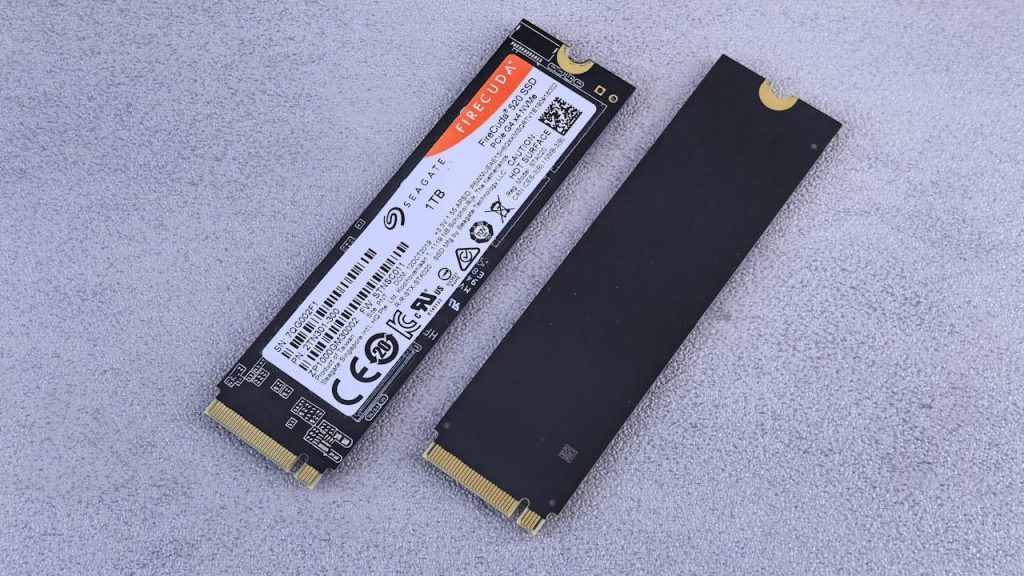
With how popular M.2 NVMe SSDs have become, most people now recognize them as incredibly fast, reliable solid-state drives found in nearly every modern laptop or desktop. Compared to older SATA SSDs or even the now-archaic spinning hard disk drives (HDDs), the advancements in storage technology are nothing short of astounding. On the surface, NVMe drives seem like the king of all drives: they’re fast, efficient, and more reliable than previous generations.
However, there’s one major downside—rarely discussed unless something goes wrong—and that’s a feature called TRIM.
What Is TRIM?
In simple terms, when a file is deleted from an SSD, TRIM tells the SSD that the space the file occupies can be erased and reused. Unlike HDDs, which mark deleted files as “free space” and only overwrite them when new data is saved, SSDs actively remove the deleted data thanks to TRIM. This means little to no traces of the file remain, making data recovery on NVMe SSDs extremely difficult—sometimes impossible.
With traditional HDDs, even after a file is deleted, remnants often remain until they’re overwritten, giving data recovery software a fighting chance. Even early SATA SSDs offered some recovery potential, despite also using TRIM. But modern NVMe SSDs, which rely heavily on TRIM for performance and longevity, leave almost nothing behind once something is deleted.
Why TRIM Matters (and Why It’s a Double-Edged Sword)
TRIM is essential to maintaining your SSD’s performance. It keeps the drive healthy, fast, and efficient by cleaning up deleted data and optimizing storage cells. But this also means disabling TRIM for the sake of recoverability can shorten your SSD’s lifespan and degrade performance over time.
So what do you do? In most cases, it’s not recommended to disable TRIM. The benefits—speed, reliability, and drive longevity—heavily outweigh the downsides. That said, the trade-off is clear: once something is deleted on a modern SSD with TRIM enabled, it’s very likely gone for good.
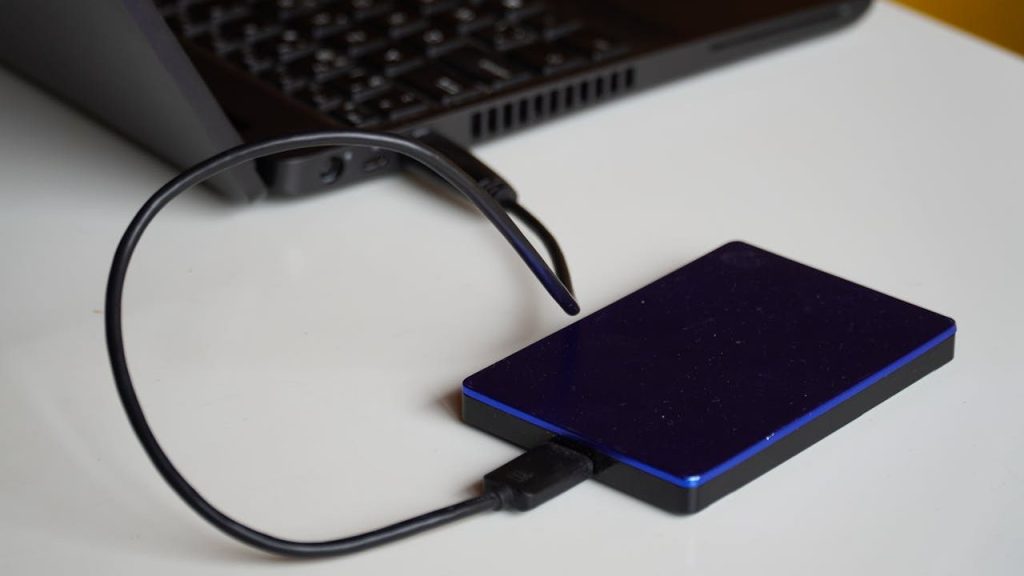
The Importance of Backups in the Age of SSDs
As SSDs become the norm in desktops and laptops, it’s nearly inevitable that you’ll one day need to recover a file—maybe it was accidentally deleted, or the entire drive crashed. But due to how SSDs work, particularly NVMe drives with TRIM enabled, traditional data recovery methods often fail.
I’ve personally tested various data recovery software tools, and while some can locate traces of deleted files, successfully restoring them is another story. In most cases, the files were too corrupted to be usable.
This is why data backup is more important than ever. Whether you’re a casual user or a professional, following a reliable strategy—like the 3-2-1 backup rule (3 copies of your data, 2 on different storage types, 1 stored offsite)—can save you from disaster. If you need help setting up a backup system, I’ve written a separate article covering methods, tools, and tips to back up your data [link to your backup article here].
Final Thoughts
NVMe SSDs are incredible in terms of speed and performance, but their biggest strength also introduces a silent risk when it comes to data loss. With TRIM enabled by default, file recovery is no longer as feasible as it once was. That’s why having a proactive data protection plan is crucial.
Don’t wait until it’s too late—back up your data today.
Need Help with Your Computer?
Having trouble with your PC or laptop? If you’re in Los Angeles, stop by our computer repair shop or give us a call. We provide dependable IT support, upgrades, and repair services to keep your devices working right.
 ITBrother
Leave a comment