

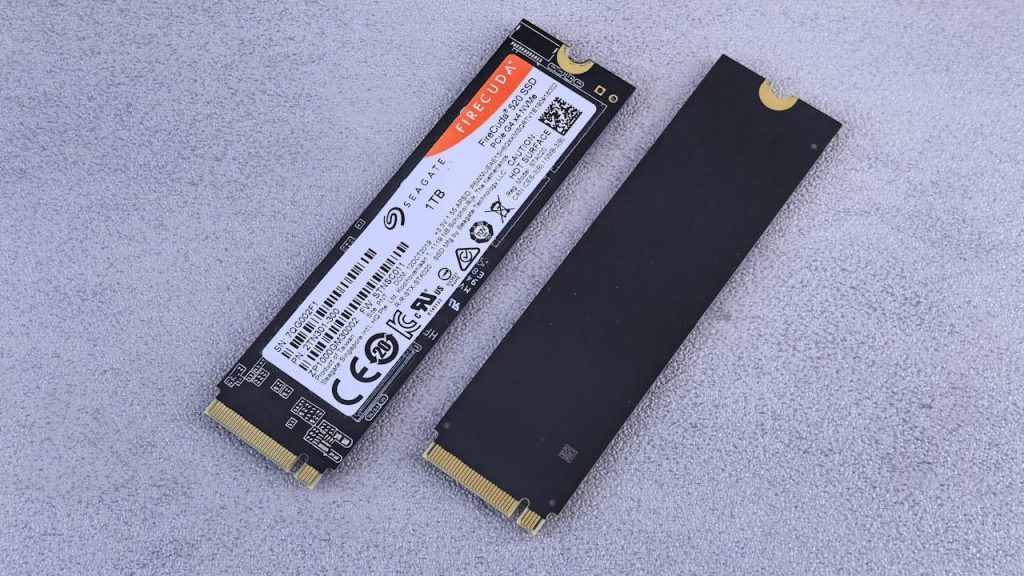
If you have a modern laptop or desktop, there’s a very good chance it’s running an NVMe SSD — one of those slim M.2 sticks that’s become the standard for fast, reliable storage. Compared to the old spinning hard drives (HDDs) or even early SATA SSDs, NVMe drives feel like a completely different world. They boot faster, load programs near-instantly, and hold up far better over time.
But there’s a feature built into almost every modern SSD that doesn’t come up in conversation until something goes wrong — and when it does, the news usually isn’t good. That feature is called TRIM, and understanding how it works can save you from a genuinely painful situation down the road.
What Is TRIM on an SSD?
TRIM is a command — technically part of the ATA command set — that allows your operating system to tell an SSD which blocks of data are no longer in use and can be safely erased. On NVMe drives specifically, the equivalent command is called DEALLOCATE, but the effect is the same. Most people just call it TRIM regardless of drive type.
Here’s why it exists: SSDs store data in NAND flash memory, which works very differently from a spinning hard drive. NAND can write data at the page level (think small chunks of 4–16 KB), but it can only erase data at the much larger block level — typically hundreds of pages at a time. Without TRIM, when you delete a file, the SSD doesn’t immediately clear that space. Instead, the old data just sits there until the drive needs to write something new — at which point it has to read, erase, and rewrite entire blocks just to update a few pages. That’s slow, inefficient, and wears out the drive faster.
TRIM solves this by proactively telling the SSD: “Hey, this space is free now — go ahead and erase it.” The drive can then clean up those blocks in the background while it’s idle, so future writes are fast and efficient. It’s genuinely a smart feature — and it’s enabled by default on virtually every modern operating system, including Windows 7 and later, macOS, and Linux.
The Problem: TRIM Makes Deleted Files Nearly Unrecoverable
Here’s where TRIM becomes a double-edged sword.
On a traditional hard drive, when you delete a file, the drive simply marks that space as available. The actual data is still physically sitting there — it just isn’t referenced anymore. That’s why recovery software tools work so well on HDDs: the file is still there until something new overwrites it, which can be days, weeks, or even months later.
SSDs with TRIM work completely differently. Once you delete a file, your OS immediately sends a TRIM command to the drive. The SSD controller queues those blocks for erasure, and background garbage collection wipes them — often within minutes to hours. Once that happens, the data is gone at the hardware level. There’s nothing left for recovery software to find.
In plain terms: on an HDD, accidentally deleting something often gives you a second chance. On a TRIM-enabled SSD, that window is extremely short — and usually already closed by the time you realize what happened.
Does This Apply to SATA SSDs Too?
Yes — TRIM isn’t exclusive to NVMe drives. SATA SSDs also support and use TRIM, and have since the early days of consumer SSD adoption. The original blog post implied SATA SSDs had more recovery potential; that’s not quite accurate. Both types face the same fundamental challenge once TRIM has run. The reason NVMe tends to get singled out is simply because it’s now the dominant standard and processes TRIM commands extremely quickly.
One Exception Worth Knowing: External Drives Over USB
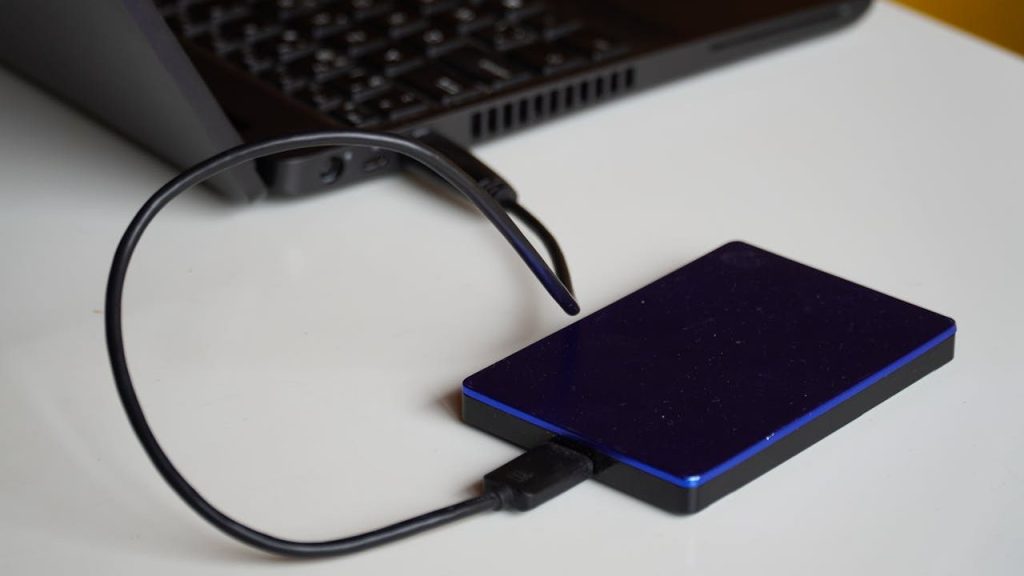
There’s one scenario where SSD recovery may still be possible: if you’re using an SSD in an external USB enclosure. Many USB-to-SATA or USB-to-NVMe bridge chips don’t pass TRIM commands through to the drive, which means deleted data may still be sitting on the NAND unaffected. If you’re dealing with data loss on an external SSD, it may be worth attempting recovery before writing anything new to the drive — but don’t count on it, and act quickly either way.
Should You Disable TRIM to Protect Your Files?
This is a reasonable question, and the honest answer is: no, not as a general practice.
TRIM is critical to keeping your SSD healthy and performing well. Disabling it means your drive will accumulate fragmented, unreleased blocks over time — leading to slower write speeds and increased wear on the NAND cells. You’d be trading long-term drive health for a small, theoretical chance of recovering a file you might accidentally delete.
That’s a bad trade. The better answer is to make backups a habit — so you never need to depend on recovery in the first place.
This Is Why Backups Matter More Than Ever
We’ve seen this play out many times at our shop. A customer comes in after accidentally deleting something important — photos, business documents, a project they’ve been working on for months. On an HDD, we often had a fighting chance. On a modern NVMe SSD with TRIM enabled, recovery software rarely finds anything usable. Not because the tools aren’t good — it’s because the data genuinely isn’t there anymore.
The shift from HDDs to SSDs has quietly changed the stakes of data loss, and most people don’t find out until it’s too late.
The 3-2-1 Backup Rule: A Simple Starting Point
If you’re not backing up yet — or you’re not sure if what you’re doing is actually enough — the 3-2-1 rule is the standard most professionals recommend as a baseline. It’s straightforward:
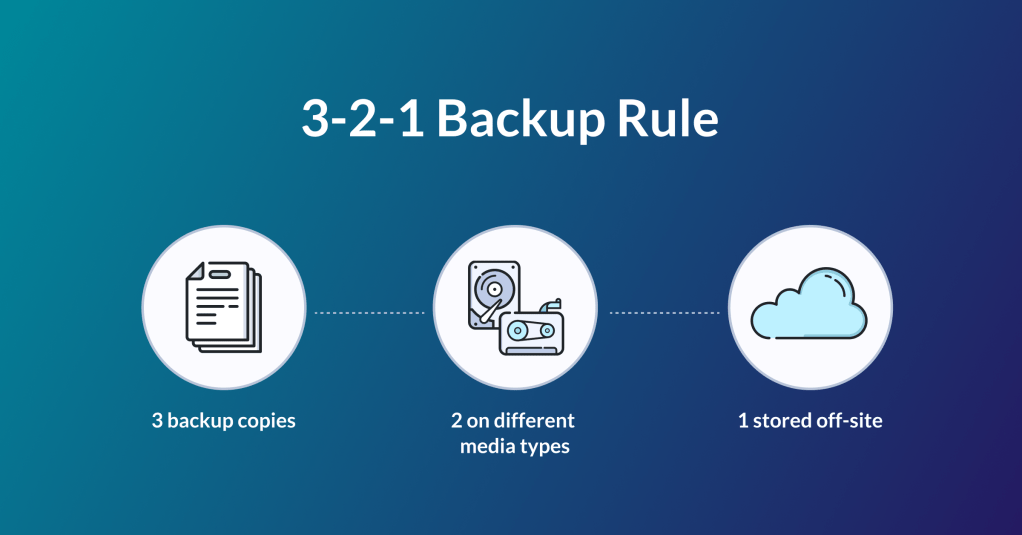
- 3 copies of your data (your original plus two backups)
- 2 different storage types (for example, an external hard drive and a cloud service)
- 1 copy kept offsite (cloud storage counts — the point is that it’s not in the same place as your other data)
This strategy protects you from hardware failure, accidental deletion, ransomware, fire, theft — basically anything that can take out a single copy of your data. It’s also endorsed by CISA (the U.S. Cybersecurity and Infrastructure Security Agency) as a baseline recommendation for individuals and businesses alike.
Final Thoughts
TRIM is a good feature. It keeps your SSD fast, extends its life, and works automatically in the background without you ever having to think about it. But it also means that the safety net most people assume exists — the ability to recover deleted files — is largely gone on modern SSDs.
The takeaway isn’t to fear your SSD. It’s to stop putting off backups. Once a file is gone from a TRIM-enabled drive, no software, no technician, and no amount of money is likely to bring it back. A solid backup routine costs almost nothing compared to losing something irreplaceable.
