

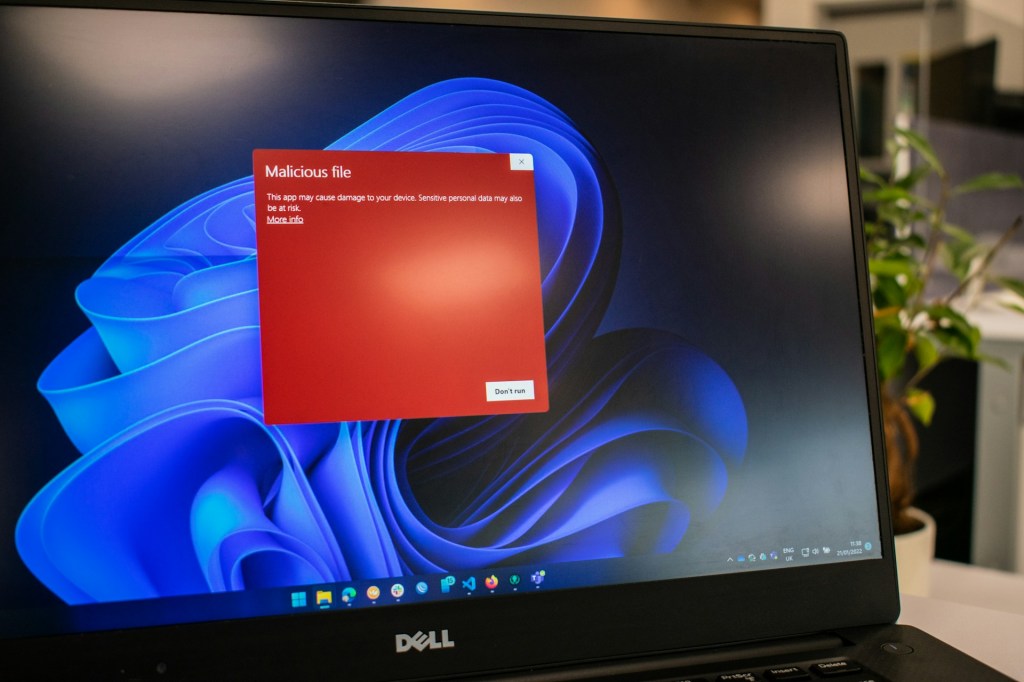
If your computer has been acting strange lately, you might be wondering: is my PC infected with a virus or malware? Malware infections are more common than most people think, and attackers are constantly finding new ways to exploit everyday users. The good news? Your computer usually gives you warning signs before things get too bad. In this post, we’re breaking down the most common symptoms of a malware infection — and what you should do about them.
What Is Malware, Exactly?
Malware is an umbrella term for any malicious software designed to damage, disrupt, or gain unauthorized access to a system. This includes viruses, spyware, ransomware, adware, trojans, and more. While the word “virus” is often used casually to describe any infection, technically a virus is just one type of malware — one that self-replicates by attaching to other programs. Regardless of the type, the warning signs often overlap.
7 Warning Signs Your Computer May Be Infected
1. You’ve Been Hit with Ransomware
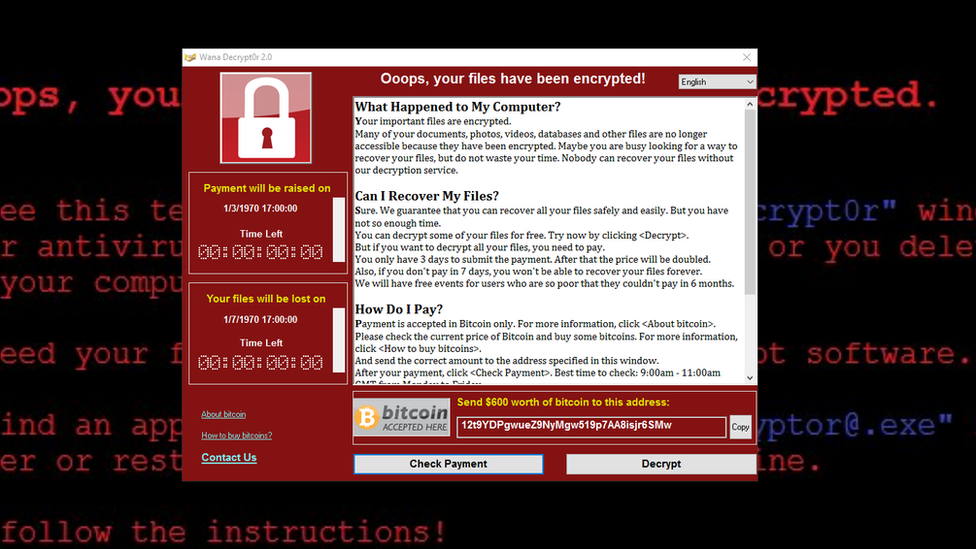
Ransomware is one of the most aggressive and unmistakable forms of malware. It encrypts your files — or your entire system drive — and demands a payment (usually in cryptocurrency) in exchange for the decryption key. If your screen is suddenly locked and you’re seeing a ransom demand, there’s no ambiguity: you’ve been infected.
It’s worth knowing that ransomware recovery is often very difficult. In most cases, even paying the ransom doesn’t guarantee your files will be restored. Ransomware attacks most frequently target businesses because of the high value of corporate data, but individual users are absolutely not immune. Keeping offline backups of your important data is the single best protection against ransomware.
2. Your Computer Has Slowed Down Noticeably
A sudden and unexplained drop in performance is one of the most common early signs of a malware infection. Most malware is designed to run quietly in the background — but background processes still consume CPU, RAM, and bandwidth. If your computer has become sluggish for no obvious reason (no major software updates, no new programs installed), it’s worth investigating.
For users comfortable with it, opening Task Manager (Ctrl + Shift + Esc) on Windows and checking the CPU and Memory columns can reveal suspicious processes consuming unusual amounts of resources. If you see something unfamiliar using 30–70% of your CPU without any clear reason, that’s a red flag.
3. Random Pop-Ups Are Taking Over Your Screen
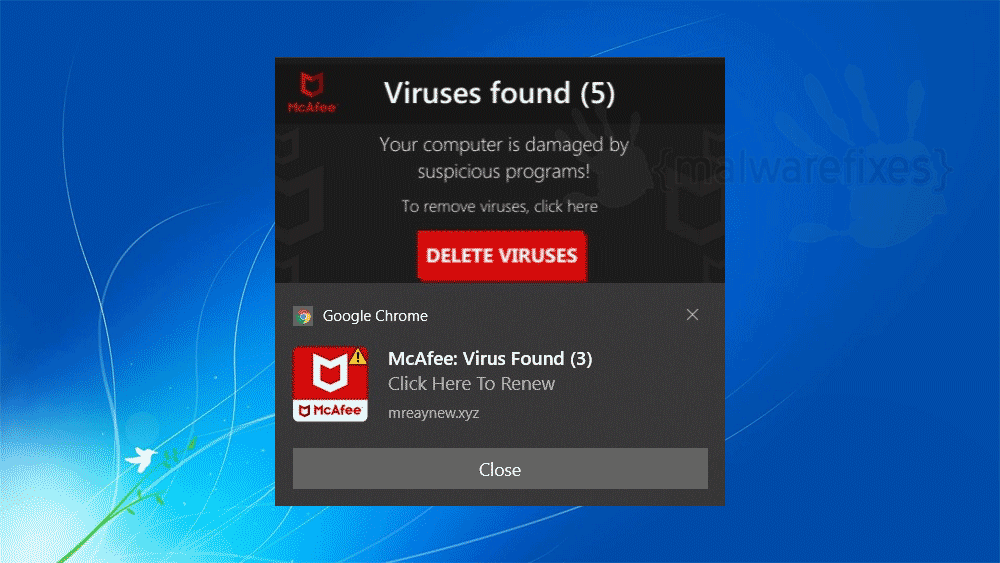
Persistent, unexpected pop-ups — especially ones that won’t go away or appear even when your browser is closed — are a strong indicator of adware or other malware. This is especially common after downloading browser extensions from unofficial sources or visiting unsecured websites.
One common trick we see in the shop: Windows 10 and 11 users get pop-up notifications that look like they’re from trusted antivirus brands like McAfee or Norton, warning them of a serious infection. Here’s the thing — if you don’t actually have McAfee or Norton installed, those alerts are fake. They’re scare tactics designed to get you to click and download more malware disguised as antivirus software. Never click on these alerts. Close them through your taskbar, not through the pop-up itself.
4. Programs You Don’t Recognize Have Appeared
If you open your list of installed applications and see programs you don’t remember installing, malware could be the cause — though not always. Some legitimate software installers include bundled third-party programs that get installed automatically if you click through installation prompts without reading them. This is frustrating but technically not malicious.
That said, if unfamiliar programs start appearing without any recent software installation on your end, that’s worth taking seriously. Some malware installs secondary payloads — additional malicious programs — to expand its foothold on your system. If in doubt, don’t uninstall programs manually without guidance, as some malware disguises itself as system software.
5. Your Browser Is Acting Differently
Browser hijacking is a very common form of malware. Signs include: your default search engine changing without your permission, a new homepage loading when you open your browser, being redirected to unfamiliar websites when clicking links, and new toolbars or extensions appearing that you didn’t install.
Browser-based malware can track your activity, inject ads into pages, and even intercept form submissions — meaning passwords and personal information can be at risk. If your browser is suddenly behaving differently, run a malware scan before entering any sensitive information.
6. Your Antivirus Has Been Disabled
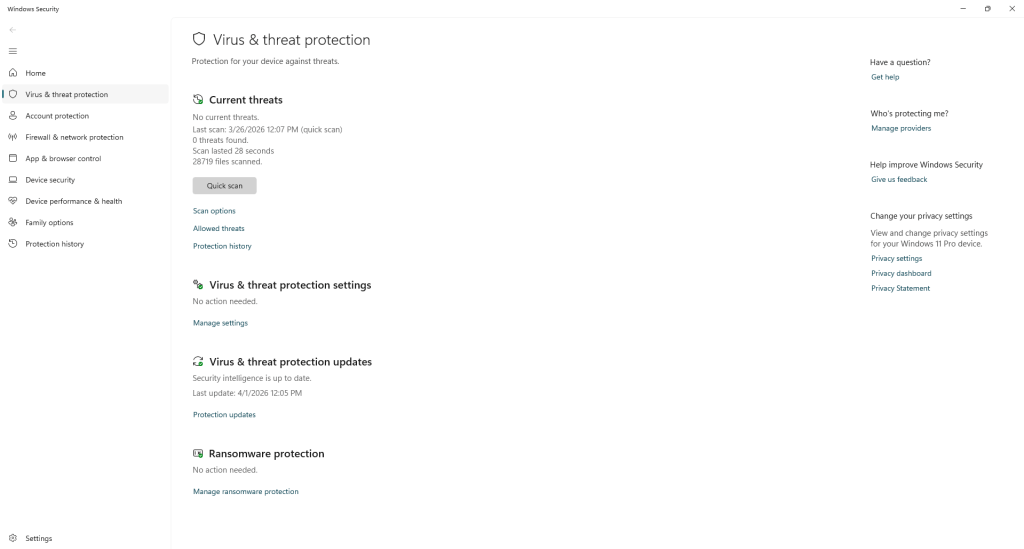
Sophisticated malware often targets your defenses first. If you notice that Windows Defender or your third-party antivirus has been turned off — and you didn’t do it — that’s a serious warning sign. Some malware is specifically designed to disable security software before carrying out its main payload, which makes early detection even harder.
If you can’t re-enable your antivirus or it keeps getting turned off, do not ignore it. Disconnect from the internet and seek professional help as soon as possible.
7. Unusual Network Activity or Accounts You Don’t Recognize
Some malware — particularly spyware, keyloggers, and remote access trojans (RATs) — is designed to silently steal data and transmit it to a remote server. Signs of this type of infection include unusually high internet usage when you’re not actively doing anything, accounts sending emails or messages you didn’t write, and unfamiliar login activity on your accounts.
If you receive a notification from Google, Microsoft, or any other service saying your account was accessed from an unfamiliar location or device, take it seriously. Change your passwords immediately — from a device you trust — and enable two-factor authentication if you haven’t already.
What to Do If You Think You’re Infected
Here’s what we recommend if you’re seeing any of the signs above:
- Don’t panic, but don’t ignore it either. The sooner you act, the less damage can occur.
- Disconnect from the internet to prevent the malware from communicating with outside servers or spreading to other devices on your network.
- Run a full scan with a reputable antivirus or anti-malware tool. Windows Defender is a solid free option. Malwarebytes is another popular choice for a secondary scan.
- Don’t pay ransomware demands — contact a professional first. There may be decryption tools available for certain strains.
- Bring it to a repair shop if you’re unsure. A professional can identify the type of infection, safely remove it, and advise on whether any data was compromised.
How to Protect Yourself Going Forward
Prevention is always better than a cure. Here are the basics that genuinely make a difference:
- Keep your operating system and software up to date. Most updates include security patches for known vulnerabilities.
- Only download software from official, trusted sources. Avoid cracked or pirated software — it’s one of the most common malware delivery methods.
- Be skeptical of email attachments and links, even from people you know. Phishing emails can appear very convincing.
- Use a reputable antivirus and keep it active and updated.
- Back up your important files regularly — ideally to an external drive that stays disconnected from your computer when not in use.
- Be cautious with public Wi-Fi. Avoid logging into sensitive accounts on unsecured networks.
We’re Here to Help
Malware has come a long way from simple pop-up annoyances. Today’s threats are sophisticated, adaptive, and designed to stay hidden as long as possible. If something feels off with your computer, trust your gut and get it checked out.
We diagnoses and removes malware infections regularly. We’ll tell you exactly what we find, what it means, and what your options are. If you’re in the Downtown, Los Angeles area and your computer has been acting suspicious, bring it in or give us a call. We’re happy to take a look.
Have questions about a potential virus or malware infection? Feel free to stop by or contact us directly — we’re always happy to help.
