

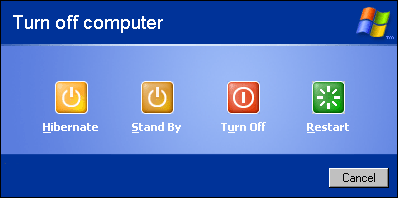
I get asked quite often by clients if it’s okay to leave their computer in sleep mode all the time. And my answer is always the same: “It depends.” Because honestly, it really does depend on how you use your system.
For example, if you’re planning to continue working the next day, putting your system to sleep makes sense. It lets you resume your work instantly without having to wait for everything to boot up and load again. Even I’m guilty of doing this. There’s definitely a level of convenience knowing you can pick up right where you left off.
But in reality, we shouldn’t rely on sleep mode all the time. Sleep should be used when it’s necessary—like in the example above—but not as a long-term habit. So that brings us to the question: how often should you shut down, restart, or put your system to sleep?
Let’s break it down into three simple categories.
Best Practice: Shut Down When You Can
The best overall practice is to shut down your system whenever possible, especially if you know you won’t be using it for a while. Shutting down fully powers off your computer, which helps conserve electricity and prolong hardware lifespan.
When a system is asleep, it’s technically still on—it continues to draw power in order to preserve your session. Over time, this can add a bit to your electricity bill, especially if you leave it running 24/7. Plus, shutting down clears out temporary memory and can improve your system’s overall performance in the long run.
System Problems: Restart When Needed
There are generally two situations where restarting your system is necessary:
- When your operating system prompts you to restart to complete an update.
- When you’re experiencing issues like software glitches, lag, or instability.
Restarting your system is like giving it a quick reset. It helps clear memory, close background processes, and bring the system back to a stable, “clean” state. If you’re ever in doubt and things feel off, a quick restart often does the trick.
Important Tasks: Sleep for Short-Term Convenience
Sleep mode should really only be used for short breaks or when you have unfinished work you plan to come back to soon. It’s perfect for when you’re stepping away for lunch, overnight, or a quick errand.
If convenience is your priority, sleep mode is fine—just be mindful not to rely on it all the time. Leaving your system in sleep mode for days or even weeks can lead to minor performance issues over time or prevent important updates from installing properly.
Final Thought
At the end of the day, it all comes down to your usage habits and preferences. If you’re constantly jumping between tasks and want speed and convenience, sleep mode has its place. But if you’re not going to be using your system for a while, shutting it down is the smarter move. And when something’s not working right? Try restarting. It’s simple advice, but it can go a long way toward keeping your system healthy.
Need Help with Your Computer?
Having trouble with your PC or laptop? If you’re in Los Angeles, stop by our computer repair shop or give us a call. We provide dependable IT support, upgrades, and repair services to keep your devices working right.
 ITBrother
Leave a comment