

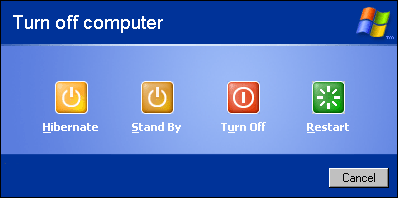
One of the most common questions I hear from customers at the shop is: “Is it okay to just leave my computer in sleep mode all the time?” And honestly, my answer is always the same: it depends. But here’s the thing—most people are defaulting to sleep mode purely out of habit or convenience, not because it’s actually the best option for their system. So let’s talk about what shut down, restart, and sleep mode actually do, when each one is the right call, and what happens when you rely too heavily on the wrong one.
What’s Actually Happening When You Sleep, Restart, or Shut Down?
Before getting into best practices, it helps to understand what each mode is actually doing under the hood—because they’re very different from each other, even if they all feel like “turning off” your computer.
Sleep mode puts your computer into a low-power state. Your session is preserved in RAM, which is why you can wake it up in seconds and pick up right where you left off. But here’s the catch: the system is still technically on. It’s still drawing power, background processes are still quietly running, and your RAM never fully clears. Over days or weeks, that can lead to sluggish performance, memory leaks building up, and pending updates getting stuck.
Restarting closes everything, clears RAM, and boots the system fresh—but it’s designed to be a temporary reset, not a full power-off. It’s the go-to move when something isn’t behaving right or when your OS is nagging you to finish installing an update. Think of it like a hard reset for your software without completely cutting power to the hardware.
Shutting down fully cuts power to the system. RAM is cleared, background processes are terminated, and the hardware gets a real break. It’s the most thorough reset of the three, and it’s the best thing you can do for your machine’s long-term health when you’re not going to be using it.
When to Shut Down: More Often Than You Think
Shutting down is the best default habit for most people, especially if you’re not going to be at your computer for several hours or more. It fully powers off the hardware, gives components like the CPU and cooling system a real rest, and cuts your electricity consumption. A computer left in sleep mode for 24 hours still draws a meaningful amount of power—it adds up over time on your utility bill.
Beyond energy savings, a proper shutdown clears out temporary files and resets memory in a way that sleep simply doesn’t. If your computer has been feeling a little sluggish lately and you can’t remember the last time you fully shut it down, that might be all it needs.
A good rule of thumb: if you won’t be using your computer for more than a few hours, shut it down. Yes, it takes a little longer to boot back up—but that minute or two is worth it for your system’s longevity.
When to Restart: Don’t Ignore the Prompt
There are two situations where restarting your computer isn’t optional—it’s necessary.
The first is when your operating system prompts you to restart after an update. I know it’s easy to keep clicking “Remind me later,” but those updates often include security patches that your system needs to be protected. Delaying the restart doesn’t delay the vulnerability—it just means you’re running an incomplete update. Do yourself a favor and just restart when it asks.
The second is when your system is acting up—things are slow, software is freezing, or something just feels “off.” A restart clears memory, kills stuck background processes, and brings everything back to a clean state. It’s one of the first things I always ask customers: “Have you tried restarting it?” It sounds almost too simple, but it genuinely fixes a surprising number of issues. If your machine has been in sleep mode for days, a restart is often all it takes to get things running smoothly again.
When Sleep Mode Is Actually Fine
Sleep mode has its place—I’m not here to tell you it’s always the wrong choice. If you’re stepping away for lunch, running a quick errand, or wrapping up for the night with plans to pick back up first thing in the morning, sleep mode is perfectly fine. The convenience of waking up instantly to an active session is genuinely useful when the break is short.
Where it becomes a problem is when sleep mode turns into the default for everything. Leaving your computer in sleep mode for multiple days in a row, week after week, is where you start to notice the consequences: slower performance, apps that need to be force-quit, and updates that never quite finish installing. That’s not what sleep mode was designed for.
The short version: use sleep mode for short breaks, not as a substitute for shutting down.
A Simple Framework to Follow
If you’re not sure which option to choose, this is what I tell my customers:
- Stepping away for a few hours or less? Sleep mode is fine.
- Done for the day or longer? Shut it down.
- System prompting you to restart after an update? Don’t put it off—restart now.
- Something feeling slow or glitchy? Restart before assuming something is broken.
The Bottom Line
None of these options are inherently bad—it’s about using the right one at the right time. Sleep mode is convenient, restarting is therapeutic, and shutting down is the healthiest long-term habit. The biggest mistake most people make is treating sleep mode as a permanent state rather than a short-term pause.
If you’ve been dealing with a computer that feels slower than it used to or keeps running into odd issues, it might not be a hardware problem at all. Sometimes the fix really is as simple as a proper restart or shutdown. And if it isn’t, that’s what we’re here for.
 ITBrother