

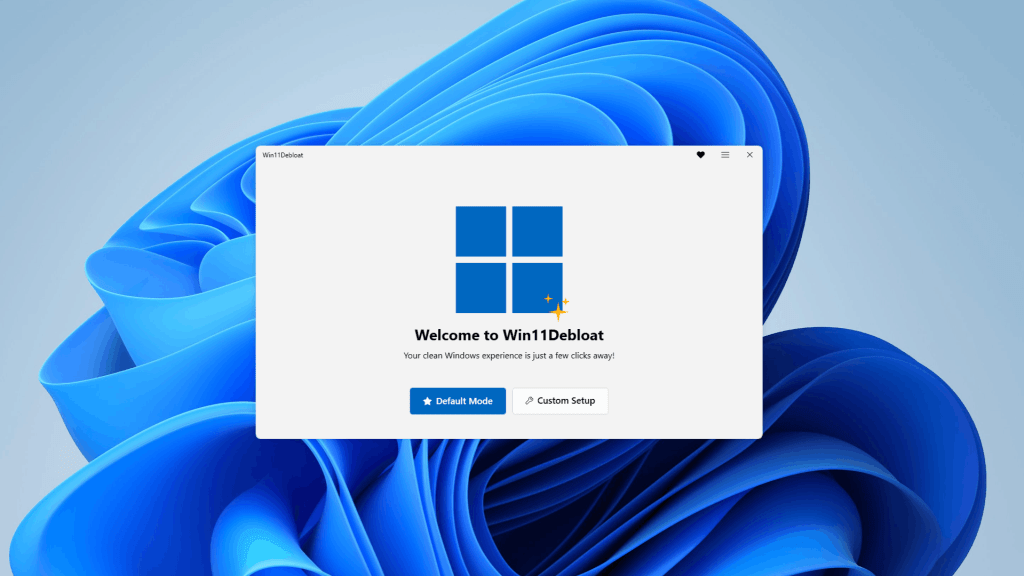
If you’ve been noticing that your Windows 11 PC feels slower than it should, or you’re concerned about just how much data Microsoft collects in the background, you’re not alone. The term “debloating Windows 11” has been gaining serious traction in the tech community—and for good reason. In this post, we’ll break down what debloating actually means, who it’s for, the real benefits it can bring to everyday users, and the honest downsides you should know before diving in.
⚠️ DISCLAIMER – Advanced Users Only
Debloating Windows involves modifying system settings, removing built-in apps, and running third-party scripts. This process is intended for advanced users who are comfortable working with system-level tools. Mistakes can cause system instability, break Windows Update, or result in data loss. We do not recommend attempting this without proper technical knowledge. If you’re unsure, bring your machine to a trusted repair professional—we’re happy to help.
What Does “Debloating Windows 11” Actually Mean?
Debloating is the process of stripping Windows 11 down to its essentials—removing or disabling unnecessary pre-installed programs, background services, telemetry processes, and system features that run without your permission. Think of it as a deep cleaning for your operating system. Instead of having dozens of apps and services running in the background that you never use, debloating gives you a leaner, more focused system.
Microsoft doesn’t provide an official “debloat” tool—in fact, each major Windows update tends to add more built-in apps and services, not fewer. So users who want a cleaner experience typically turn to third-party scripts or open-source tools to get the job done. (More on the risks of that in a moment.)
The Real Benefits of Debloating Windows 11
For everyday users—not just tech enthusiasts—debloating can make a genuinely noticeable difference. Here’s what you stand to gain:
1. Faster Performance
Windows 11 is surprisingly resource-hungry for what it does. A big part of that comes from flashy UI animations, constant background telemetry, and a long list of startup processes that run whether you want them to or not. When you remove the bloat, your CPU and RAM have more headroom to actually run the things you care about—your browser, your apps, your games. Users often notice faster boot times, snappier responsiveness, and lower idle temperatures after a proper debloat.
2. Better Privacy
This is the big one. Windows 11 is deeply integrated with Microsoft’s data ecosystem. From the moment you set it up, it nudges you toward a Microsoft account, OneDrive sync, Edge as your browser, and services like Copilot, Teams, and Microsoft 365—all tied together under one profile. That profile fuels targeted ads in your Start menu, algorithm-driven content, and usage tracking. Debloating lets you cut off much of that tracking at the source, giving you a system that works for you rather than one that reports back to Redmond.
3. Reduced Clutter and Fewer Distractions
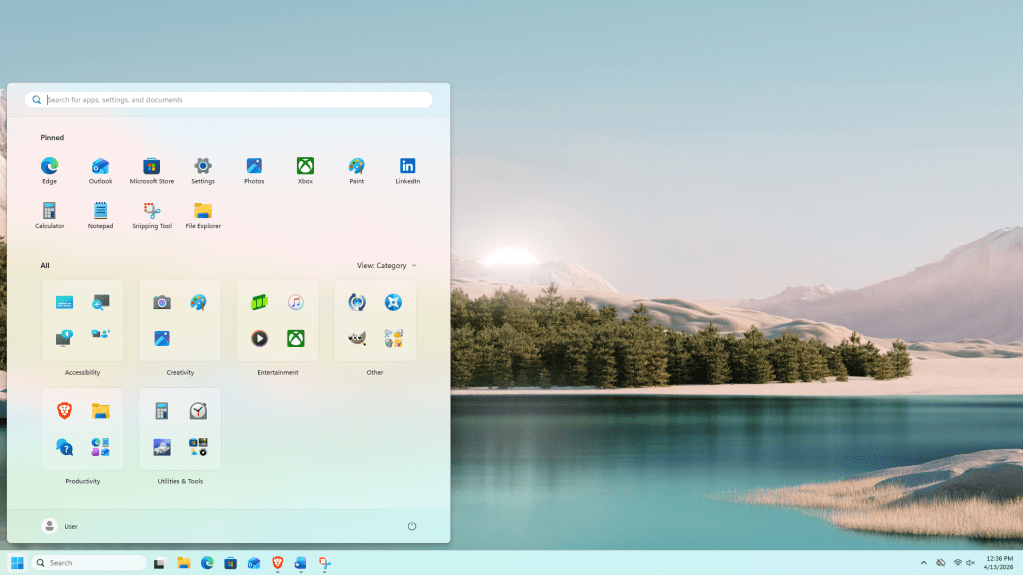
Fewer pre-installed apps means less clutter in your Start menu, fewer update notifications, and less cognitive noise overall. A debloated Windows install feels more intentional—you only have what you chose to install.
4. Lower Resource Usage on Older Hardware
If you’re running Windows 11 on older hardware—a machine that just barely meets the minimum requirements—debloating can be the difference between a frustratingly slow PC and a usable one. By removing services that constantly consume RAM and CPU in the background, you free up resources that your hardware really can’t spare.
The Downsides You Should Know
Debloating isn’t without risk, and we wouldn’t be doing our job as a repair shop if we didn’t spell out the potential downsides:
- ❌ Loss of Built-In Apps: Most debloat tools remove or disable Microsoft’s native apps by default unless you configure otherwise. That includes the Microsoft Store, Copilot, the free version of Office, and other built-in utilities. If you rely on any of these, you’ll need to either restore them manually or configure the tool to preserve them—neither of which is always straightforward.
- ❌ Risk of System Instability: Aggressive debloating—especially with scripts that modify the Windows Registry or disable core services—can cause unexpected crashes, broken features, or failed updates. This risk goes up significantly if you run a debloat script without fully understanding what it does.
- ❌ Security Risks from Third-Party Tools: Because Microsoft doesn’t provide an official debloat solution, users turn to open-source or independently maintained scripts. Not all of these are safe. Some circulating tools have been bundled with malware. If you go this route, you must vet your source carefully—check the project’s history, community feedback, and update activity before running anything.
- ❌ Windows Updates May Re-Bloat Your System: Microsoft’s major feature updates have been known to restore apps and settings that were previously removed. Maintaining a debloated install can become an ongoing effort rather than a one-time task.
- ❌ Not Reversible Without a Reinstall: Depending on how deep the debloat goes, reverting to a default Windows state may require a full reinstall. Always back up your data before making system-level changes.
Is Debloating Windows 11 Right for You?
Debloating is genuinely worthwhile for users who value performance and privacy, understand the risks, and are comfortable with advanced system modification. It’s especially appealing if you’re nostalgic for the days of Windows 7—a version that was lean, respected user control, and didn’t push ads or cloud services down your throat. Back then, the OS was a tool. With Windows 10 and 11, Microsoft has gradually shifted toward treating users as products.
That said, if you’re not technically confident, the risks outweigh the rewards—especially when a botched debloat can turn into a time-consuming reinstall. If you’re curious but unsure, the best path is to talk to a technician first. We’ve helped plenty of customers navigate exactly this kind of decision.
Final Thoughts
Debloating Windows 11 is more than a performance tweak—it’s a way to reclaim your machine and use it on your terms. The benefits are real: faster performance, improved privacy, and a cleaner experience. But so are the risks, and the process requires care, research, and a willingness to troubleshoot if things go sideways.
If you’re looking to do this yourself, research thoroughly, back up your data, and only use tools with a proven track record and active community support. If you’d rather have someone do it right the first time, we’re here. Either way, you deserve a PC that works for you—not one that works for Microsoft.
🛠️ Have questions about debloating your Windows PC? We’ve got you covered. Stop by the shop or give us a call and we’ll walk you through your options—no pressure, no jargon. Whether you’re curious about the process, not sure if it’s right for your machine, or you just want it done safely by someone who knows what they’re doing, we’re here to help.
Frequently Asked Questions
Is debloating Windows 11 legal?
Yes. Modifying your own operating system is legal. However, it may void certain support agreements with Microsoft and can affect your ability to receive official support.
Will debloating Windows 11 speed up my PC?
For most users, yes—especially on older or mid-range hardware. Removing background telemetry and startup services frees up CPU and RAM that can be used by the apps you actually run.
Can I debloat Windows 11 and still get Windows Updates?
Potentially, but some debloat tools disable Windows Update services as part of the process. Make sure you configure your tool carefully if staying updated is important to you.
What’s the safest way to debloat Windows 11?
Research well-maintained, community-vetted open-source projects. Always create a system restore point and back up your data before running any scripts. When in doubt, consult a professional.
