

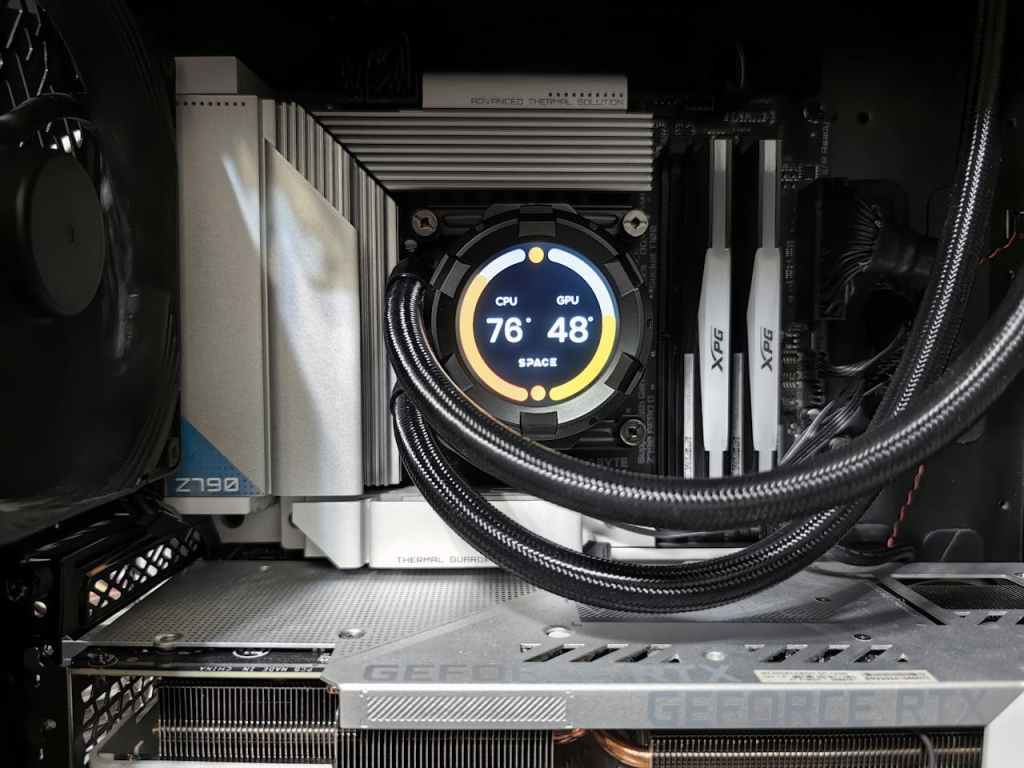
Overheating is one of the most common issues that affects both desktops and laptops. No matter how powerful your system is—or how lightly you use it—computers naturally generate heat, and without proper cooling, that heat can become a serious problem.
The good news is that PCs usually show clear warning signs when they’re running too hot. Recognizing these symptoms early can help prevent long-term damage to your hardware and save you from costly repairs.
In this guide, I’ll cover the most common signs of an overheating PC, why they happen, and what you should do if you notice them.
Why Do PCs Overheat?
Every computer has components—like the CPU (processor) and GPU (graphics card)—that generate heat during operation. To keep temperatures under control, systems rely on cooling mechanisms such as:
- Internal fans
- Heat sinks
- Thermal paste between the CPU/GPU and cooler
- In some cases, liquid cooling systems
When these mechanisms aren’t working properly—or when the workload is too intense—your PC can overheat. Dust buildup, dried thermal paste, or failing fans are common culprits.
Signs That Your PC Is Overheating
Here are the most common indicators that your computer is running hotter than it should:
1. Loud Fan Noise During Light Use
One of the easiest signs to spot is loud or constantly running fans, even when your system is idle.
Normally, when your PC is at rest (browsing the web, watching videos, or doing light office work), the fans should be relatively quiet because the CPU isn’t under heavy load. If you hear the fans spinning at maximum speed while doing nothing demanding, that’s a strong indicator your cooling system is struggling.
In most cases, the PC will attempt to protect itself by shutting down before reaching dangerous temperatures. But if left unchecked, the issue can cause hardware damage over time.
⚠️ Note: It’s normal for fans to ramp up during demanding tasks like gaming, video editing, or rendering. What isn’t normal is fans running at full speed when your computer is idle.
2. Performance Slowdowns and System Lag
Another clear sign of overheating is significant performance drops.
Think of it like the human body: when you have a fever, your body slows down to protect itself. Computers behave the same way. When components like the CPU or GPU get too hot, the system throttles performance—intentionally slowing down processing power to reduce heat output.
You may notice:
- Programs taking longer to load
- Games stuttering or dropping frames
- General unresponsiveness when multitasking
This built-in safety mechanism helps prevent damage, but it also makes the system frustrating to use. If you’ve cleaned your PC and it’s still lagging, heat could be the cause.
3. Random Shutdowns or Crashes
If fan noise and slowdowns are the warning signs, random shutdowns are the final stage of overheating.
Most modern CPUs and GPUs have a temperature threshold. If that limit is reached, the computer will force a shutdown to prevent permanent damage.
You might experience:
- Sudden black screens
- The system powering off without warning
- Frequent crashes during gaming or other heavy tasks
If your PC is shutting itself down repeatedly, it’s a red flag that overheating is severe. At this point, it’s best to address the issue immediately to avoid damaging critical components.
What to Do If Your PC Is Overheating
If you notice these signs, don’t ignore them. Here are steps you can take to fix or reduce overheating:
- Clean out dust – Use compressed air to clear dust from fans, vents, and heat sinks. Dust buildup restricts airflow and is one of the most common causes of overheating.
- Check thermal paste – Over time, the thermal paste between your CPU/GPU and cooler can dry out. Reapplying fresh paste can drastically lower temps.
- Improve airflow – For desktops, make sure your case has proper ventilation and working intake/exhaust fans. For laptops, consider a cooling pad.
- Replace failing components – If fans aren’t spinning or if your cooling system is outdated, replacement may be necessary.
⚠️ If you’re not comfortable opening your PC, take it to a local computer repair shop. Overheating issues are often fixable, but trying the wrong DIY method can make things worse.
Preventing Overheating in the Future
Prevention is always better than repair. To avoid future overheating problems:
- Keep your PC in a cool, dust-free environment
- Avoid blocking vents (especially on laptops)
- Regularly clean fans and vents every few months
- Replace thermal paste every 2–3 years
- Don’t overload your PC with unnecessary background programs
Final Thoughts
Overheating is almost inevitable at some point in a computer’s life—but it doesn’t have to mean disaster. By recognizing the signs early—loud fans, slow performance, and sudden shutdowns—you can take action before permanent damage occurs.
If your PC is overheating, don’t ignore it. Clean it, monitor it, and if needed, get it serviced. A little attention now can extend the lifespan of your system by years and save you from expensive repairs or replacements down the line.
 ITBrother
Leave a comment