

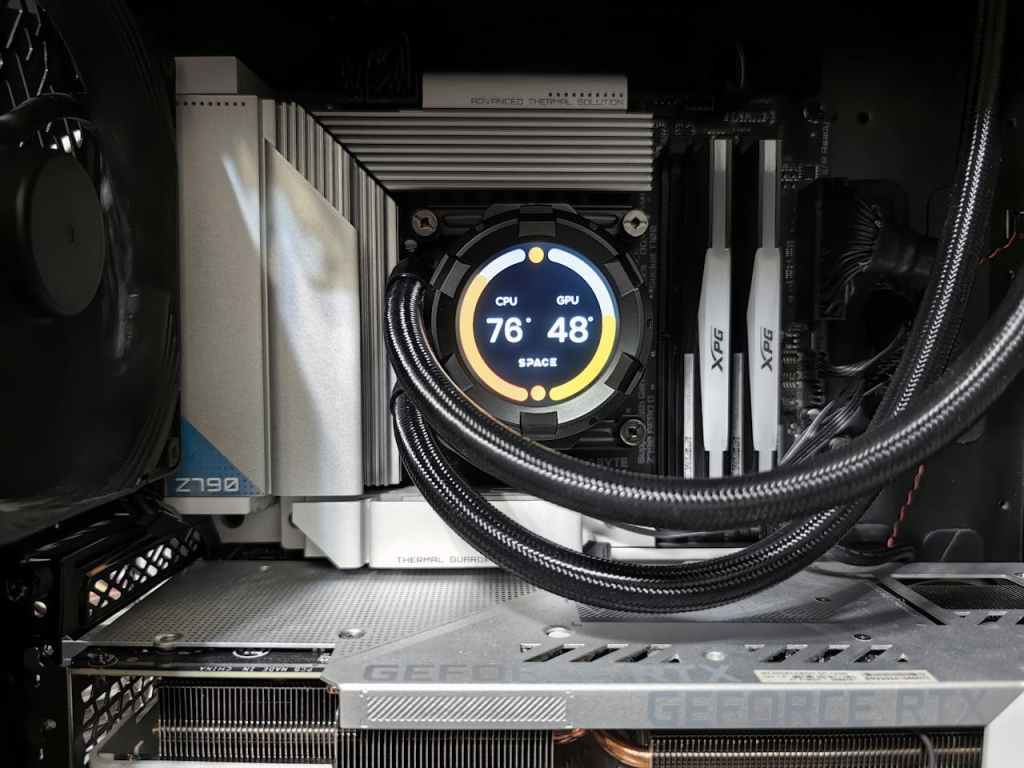
After years of working on computers at our repair shop, overheating is one of the most common problems we see walk through the door — and one of the most misunderstood. Customers come in convinced they need a new computer when, often, the fix is some can of compressed air and a tube of thermal paste.
This guide covers the real-world signs of an overheating PC, what’s actually causing it, and what you can do about it — whether you’re a DIYer or someone who’d rather let a professional handle it.
Why PCs Overheat: The Short Version
Your CPU and GPU are essentially tiny engines. They generate heat constantly, and your PC’s cooling system — fans, heat sinks, and thermal paste — is designed to pull that heat away before it causes damage.
When that cooling system gets compromised, temperatures climb. The most common causes we see:
- Dust buildup blocking airflow through vents, fans, and heat sinks
- Dried-out or cracked thermal paste between the CPU/GPU and the cooler
- A failing or stopped fan that’s no longer spinning at full speed
- A laptop being used on soft surfaces (beds, couches) that block the vents
- Running the PC in a hot environment without adequate room ventilation
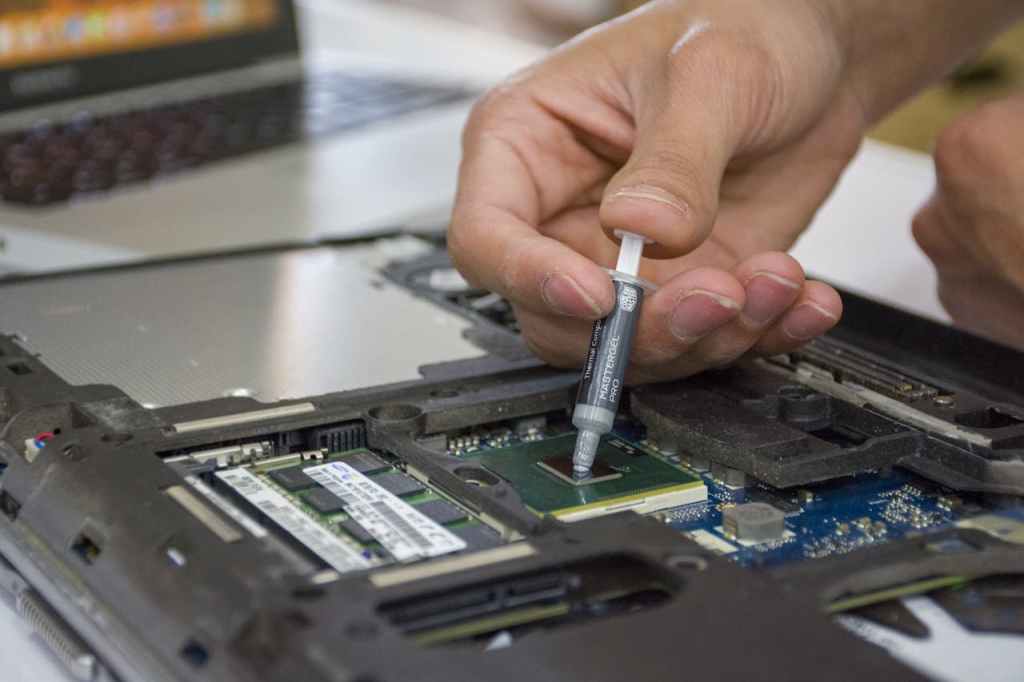
🔧 From the bench: In our experience, dust and thermal paste account for the majority of overheating cases — especially on machines that are 3–5 years or older. Both are inexpensive to fix.
Signs Your PC Is Overheating
1. Fans Running Loud During Light Use
Your fans should be mostly quiet when you’re doing everyday tasks — browsing, streaming, writing documents. If they’re running at full blast while you’re barely doing anything, the cooling system is working overtime to keep up with rising temperatures.
This is often the earliest warning sign, and one that’s easy to dismiss as normal. It isn’t.
⚠️ It’s completely normal for fans to ramp up during gaming, video rendering, or large file transfers. The concern is when they’re loud during idle or light use.
2. Performance Slowdowns and Throttling
When a CPU or GPU gets too hot, it doesn’t just break — it slows itself down on purpose. This is called thermal throttling, and it’s a built-in safety feature that reduces processing speed to lower heat output.
In practical terms, this looks like:
- Sudden frame rate drops in games that used to run fine
- Programs taking longer to load than they did a year ago
- The system feeling sluggish and unresponsive, even on a fast machine
- Tasks that used to take seconds now taking much longer
A lot of customers assume their computer is “just getting old” when they notice this. Sometimes that’s true — but often, cleaning the system and replacing thermal paste brings performance back to near-original levels.
🔧 From the bench: We’ve had machines come in that customers were ready to replace. After a cleaning and repaste, they ran like new. It’s worth ruling out overheating before spending money on a new computer.
3. Random Shutdowns and Crashes
If your PC suddenly powers off without warning — especially during demanding tasks — that’s a thermal protection mechanism doing its job. Modern CPUs have a maximum temperature limit (typically 95°C–105°C depending on the processor), and the system will force a shutdown rather than let components sustain damage.
You might see:
- Sudden black screens with no error message
- The PC shutting off during gaming, video calls, or other intensive tasks
- The machine failing to stay on for more than a few minutes
Repeated thermal shutdowns are hard on components over time. If this is happening, it’s urgent — not something to wait on.
4. Unusually Hot Surfaces
This one’s especially relevant for laptops. If the bottom of your laptop or the area around the keyboard feels uncomfortably hot to the touch — not just warm, but genuinely hot — that heat is coming from somewhere inside that isn’t being properly managed.
5. BSOD Errors or System Instability
Blue screen errors (Blue Screen of Death, or BSOD) can have many causes, but heat is one of them. If you’re seeing BSODs without a clear software explanation, and you’ve noticed any of the other signs above, overheating is worth investigating.
How to Check Your PC’s Temperature
You don’t have to guess — free software can show you exactly how hot your components are running.
- HWMonitor — Shows CPU, GPU, and motherboard temps in real time. Free and reliable.
- Core Temp — Focused on CPU temperature monitoring, very lightweight.
- MSI Afterburner — Great for GPU temps, especially during gaming.
General safe temperature ranges to know:
- CPU at idle: 30°C–50°C is normal
- CPU under load: 70°C–85°C is acceptable; above 90°C is a concern
- GPU under load: 65°C–85°C is typical; above 90°C warrants attention
- Thermal throttling typically begins at 95°C–105°C on most modern CPUs
⚠️ These ranges vary by processor. But we always recommend as a general baseline not having temperatures surpass 100°C for all processors.
What to Do If Your PC Is Overheating
Before anything else — be honest about your comfort level. We’ve seen plenty of cases where a DIY attempt turned a straightforward cleaning into a cracked connector, a torn ribbon cable, or a stripped screw. What would have been a $80–$120 repair becomes significantly more expensive, or in some cases, irreparable.
If you haven’t opened your specific machine before, or if the fix involves anything beyond blowing air through the vents, we’d genuinely recommend bringing it to a professional. It’s not about capability — it’s about knowing that laptops especially are fragile, tightly packed machines where one wrong move in the wrong spot can cause real damage.
🔧 From the bench: The most common DIY mistake we see isn’t carelessness — it’s someone who didn’t know their specific model had a fragile cable tucked under the fan bracket. These things aren’t obvious, even with a guide open.
That said, here’s what can be done — starting with the safest options:
- Blow out dust through the vents with compressed air — Do this outdoors. This alone can make a meaningful difference and carries the least risk since you’re not opening anything.
- Check that the machine has room to breathe — Keep it off soft surfaces, out of enclosed spaces, and away from direct heat sources.
- For desktops: verify fan operation and case airflow — With the side panel off, watch that all fans are spinning under load and that cables aren’t blocking airflow paths.
- Thermal paste replacement and fan swaps — These are best left to someone experienced. Too much paste, too little, or an uneven spread can actually worsen temperatures. And fan replacements on laptops often require near-full disassembly.
⚠️ If you’re unsure at any point — stop. There’s no shame in getting partway through and deciding to bring it in. That’s the smart call, and we’d rather see it in that state than with something broken.
Preventing Overheating Long-Term
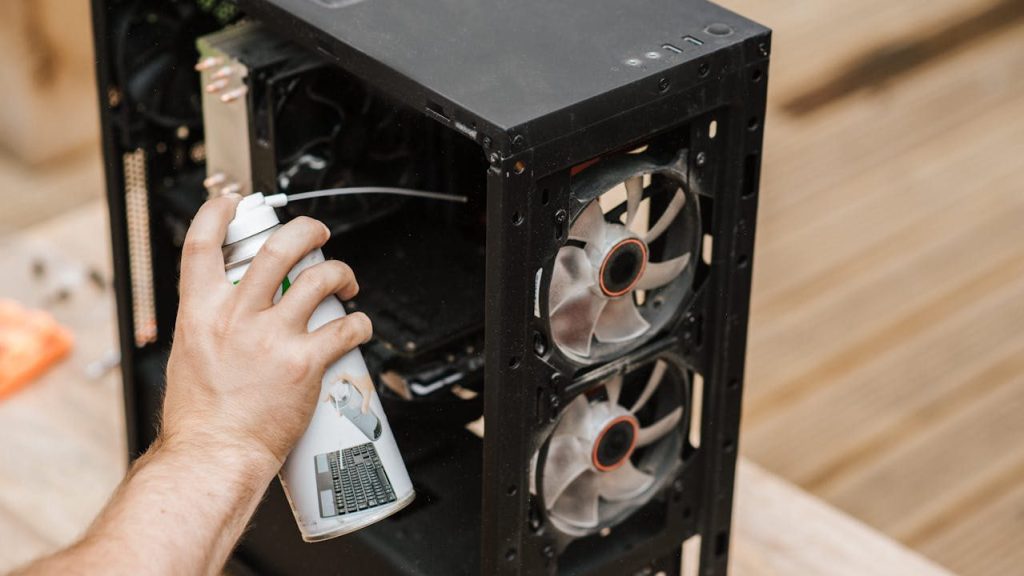
A little routine maintenance goes a long way:
- Blow out dust every 6–12 months, or more often if you have pets
- Keep your PC in a cool, well-ventilated spot — not inside a closed cabinet
- Don’t use laptops on beds, couches, or other soft surfaces that block vents
- Replace thermal paste every 3–5 years, or sooner if temps start climbing
- Keep an eye on temperatures periodically using one of the tools mentioned above
Final Thoughts
Overheating is one of the most common and fixable problems we see in our shop. The key is catching it early — before it progresses from loud fans to sluggish performance to unexpected shutdowns.
If your PC is showing any of the signs above, take it seriously. And when it comes to fixing it — be honest with yourself about your comfort level. A cleaning or repaste done right can add years to your machine. The same job done wrong can end it.
If you’re not sure, bring it in. We’re located in Downtown, Los Angeles and we’re happy to take a look, give you an honest read on what’s going on, and let you decide how you want to proceed.
