

Data breaches, phishing scams, and weak passwords put millions at risk every year. Here’s what you can actually do to protect your accounts and personal information.
If you’ve ever signed up for a website, shopped online, or created a social media account, some of your personal information is already out there. Email addresses, phone numbers, and even home addresses get collected constantly — and with the growing number of data breaches over the past decade, there’s a real chance some of that data has already been exposed.
What’s more alarming is how often people hand over highly sensitive information — government IDs, Social Security Numbers, banking details — trusting that the companies holding it will keep it secure. History shows that even major corporations with large security budgets get breached. No system is perfect.
That’s the uncomfortable truth. But here’s the good news: most successful cyberattacks don’t rely on sophisticated hacking. They exploit simple mistakes that are easy to avoid once you know what to look for. This guide walks you through the most effective steps you can take right now to protect yourself online.
1. Use Strong, Unique Passwords — or a Password Manager
Weak passwords are one of the leading causes of account takeovers. Passwords like “password123” or your pet’s name are cracked in seconds by automated tools. But the bigger problem is password reuse — using the same password across multiple accounts.
Here’s why that matters: when a company gets breached, attackers dump millions of stolen email and password combinations online. They then run those credentials against other platforms automatically — a technique called credential stuffing. If you reuse passwords, one breach can cascade into many.
What to do:
- Create a unique password for every account
- Use long passphrases instead of short, complex passwords. Something like “BlueCar$SkyTree2024!” is both strong and memorable.
- Use a password manager like Bitwarden (free and open source), 1Password, or Dashlane. These tools generate, store, and auto-fill complex passwords so you only need to remember one master password.
Password managers feel like extra work at first, but they quickly become one of the simplest security habits you can build. Most have browser extensions and mobile apps that make the experience seamless.
2. Enable Two-Factor Authentication (2FA)
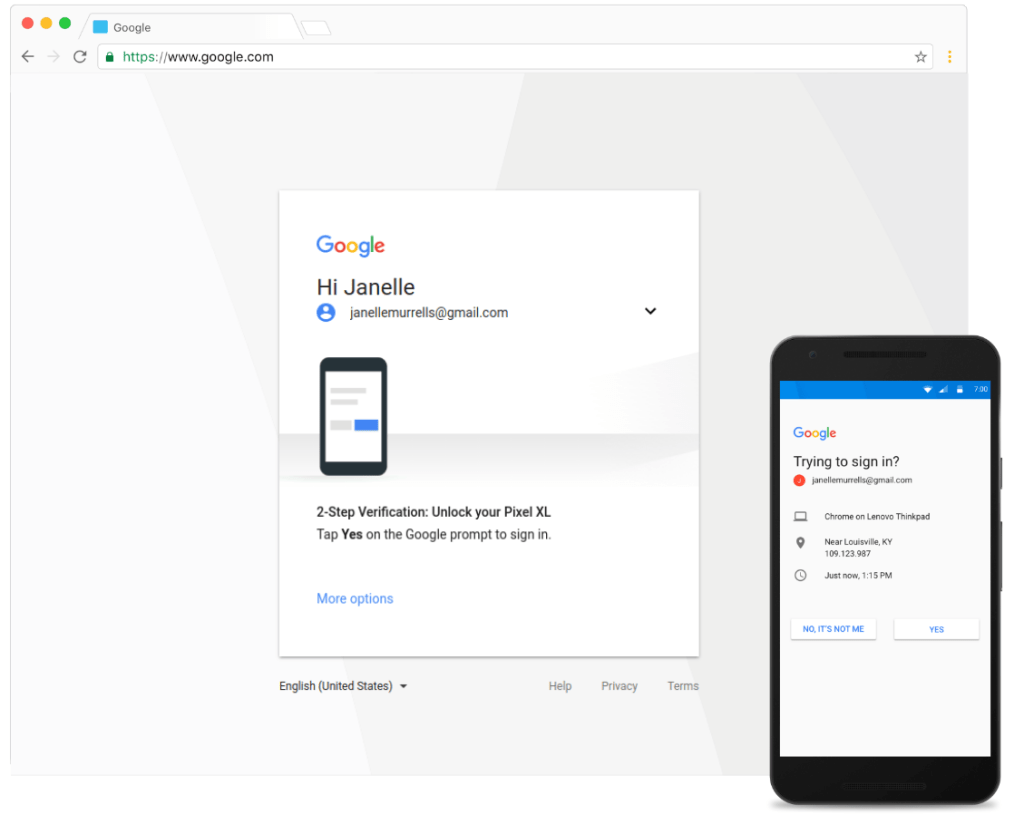
Even a strong, unique password isn’t enough on its own. Two-factor authentication (2FA) adds a second layer of protection — a second “lock” that requires something you have (like your phone) in addition to something you know (your password).
The most common types of 2FA include:
- SMS codes — A one-time code texted to your phone. Convenient, but the weakest form of 2FA since phone numbers can be hijacked through SIM-swapping attacks.
- Email codes — A login confirmation sent to your inbox. Better than no 2FA, but not ideal if your email itself is compromised.
- Authenticator apps (recommended) — Apps like Google Authenticator or Authy generate time-sensitive codes every 30 seconds. Much harder to intercept than SMS.
- Hardware security keys — Physical devices like YubiKey that you plug in or tap to approve a login. The most secure option, used by security professionals and high-risk accounts.
If a hacker gets your password but 2FA is enabled, they still can’t get in without your second factor. Enable it on every account that supports it — especially email, banking, and social media.
3. Recognize and Avoid Phishing Attacks
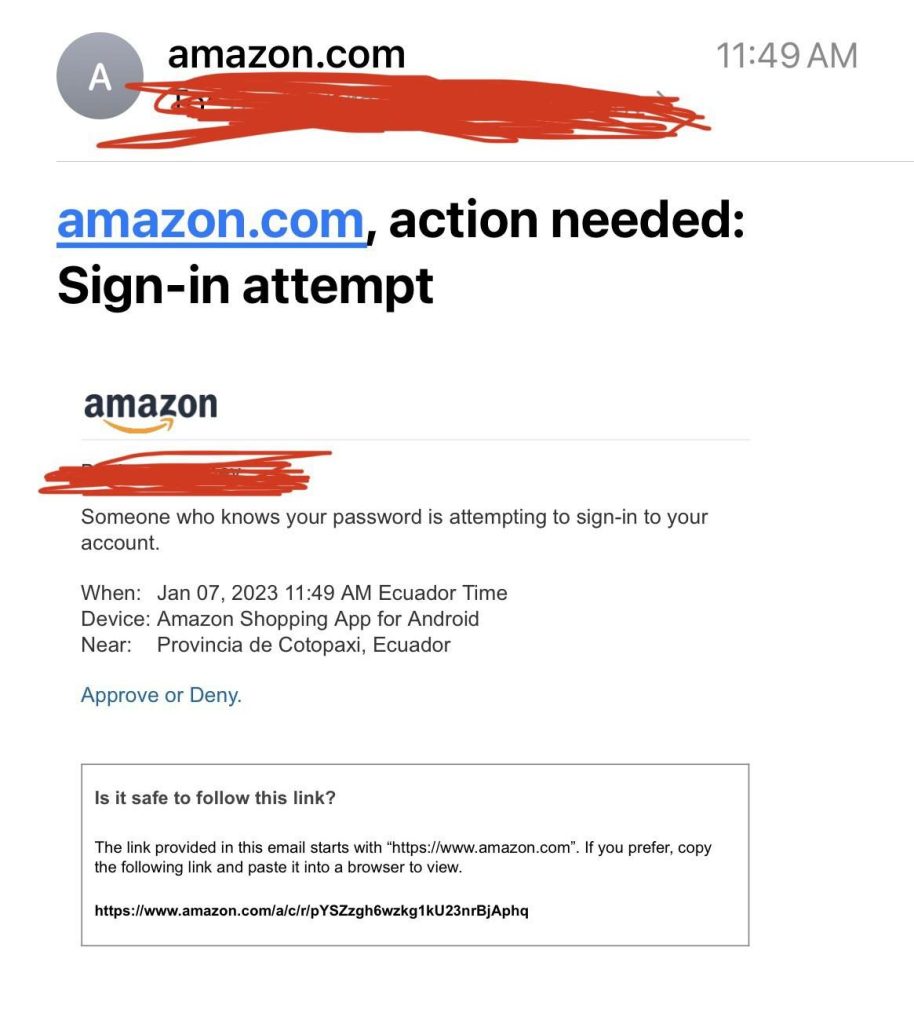
Phishing is one of the most common — and effective — ways people get hacked. It doesn’t involve sophisticated code-breaking. Instead, attackers trick you into handing over your credentials or clicking a link that installs malware on your device.
Phishing attempts arrive by email, text message (called smishing), or even phone call (vishing). They’re designed to create urgency or mimic trusted brands.
Red flags to watch for:
- Urgent language like “Your account will be closed unless you act now.”
- Sender addresses that look slightly off — like support@paypa1.com instead of paypal.com.
- Links that don’t match the company’s real domain. Hover over links (don’t click) to preview the actual URL.
- Unexpected attachments, especially .zip, .exe, or .docx files from unknown senders.
- Poor grammar or spelling, though AI-generated phishing emails are increasingly well-written.
What to do:
- Don’t click links in suspicious messages. Go directly to the company’s website by typing the address yourself.
- Call the company using the official number on their website if you’re unsure whether a message is real.
- Use email filters and report phishing attempts to your provider.
4. Be Cautious on Public Wi-Fi
Public Wi-Fi at coffee shops, airports, and hotels is convenient, but it comes with real risks. Unencrypted networks allow attackers on the same network to intercept traffic — a technique called a man-in-the-middle attack. This can expose login credentials, session tokens, and other sensitive data.
Safer alternatives:
- Use your phone’s mobile hotspot instead of public Wi-Fi when possible.
- Connect through a VPN (Virtual Private Network), which encrypts your internet traffic even on unsecured networks. Reputable options include Mullvad, ProtonVPN, and NordVPN.
- Avoid logging into banking, email, or other sensitive accounts on public Wi-Fi.
- Look for HTTPS in website addresses — this encrypts the connection between you and the site. However, HTTPS alone doesn’t make public Wi-Fi fully safe.
5. Limit What You Share Online
One of the most overlooked threats is what you voluntarily share on social media. Attackers use publicly available information to craft targeted phishing messages, guess passwords, or bypass security questions — a method called social engineering.
Think about it: if your security question is “What was your first pet’s name?” and you’ve posted photos of your childhood dog named Biscuit, that’s not a secret anymore.
Be mindful of:
- Birthdays, hometowns, and relationship details shared publicly on social platforms.
- Travel plans posted in real time, which signal that your home is empty.
- Online quizzes and surveys that ask for your “first car,” “childhood best friend,” or “mother’s maiden name” — these are often the exact questions used for account recovery.
- Tagging your location at businesses or events, especially regularly.
6. Keep Your Devices and Software Updated
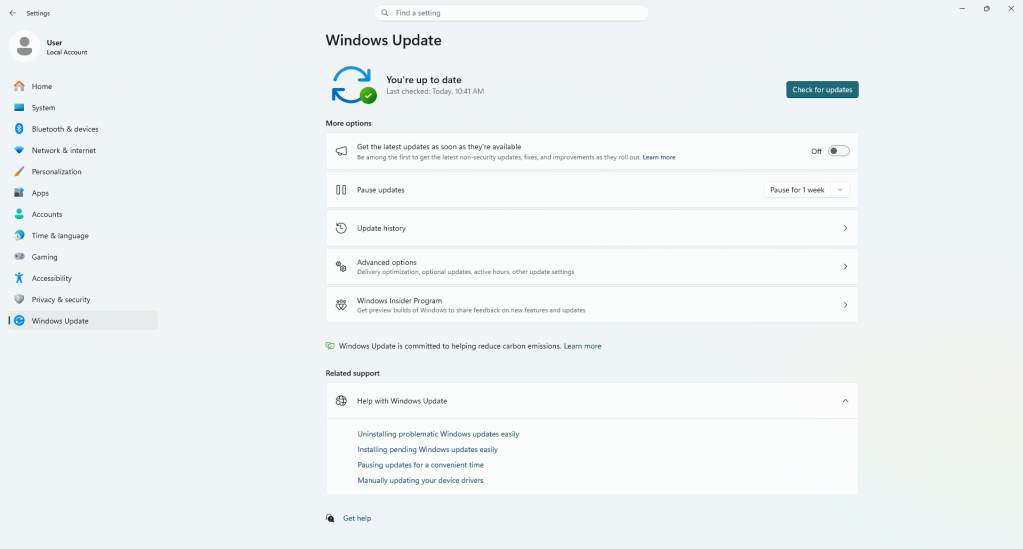
Software updates aren’t just about new features — they’re often critical security patches. When a vulnerability is discovered in an operating system, browser, or app, developers release an update to fix it. Delaying those updates leaves a known door open for attackers.
Enable automatic updates on your operating system, browsers, and apps. This applies to your phone too. Older, unsupported devices (like phones that no longer receive OS updates) are a genuine security risk and should be replaced when possible.
7. Monitor Your Accounts for Suspicious Activity
Even with the best habits in place, no one is immune to every threat. That’s why monitoring matters — the faster you catch something, the faster you can minimize the damage.
- Review bank and credit card statements regularly. Look for small, unfamiliar charges, which are often used to test stolen card numbers before larger purchases.
- Enable login alerts on accounts that support them, so you’re notified if someone logs in from an unfamiliar device or location.
- Check if your email has appeared in a known data breach using HaveIBeenPwned.com — a free, reputable tool.
- Consider freezing your credit with the major bureaus (Equifax, Experian, TransUnion) if you’re not actively applying for credit. This prevents anyone from opening new accounts in your name.
Final Thoughts
Online security doesn’t require being a tech expert. Most successful attacks exploit basic mistakes — weak passwords, skipped updates, clicked phishing links. Building a few solid habits goes a long way.
Think of it like locking your car. You can’t guarantee nobody will ever try to break in, but locking the door makes you a much less attractive target than someone who leaves it wide open. The same applies to your digital life.
Start with the highest-impact steps: enable 2FA on your most important accounts, use a password manager, and stay skeptical of unexpected messages. From there, each additional layer you add makes you significantly safer.
Need Help With Your Computer?
If you’re in the Downtown, Los Angeles area and have questions about computer security, a slow PC, or need hardware repairs or upgrades, we’re here to help. Stop by our shop or give us a call — we’re always happy to walk you through your options.
