

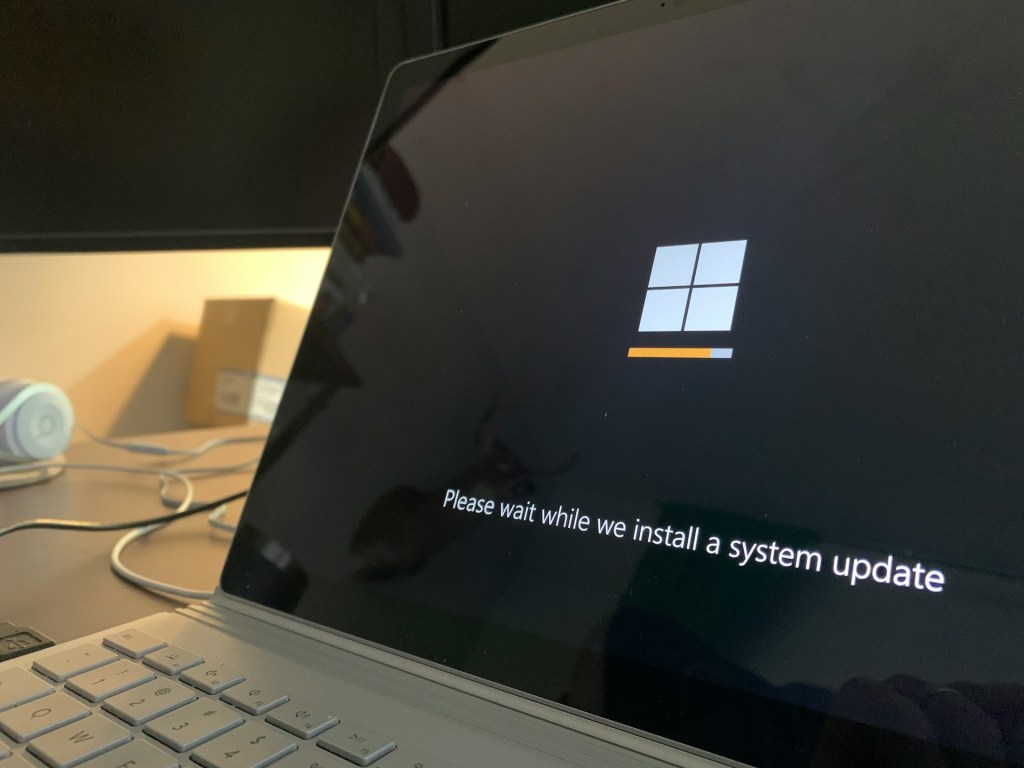
You’re halfway through something important—a report, a video call, a spreadsheet—and your PC suddenly restarts itself to install a Windows update. Sound familiar? Fortunately or unfortunately, this is one of the most common complaints we hear from customers at our shop, and honestly, it’s one of the most frustrating things a computer can do at the wrong moment.
The good news? There’s a reason it happens—and there are real, practical ways to take back control without putting your computer at risk. Let’s walk through it.
Why Does Windows Update So Often?
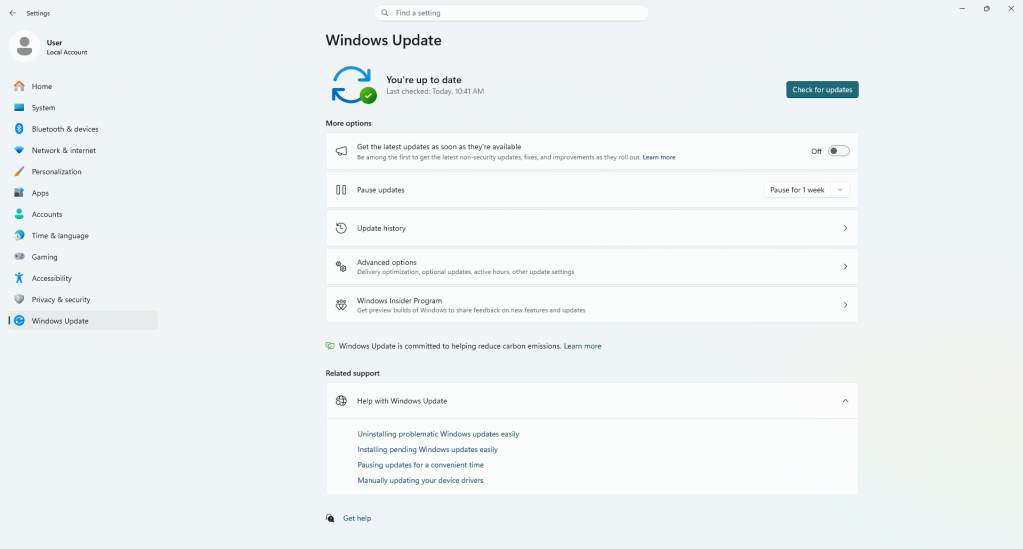
Windows updates exist to keep your computer secure, stable, and running smoothly. Microsoft has to support an enormous range of devices and hardware configurations, which means bugs, security gaps, and compatibility issues pop up constantly. Updates are how they fix them.
Most updates fall into one of three categories:
- Security patches – These close vulnerabilities that hackers, malware, and ransomware can exploit. Skipping these is genuinely risky.
- Bug fixes – Address crashes, slowdowns, and hardware or software conflicts that affect day-to-day performance.
- Feature updates – Bring new tools, interface changes, and improvements to how Windows works overall.
Microsoft releases most updates on a predictable schedule—the second Tuesday of each month, commonly called Patch Tuesday. That said, when a serious security flaw is discovered, Microsoft doesn’t wait. They push emergency updates outside of that cycle, which is why updates can sometimes feel random or constant.
We know the frequency can feel overwhelming. But from a security standpoint, staying current really does matter—cyber threats move fast, and outdated systems are the easiest targets.
Why Does Windows Restart Automatically After an Update?
Some updates—especially ones that patch core Windows components—can’t fully install while the system is actively running. The changes need to be applied at the system level during startup, which is why a restart is required. It’s not arbitrary: it’s the only way the update can take effect properly.
It’s worth noting that this problem is much less common than it used to be. Older versions of Windows—especially Windows 7 and early Windows 10—were notorious for rebooting mid-session with little or no warning. Microsoft has made significant improvements since then. Modern versions of Windows track when you’re actively using your computer and try to schedule restarts during your off-hours. But it’s not a perfect system, and if Windows decides an update has been pending too long or is critical enough, it can still restart at an inconvenient time—which is exactly why it’s worth knowing how to configure things properly.
How to Minimize Update Interruptions
There are a few things you can do right now to get ahead of this:
- Set your Active Hours. Go to Settings → Windows Update → Change active hours. Tell Windows when you’re typically working, and it will avoid restarting during those times. This is the single most effective setting most people never turn on.
- Schedule your restarts manually. When Windows notifies you that an update is pending, you can pick a specific time for the restart—like after you’re done for the day. Don’t just dismiss the notification; take 10 seconds to schedule it.
- Keep your device plugged in. Updates often won’t install on a laptop running on battery. A failed or interrupted update can cause bigger headaches than the update itself.
Can You Pause Windows Updates? Yes—But Here’s What Actually Happens
Yes, Windows lets you pause updates for up to five weeks. It’s a handy feature if you’re in the middle of a critical project and can’t risk an unexpected restart or a patch that breaks something. We get why people use it.
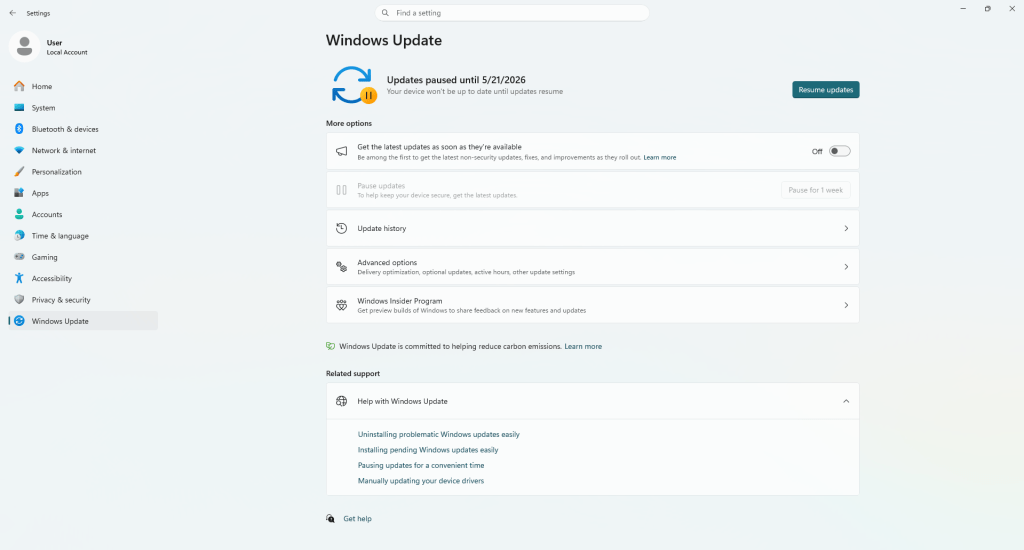
But here’s what most people don’t realize: Windows doesn’t discard updates while they’re paused. It queues them. When you unpause, your system may need to install several cumulative updates back-to-back, which can be slow, resource-heavy, and occasionally leads to conflicts or failed installs. We’ve seen this cause real problems in the shop.
Think of it like ignoring a small roof leak. Pause the bucket, and the water doesn’t disappear—it just builds up. Use the pause feature strategically, not as a permanent solution.
How to Manage Windows Updates Without Breaking Your System
Here’s the approach we recommend to our own customers:
- Set Active Hours so Windows works around your schedule, not against it.
- Use Pause Updates sparingly—only when you genuinely need a break from updates, not as a habit.
- Back up your important files regularly. In the rare event an update causes an issue, you’ll be glad you did. This is good practice regardless of updates.
- Don’t let updates pile up. A steady stream of small updates is always easier to manage than a backlog of dozens.
- Restart manually once a week if you leave your PC on all the time. This lets pending updates apply on your terms instead of Windows forcing a restart at the wrong moment.
Frequently Asked Questions About Windows Updates
Is it safe to skip Windows updates?
For short periods, yes. Long-term, no. Security patches in particular are important—unpatched systems are a common entry point for malware and ransomware attacks.
Why did my PC restart without warning?
Usually this happens when Active Hours aren’t configured, or when Windows determines that an update has been pending long enough that it can no longer wait. Setting Active Hours fixes this in most cases.
Can a Windows update break my computer?
In rare cases, yes. Problematic updates do happen. That’s exactly why keeping regular backups is so important. If an update causes issues, Windows also has a built-in rollback feature that can undo recent updates—and if you’re stuck, that’s something we can help with at the shop.
Bottom Line: Updates Are Annoying, But the Interruptions Are Avoidable
Windows updates aren’t going away, and honestly they shouldn’t—they’re doing a real job protecting your machine. But the interruptions? Those are largely avoidable once you know which settings to use.
Set your Active Hours, schedule your restarts, and don’t let updates stack up. Those three habits alone will make a noticeable difference. And if your PC is behaving strangely after an update, or you keep running into problems that seem update-related, feel free to bring it to our shop located in Downtown, Los Angeles—we’re happy to take a look.
