

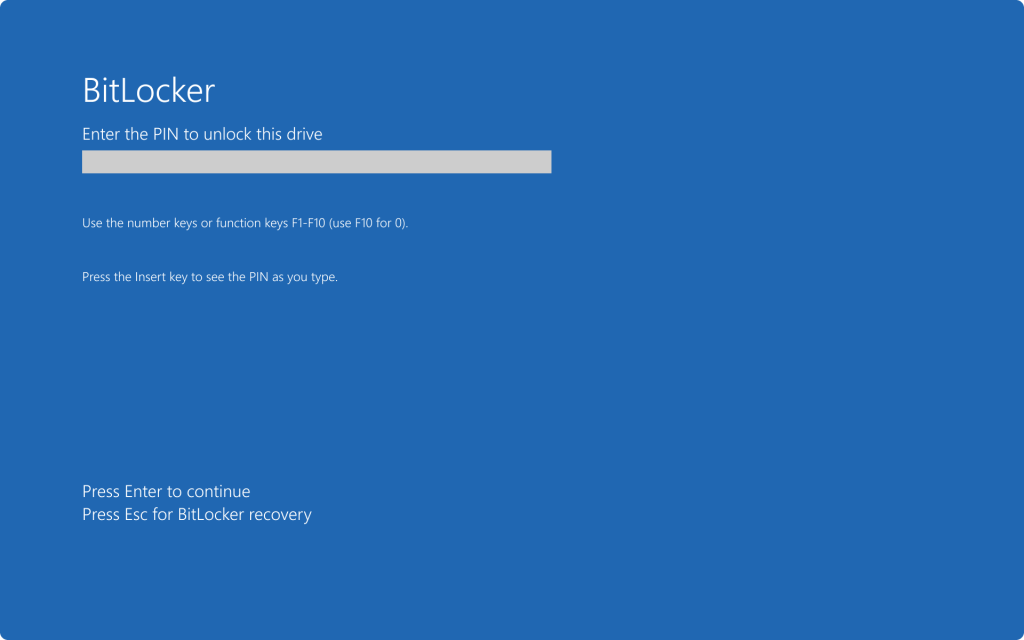
Updated April 2026 — If you have a Windows 11 PC, there’s a good chance BitLocker is already running on it without you ever turning it on. Here’s what that means — and why it matters when something goes wrong.
BitLocker is Microsoft’s built-in full-disk encryption feature, designed to protect your data if your computer is ever lost or stolen. For years it was something most home users never had to think about — it was mainly used by businesses. That changed with Windows 11 version 24H2. Now BitLocker-style encryption turns on automatically on many home PCs, often without any warning to the user.
We see the consequences of this in our shop regularly. A customer brings in a laptop for a screen replacement or a motherboard swap, and suddenly they’re locked out of their own data — not because anything failed, but because of how BitLocker works. This post is our attempt to give you a clear, honest explanation so you’re not caught off guard.
What BitLocker Actually Does
BitLocker encrypts your entire storage drive — whether it’s a hard drive or SSD. Once enabled, all of your files are scrambled at the hardware level. They can only be read after your system proves it’s authorized to do so, usually through a chip on your motherboard called the TPM (Trusted Platform Module).
If someone removes your drive and plugs it into another computer, all they’ll see is unreadable data. That’s the whole point — it’s designed to protect against physical theft.
When everything works normally, you’ll never notice BitLocker is running. The problem is when something changes.
The Big Change: BitLocker Is Now On by Default
Starting with Windows 11 24H2, Microsoft changed the default behavior: BitLocker encryption now enables automatically on a clean install of Windows — including on Home edition PCs — when the hardware meets certain requirements and a Microsoft account is used during setup.
This means if you bought a new computer in late 2024 or 2025, or did a fresh Windows install recently, your drive may already be encrypted. Windows doesn’t always make this obvious. You might not see any notification. The drive just silently encrypts in the background.
There’s a quick way to check: open the Start menu, search for “Device Encryption,” and look at the status. If it’s on, your drive is encrypted.
What BitLocker Protects Against — and What It Doesn’t
BitLocker is effective against:
- Theft — if your laptop is stolen, the data is unreadable without your key
- Drive removal — someone pulling your drive and connecting it to another PC
- Bypassing Windows login using bootable USB tools
BitLocker does not protect against:
- Viruses and malware
- Phishing or online hacking
- Ransomware once your computer is already running
Once your PC is powered on and you’re logged in, BitLocker is essentially invisible. It doesn’t add any ongoing security against internet-based threats.
Where BitLocker Causes Problems: The Repair Side
This is where we want to be straightforward with you, because this is something we deal with hands-on. BitLocker significantly complicates hardware repairs and data recovery, and most customers don’t find out until it’s too late.
Hardware Changes Trigger a Recovery Lock
BitLocker ties the encryption key to your specific hardware configuration — particularly the TPM chip on your motherboard. When something significant changes, BitLocker sees it as a potential security threat and locks the drive. At that point, it demands a 48-digit recovery key before it will let you in.
Common repair scenarios that can trigger this:
- Motherboard replacement (the TPM is on the board, so swapping the board means a new TPM)
- BIOS or firmware updates
- Connecting the drive to a different PC to test it or recover files
- Even some Windows updates — Microsoft confirmed that the October 2025 Patch Tuesday update triggered BitLocker recovery screens on certain Intel PCs
OS Corruption or Failed Boot
If Windows stops booting — maybe due to a failed update or corrupted system files — the standard recovery approach is to pull the drive, connect it externally, and grab your important files before reinstalling. With BitLocker enabled, that’s not possible without the recovery key. The drive is encrypted, and no software tool can get around that. It’s doing exactly what it was designed to do.
The Recovery Key: The One Thing You Cannot Lose
When BitLocker activates — whether you turned it on or Windows did it automatically — it generates a 48-digit recovery key. This key is the only way to unlock your drive if something goes wrong. There is no backdoor, no master key, no workaround. Without it, the data is gone.
If your PC was set up with a Microsoft account, the key is likely saved to your Microsoft account. Here’s how to find it:
- Go to account.microsoft.com and sign in
- Click on “Devices” and find your PC
- Look for “BitLocker data protection” or “View recovery key”
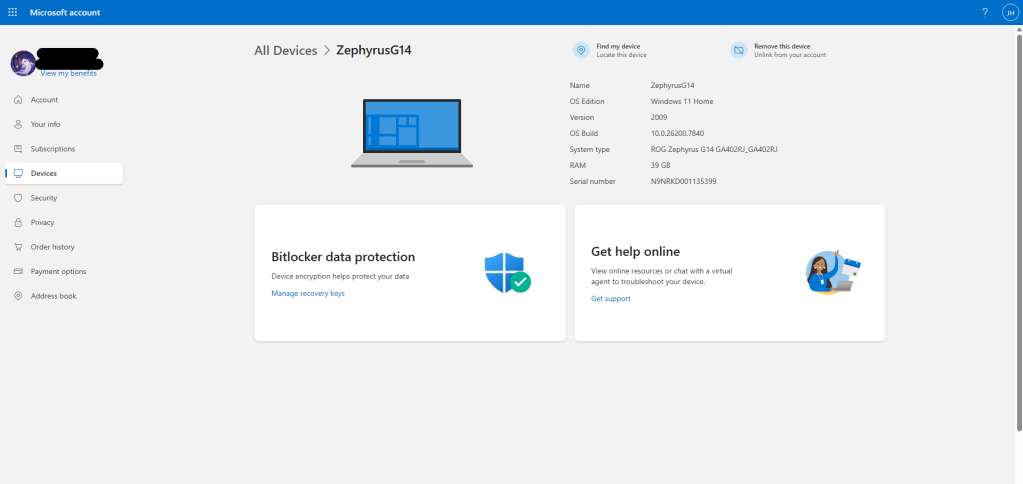
We strongly recommend doing this now, before you ever need it. Copy that key and store it somewhere safe — printed out, saved in a password manager, or both. If you set up Windows without a Microsoft account, the key may have been saved locally or not at all — check your BitLocker settings in Control Panel to see where it was backed up.
Should You Leave BitLocker On?
Honestly, it depends on your situation. Here’s how we think about it:
BitLocker makes good sense if:
- You travel with a laptop and there’s sensitive data on it
- You work with client data, financial info, or anything confidential
- You’ve saved your recovery key and know where to find it
It may cause more problems than it solves if:
- Your PC mostly stays at home and isn’t at much physical theft risk
- You don’t have consistent backups
- You’re unsure where your recovery key is stored
- You’re likely to need hardware repairs in the near future
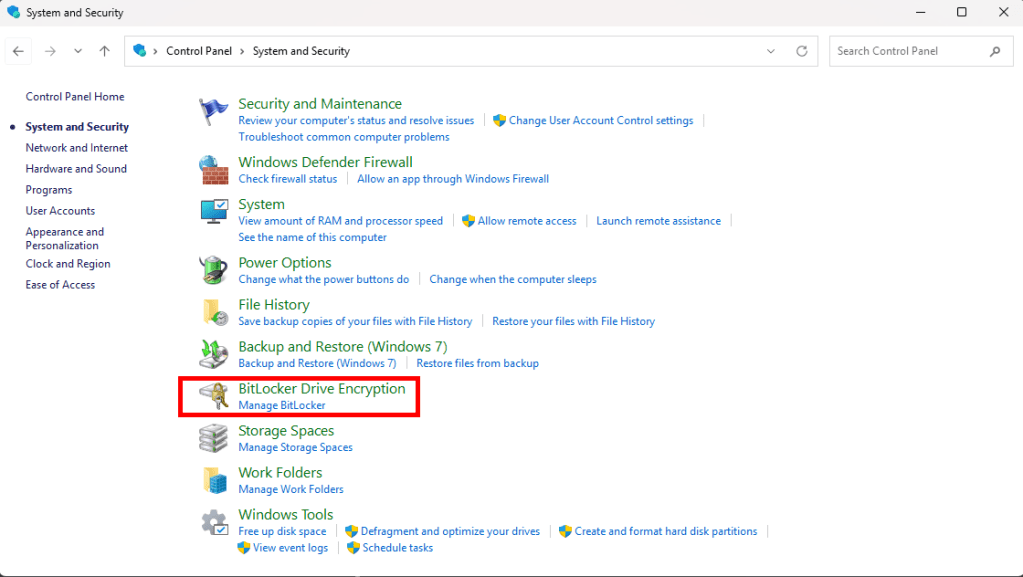
If you decide you want to turn it off, you can do so through Control Panel > System and Security > BitLocker Drive Encryption. Just know that decrypting the drive takes some time depending on its size. You’ll also want to back up your data before making that change.
What to Tell Your Repair Technician
Any time you bring a computer in for repair — whether it’s ours or anyone else’s shop — let them know upfront whether BitLocker or device encryption is enabled. A good technician will ask, but it helps to already have your recovery key on hand. This simple step can prevent a routine repair from turning into a data loss situation.
If you’re not sure whether your drive is encrypted, ask. We’re always happy to check before we start any work, and we’ll walk you through finding your recovery key if needed.
The Bottom Line
BitLocker is a legitimate security tool that’s become a standard part of Windows — like it or not. The problem isn’t the encryption itself, it’s that most people don’t know it’s running, don’t know where their recovery key is, and only find out when something goes wrong.
Take five minutes today to check your encryption status and locate your recovery key. It’s one of those small things that can save you a very big headache later.
As always, if you have questions or run into a BitLocker situation you’re not sure how to handle, don’t hesitate to reach out or stop by our shop in Downtown, Los Angeles. That’s what we’re here for.
 ITBrother