

If you missed the October 14, 2025 deadline there is nothing to worry about yet. As of early 2026, roughly 400 million PCs are still running Windows 10 — and most of those users are wondering the same thing: am I safe, or what do I do next?
The good news is that your computer didn’t stop working when Microsoft flipped the switch. The bad news is that it’s now operating without a safety net — no more security patches, no more bug fixes, no more official support. And that gap grows wider every month.
As a local repair shop, we’ve been helping customers navigate this exact situation. Here’s a simple breakdown of where things stand, what your options are, and how we can help.
What “End of Support” Actually Means for Your PC
Your Windows 10 machine will still turn on. Your files are still there. Your programs still run. But as of October 14, 2025, Microsoft stopped releasing security patches for Windows 10. That means any vulnerability discovered in the operating system from that point forward stays open indefinitely — no fix is coming.
Think of it like this: your house is still standing, but the locks are no longer being maintained. Most days, nothing happens. But over time, as more people learn the locks can be picked, the risk goes up.
Beyond security, you’ll start to notice practical issues over time:
- Browsers and apps will gradually drop Windows 10 compatibility
- Hardware drivers will stop being updated
- Some online services may eventually block access from outdated systems
- Microsoft 365 apps will continue to run but will no longer be officially supported on Windows 10
Option 1: The Microsoft ESU Program (Free for Most Users)
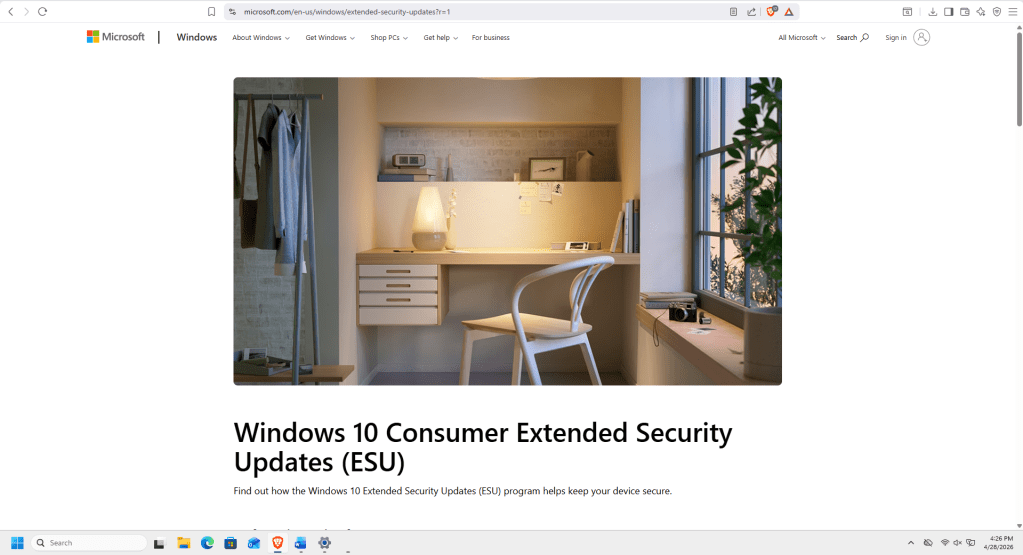
This is something a lot of people don’t know about yet, and it’s worth knowing. Microsoft launched a Windows 10 Extended Security Updates (ESU) program that continues delivering critical security patches for one additional year — until October 2026.
The program is free for consumers if you sign into your PC with a Microsoft account and sync your settings to the cloud using Windows Backup. If you’re not signed in with a Microsoft account, it costs $30 for the year (or 1,000 Microsoft Rewards points). Microsoft does require you to sign in at least once every 60 days to stay enrolled.
This is a good short-term solution if you’re not ready to upgrade yet. It’s not a permanent fix — the ESU program ends in October 2026 — but it buys you time to make a thoughtful decision about your next step rather than a rushed one.
Our honest take: If your PC is older and you’re not sure it can handle Windows 11, enrolling in ESU first while we evaluate your system is a smart move. It keeps you protected while you figure out the right path forward.
Option 2: Upgrade to Windows 11
For most people with a PC built after 2018 or so, upgrading to Windows 11 is the cleanest long-term solution. If your machine meets Microsoft’s requirements, the upgrade is still free through Windows Update.
The main hardware hurdle is TPM 2.0 — a small security chip that Microsoft requires for Windows 11. Most computers made in the last several years already have it. If yours doesn’t have it enabled, it can often be turned on in your BIOS settings without any hardware replacement.
A note on older hardware: Even if your PC doesn’t officially meet Microsoft’s requirements, Windows 11 can often still be installed using methods that bypass the hardware check. These systems receive updates and run Windows 11 just fine — Microsoft simply doesn’t guarantee official support if something goes wrong on the OS side.
Why We Recommend a Clean Install Over an In-Place Upgrade
When a customer comes to us for a Windows 11 upgrade, we almost never use the direct upgrade path — even though it’s the easier route. Here’s why:
- In-place upgrades carry over old registry entries and drivers, which can cause compatibility problems down the road
- Some programs don’t transfer cleanly
- The system can inherit years of accumulated clutter and corruption from the old Windows 10 install
A clean installation gives you a fresh, fast, and reliable system — especially if you’ve been running the same Windows 10 install for several years. We back up all your data first, format the drive, and install Windows 11 fresh. From there, we reinstall your programs, restore your files, and update all your drivers.
Option 3: Hardware Upgrades to Get More Life Out of Your PC
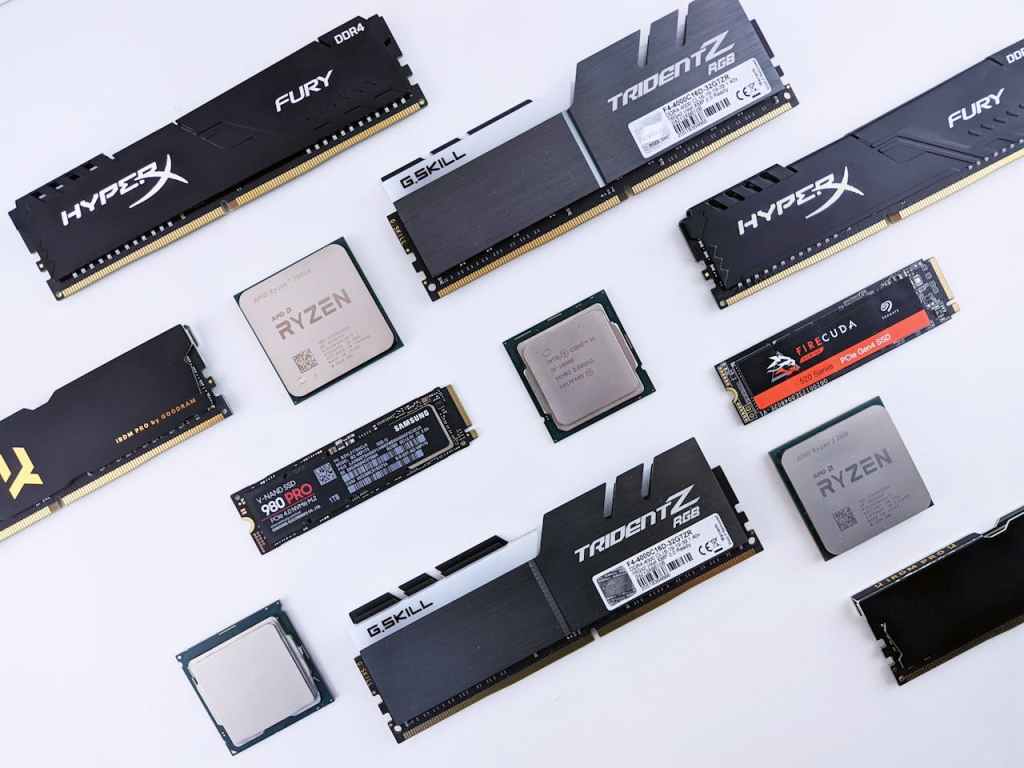
Windows 11 is more resource-intensive than Windows 10, so if your machine is on the older side, a couple of targeted upgrades can make a significant difference:
- SSD upgrade: If you’re still on a traditional hard drive, switching to an SSD is the single biggest speed improvement you can make. Boot times, app loading, and overall responsiveness all improve dramatically.
- RAM upgrade: Windows 11 runs best with at least 8GB of memory. If your system has 4GB, it will feel noticeably sluggish. Adding RAM is usually inexpensive and makes a real difference.
- Driver and BIOS updates: After a Windows 11 install, we always update chipset, network, and graphics drivers to make sure everything is stable.
What If You Need to Stay on Windows 10?
Sometimes there’s a specific program or workflow that doesn’t work on Windows 11 yet. We get it. If that’s your situation, the safest path is to enroll in the ESU program and keep that machine off the open internet as much as possible, or use it in an isolated environment.
Long-term, this isn’t a sustainable solution — but it can be the right call for a specific use case while you work out a migration plan.
How We Can Help
If you’re still on Windows 10 and not sure which direction makes sense for you, we’re happy to take a look. Here’s what our Windows upgrade service includes:
- System evaluation: We check whether your current hardware can run Windows 11 and whether any upgrades (RAM, SSD) would be worth the investment
- Data backup and protection: We securely back up all your files, photos, and documents before touching anything
- Clean installation of Windows 11: Fresh install for maximum performance, even on hardware that doesn’t officially meet Microsoft’s requirements
- Driver and update configuration: All drivers and essential updates applied after installation
- Post-installation setup: We reinstall your apps, restore your data, and configure settings to match your previous setup
- Optional hardware upgrades: RAM, SSDs, or other components if needed to improve performance
Whether you’re using your PC at home or running a small business, we can make sure your system is secure, up to date, and running the way it should — without the tech overwhelm. Stop by our shop located in Downtown, Los Angeles or give us a call and we’ll figure out the best next step together.
