

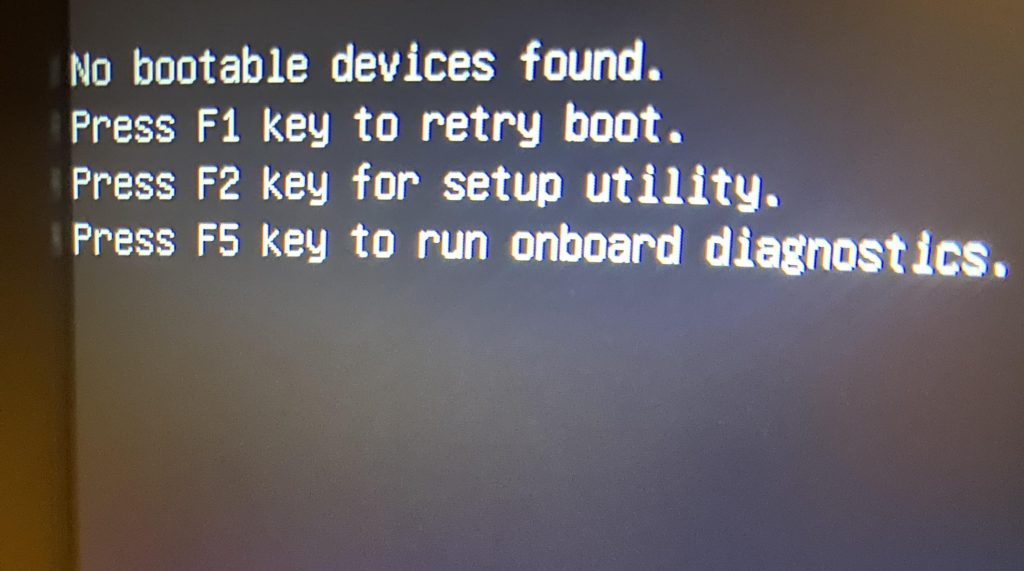
Picture this: you shut down your computer after a totally normal day, and the next morning you press the power button — only to be greeted by a black screen with a message that says “No Boot Device Found.”
It’s alarming, it comes out of nowhere, and most people have no idea what it means. Is the computer dead? Is all your data gone? Do you need a new machine?
Not necessarily. This is one of the most common errors we see at our repair shop, and in many cases it’s fixable — sometimes even without losing any of your data. Let’s walk through exactly what this message means, why it happens, and what your options are.
What Does “No Boot Device Found” Actually Mean?
Every time your computer starts up, it goes through a process called booting. During this process, it looks for a drive — your internal SSD or hard drive — that contains your operating system (Windows, macOS, or Linux). Without that, it has nothing to load, and it can’t proceed.
When the system can’t find or read that drive, it throws one of these messages:
- “No Boot Device Found”
- “No Bootable Device”
- “Operating System Not Found”
- “Boot Device Not Found — Please Install an Operating System”
These all mean the same thing: your computer is looking for your operating system and can’t find it. The reasons why that happens vary — and that’s where the diagnosis comes in.
The Most Common Cause: Drive Failure
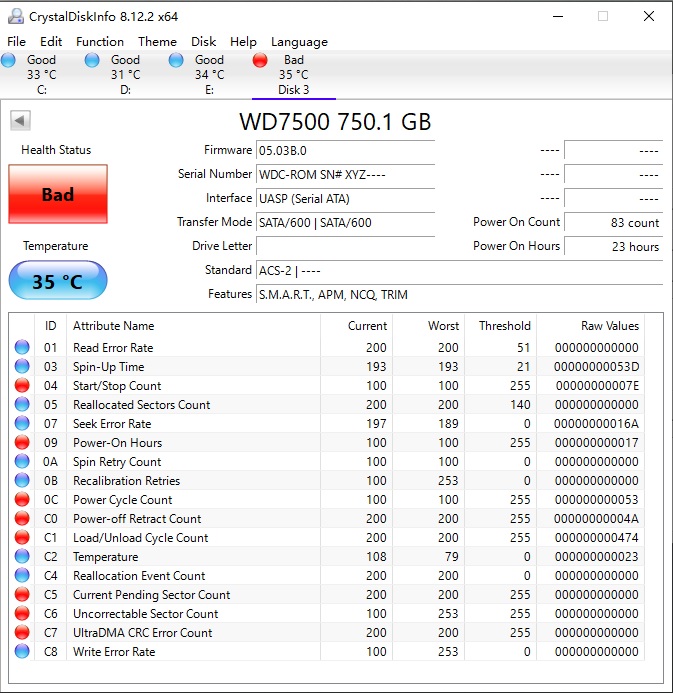
In our experience, drive failure is the #1 reason this message appears. When a drive fails — whether it’s a solid-state drive (SSD) or a traditional spinning hard drive (HDD) — the system simply can’t detect it anymore. No drive, no operating system, no boot.
If you purchased a computer in the last decade, there’s a very good chance it came with an SSD. SSDs have been standard in most laptops and desktops since the mid-2010s, and for good reason — they’re faster, quieter, and more resistant to physical shock than traditional hard drives. But here’s something most people don’t know: when an SSD fails, recovering your data is significantly harder than with a traditional HDD.
With a failing HDD, there’s often a window where the drive is still partially readable — giving a technician a chance to pull your files off before it gets worse. SSDs fail differently. Because of the way they store data across memory chips, an SSD can go from working fine to completely undetectable with very little warning. When that happens, even professional data recovery tools can struggle — and in some cases, recovery simply isn’t possible without extremely expensive specialized services.
Older machines — or budget desktops that skipped the upgrade — may still be running HDDs, and those do tend to give more warning signs before fully giving out. But if your computer is a modern laptop or a mid-range-and-up desktop, assume it has an SSD, and treat this error with urgency. The sooner you stop powering it on and get it looked at, the better your chances of saving your data.
Warning Signs That Often Appear Before Drive Failure
Drive failures often give some warning before the boot error shows up. Watch out for:
- Slow or stuck boot times — the system takes forever to start or freezes at the loading screen
- Clicking or grinding noises (HDDs only) — this is often called the “click of death” and means mechanical failure is imminent
- Files disappearing or becoming corrupted — documents that suddenly can’t be opened
- Frequent blue screen errors (BSODs) — especially ones related to disk read errors
- Random crashes or freezes — especially during file-heavy tasks
If you noticed any of these before seeing the “No Boot Device” error, there’s a good chance your drive is the culprit.
Other Reasons You Might See This Error
Drive failure gets most of the attention, but there are a few other causes worth knowing about.
1. Loose or Disconnected Cable (Desktop & Older Laptops)
On systems that use SATA drives — older laptops, desktops, or budget machines — the data or power cable connecting the drive to the motherboard can loosen over time. If the drive disconnects even slightly, the system won’t detect it.
NVMe SSDs (the kind that slot directly onto the motherboard) aren’t affected by this, but improperly seated NVMe drives can also cause detection issues.
The fix here is simple: reseat or replace the cable. It’s one of the quickest repairs we do.
2. Incorrect BIOS/UEFI Settings
Your computer’s BIOS (or UEFI in newer systems) controls which drive it tries to boot from, and in what order. If those settings get changed — after a BIOS update, a manual tweak, or occasionally after a power surge — the system might be looking in the wrong place.
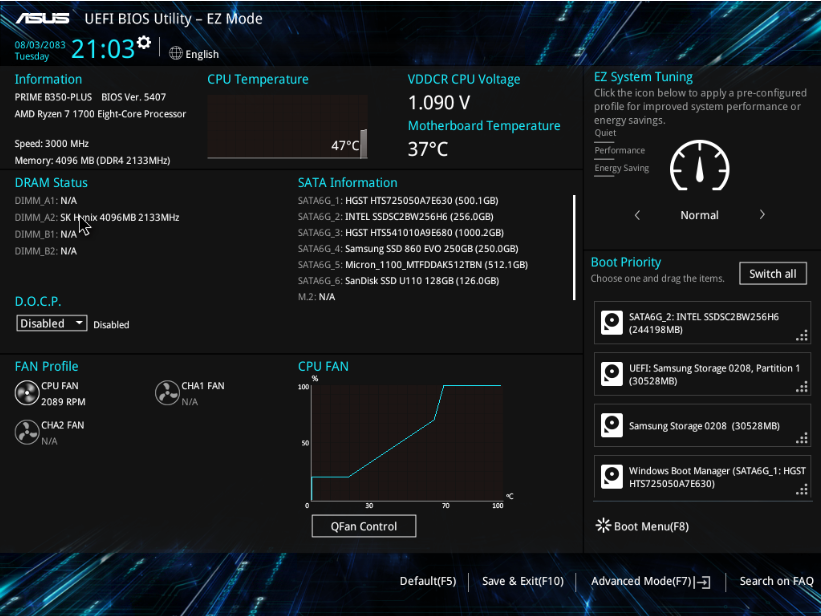
Common BIOS-related scenarios include:
- The boot order was changed to prioritize a USB drive or external device that isn’t plugged in
- The SATA mode was switched (AHCI vs. RAID) — this can make a previously detected drive invisible
- Secure Boot or Legacy Boot settings were toggled incorrectly
This is one of the easier causes to fix — a technician can reset the BIOS to defaults or manually correct the boot order in just a few minutes.
3. Corrupted Boot Files
Sometimes your drive is perfectly healthy — but the files that tell your computer how to start Windows have become corrupted. The drive is there, the data is there, but the system doesn’t know how to use it to boot up.
This can happen after:
- A Windows update that didn’t complete properly
- An unexpected shutdown or power loss mid-update
- Malware or virus infection
- Partition changes, drive cloning errors, or botched OS reinstallations
The good news: when it’s just corrupted boot files, your data is almost always still intact and recoverable. A technician can back up your files, repair the boot records, or do a clean reinstall without wiping everything.
What To Do (and What NOT To Do) If You See This Error
Here’s a quick, practical breakdown:
Do These Things:
- Check your BIOS/UEFI — See if your drive still shows up under connected devices. If it doesn’t appear at all, the drive may have failed.
- Listen carefully — Clicking, grinding, or whirring from your machine (especially on an HDD) is a red flag for mechanical failure.
- Try booting from a USB drive — If a bootable USB installer loads fine, your original drive is likely the problem, not the system itself.
- Write down any error codes — Some BIOS screens display additional details that can help a technician diagnose the issue faster.
Avoid These Mistakes:
- Don’t immediately reinstall Windows — This can overwrite data that could still be recovered. Always back up or consult a tech first.
- Don’t keep force-rebooting the machine — If the drive is failing, repeated power cycles can make it worse and shrink your recovery window.
How We Diagnose and Fix “No Boot Device” Errors
If your computer is showing this error, here’s exactly what we do when you bring it in:
Drive Testing & Diagnostics
We run dedicated diagnostic tools to check the health of your drive. This tells us whether the drive is physically failing, already dead, or still in good enough shape to repair.
BIOS Check
We verify your BIOS settings are configured correctly and that the system is pointed at the right drive.
Data Backup & Recovery (First Priority)
Before we touch anything else, we try to back up your data. If the drive is still partially accessible, we use professional tools to pull your files off before they become unrecoverable. Your data comes first.
OS Reinstallation (If Needed)
If the system files are beyond repair, we do a clean reinstall of Windows or macOS. We’ll restore your backed-up data to the new install so you’re not starting from scratch.
Drive Replacement & Upgrade
If your drive has failed, we replace it with a new SSD — which is also a great opportunity to upgrade from a slow HDD if you haven’t already. SSDs are dramatically faster and more reliable. We’ll reinstall your OS and restore your files on the new drive.
Frequently Asked Questions
Can I recover my data if I see “No Boot Device Found”?
It depends — and the honest answer is that it’s more complicated than it used to be. If your machine is running a traditional hard drive (HDD), there’s often a window where the drive is still partially readable and your files can be pulled off before things get worse. With HDDs, partial recovery is common.
If your machine has an SSD — which is likely if you bought it in the last decade — recovery is more situational. It depends heavily on the health of the SSD at the time of failure. Some SSDs fail gradually and can still be read long enough to back up your data. Others fail suddenly and completely, with no warning and no recoverable data. There’s no way to know which scenario you’re in until a technician runs a diagnostic.
What we can tell you is this: the sooner you stop powering the machine on and bring it in, the better your odds. Every unnecessary reboot on a failing drive — especially an SSD — can reduce your recovery window.
Does this mean my computer is dead?
No. In many cases, the computer itself is completely fine — it’s just the drive or the boot configuration that’s the problem. Even with a failed drive, the rest of your machine (motherboard, CPU, RAM) is usually unaffected.
How long does a repair take?
It depends on the cause. A simple BIOS change can be done within an hour. Drive replacements with OS reinstallation can be done same day. Data recovery timelines vary based on the drive’s condition.
Will I lose my files?
That depends on how far along the drive failure is and how quickly you act. If the drive is still partially functional, we may be able to back up your files before doing any repairs. This is why we always recommend not force-rebooting or trying DIY fixes — every unnecessary write to a failing drive reduces your recovery odds.
Bottom Line
“No Boot Device Found” is a scary message, but it’s also a common error we see — and one we deal with every week. The causes range from a simple BIOS misconfiguration to a full drive failure, and the right fix depends entirely on what’s actually going on inside your machine.
If you’re in the Downtown, Los Angeles area and you’re dealing with this error, bring your computer in or give us a call. We’ll run a full diagnostic, tell you exactly what’s wrong, and walk you through your options.
