

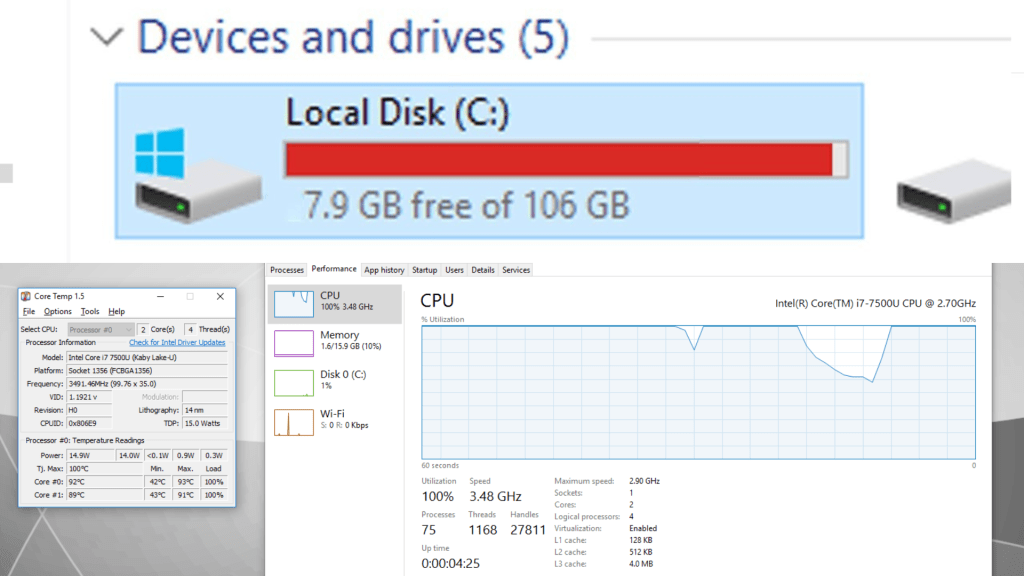
At some point in a computer’s lifespan, you’ll likely experience frustrating moments of freezing, stuttering, or overall sluggish performance. Whether it’s your desktop locking up mid-project or your laptop hesitating to respond, these symptoms are signs that something isn’t quite right. While it’s nearly impossible to prevent such issues entirely, the good news is that many of them are manageable — and often avoidable with proper care and maintenance.
Just like cars, computers require periodic upkeep to continue running smoothly. Regular cleaning, updates, and inspections can significantly delay performance degradation and help you catch small issues before they become major failures.
In this post, we’ll go over the most common reasons computers freeze or stutter, what you can do to prevent these issues, and how professional maintenance can help keep your system running like new.
Common Causes of Freezing and Stuttering
When it comes to performance instability, most causes can be traced back to two key areas: heat and storage. While there are other potential culprits such as faulty RAM or outdated drivers, these two tend to be the most consistent and widespread reasons for unresponsive systems — across both desktops and laptops.
1. Heat: The Silent System Killer
Excessive heat is by far one of the most common reasons for computer instability. Over time, dust buildup, dried thermal paste, and restricted airflow can all lead to higher operating temperatures and eventual performance throttling.
Inside every modern computer is a cooling system designed to keep its main components — the CPU (processor) and GPU (graphics chip) — at safe temperatures. When those components overheat, the system automatically slows down (a process called thermal throttling) to prevent damage. This can cause symptoms like:
- Lag or hesitation during basic tasks
- Frame rate drops or stuttering during games
- System freezes or crashes under load
- Sudden shutdowns without warning
These are often the first signs that your system is struggling to dissipate heat effectively.
Why Heat Builds Up
Several factors contribute to rising internal temperatures:
- Dust buildup: Dust clogs fans, vents, and heatsinks, restricting airflow and preventing proper cooling.
- Old thermal paste: The compound between the CPU/GPU and their coolers can dry out over time, reducing heat transfer efficiency.
- Blocked vents: For laptops, using them on soft surfaces like beds or couches can block air intake and trap heat.
- Aging fans: Worn-out fans can lose speed or stop functioning entirely, leaving heat trapped inside.
Even if your computer seems to run fine during light use — like web browsing or watching videos — it might still be running hotter than normal. The problem becomes more noticeable during intensive workloads such as gaming, rendering, or video editing.
Some telltale signs of a heat-related problem include:
- Loud or constantly running fans
- Warm keyboard decks on laptops
- Reduced performance after long sessions
- Random freezes when performing demanding tasks
If left unresolved, chronic overheating can lead to long-term hardware damage, especially to the motherboard, CPU, or GPU.
2. Storage: When Your Drive Slows Everything Down
The next major culprit behind freezing and stuttering is your storage drive. Even though most modern systems now use SSD (Solid-State Drives) instead of traditional HDDs (Hard Disk Drives), that doesn’t mean they’re immune to slowdowns.
A near-full SSD can drastically reduce performance. This happens because operating systems constantly create temporary files to manage background processes, caching, and user activity. These temporary files are essential for smooth operation, but if your drive is nearly full, the system runs out of space to store them, causing everything to slow to a crawl.
How Storage Impacts Performance
When your SSD or HDD approaches full capacity:
- System responsiveness decreases dramatically.
- Programs take much longer to open.
- The computer may freeze when handling large files.
- Windows or macOS may fail to update properly.
As a general rule of thumb, it’s best to keep at least 10–15% of your drive’s total capacity free. This gives your operating system enough breathing room to manage system files and temporary caches.
Additionally, over time, file fragmentation (on HDDs) or excessive write cycles (on SSDs) can also degrade performance. Regular maintenance — such as clearing temporary files, removing unnecessary programs, and monitoring drive health — helps prevent slowdowns and unexpected freezes.
Other Factors That Can Contribute to Freezing
While heat and storage are the top two causes, several other factors can trigger similar symptoms:
- Failing RAM modules – Bad memory sticks can cause random freezes or system crashes.
- Corrupted system files – Software conflicts or sudden shutdowns can damage critical operating system components.
- Driver conflicts – Outdated or mismatched drivers (especially GPU drivers) can cause stutters in gaming or graphic-intensive applications.
- Malware or background processes – Hidden processes can consume CPU and memory resources, making your system sluggish.
These issues are less common but can still occur, especially if your computer hasn’t been maintained for several years or has gone through multiple updates and software installations without a clean reinstall.
Professional Solutions and Services I Provide
At ITBrother, I offer a range of services designed to address exactly these types of computer performance issues. Whether your computer is freezing due to heat, slow storage, or internal damage, I can help diagnose and resolve the problem efficiently.
Here’s how I typically handle cases like this:
1. Diagnostics and Thermal Inspection
I begin with a full diagnostic check to identify the cause — whether it’s temperature, drive health, or system configuration. Using thermal monitoring tools and internal inspection, I determine if overheating or poor thermal transfer is the culprit.
2. Internal Cleaning and Dust Removal
If dust buildup is detected, I perform a full internal cleaning. This involves safely removing dust from fans, heatsinks, and vents, restoring proper airflow and cooling efficiency.
3. Thermal Paste Reapplication
If the thermal paste has dried out (common in older laptops and desktops), I reapply high-quality thermal compound to improve heat transfer between the CPU/GPU and their coolers. This alone can dramatically reduce operating temperatures.
4. Drive Upgrade or Optimization
If your drive is near capacity or failing, I can help you back up your data and upgrade to a faster, higher-capacity SSD. This not only resolves freezing issues but can also significantly boost startup and loading times.
5. Operating System Refresh or Reinstallation
For systems affected by software corruption, I offer clean OS reinstallations. This clears out years of clutter, broken registry entries, and unnecessary background processes while keeping your important files safe.
6. Data Backup and Recovery
Before making any major repairs or reinstallations, I back up your important data whenever possible. In some cases, I can also recover data from partially failing drives.
7. Maintenance and Optimization
Once everything is back to normal, I fine-tune your system for performance and reliability — including software optimization, driver updates, and proper power management settings.
Final Thoughts
Computer freezing and stuttering can be frustrating, but they’re not always signs of a dying system. More often than not, these issues stem from heat buildup, lack of storage space, or outdated components — all of which can be addressed with proper maintenance and upgrades.
If you notice your computer running louder, slower, or freezing unexpectedly, don’t ignore it. Early intervention can often prevent much larger and more expensive problems down the road.
At ITBrother, I specialize in diagnosing and fixing these performance issues — whether it’s through cleaning, upgrading, or reinstalling your system. If your computer has started to freeze or stutter, feel free to reach out — I’ll help get your system back up to speed so you can work, play, and create without interruptions.
 ITBrother
Leave a comment