

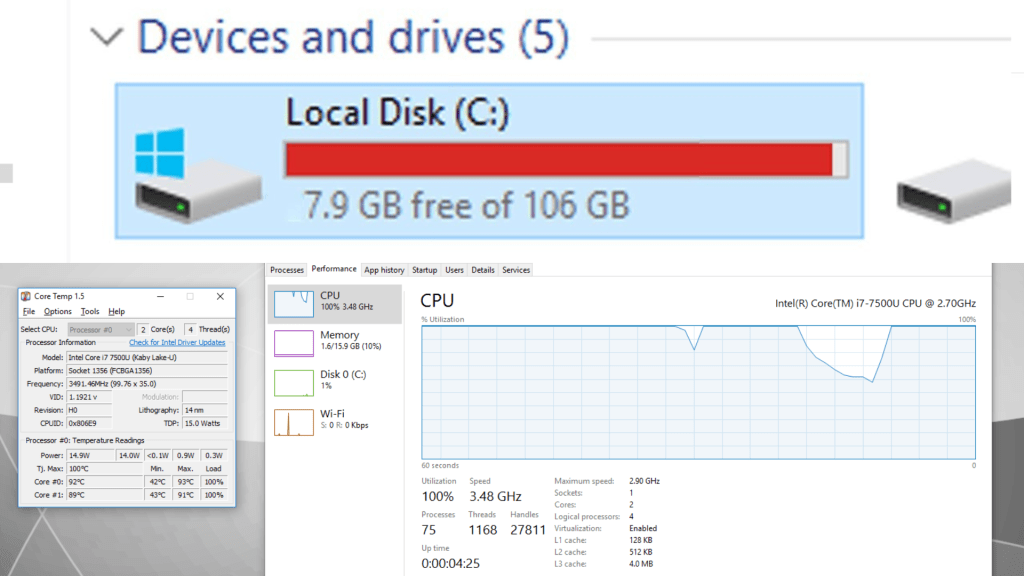
If your computer has been freezing mid-task, stuttering during videos, or just feeling painfully slow — you’re not alone. These symptoms are among the most common complaints I see at our shop, and the good news is that most of them have a clear cause and a real fix.
In this post, I’ll break down the main reasons computers freeze or stutter, what signs to watch for, and what professional maintenance can do to get your system back to running smoothly.
The Two Most Common Causes: Heat and Storage
In my experience, the vast majority of freezing and stuttering issues trace back to one of two things: the computer is running too hot, or the storage drive is too full (or failing). These aren’t exotic problems — they’re everyday wear-and-tear issues that build up silently over time.
1. Overheating: When Your PC Slows Down to Protect Itself
Every modern computer has a built-in self-defense mechanism called thermal throttling. When the CPU or GPU reaches unsafe temperatures, the system deliberately reduces its own speed to avoid permanent damage. To the user, this feels like freezing, stuttering, or sudden slowdowns.
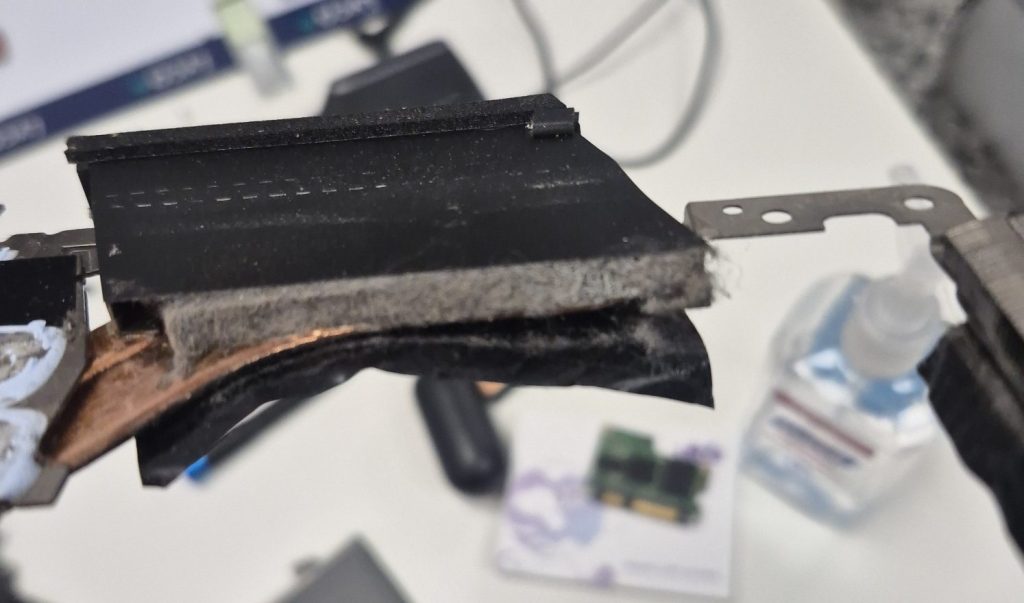
The most common reasons heat builds up inside a computer:
- Dust clogging fans, heatsinks, and air vents
- Dried-out thermal paste between the CPU/GPU and their coolers
- Blocked intake vents — especially on laptops used on soft surfaces like beds or couches
- Aging fans that have slowed down or stopped spinning properly
You might not notice the heat during light use like browsing or watching videos. But once you push the system harder — gaming, video editing, or even running multiple browser tabs — the throttling kicks in and performance tanks.
Signs your computer may be overheating:
- Fans running loud or constantly
- Keyboard or bottom of laptop feels warm to the touch
- Performance drops after the computer has been on for a while
- Random freezes or shutdowns during demanding tasks
Left unaddressed, chronic overheating can cause lasting damage to the motherboard, CPU, or GPU — turning a fixable maintenance issue into a much more expensive repair.
2. A Full or Failing Storage Drive
Your storage drive — whether it’s an SSD or HDD — plays a bigger role in day-to-day performance than most people realize. When a drive gets close to full, your operating system runs out of room to create the temporary files it needs to manage everyday tasks. The result: everything slows to a crawl.
A good rule of thumb is to keep at least 10–15% of your drive’s total capacity free at all times. This gives Windows or macOS enough breathing room to handle caching, updates, and background processes without grinding.
SSDs are faster than traditional hard drives, but they’re not immune. A nearly full SSD can slow down noticeably, and high-performance NVMe SSDs can also thermally throttle under sustained workloads — especially without a heatsink. On the HDD side, mechanical drives that are failing will often cause apps to hang and files to take forever to open.
Warning signs of a storage problem:
- Programs take unusually long to open
- The computer freezes when accessing large files
- Windows or macOS updates fail or stall
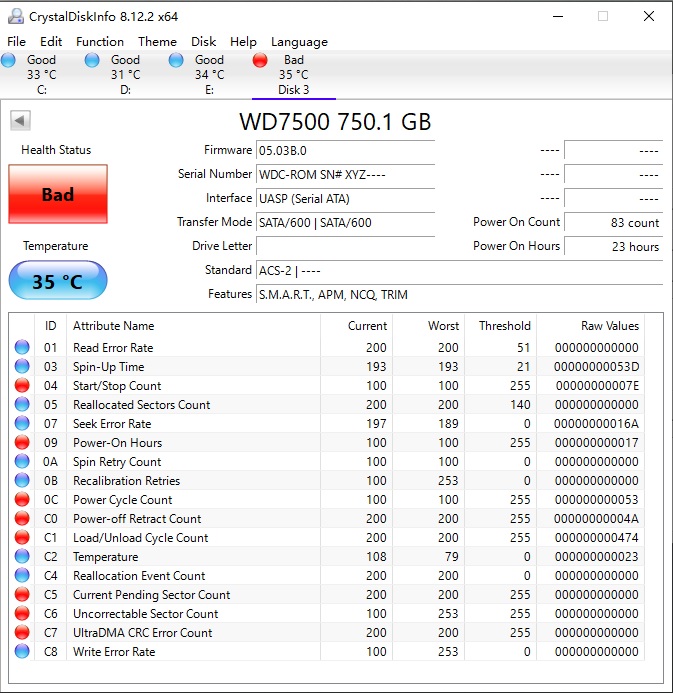
- Drive health tools (like CrystalDiskInfo) show “Caution” or “Bad” status
Other Factors That Can Cause Freezing and Stuttering
While heat and storage cover the majority of cases, a few other culprits are worth knowing about — especially if your system has been through a lot of updates or hasn’t had a clean reinstall in years:
- Failing RAM: Bad memory sticks cause random freezes and crashes that are hard to diagnose without testing.
- Corrupted system files: Sudden shutdowns or software conflicts can damage critical OS components.
- Outdated or conflicting drivers: GPU drivers especially can cause stuttering in games or graphic-heavy apps.
- Malware or runaway background processes: Hidden programs can quietly eat up CPU and RAM, leaving little for the tasks you actually care about.
One Thing That Helps Me Diagnose Faster
Before you bring your computer in, try to notice the pattern of when it freezes or stutters. You don’t need to be technical about it — just a few observations go a long way:
- Does it happen right away, or only after the computer has been on for a while?
- Does it happen during specific tasks (gaming, video calls, opening certain apps) or randomly?
- Are the fans louder than usual when it happens?
- Did it start after a Windows update, a new program install, or a specific event?
For example, freezing that only kicks in after 30+ minutes of use almost always points to heat. Freezing that happens the moment you open a specific app leans toward a software or driver issue. Random freezes at any time with no clear trigger often suggest RAM or storage. The more context you can share, the faster I can zero in on the cause.
Our Repair Process
If your computer is freezing or stuttering, here’s what a typical visit to our shop looks like:
Full Diagnostics
I start by running a complete checkup — checking temperatures, drive health, memory, and system logs — to pinpoint exactly what’s causing the issue rather than guessing.
Internal Cleaning and Dust Removal
If dust buildup is to blame, I safely disassemble the computer and clean out the fans, heatsinks, and vents. This alone often makes a noticeable difference in both temperature and noise level.
Thermal Paste Reapplication
Old thermal paste is a common culprit in laptops and older desktops. Replacing it with a fresh, high-quality compound can drop operating temperatures significantly — sometimes by 15–20°C — and eliminate throttling entirely.
Drive Upgrade or Optimization
If your drive is nearly full or starting to fail, I can help you safely back up your data and upgrade to a faster, higher-capacity SSD. The difference in speed is usually dramatic.
OS Reinstallation
For systems bogged down by years of software clutter, corrupted files, or bloated startup processes, a clean OS reinstall can restore performance close to factory fresh — without losing your important files.
Data Backup and Recovery
Before any major repair or reinstall, I back up your data. In cases where a drive is failing, I can also attempt data recovery before it’s too late.
Performance Tuning
Once everything is repaired, I fine-tune the system — driver updates, startup optimization, and power settings — so it stays running well after it leaves the shop.
Don’t Wait Until It Gets Worse
A freezing or stuttering computer is almost always trying to tell you something. In most cases, catching it early means a straightforward fix — a cleaning, a paste reapplication, or a storage upgrade. Ignoring it long enough can turn a $100 maintenance job into a $400+ hardware repair.
If your computer has been acting up, feel free to reach out or stop by our shop in Downtown, Los Angeles. I’ll take a look, give you a clear picture of what’s going on, and walk you through the options
